Figma to Code Tools: Ship Designs Faster
Verdict Up Front
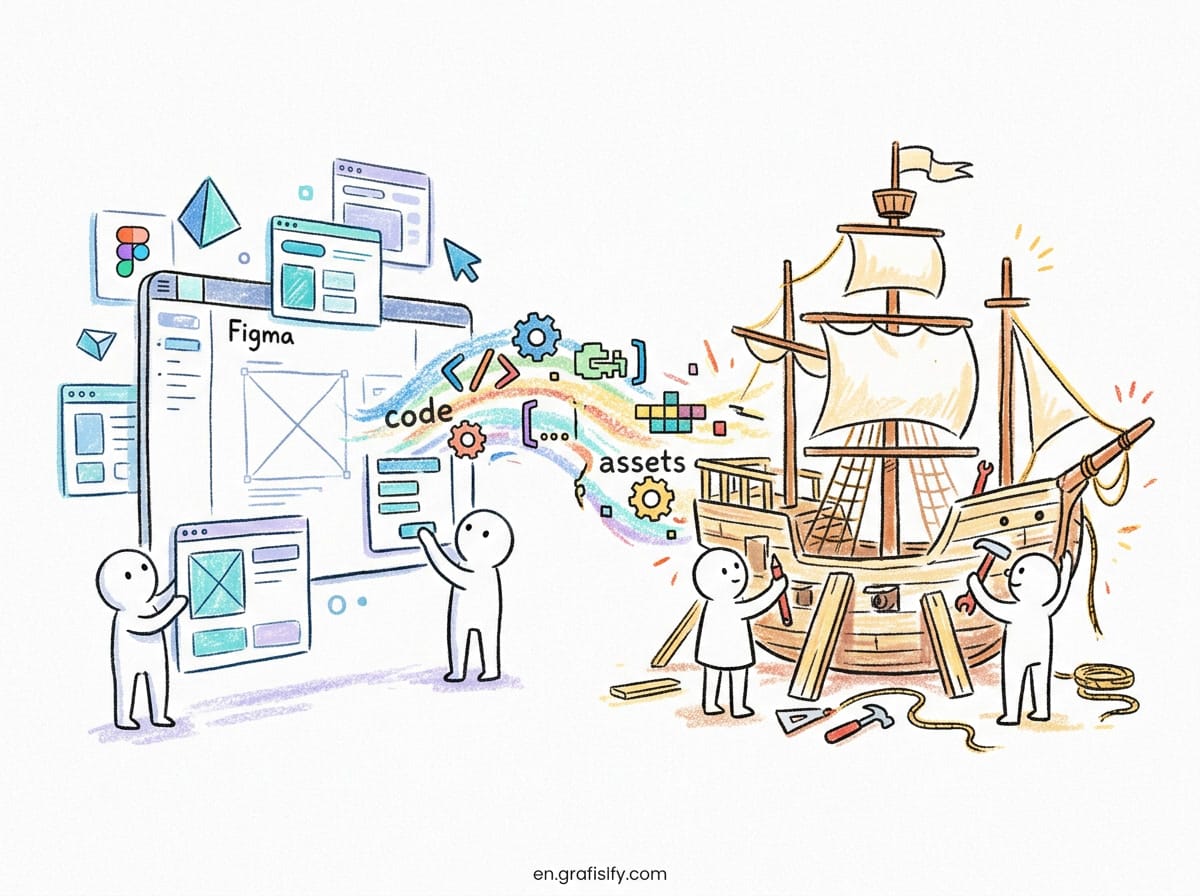
Most Figma to code tools cut initial front end build time by 30 to 60 percent, and none of them hand you production code you can ship untouched. Plan for a cleanup pass worth 20 to 40 percent of normal build time and you will get real value from this category. Skip that planning and you will end up rewriting the export from scratch.
Short version of my picks. Builder.io Visual Copilot fits teams with an existing design system best, because component mapping reuses your own code instead of inventing parallel markup. Anima works best for fast React, Vue, or HTML export from clean files. Locofy suits multi-framework scaffolding across React, Next.js, React Native, and Flutter when you accept the upfront tagging step. Figma Dev Mode plus the MCP server fits surgical additions to an existing codebase, where an AI agent reads live file context instead of guessing from a screenshot. An honest evaluation of design to code tools in 2026 reaches the same split: accelerators, strong ones, but finishers they are not.
I tested these workflows against the same landing page design and kept notes on where each export broke down. This guide distills those notes into tool picks, a comparison table, and a file prep routine that lifts output quality no matter which tool sits at the end of the chain.
File Structure Decides Output Quality
Tool choice matters less than file discipline. A clean componentized Figma file produces code you refine in one pass. A messy file produces a mess with your logo on it. Every serious roundup agrees on this point, and my own runs confirmed it: the same tool gave me usable flexbox output from an Auto Layout page and absolute positioned soup from a flat frame stack.

Four habits separate clean files from messy ones. First, build with Auto Layout throughout, so the exporter reads rows, columns, and grids instead of pixel coordinates. Anima maps proper Auto Layout straight to CSS flexbox and turns variants into React props, while missing Auto Layout forces a fallback to fixed positions and hardcoded pixels. Second, name layers with intent: nav, hero heading, primary button. Generated component names come from layer names, and “Frame 47” becomes a component name nobody wants in a repo. Third, use components and variants for repeated elements rather than detached copies. Fourth, define color, type, and spacing as variables so exports reference design tokens that scale across a system instead of scattering hex values through the markup.

This discipline now carries career weight. Figma’s State of the Designer 2026 report found developers participating in design jumped from 44 to 60 percent in one year, while designers working in code nearly doubled from 21 to 41 percent. Over half of product builders say linear handoffs are gone, replaced by continuous loops between design and code. Designers who structure files well ship through these loops faster, whatever the tooling.
Three Kinds of Figma to Code Tools
The category splits into three camps, and mixing them up causes most buying mistakes. Translation layer plugins convert a finished frame into code through export. Native Figma features generate or inspect code inside the product. Handoff bridges feed structured file data to coding agents without generating files themselves.
Translation plugins include Anima, Locofy, and Builder.io Visual Copilot. They read a snapshot of your file, run conversion, and hand you React, Vue, HTML, or mobile output for review. Output varies between runs on AI based tools, and design edits mean re-export. Treat them as scaffolding machines.
Native options include Figma Make and Dev Mode. Make turns prompts or selected frames into interactive React and TypeScript prototypes with an editable code panel, strongest for demos and concept validation. Dev Mode inspects specs, variables, and assets, and links components to real codebase snippets through Code Connect. One generates throwaway friendly prototypes, the other sharpens handoff. Neither replaces a plugin for export.

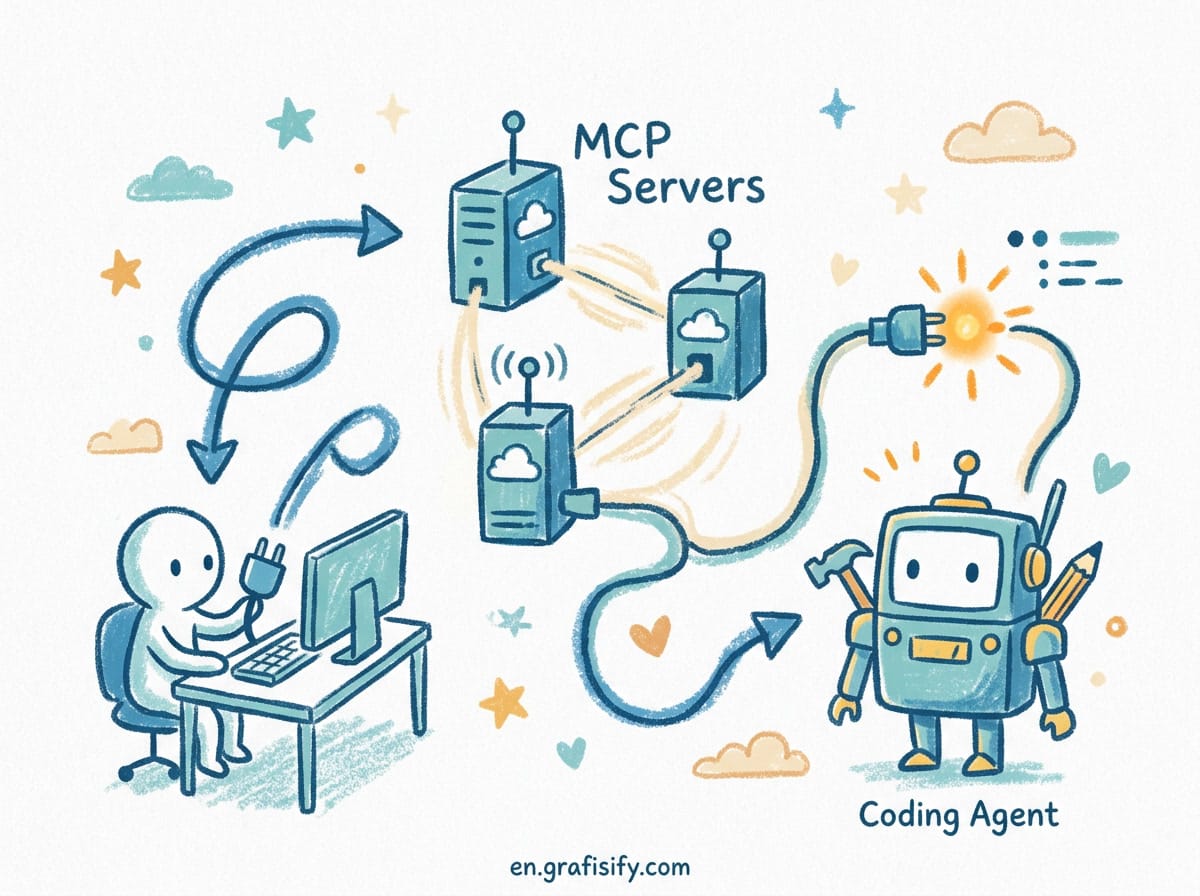
The handoff bridge is the Figma MCP server, the biggest architectural shift in this space since Figma displaced Sketch. The remote server at its hosted endpoint connects Cursor, VS Code, Claude Code, and Windsurf to live component hierarchy, spacing tokens, and layer trees during generation. GitHub Copilot gained the same bidirectional ability in March 2026 with VS Code as first client, including code to canvas writes that push rendered UI back into Figma as editable layers. I recommend reading the MCP explainer connecting AI tools to live data before setting this up, since the mental model differs from plugin export.
Head to Head Comparison
Use this table to narrow the field, then read the breakdown below for the two or three tools that match your situation.
| Tool | Type | Output | Entry price | Best for | Cleanup level |
|---|---|---|---|---|---|
| Anima | Plugin plus platform | React, Vue, HTML and CSS | Free tier, paid from per seat plans | Fast export and interactive prototypes | High |
| Builder.io Visual Copilot | Plugin | React, Vue, Svelte, Angular, Qwik, Solid, more | Free tier, team plans per user | Design system teams with existing repos | Medium |
| Locofy | Plugin plus builder | React, Next.js, React Native, Vue, Angular, Flutter | Free tier, Hobby and Pro tiers | Multi-framework scaffolding | Medium to high |
| Figma Dev Mode | Built in handoff | Spec snippets: CSS, Swift, Kotlin | Included in paid Figma plans | Developer inspection and specs | Low after setup |
| Figma Make | Built in generation | React plus TypeScript prototypes | Starter access, paid tiers expand limits | Demos and concept validation | High |
| TeleportHQ | Plugin plus builder | HTML, React, Vue, Angular | Low per editor entry price | Static pages with visual editing | Medium to high |
| Figma MCP server | Bridge to agents | Context feed, agent writes code | Needs paid Figma seat for full features | Surgical additions to existing code | Medium |
Prices shift often and several vendors render pricing in client side scripts, so confirm on the vendor page before purchase. The pattern holds across sources: entry tiers look cheap, metered generation quotas decide the real bill. A detailed roundup of Figma to code tools with verified pricing shows the same spread.

Plugin Breakdown: Anima, Locofy, Builder.io
Plugins remain the default choice when Figma is the source of truth and you need files out. Each takes a different position on the speed versus control spectrum, so match the tool to your tolerance for prep work.
Anima: fastest path from frame to code
Anima is the most installed design to code plugin in the Figma ecosystem, past 1.5 million installs, and it shows in polish. It runs in both Design Mode and Dev Mode, exports React, Vue, or HTML with styling choices spanning CSS, Tailwind, styled components, CSS modules, and Sass, and detects prototype linked frames to export multi screen flows with breakpoints. Component library targeting covers MUI, Ant Design, and newer additions in the docs.
Constraints center on quotas. The free tier grants a handful of code generations, paid tiers meter monthly generations, and flow export caps at 10 screens per flow on paid plans. Each iteration on a screen consumes one generation, so heavy refiners burn Starter allowances fast. Output from messy files leans wrapper heavy with fixed widths, while clean Auto Layout files yield flexbox and prop mapped components. Use Anima when speed matters and a refactor pass is already in the schedule. I have seen teams halve layout build time on marketing pages with it, then spend the savings on responsive polish.
Locofy: control through tagging
Locofy trades setup time for structural control. You mark layers inside the plugin: buttons, inputs, containers, navigation. The system uses those tags to emit semantically sharper code across React, Next.js, React Native, Gatsby, Angular, and Vue, with plain CSS or CSS modules. Entry routes widened beyond the plugin to a CLI, an MCP server for agents, and paste a frame URL import with no plugin setup.
The tagging step is real human work before any code exists, around 30 to 60 minutes for a complex multi screen app. Weigh that against reduced cleanup after export. Two documented gotchas deserve attention. GitHub sync is absent from monthly self service plans, so teams planning direct repo pushes need Enterprise or legacy annual tiers. Responsiveness still needs manual fixes on complex screens, with pixel based output awaiting conversion to relative units. Pick Locofy when component boundaries matter and someone owns the tagging session. Prototype teams testing flows with real users get extra mileage here, and our guide to AI tools that speed UX research pairs well with rapid Locofy scaffolds.
Builder.io Visual Copilot: design system native
Visual Copilot is the most technically ambitious plugin of the three. It combines an AI model with Mitosis, an open source compiler, to turn flat Figma layers into proper code hierarchies, then refines output through a language model tuned to your framework and styling conventions. Framework coverage runs widest: React, Vue, Svelte, Angular, Qwik, Solid, React Native, Flutter, and more.
The standout remains component mapping. Link Figma components to their code counterparts once, and conversion reuses your production components instead of generating lookalike markup. For teams with established libraries this single feature repays the setup cost within a sprint. Builder.io extended the play with Fusion, an agent that turns Slack messages and Jira tickets into branches for review. The learning curve on advanced features is real, and logic, props, plus accessibility still need manual review. Choose Visual Copilot when exports must land inside an existing repo without spawning a shadow component library.
Native Figma Path: Dev Mode, Make, MCP Server
Staying inside Figma removes export friction at the cost of output scope. Understand what each native surface does and the stack falls into place.
Dev Mode serves inspection and handoff. Developers open a file, read spacing, variables, tokens, and assets, copy per selection snippets in CSS, SwiftUI, UIKit, Compose, or XML, and follow Code Connect links to the actual code behind each component. It produces no project files, no component relationships, no responsive behavior. Figma’s own engineering writing frames codegen as a jumping off point that augments rather than automates the design to development process. Cost rides on seat type, with Dev seats cheaper than full seats on Professional and higher tiers above. Teams standardized on Figma pay the smallest incremental price here.
Make serves generation for validation. Describe an experience or select a frame, get an interactive React and TypeScript prototype with editable code, publish a live link, gather feedback. Output skews deeply nested with sandbox limits, React only, so treat it as demo fuel. Figma’s official design to code overview for Make positions it exactly there: mockup to testable prototype without a handoff meeting. The native Figma to code converter inside the canvas extends the same idea to production flavored output guided by prompts, with design system tokens referenced when you point the agent at them.
The MCP server bridges both worlds into your editor. Instead of exporting a snapshot, the agent queries live file data during generation: hierarchy, constraints, tokens, full layer tree. Output respects your conventions better because the model stops guessing layout from pixels. For existing codebases this beats bulk export; generate one component at a time against real context, review the diff, merge. Pair it with Code Connect mappings and Dev Mode specs for the strongest loop Figma offers today.

Ship It: Workflow and Next Step
Tools amplify file quality, so run this sequence before comparing vendors. Clean the file first: Auto Layout everywhere, named layers, componentized repeats, tokenized styles. Then match the tool to the job using the table above rather than defaulting to the most advertised name. Export one screen, not ten, and measure cleanup time honestly. Refactor with intent: map to existing components, convert fixed units to relative ones, fix heading order and landmarks for screen readers, wire state by hand since no plugin does that for you. Debugging agent output is its own skill, and the playbook for stuck AI coding agents transfers well to generated UI code.
Common questions resolve fast once framed as scope decisions. Production readiness of plugin output: strong starting point, never merge without review. Accessibility and semantics: the parts most often wrong, budget explicit time for them. State and business logic: manual work on every tool, without exception. Backend needs: only full stack builders cover auth, schemas, and APIs, and even those need review for permissions and audit paths.
Start this week with one screen from a real project. Run it through the tool that matches your situation, time the cleanup, and keep the notes. That single measurement tells you more than any feature matrix about whether design to code earns a place in your pipeline. Then extend Code Connect mappings one component at a time, so each future export lands closer to your codebase and further from div soup.

Irfan is a Creative Tech Strategist and the founder of Grafisify. He spends his days testing the latest AI design tools and breaking down complex tech into actionable guides for creators. When he’s not writing, he’s experimenting with generative art or optimizing digital workflows.



 Artificial Intelligent
 Design & Creative
 Freelance
 Gadgets & Gear
 Insights
 Laptop
 Reviews
 Smartphone
 Tech Guides
 Vibe Coding