Phone Storage Full? How to Free Up Space Fast

TL;DR: The Verdict
Your phone warns you about storage at the worst possible moment, right when you need to take a photo or install an update. The fix takes about 10 minutes and follows three tiers. First, clear the junk: cached data, duplicate screenshots, and old downloads. Second, move photos and videos to the cloud and remove the device copies. Third, offload apps you have not opened in months while keeping their data. Apple recommends keeping at least 1 GB free so your iPhone keeps running smoothly, and that rule of thumb works as a floor for Android too. If cleaning feels like a monthly chore, a small cloud subscription costs less than a new phone. I have cleaned my own phone this way more than once, and the tiered approach beats random deleting every time.
What Is Eating Your Storage
Storage disappears in a few predictable places. Apple lists the usual suspects on its support pages: photos and videos, Messages attachments, downloaded videos, files and documents, and apps. Photos sit at the top of that list for most people. A single minute of 4K video takes far more room than a hundred text messages, and burst photos multiply fast when you hold the shutter down.
The invisible consumers cause more confusion. App caches grow in the background as apps store images, maps, and offline content so they load faster next time. Messaging apps keep every photo and video someone sends you, even the memes you opened once. Streaming apps download episodes and songs for offline playback and never ask before doing it again after an update.
On-device AI adds a new category. TrendForce reports that edge AI models need 40 to 60 GB of system storage as cache space for local AI processing. That cache does not show up as a photo album you can browse, which makes it easy to blame the wrong thing when the storage bar turns red. The practical point stands: your phone now reserves room for work you never see, so the free space you thought you had was smaller than the number on the box.
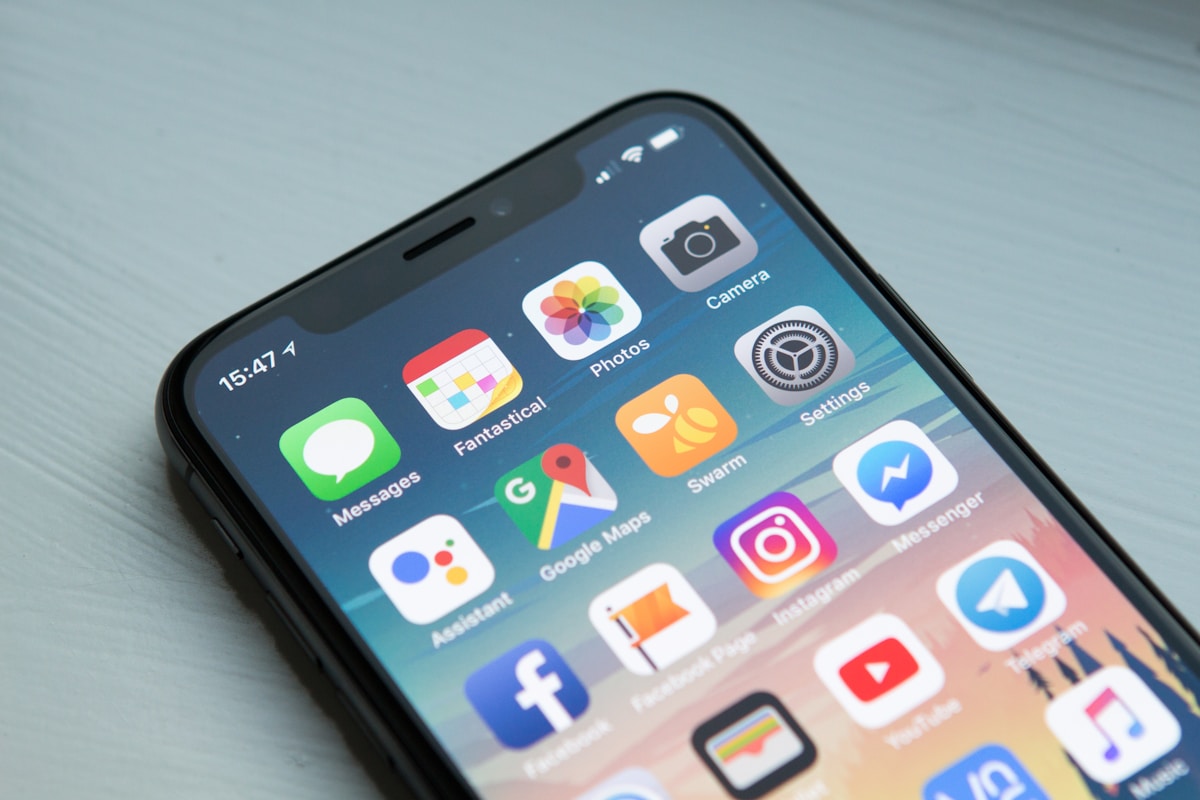
Start by looking at the breakdown before you delete anything. On iPhone, open Settings, then General, then iPhone Storage. On Android, open Settings, then Storage. Both screens rank apps and categories by size, and both suggest quick wins at the top. I always check this screen first, because guessing wastes time and deletes the wrong files.
Free Up Space in 10 Minutes
Work in order of megabytes recovered per minute of effort. The steps below take about 10 minutes total, and you can stop after any step once you have enough room.
1. Clear the browser and app caches. On Android, open Settings, then Storage, and clear cached data for the biggest apps, or clear cache per app under Apps. On iPhone, Safari cache clears under Settings, then Apps, then Safari, then Clear History and Website Data. Social apps often hold hundreds of megabytes in cache, and clearing it costs you nothing except a slower first load next time.
2. Delete duplicate screenshots and burst photos. Open your gallery, sort by oldest, and remove the screenshots you took for a one-time purpose: boarding passes, QR codes, recipes, memes. iPhone Photos has a Duplicates album under Utilities that finds exact copies for you. Android users can open Files by Google, which flags duplicates and blurry shots.
3. Remove downloaded videos and music. Check your streaming apps for offline downloads. Netflix, YouTube, and Spotify each keep their own download folders, and a few seasons of a show can eat several gigabytes. Delete the downloads you already watched, and turn off auto-download for new episodes.
4. Review Messages attachments. Open your messaging apps and delete old conversations with heavy media, or use the built-in review tools. On iPhone, Settings, then General, then iPhone Storage shows large attachments under Messages. WhatsApp has its own storage manager under Settings, then Storage and Data, then Manage Storage.

5. Offload unused apps. On iPhone, turn on Offload Unused Apps under Settings, then Apps, then App Store. The phone removes apps you have not used while keeping their data, and the icon stays on your Home Screen with a cloud symbol. Tap it later to reinstall. On Android, open the Play Store, then Settings, then General, and turn on Automatically archive apps, or use Files by Google to find apps you have not opened in months. If you want to remove Android bloatware that came preinstalled, the steps differ by brand and some apps can only be disabled, not deleted.
6. Empty the trash. Deleted photos sit in a trash folder for 30 days on both platforms. Open Photos, then Recently Deleted or Trash, and delete them now to recover the space at once. This single step often frees more room than everything before it.
Run the storage screen again after step 6. Most phones recover several gigabytes from these steps alone, and you touched no photo you wanted to keep.
iOS vs Android Storage Tools, Compared
Both platforms now ship with built-in cleanup tools, and both hide them in different places. The table below compares what each system offers, so you can use the tools you already have instead of installing a third-party cleaner.
| Feature | iPhone (iOS) | Android |
|---|---|---|
| Storage breakdown | Settings, General, iPhone Storage, with recommendations at the top | Settings, Storage, with category totals and cleanup suggestions |
| Automatic app offload | Yes, Offload Unused Apps keeps data and removes the app | Yes, Play Store auto-archive removes the app and keeps data |
| Smart cloud cleanup | Yes, Optimize iPhone Storage keeps small versions on device | Yes, Google Photos Free up space removes backed-up copies |
| Cache clearing | Per app only, no system-wide button | Per app and system-wide cached data option on many phones |
| Trash grace period | 30 days in Recently Deleted | 30 days in Trash on most phones, varies by brand |
| Expandable storage | No microSD slot | Some models support microSD, many flagships do not |
Apple handles storage pressure on its own more often. Its support pages state that iOS and iPadOS manage storage during app installs and updates by removing items you can download again or no longer need. Android gives you more direct control, with a system-wide cache clear and microSD expansion on models that still include a slot. Neither approach is better in every case. iPhone users get less to configure, Android users get more levers to pull.
Offload, Delete, or Back Up to the Cloud?
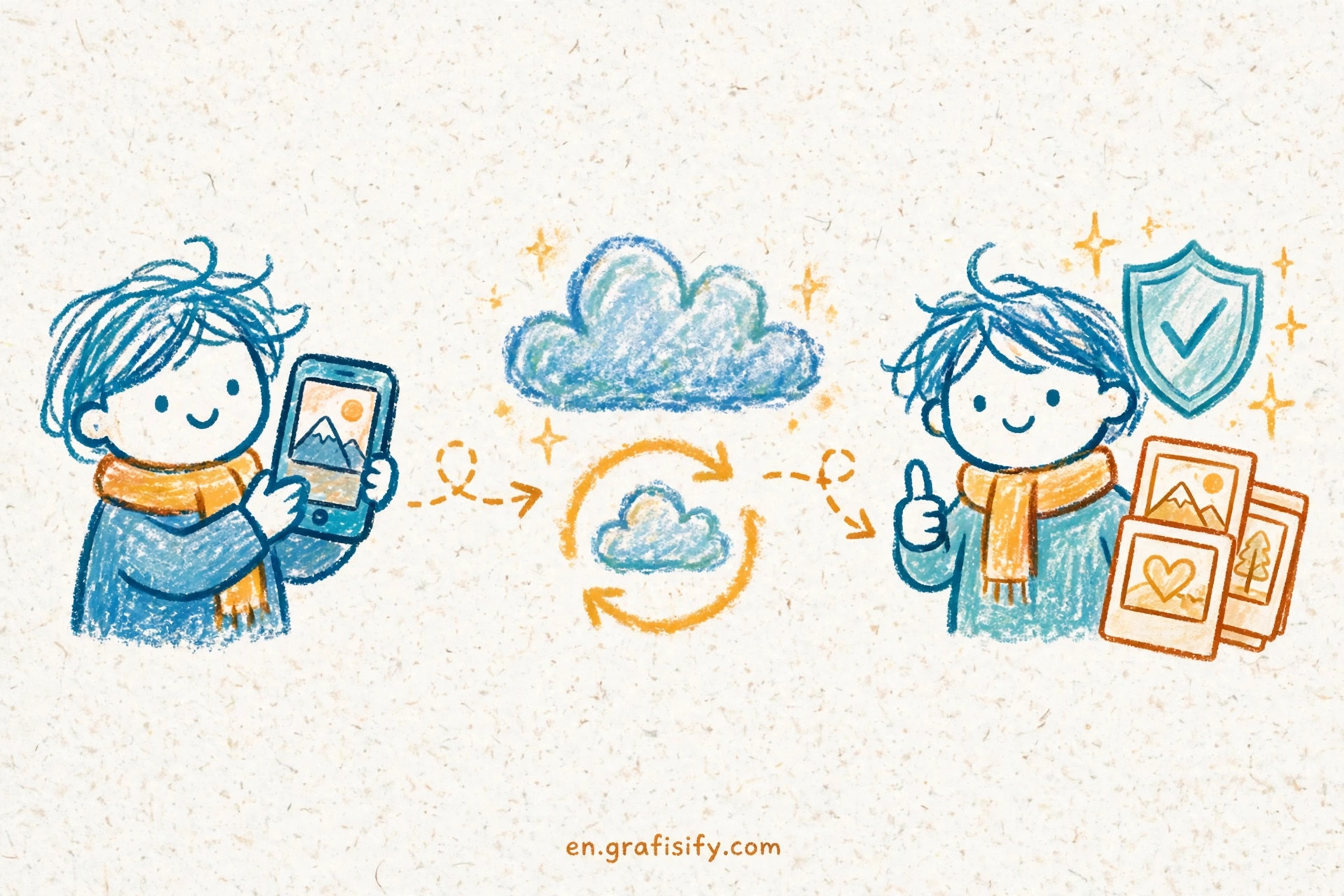
Three actions solve three different problems, and mixing them up causes data loss. Offload removes an app but keeps its data, so you can reinstall later and pick up where you left off. Delete removes the app and its data, and you start from zero if you reinstall. Back up to the cloud copies your files to a server, and only then is it safe to remove the device copies.
Google Photos offers a Free up space button that deletes device copies of photos already backed up. That button is safe only after backup finishes. Check the backup status inside the app before you tap it, and wait for the sync to complete on Wi-Fi. The same rule applies to iCloud Photos with Optimize iPhone Storage: the phone keeps small previews on the device and stores full versions in iCloud, so the originals stay reachable.
Cloud storage costs less than most people expect, and the table below shows the entry prices for the two main services. Prices change over time, so check the Google One and iCloud+ plan pages before you subscribe.
| Plan | iCloud+ | Google One |
|---|---|---|
| Free tier | 5 GB included with every Apple account | 15 GB shared across Google services |
| Entry paid tier | 50 GB at $0.99 per month | 100 GB at $1.99 per month |
| Mid tier | 200 GB at $2.99 per month | 200 GB plans vary by region |
| 2 TB tier | 2 TB at $9.99 per month | 2 TB at $9.99 per month |
Pick the service that matches the phone in your hand. iPhone users get the smoothest experience with iCloud+, since Photos, Messages, and backups share the same pool. Android users get the same benefit from Google One, with 15 GB free covering Gmail and Drive as well as Photos. If you switch platforms often, keep your photos in a service you can reach from either side, and back up your phone before you delete anything.
How Much Storage Do You Actually Need?
Phone storage keeps growing, and the baseline keeps moving up. TrendForce projects that the average smartphone storage capacity will grow by 4.8 percent year over year, and the same report notes that the iPhone 17 series raised its minimum storage configuration from 128 GB to 256 GB to leave room for AI applications and user data. TrendForce also forecasts that the 128 GB tier may disappear from mainstream Android phones by the end of 2026, with 256 GB emerging as the new standard. These are forecasts, not measurements, but they point in one direction: the entry tier is moving up.
Use the tiers below as a rule of thumb, not a law. Light users who stream everything and keep few apps fit in 128 GB. Most people land in the 256 GB tier, which covers years of photos, offline playlists, and a healthy app library. Heavy shooters who record 4K video and keep games installed should look at 512 GB. Power users who edit video on the phone or keep a local media library will feel cramped below 512 GB.
When your current phone still runs well, a cloud subscription beats a new purchase. A dollar or two per month buys more room than a trade-in costs you in depreciation, and it works on the phone you already own. When the phone itself slows down, the battery fades, or the camera falls behind, check how long a phone really lasts before you decide, and remember that storage is only one factor in that call. If you do buy, check the storage tier before you check the color, and remember why phone prices keep climbing: memory costs and AI features now shape the price tag as much as the camera does. Buying a used phone can save money too, and storage size belongs on the checklist next to battery health.
Conclusion: The 10-Minute Storage Rescue
Storage warnings feel urgent, but the fix is routine. Open the storage screen, clear the caches, delete the screenshots and downloads you no longer need, offload the apps you forgot you had, and empty the trash. Move your photos to the cloud and remove the device copies only after backup confirms. Keep at least 1 GB free so the system has room to work, and repeat the routine once a month so the warning never comes back.
Run the checklist now while the steps are fresh. I keep a monthly reminder for this same cleanup on my own phone, and it takes less time each month because the junk never gets a chance to pile up. If the phone still feels slow after cleanup, read the guide on backing up your phone before you delete anything else, and check whether an upgrade makes sense for how you use the device. Your photos are safe, your apps are intact, and your phone has room to breathe again.

Irfan is a Creative Tech Strategist and the founder of Grafisify. He spends his days testing the latest AI design tools and breaking down complex tech into actionable guides for creators. When he’s not writing, he’s experimenting with generative art or optimizing digital workflows.

 Artificial Intelligent
 Design & Creative
 Freelance
 Gadgets & Gear
 Insights
 Laptop
 Reviews
 Smartphone
 Tech Guides
 Vibe Coding