Why Your Phone Battery Drains Fast and How to Fix It
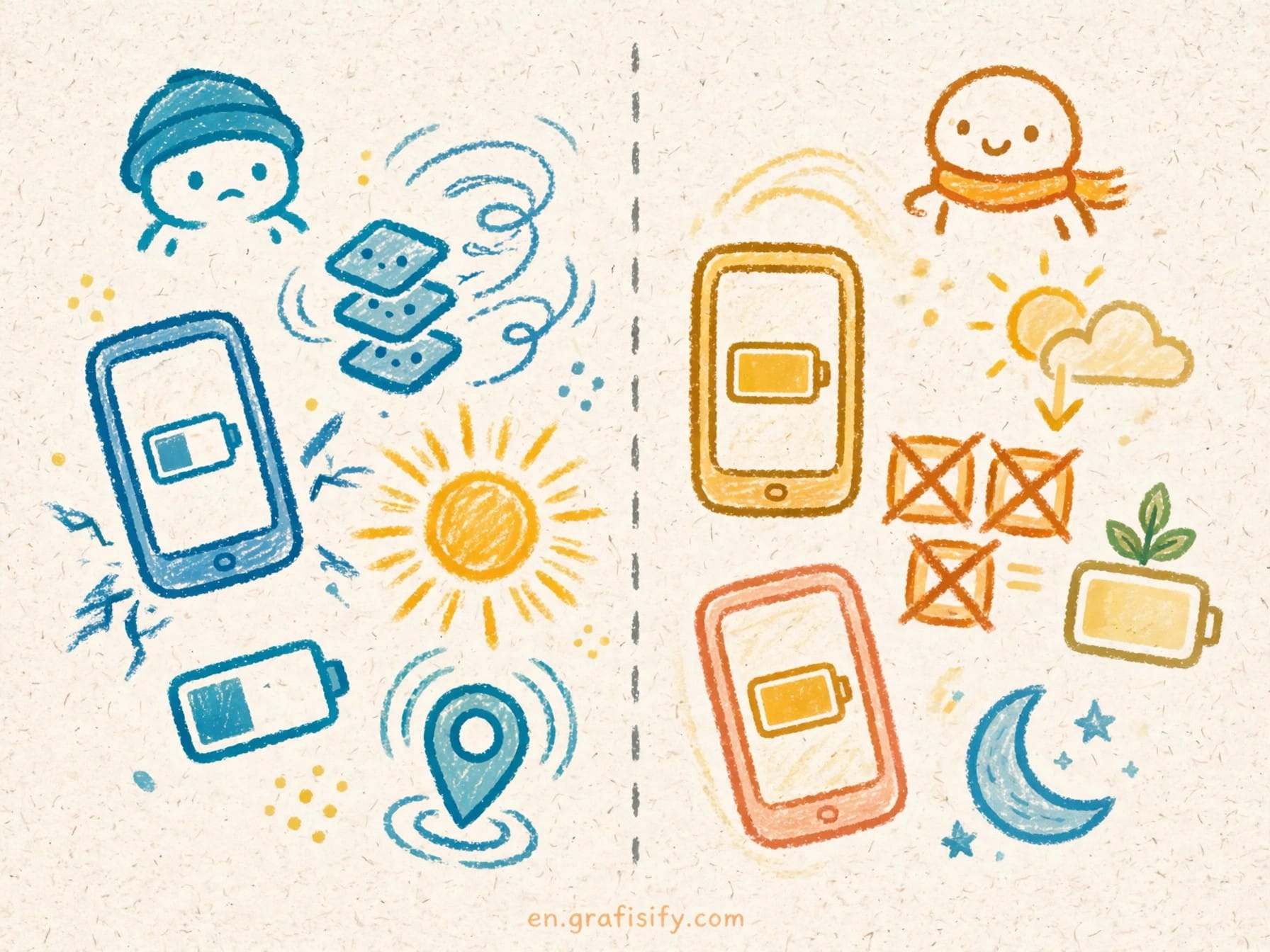
If your phone hits 20% by late afternoon with no obvious reason, you are not alone. Fast battery drain is one of the most common smartphone complaints, and the fix is rarely a new phone. The drain almost always comes from a small set of causes you can check in minutes: a bright high-refresh screen, a weak mobile signal, apps working in the background, heat, or a battery that has aged.
TL;DR: Your Screen, Signal, and Background Apps Are the Culprits
Three things drain most phones fastest: the display (brightness plus refresh rate), the cellular radio struggling with a weak signal or patchy 5G, and apps syncing, tracking location, or refreshing in the background. Heat makes all of it worse and wears the battery down over time. If the phone is two or more years old, capacity loss from charge cycles is part of the story too. Open Settings, Battery, and check the usage screen before you change anything. One app eating 30% of the battery while you barely opened it is the fastest diagnosis you will get.
The Display Is the Biggest Power Hog
The screen is the single largest power consumer on a modern phone, often accounting for 40 to 60 percent of daily battery use, with the cellular radio taking another 15 to 25 percent, according to a breakdown of smartphone power budgets on tech-space.africa. That means the settings controlling the display move the needle more than almost anything else.
Two display settings matter most: brightness and refresh rate. A 120Hz screen at full manual brightness uses far more energy than a 60Hz screen on auto-brightness, as the drain-cause rundown on dailytechreview.tech points out. Most people never touch these defaults, and phones ship with brightness cranked up. Turn on adaptive or auto-brightness and let the phone match the room. On OLED screens, dark mode also helps in a real way, because black pixels are switched off entirely.

Also check screen timeout and always-on display. A two-minute timeout plus an always-on lock screen adds up across dozens of wakeups a day. Thirty seconds is enough for most people. If you like always-on display, know it costs something; widgets and live info refresh constantly and chip away at the savings features like LTPO were supposed to deliver.
Weak Signal and 5G Force the Radio to Work Overtime
When coverage is poor, your phone boosts its radio power and keeps searching for a better tower. Basements, rural roads, and crowded buildings all trigger this. Apple’s own battery screen even labels the effect as “No Mobile Coverage and Low Signal,” as the fixes guide on knowthedevice.com notes. The phone is working hard even while it sits untouched in your pocket.
5G adds a twist. Where 5G is strong it can be efficient, but in areas with inconsistent coverage the phone hunts between 5G and LTE and burns extra power doing it. Both Apple and Google ship settings that fall back to LTE when 5G adds nothing. If you spend the day somewhere with weak 5G, lock the phone to LTE or 4G in Settings. In testing, switching from a flaky mobile signal to stable Wi-Fi can extend battery life by several hours. If you are moving your eSIM to a new phone on a carrier with poor local coverage, the drain follows the signal, not the device.

Two radio features worth auditing: hotspot and Bluetooth. Google’s advice is blunt: switch off hotspot and tethering when you are not using them. Bluetooth and Wi-Fi together use less than 5 percent of battery, so toggling them off saves almost nothing; it is the cellular radio you want to calm down. If you stream audio all day through a pair of noise-cancelling headphones, that is light use compared with a phone fighting for signal.
Background Apps Keep Working After You Lock the Screen
Most people have 40 to 80 apps installed and use 5 to 10 daily. The rest still request permissions, send notifications, ping servers, and refresh in the background. Social, shopping, navigation, and news apps are the usual offenders: they sync data, track location, and pull fresh content even when you never opened them that day.
Location services deserve special attention. Apps with “always” location access keep the GPS hardware working around the clock. Change rarely used apps to “while using the app” or “never.” Background app refresh is the other big lever: on iOS it lives in Settings, General; on Android it sits under each app’s battery or data settings. Disabling background refresh for everything except messaging and maps produces a noticeable drop in standby drain within a day.

Push notifications also wake the phone. Every alert lights the screen, fires the processor, and pulls data. You do not need to silence everything, but muting the noisiest apps, especially games and shopping apps, removes dozens of pointless wakeups.
| Drain culprit | Typical share of daily drain | Fix difficulty |
|---|---|---|
| Screen brightness and refresh rate | 40 to 60 percent | Easy: auto-brightness, dark mode, 30-second timeout |
| Weak cellular signal and patchy 5G | 15 to 25 percent | Easy: use Wi-Fi, lock to LTE in weak 5G areas |
| Background app refresh and location | 10 to 20 percent | Medium: audit per-app permissions and refresh |
| Heat from gaming, charging, or sun | Varies, plus permanent capacity loss | Easy: charge on hard surfaces, avoid hot cars |
| Aged battery past its cycle rating | Grows every month | Service: check health, replace when below 80 percent |
Heat Shortens What the Battery Can Hold
Heat does two kinds of damage. In the short term it raises drain while the phone is idle; in the long term it permanently reduces how much charge the battery can hold. Apple warns that ambient temperatures above 35°C can permanently damage battery capacity, and Google says heat drains the battery faster even when the phone is doing nothing, per knowthedevice.com.
The common heat sources are avoidable: gaming while charging, charging under a pillow or inside a bag, wireless charging on a warm surface, and leaving the phone on a car dashboard in the sun. Charge on a hard, ventilated surface. Take thick cases off while fast-charging if the phone feels warm. Your phone carries an IP68 rating against water and dust, but no rating protects the battery chemistry from a hot car.

One more heat-adjacent myth to drop: cheap chargers. Low-quality or counterfeit chargers can run hot and stress the battery. Use a charger and cable from a reputable brand; it costs less than a battery replacement.
Every Battery Ages: Cycles, Health Percentages, and When to Replace
All lithium-ion batteries lose capacity with use. The measure is charge cycles: one cycle is a full 100 percent of discharge and recharge, and it does not have to happen in one go. Two 50-percent top-ups make one cycle. Apple designs iPhone 15 models and later to retain 80 percent of original capacity after 1,000 complete cycles, and iPhone 14 models and earlier after 500, according to Apple’s battery guidance summarized on bespacific.com. Google rates Pixel 8a and later for about 1,000 cycles and Pixel 3 through Pixel 8 Pro for about 800.
At roughly a cycle a day, a two-year-old phone sits deep in that range. The same usage that once lasted a full day now ends by evening, and no setting change fixes chemistry. You can check your battery’s maximum capacity in Settings, Battery, Battery Health on iPhone, or in Settings, Battery, Battery Health on recent Pixels. Below 80 percent is the point to start paying attention, though it is not a cliff: a battery at 85 percent that still gets you through the day is fine.
Signs a replacement will help more than settings, per the battery replacement guide on phonepro.au: you charge more and more often, the phone shuts down while still showing 20 to 30 percent, the percentage drops in sudden jumps, or the Battery Health screen shows “significantly degraded.” A fresh battery restores both capacity and peak performance, and it is not a safety issue.
To slow the aging, keep the battery between 20 and 80 percent when you can. Apple notes that lithium-ion batteries use fast charging to reach 80 percent quickly and then switch to slower trickle charging, a design that extends lifespan, as intego.com explains. iPhone 15 and later models offer an 80 percent charge limit in Settings, and Android’s adaptive charging learns your routine and finishes the last stretch before you wake. Avoid letting the phone sit at 100 percent on the charger for hours in a warm room.
The Fix List: Changes That Add Hours
Work through this list in order. Stop when the drain feels normal; most people stop after the first three.
- Find the real culprit. Settings, Battery, battery usage. If one app uses 30 percent or more and you barely opened it, update it, restrict its background activity, or delete it.
- Turn on auto-brightness. Add dark mode on OLED screens. Set screen timeout to 30 seconds and reconsider always-on display.
- Prefer Wi-Fi over weak mobile data. In patchy 5G areas, lock the phone to LTE. Turn off hotspot when you are not sharing it.
- Audit background app refresh. Disable it for everything except messaging, maps, and apps you open daily. Set location to “while using” for the rest.
- Silence noisy notifications. Mute games, shopping apps, and anything that alerts you hourly.
- Keep it cool. Charge on a hard surface, keep the phone out of the sun, and avoid gaming while plugged in.
- Cap charging at 80 percent. Use the 80 percent charge limit or adaptive charging, and avoid full 0-to-100 cycles every day.
- Update, then wait. Install OS and app updates for battery fixes. Right after a big update, extra drain for a few days is normal while the phone re-indexes; judge it after that settles.
- Check battery health. If maximum capacity sits below 80 percent and settings no longer help, a battery replacement beats another year of workarounds.

Conclusion: Start With the Two Fixes That Cost You Nothing
Fast battery drain feels like a hardware problem, but it is a settings problem: a bright screen, a struggling radio, or apps working while you sleep. Open the battery usage screen, turn on auto-brightness, and give background apps a hard look. Those three moves recover hours for most people and cost nothing.
If the phone is old and the battery health reads below 80 percent, be honest with yourself: a replacement is cheaper than a year of chargers, power banks, and anxiety. Either way, you now know exactly where the power goes, which is the whole game. Want more ways to keep your gear healthy? Browse our smartphone guides for the next thing worth fixing.

Irfan is a Creative Tech Strategist and the founder of Grafisify. He spends his days testing the latest AI design tools and breaking down complex tech into actionable guides for creators. When he’s not writing, he’s experimenting with generative art or optimizing digital workflows.



 Artificial Intelligent
 Design & Creative
 Freelance
 Gadgets & Gear
 Insights
 Laptop
 Reviews
 Smartphone
 Tech Guides
 Vibe Coding