How to Back Up Your Phone So You Never Lose Photos
The Verdict: Set Up Two Backups Tonight
Your phone holds years of photos, messages, contacts, and app data. One cracked screen, one stolen bag, or one failed update can wipe all of it in seconds. A backup is the only fix that works after the damage is done, and the best time to set one up is before you need it.
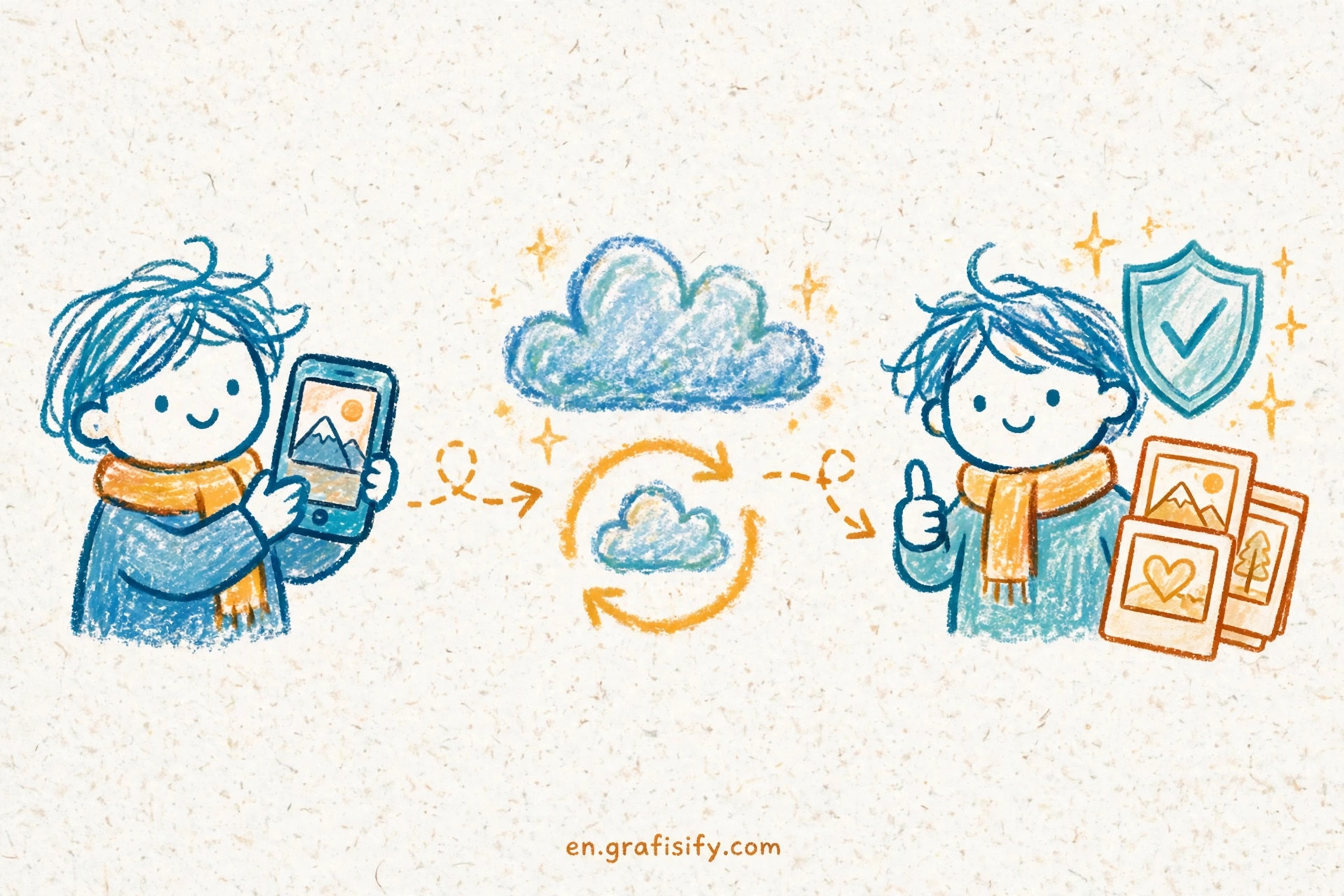
TL;DR: Turn on your phone’s built-in cloud backup, turn on photo backup as a separate step, and keep one local copy on a computer or hard drive. That trio covers a lost phone, a dead phone, and a cloud account that runs out of room. The whole setup takes about fifteen minutes, and after that it runs on its own.
Why Backups Fail at the Worst Moment
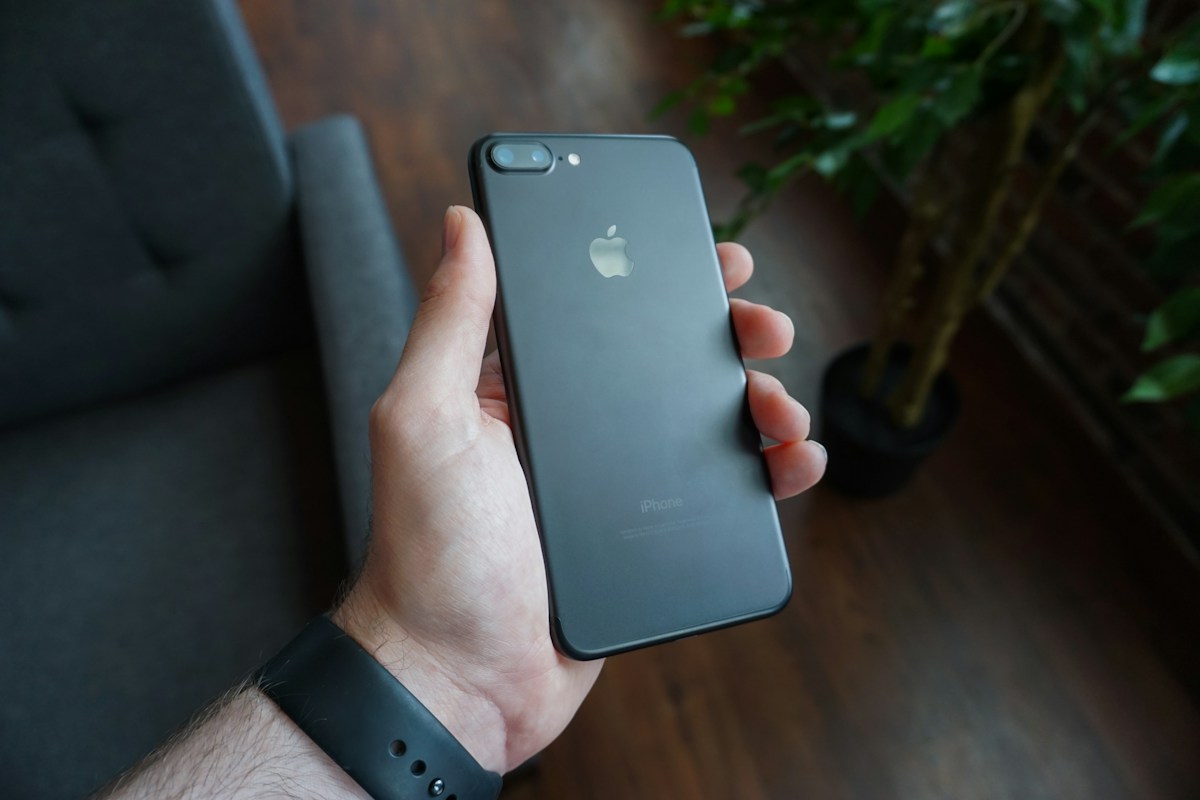
Most people do not lose data because they never heard of backups. They lose data because the backup they assumed existed was never turned on, had stopped months earlier, or ran out of storage without warning. A phone that backs up “when possible” often means it backs up never: it needs Wi-Fi, power, and a locked screen at the same time, and a busy phone may not get all three on a given night.
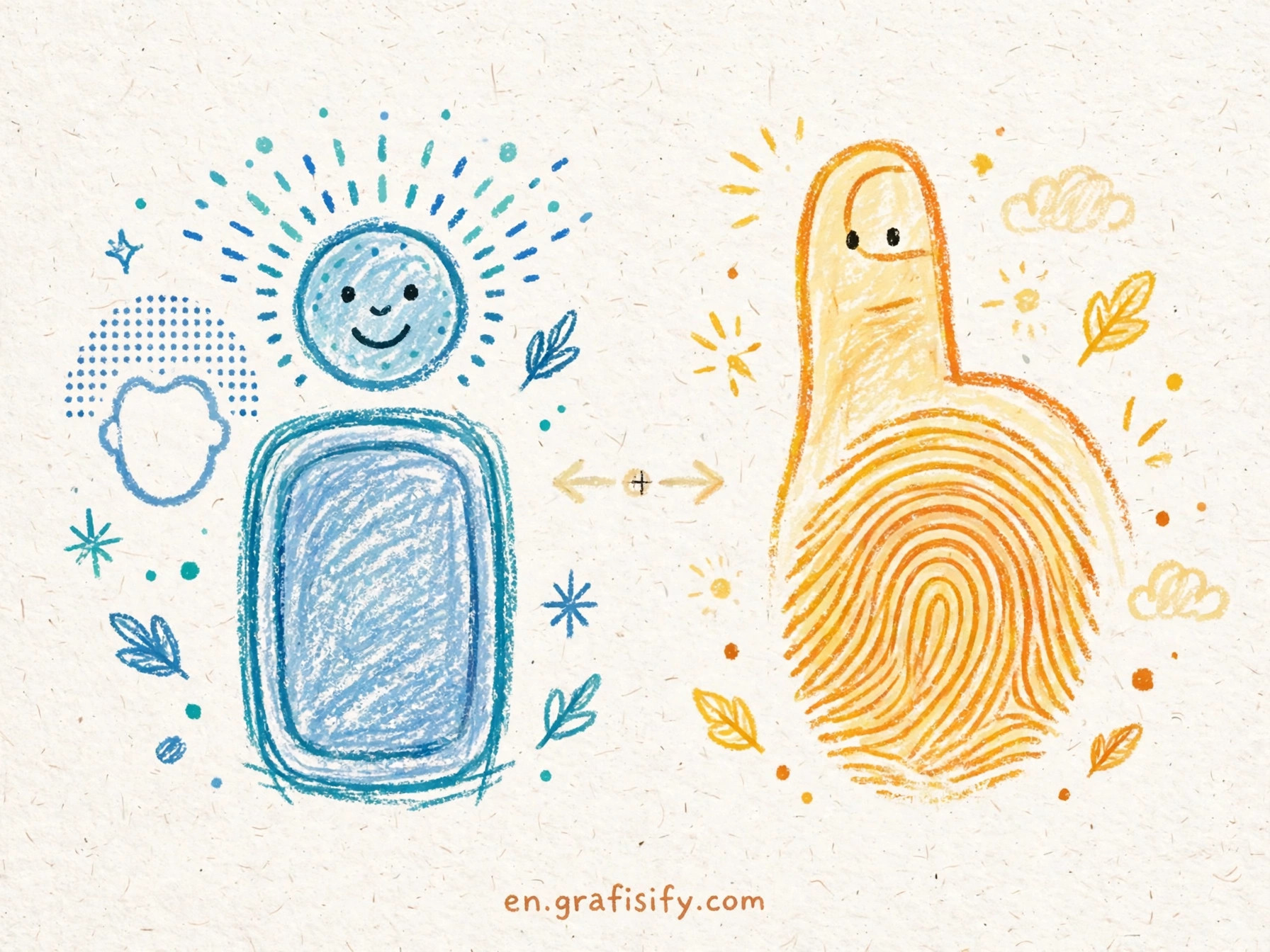
Storage is the quiet killer. Apple gives every account 5 GB of free iCloud storage, shared across backups, photos, mail, and files. Google gives 15 GB per account, shared across Gmail, Drive, Photos, and device backups. A single phone backup plus a growing photo library can eat through either allowance fast, and when the allowance fills up, backups pause silently. Check your backup status by hand at least once a month, even after automatic backup is on.
Sync is not the same as backup. If your contacts sync to the cloud, deleting a contact on your phone deletes it everywhere. A backup, by contrast, is a snapshot you can restore from after a mistake. You need both: sync for day-to-day convenience across devices, and a backup for the day something goes wrong.
Backing Up an iPhone: iCloud First, Computer Second
On an iPhone, open Settings, tap your name, tap iCloud, then tap iCloud Backup and switch on Back Up This iPhone. With that on, the phone backs up each day when it is connected to power, locked, and on Wi-Fi. Tap Back Up Now for an immediate backup the first time, and stay on Wi-Fi until it finishes.

Apple’s own support pages spell out what an iCloud backup covers: device settings, Home Screen layout, app data for apps that do not sync to iCloud on their own, messages when Messages in iCloud is off, and photos when iCloud Photos is off. It does not cover Face ID or Touch ID settings, Apple Pay data, mail from other providers, or content that already syncs to iCloud, such as notes and contacts stored there. Purchased apps and media are not in the backup either, but you can download them again from Apple.
If you turn iCloud Backup off for a device, Apple keeps the stored backups for 180 days before deleting them, so a short break does not erase your safety net at once. Still, do not rely on that grace period as a plan.
A computer backup is the strongest second layer. Connect the phone to a Mac or PC, open Finder or iTunes, and back up there. A computer backup holds almost all device data, and the encrypted option adds Health, Keychain, and Activity data that an unencrypted backup leaves out. Tick the encryption box and store that password somewhere safe: without it, the backup cannot be restored. For a phone that already struggles with battery life, a wired backup also avoids the nightly Wi-Fi and power conditions that cloud backup depends on. If your battery drains faster than it used to, read why your phone battery drains fast and how to fix it before you blame the backup itself.
Backing Up an Android Phone: Google One and Photos
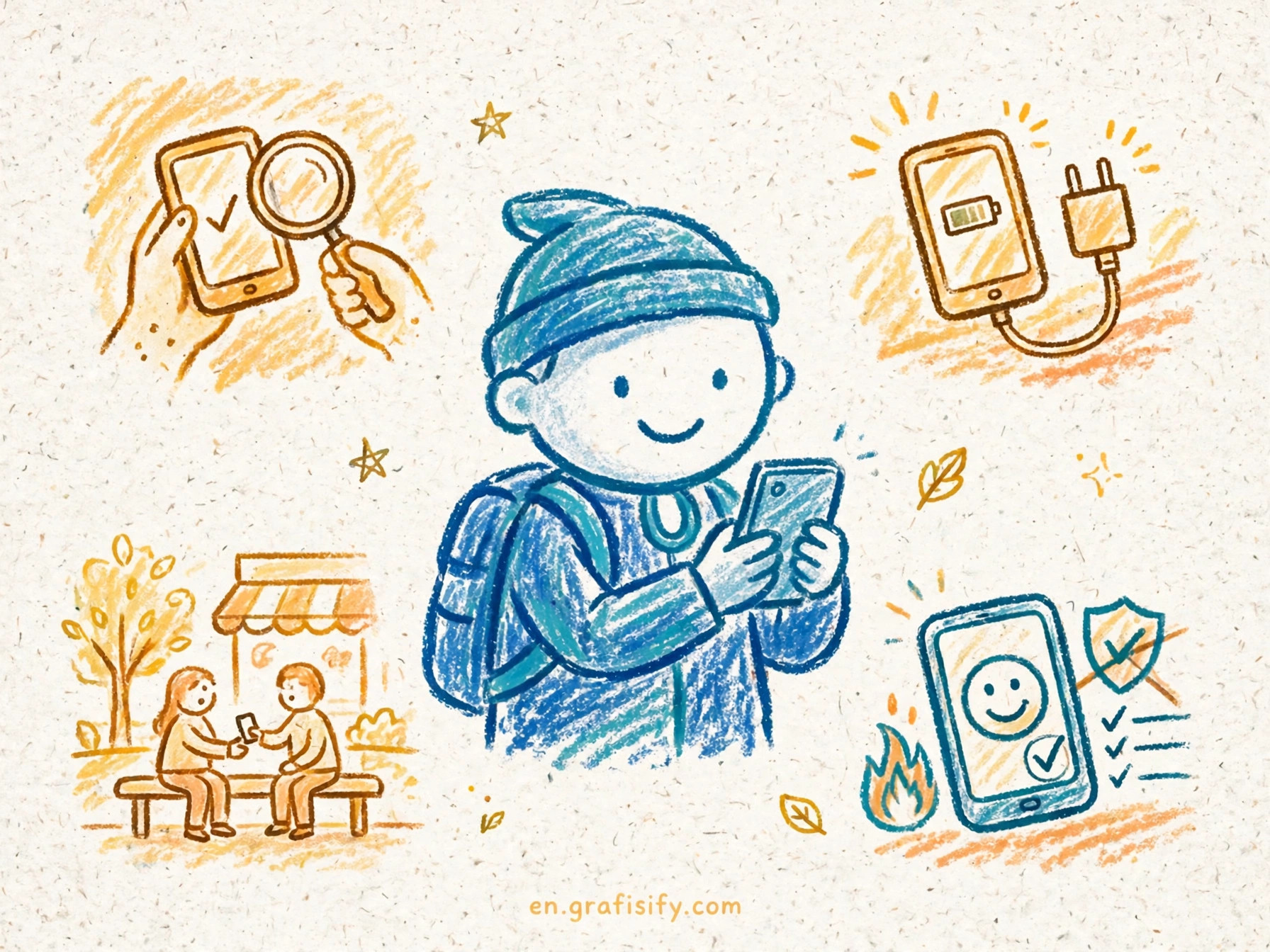
On most Android phones, open Settings, search for Backup, and switch on Backup by Google One. That backup covers apps and app data where apps support it, call history, contacts, device settings including saved Wi-Fi networks, and SMS and MMS messages. Photos and videos need a separate step in Google Photos: open the app, open your profile, open Photos settings, then switch Backup on and pick Original quality or Storage saver.
One rule changed recently and it catches people off guard. Since July 2026, all data managed through Android backup settings counts toward your Google Account storage, including texts, call history, device settings, and app data. Before that change, most device backup data sat outside the 15 GB limit. Google puts the average increase at around 40 MB per account, small against 15 GB, but the shared pool also holds Gmail, Drive, Photos, and WhatsApp backups, so heavy users can still hit the ceiling. Open the Google One app, tap Storage, and check the breakdown before you assume you have room.
Android also gives you finer control than it used to. You can switch off backup for individual categories such as SMS or call history, and skip bulky apps you do not need restored. That control is worth using: a backup full of apps you deleted months ago wastes space that your photos need.
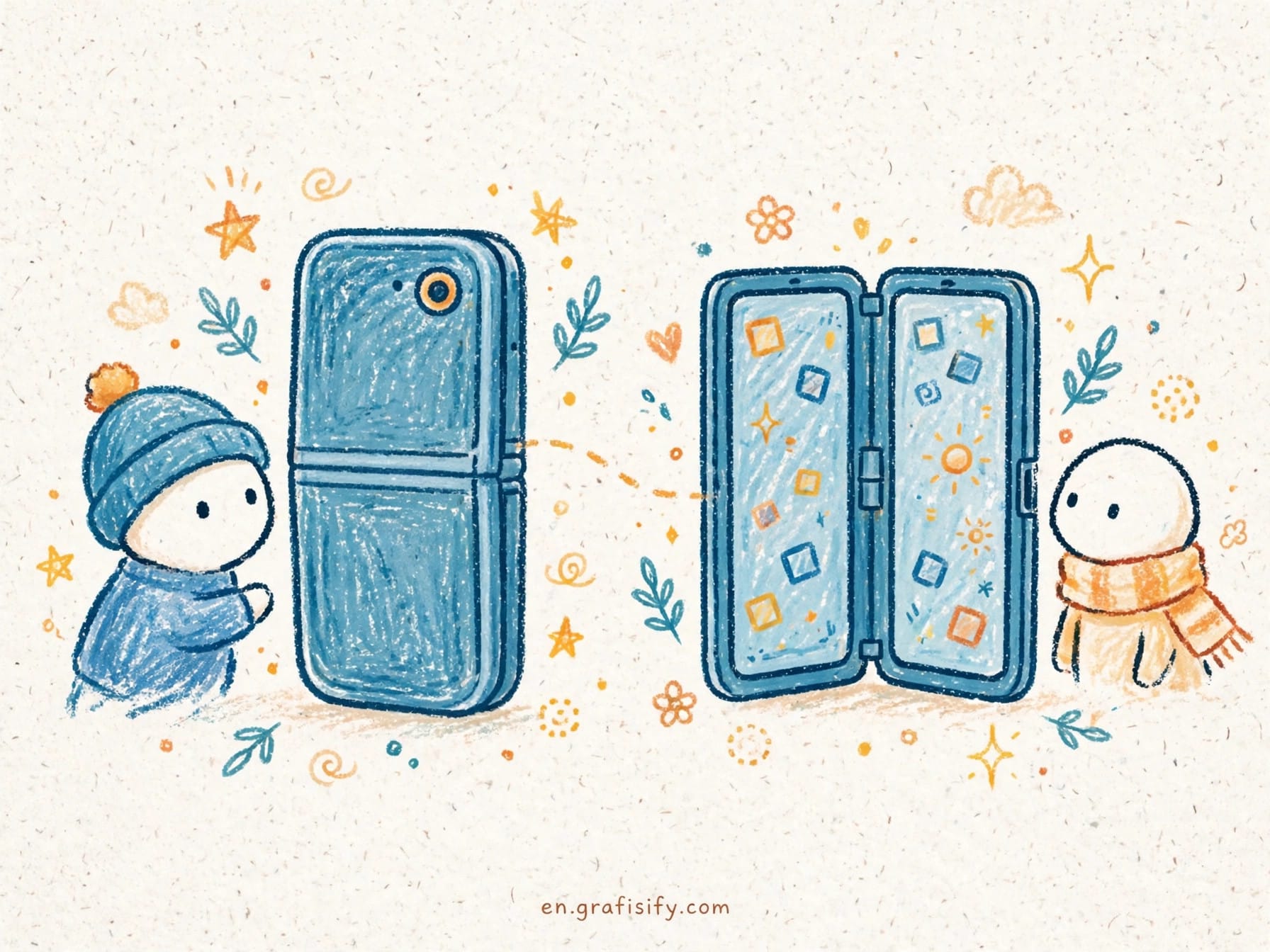
Moving to a new phone is the moment a backup proves its worth, and the SIM move matters too. If your next phone uses an eSIM, read how to transfer an eSIM to a new phone so the number moves with the restore instead of stranding you without service.
Photos Deserve Their Own Safety Net
Photos are the part of a phone backup people regret losing most, and they are also the part most likely to slip through a gap. On iPhone, photos live in the backup only when iCloud Photos is off; with iCloud Photos on, they sync to iCloud instead and are not part of the daily backup. On Android, the device backup does not save your camera roll at all: Google Photos backup handles that job.
Treat photos as a separate backup task with its own check. Open your photo app, confirm backup is on, and confirm the most recent photo from yesterday is already in the cloud. Then add one more copy outside the phone maker’s cloud: an external drive, a computer folder, or a second photo service. Two copies in the same cloud account are one account problem away from zero copies.
Photo quality settings are a trade-off worth choosing on purpose. Original quality keeps every pixel and eats storage fastest. Storage saver shrinks files slightly and stretches the same allowance much further. For most family photos, Storage saver is the sane default; for work you print or sell, keep originals and pay for the room.
iCloud vs Google One vs Local Backup
No single method covers every failure, which is why the table below matters more than any one product pick. Cloud backup wins on automation, local backup wins on control, and the combination wins overall.
| Method | Free storage | What it covers | Main weakness |
|---|---|---|---|
| iCloud Backup (iPhone) | 5 GB shared | Settings, layout, app data, messages, photos when iCloud Photos is off | Small free allowance fills fast |
| Google One Backup (Android) | 15 GB shared | App data, calls, contacts, settings, SMS and MMS | Photos need Google Photos as a separate step |
| Computer backup (iPhone) | Your drive space | Almost all device data; Health and Keychain only when encrypted | Needs a cable and a habit |
| External drive copy | Your drive space | Photos, videos, and files you copy by hand | Only as current as your last copy |
Apple’s backup documentation and Google’s storage documentation both confirm the same core point: the free tier is shared, and backups stop when it fills. That shared-pool detail is the one most guides skip, and it is the one that bites. For the official word, see Apple’s backup methods guide, what iCloud backs up, and how Google One storage works. A clear write-up of the Android counting change is at Smartprix’s report on Android backups counting toward storage.
Use the 3-2-1 Rule for Your Phone
The 3-2-1 rule comes from professional data protection, and it scales down to a phone without fuss: three copies of your data, on two different types of storage, with one copy off site. For a phone, that looks like this: the phone itself, the cloud backup, and a computer or external drive copy. The cloud copy is your off-site copy. The drive copy is your escape hatch if the cloud account locks you out or the subscription lapses.
Set a monthly rhythm that takes five minutes. First Sunday of the month: check that the last cloud backup is recent, check that yesterday’s photos are in the cloud, and plug the phone into the computer for a local backup. Put it on the calendar if you must. A backup routine you can describe in one sentence is a routine you will keep.
Protect the backup itself. Use a strong, unique password for your Apple Account or Google Account, switch on two-factor authentication, and keep recovery codes somewhere that is not the phone. A backup behind an account you cannot get into is no backup at all. The same care applies to the phone’s physical safety: a waterproof rating helps, but it is not a backup plan. See what an IP68 rating means for your phone before trusting a dunk in the pool.
Test Your Restore Before You Need It
A backup you never tested is a hope, not a plan. You do not need to wipe your phone to test it. Borrow the check that costs nothing: sign in to your cloud account on the web and confirm the backup date, the photo count, and the storage total look right. On iPhone, the backup screen shows the last backup time and the next backup size. On Android, the Google One app shows the backup date and what it holds.
The stronger test is a real restore onto a spare or borrowed device, or onto your own phone right after an upgrade, when the old phone is still in your hand. Restore, then check five things: photos from last week, a conversation thread, a banking or transit app login, saved Wi-Fi at home, and your Home Screen layout. If all five come back, the backup works. If one fails, fix that gap now, while the old phone still holds the original.
Also check battery health while you are in maintenance mode. A phone that dies mid-restore creates a second problem on top of the first. See how to check phone battery health and slow decay for the steps on both platforms.
Conclusion: Fifteen Minutes Now Beats a Week of Regret
Backups are boring until the day they are the only thing standing between you and losing years of photos. Turn on the built-in cloud backup, turn on photo backup as its own step, and keep one local copy. Check it once a month, test a restore when you change phones, and guard the account behind it all.
Do the setup tonight, while your phone is charging and on Wi-Fi anyway. If you are shopping for your next phone instead of protecting this one, read how to buy a used phone without getting burned first, then come back and set the backup up on the new device before you load it with a single photo.

Irfan is a Creative Tech Strategist and the founder of Grafisify. He spends his days testing the latest AI design tools and breaking down complex tech into actionable guides for creators. When he’s not writing, he’s experimenting with generative art or optimizing digital workflows.


 Artificial Intelligent
 Design & Creative
 Freelance
 Gadgets & Gear
 Insights
 Laptop
 Reviews
 Smartphone
 Tech Guides
 Vibe Coding