Mechanical Keyboard Switches: How to Pick the Right One
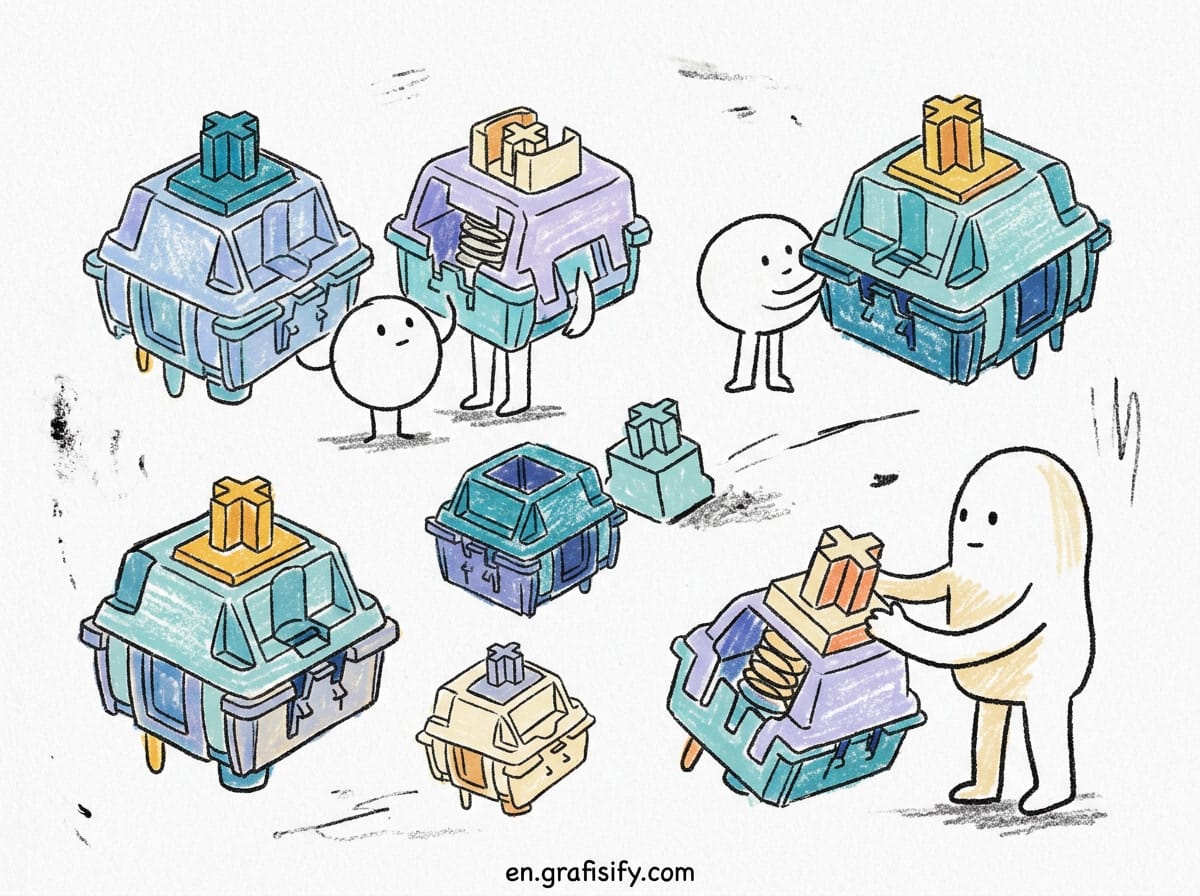
Swap one small part inside a keyboard and typing feels completely different. That part is the switch, and picking the wrong type is the most common mistake buyers make with their first mechanical keyboard. Color names make it look complicated. It is not.
This guide breaks down the three main switch families using official Cherry specifications, explains who each type fits, and shows how to test before you spend serious money. Ten minutes of reading beats returning a keyboard that sounds like a typewriter in a quiet office.
TL;DR: Which Switch Should You Get?
- Gaming and rapid inputs: go linear (Red style). A light 45 cN press with no bump makes repeated key hits fastest.
- Mixed work and play: go tactile (Brown style). A soft bump confirms each keystroke without loud clicks. I recommend this family for most first-time buyers.
- Solo room and typing fans: go clicky (Blue style) if nobody shares your space. Best feedback, worst neighbor relations.
- Still undecided? Buy a hot-swap keyboard or a switch tester first. Cherry sells an Experience Box with ten different switch types for exactly this purpose.
What a Mechanical Switch Actually Does
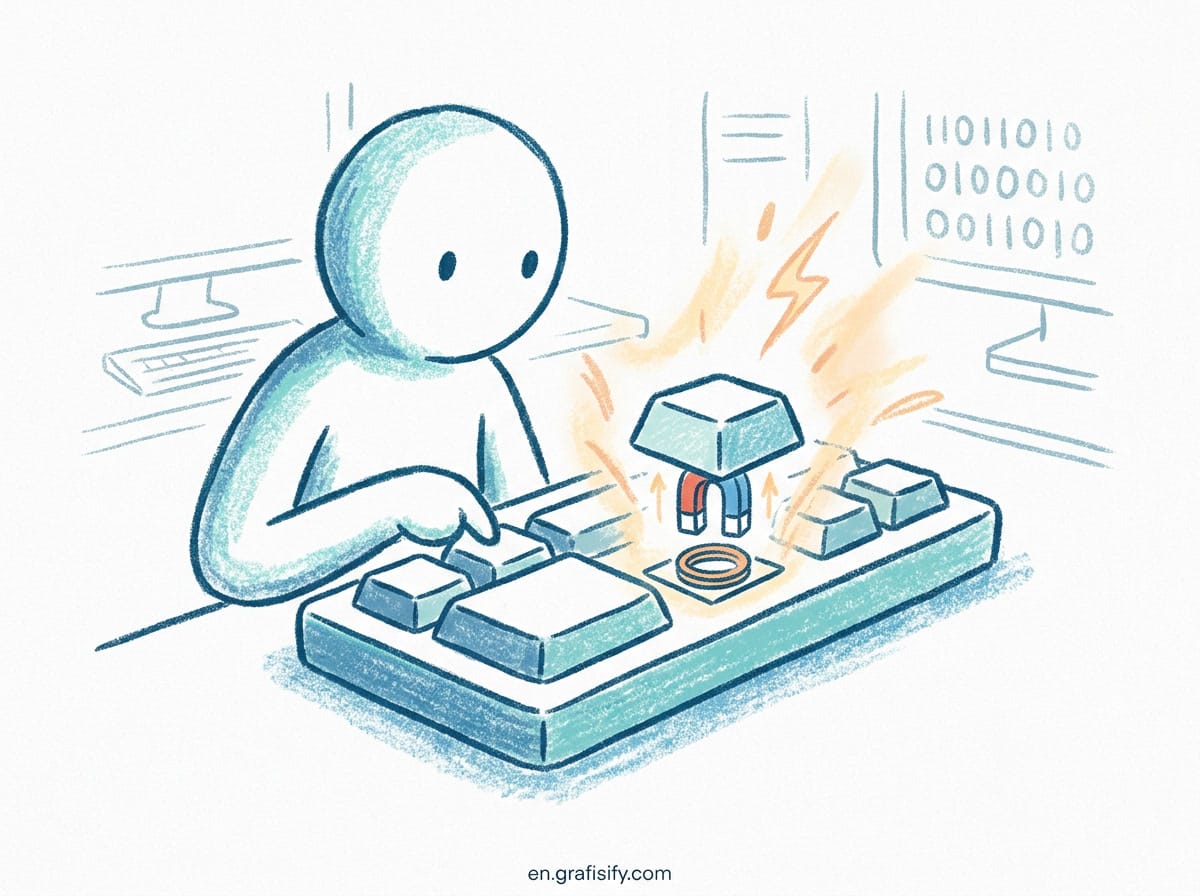
Every key on a mechanical keyboard sits on its own independent switch. Press the keycap and a plastic stem slides down inside a housing until two metal contacts meet and register the keystroke. Release and a spring pushes everything back up. That is the entire mechanism, and it repeats millions of times over a keyboard’s life.
Cherry, the German company that created the MX standard most brands still follow, builds each switch around gold crosspoint contacts. The gold plating resists corrosion and self-cleans with every press, which is why Cherry rates current MX2A switches for more than 100 million keystrokes. A rubber dome membrane keyboard cannot approach that figure because the dome degrades far faster under repeated presses.
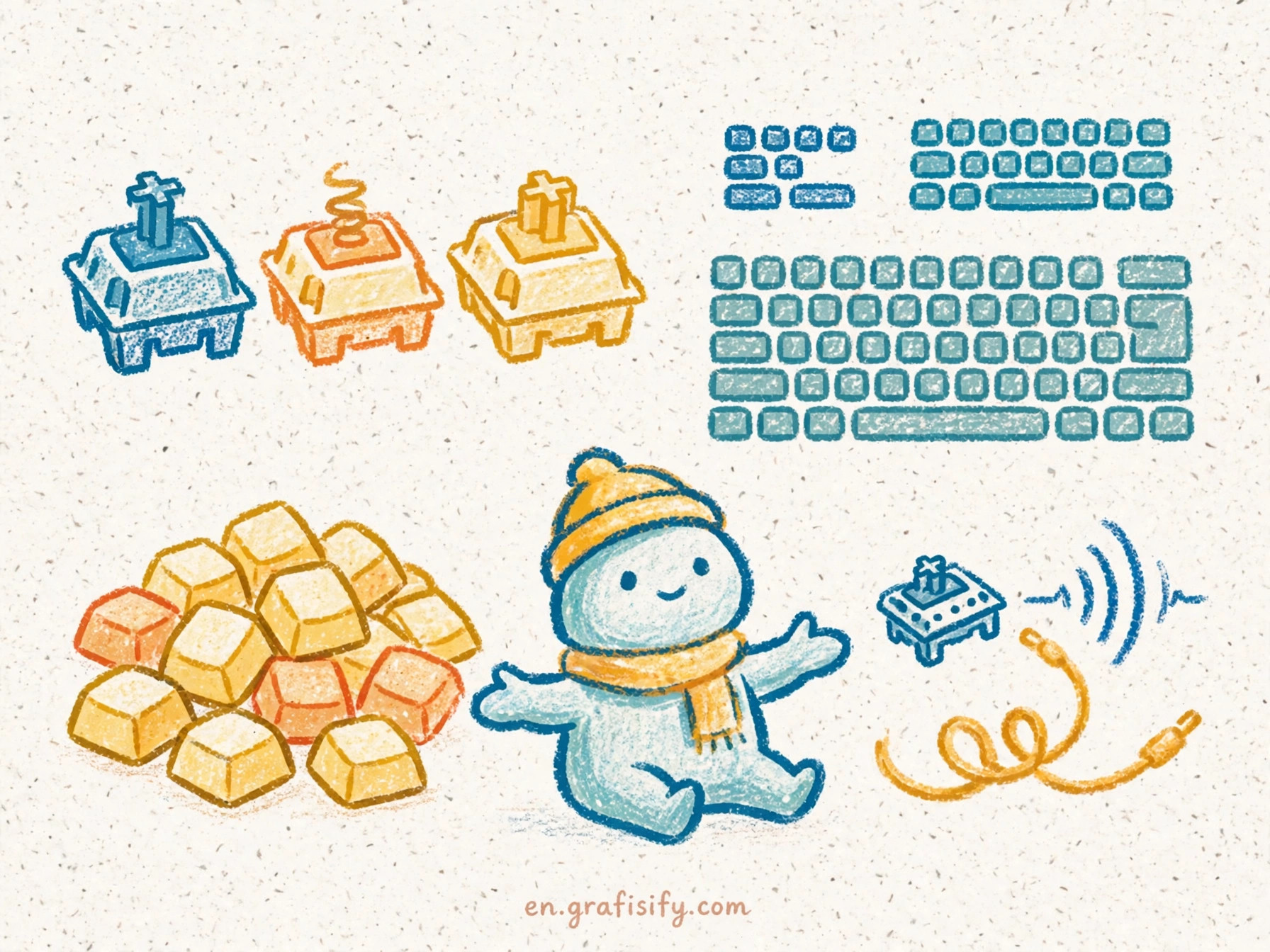
Switch choice dominates how a board feels day to day. Layout size changes which keys you reach and keycaps shift the sound somewhat, but the switches under your fingers set the personality. Two boards that look identical on a shelf can type like completely different machines once you open them up.
Three feedback types define everything you can buy:
- Linear: the stem travels smoothly from top to bottom. No bump, no click, just one consistent press.
- Tactile: a small bump near the actuation point tells your finger the input registered.
- Clicky: the same bump plus an intentional audible click produced inside the switch.
Linear vs Tactile vs Clicky: The Numbers
Spec sheets differ between brands, so the cleanest comparison uses one manufacturer across all three families. Cherry publishes complete data for its current MX2A line, and those figures show exactly where the types diverge.
| Type | Feel | Operating Force | Pre-Travel | Rated Lifespan | Noise | Best For |
|---|---|---|---|---|---|---|
| Linear (MX2A Red) | Smooth, no bump | 45 cN | 2.0 mm | Over 100 million presses | Lowest of the three | Gaming, fast repeat inputs |
| Tactile (MX2A Brown) | Soft bump, no click | 55 cN | 2.0 mm | Over 100 million presses | Moderate | Office work, all-round typing |
| Clicky (MX2A Blue) | Bump plus audible click | 60 cN | 2.2 mm | Over 50 million presses | Loud | Solo typing, enthusiasts |
Source: official Cherry product pages for the MX2A Red, MX2A Brown, and MX2A Blue.
Two numbers deserve attention. Operating force climbs from 45 to 60 cN across the range, so clickies demand the heaviest press of the three. Lifespan drops for Blues because the click mechanism adds moving parts that wear sooner than a simpler design.
Pre-travel matters mostly for gamers. A Blue needs 2.2 mm of travel before it registers while Reds and Browns trigger at 2.0 mm. That difference looks tiny on paper and feels real when a split second decides a match.
Also Read:

Linear Switches: Smooth, Fast, Forgiving
Reds are the entry point Cherry itself recommends for beginners, and the logic holds up. With no bump in the way, your finger never fights the spring, so rapid repeated presses take less effort. Movement keys in games get hammered hundreds of times per minute, which explains why linears dominate gaming boards.
Speed-focused linears push this idea further with shortened stems and reduced travel, built purely around reaction time. They stay niche compared to standard Reds because the benefit only shows up at a competitive level, and the shorter travel takes adjustment for everyday typing.
The same smoothness creates two downsides for typists. Light 45 cN springs mean resting fingers can trigger keys by accident if you hover over the board. Bottom-out impacts also feel harsher because nothing slows the keycap before it slams into the housing. Heavy typists often describe linears as slippery until they adapt.

Noise sits at the low end here. Cherry’s own lineup includes an MX Silent Red variant built with damping for shared spaces, and nearly every brand offers silent linears as well. If you take calls all day in a shared apartment, that subfamily deserves a look before anything else.
Tactile Switches: The Balanced Default
Browns add a soft bump at the actuation point. You feel exactly when a keystroke registers, so you can lift off instead of driving every key into the floor. Confirmation without noise is the whole value proposition, and it fits how most people actually work: documents in one window, chat in another, a game after hours.
I recommend Browns as the default answer for first-time mechanical keyboard buyers because mistakes cost the least. They are quick enough for games, comfortable for long writing sessions, and tolerable in an office. Enthusiast forums call them bland, and that criticism has some truth since the bump is subtler than what premium tactile switches from other brands produce. Subtle works well as a starting point though. You can always move toward stronger bumps once you know your preferences.
Heavier tactile options exist too. Cherry’s own catalog includes Clear and Ergo Clear variants with firmer springs and a more pronounced bump, aimed at typists who want obvious feedback without any click. Start gentle, then step up if the light bump stops registering in your fingers after a month.
Clicky Switches: Maximum Feedback, Minimum Privacy
Blues deliver the sharpest confirmation available in mainstream switches. Inside, a two-part stem snaps past a resistance point and produces the signature click right where the keystroke registers. Typists who love rhythmic feedback tend to stay loyal to this family for decades.
The cost is social. Every keystroke broadcasts, microphones pick the clicks up clearly during calls, and plenty of workplaces quietly discourage audible keyboards in open rooms. If anyone shares your wall, your desk, or your video calls, skip clickies entirely. They shine in a closed home office and almost nowhere else.
Heavier clickies such as Cherry’s Green variant raise both the required force and the output volume, a combination best described as a commitment. Sample Blues before Greens, never the other way around.
Specs That Matter More Than Color
Color is shorthand, not a specification. Once you compare boards across brands, these factors separate good purchases from wasted money.
- Operating force vs bottom-out force: published cN usually describes the actuation point. The force at full compression runs higher, often close to double, so light switches can still feel firm when you type hard.
- Factory lubrication: Cherry’s MX2A line ships lubricated to reduce scratchiness between stem and housing. Budget switches without lube often sound grainy next to factory-smooth ones.
- Hot-swap sockets: boards with these sockets let you pull switches out and push new ones in without soldering. This is the safest way to buy because a wrong guess costs ten minutes instead of a returned keyboard.
- Board construction: plate material, keycap thickness, and even your desk change how any switch sounds. Identical switches can sound different across two boards, so reviews of one board only partially predict another.
- Testers: a switch tester costs little and answers the linear question in five minutes. Cherry sells an Experience Box containing ten different MX switch types, plus larger boxes with dozens of units for people building custom boards.
Damping accessories deserve a mention here. Small rubber rings that sit under keycaps and thin foam layers inside the case trim noise noticeably while leaving the typing feel mostly intact. Both cost little, so try them before ripping out switches over sound alone.
My advice after watching too many bad purchases: order the tester together with the board. You will know within a week which family fits your hands, and hot-swap sockets mean you can correct course cheaply.
Final Verdict and Next Steps
Pick linear for speed, tactile for balance, clicky for solo feedback. If I had to hand one board to an unknown buyer, it would be a tactile Brown-style board in a hot-swap chassis. That combination survives every scenario from spreadsheets to shooters, and it leaves the door open for cheap experimentation later.
The switch is also just one piece of comfort. Pairing the right feedback with proper wrist position matters just as much, so read the guide to choosing an ergonomic mechanical keyboard before you order anything. From there, round out the rest of the station: the best docking stations cut cable clutter, a solid monitor light bar eases late-night sessions, and a well-planned coding setup ties the whole workspace together.
Your action list is short. Decide your noise budget, buy a tester or a hot-swap board, try all three families for real, then commit. Switches are the cheapest upgrade path in computing, and the right one makes every hour at the keyboard measurably better.

Irfan is a Creative Tech Strategist and the founder of Grafisify. He spends his days testing the latest AI design tools and breaking down complex tech into actionable guides for creators. When he’s not writing, he’s experimenting with generative art or optimizing digital workflows.


 Artificial Intelligent
 Design & Creative
 Freelance
 Gadgets & Gear
 Insights
 Laptop
 Reviews
 Smartphone
 Tech Guides
 Vibe Coding