How to Choose a Mechanical Keyboard: A Beginner Guide
A mechanical keyboard is the piece of gear you touch more than any other on your desk. Pick wrong and you get a board that fights your fingers for years. Pick right and it fades into the background while you type faster and miss fewer keys.
This guide skips the hobbyist rabbit hole and gives you the decisions that matter: switch feel, layout, connection type, hot-swap, keycaps, and the traps that waste money. Read it once, buy once, and stop thinking about keyboards.
Verdict: Buy for Your Use Case, Not the Spec Sheet
TL;DR: Choose tactile switches (Brown or similar) for typing and office work, linear switches (Red or similar) for gaming. Get a tenkeyless or 75% layout, hot-swap sockets, PBT keycaps, and 2.4GHz wireless if you hate cables. Spend in the $75-$150 range for a board that lasts years (price guidance from Gaming Gear Labs), and read our companion piece on how to pick mechanical keyboard switches if you want to go deeper on feel alone.
That formula covers most people. The rest of this guide explains the reasons behind it, so you can adjust the formula to your own desk instead of following it blind.
Switch Feel: Linear, Tactile, or Clicky
Switches decide how each keystroke feels and sounds. They are the single most impactful choice you make when buying a board. Get this right and the rest becomes easy.
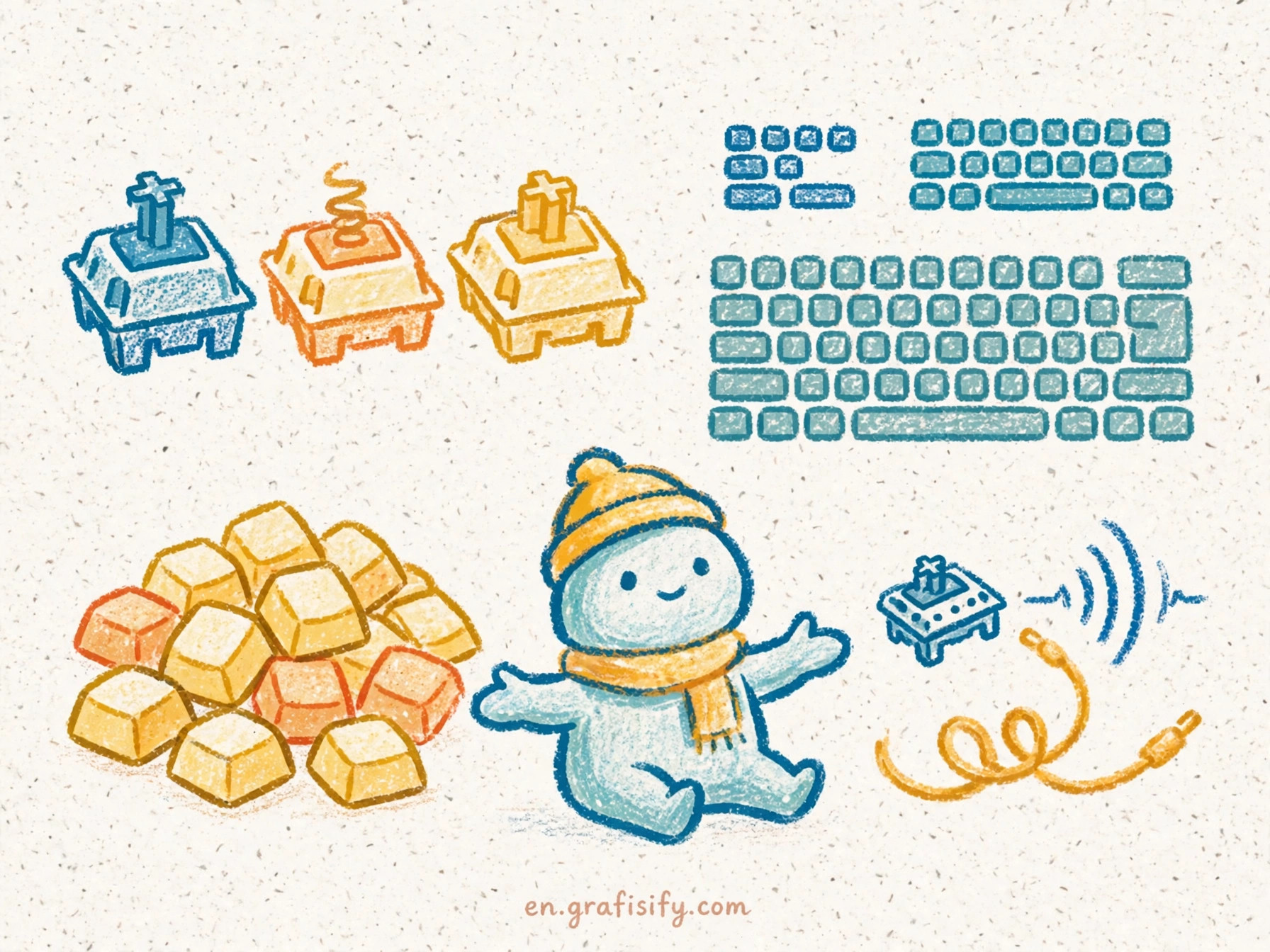
Three families cover almost every board on the market. Linear switches move straight down with no bump and no click. They feel smooth from top to bottom, stay quiet, and respond fast to repeated presses. Competitive gamers prefer them because rapid double-taps need nothing slowing the key down. Cherry MX Red, the reference linear, pairs 4.0mm of total travel with about 45g of actuation force, per the Keebstarter switch breakdown. Gateron Yellow takes the same idea with a slightly heavier spring and a smoother stock feel.
Tactile switches add a small bump at the actuation point. That bump tells your finger the key registered without any click sound. Typists and programmers favor tactile switches because the feedback supports fast typing without annoying anyone on a call. Cherry MX Brown is the classic middleweight at 45g; Gateron Brown runs a touch smoother out of the box. Beginners often assume they want the strongest bump available, then find it muddy in a cheap board. A moderate bump in a well-made switch beats an aggressive bump in a rough one.
Also Read:
Clicky switches pair the tactile bump with a separate internal click mechanism. The sound is satisfying in an empty room and brutal in a shared one. Click mechanisms also tend to wear faster than linear or tactile designs. Choose clicky only when noise affects no one else. If you take calls with an open microphone, our guide to picking the right webcam for remote work pairs with this advice: quiet gear keeps your whole setup office-friendly.
| Switch type | Feel | Sound | Best for | Watch out |
|---|---|---|---|---|
| Linear (Red, Yellow) | Smooth, straight down | Quiet | Gaming, fast repeat presses | Too light for some typists |
| Tactile (Brown, similar) | Bump at actuation | Quiet | Typing, coding, office work | Cheap bumps feel muddy |
| Clicky (Blue, Green) | Bump plus audible click | Loud | Solo typing sessions | Annoys coworkers, wears faster |
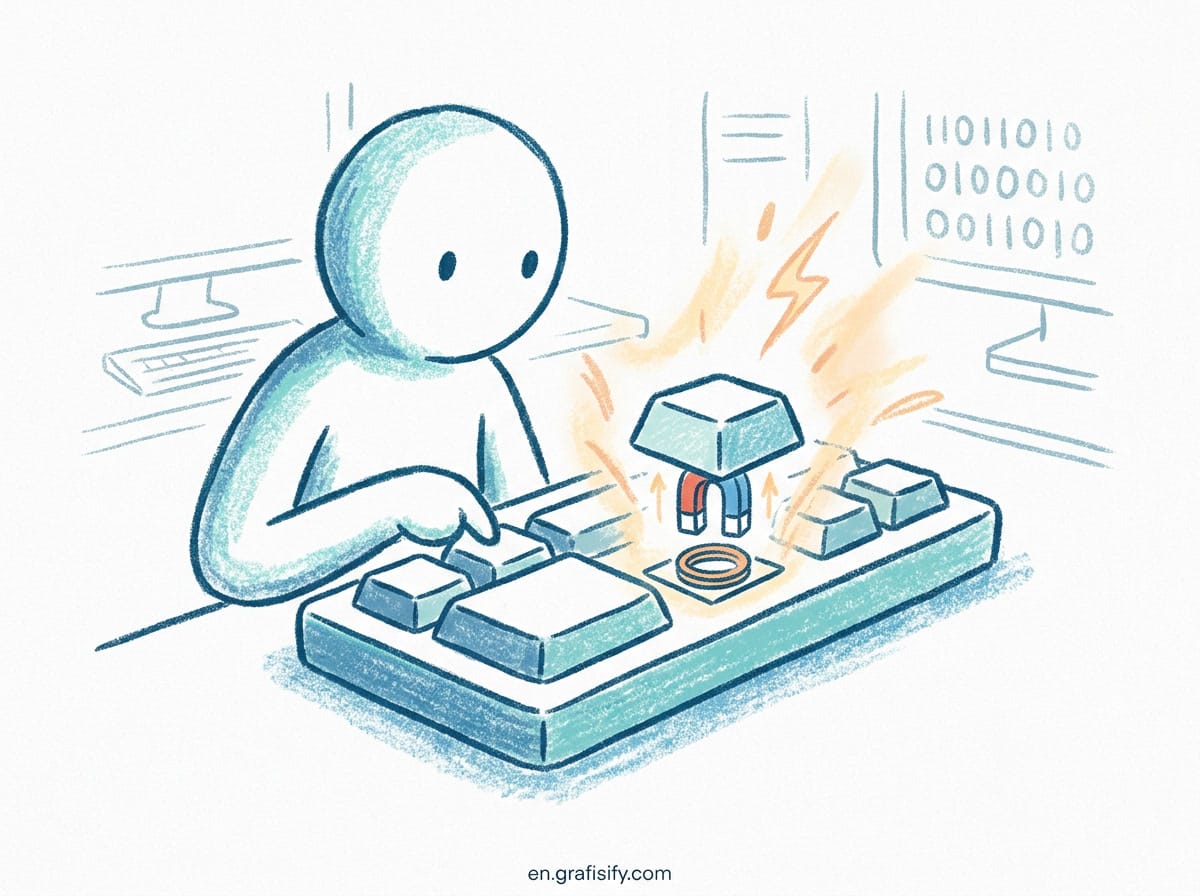
One more option deserves a mention. Hall effect and optical boards use magnetic or light-based sensing instead of metal contacts. They support features like adjustable actuation depth and rapid trigger, which competitive players love (G3AR4UB’s gaming keyboard picks include several in this class). Our explainer on hall effect keyboards and magnetic switches covers the technology. For a first board, stick with standard mechanical switches. They cost less and every switch on the market fits them.

Layout: Full-Size, TKL, or Compact
Layout controls desk space and shoulder position. Full-size boards keep the number pad, the navigation cluster, and a function row. They suit spreadsheet work and anyone who punches numbers all day. They also push your mouse far to the right, which rotates your shoulder outward for hours at a time.
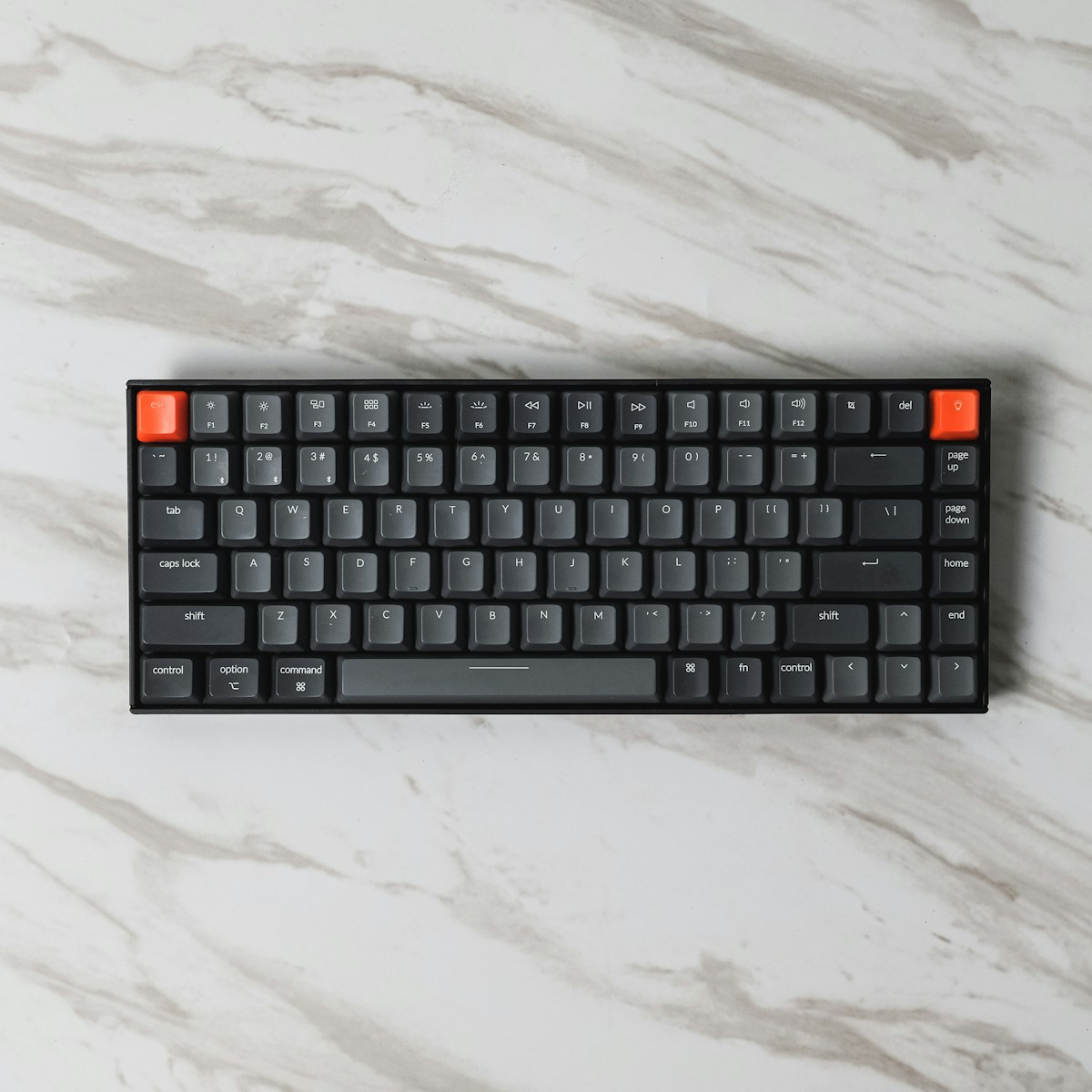
Tenkeyless (TKL) drops the number pad and keeps everything else. It is the most popular form factor in gaming because it pulls the mouse closer without removing any key a gamer reaches for. 75% goes one step further and compresses the navigation cluster into the main block. Coders like 75% boards because the compact footprint pairs well with QMK or VIA key remapping, which firmware lets you assign layers, macros, and a relocated Escape key that sticks no matter which machine you plug into.
Compact layouts like 60% and 65% look great on Instagram and frustrate most beginners. Dedicated arrow keys disappear, and the functions you lost move onto awkward key combinations. If your work involves Excel formulas, code navigation, or any tool with frequent arrow-key use, stop at 75%. The space you save below that is not worth the friction you gain.
Connectivity: Wired, 2.4GHz Dongle, or Bluetooth
Wired connections remain the benchmark for zero-latency input. Nothing beats a cable for reliability. The trade is cable management, which matters more than it sounds once your desk fills up.
Modern 2.4GHz wireless keyboards with a proprietary dongle run at roughly 1ms response times, effectively equivalent to wired for competitive play, as Dom’s Tech Blog notes in its keyboard guide. Logitech and Razer both ship boards in this class. Bluetooth adds flexibility across phones, tablets, and laptops, but it carries higher latency and occasional reconnection quirks. Use Bluetooth for typing and media control. Use 2.4GHz or a cable when milliseconds matter.
| Connection | Latency | Best use | Trade-off |
|---|---|---|---|
| Wired | Near zero | Competitive gaming, reliable daily use | Cable clutter |
| 2.4GHz dongle | Around 1ms | Competitive gaming without cable | Needs the dongle, drains battery faster |
| Bluetooth | Noticeably higher | Typing, tablets, multi-device setups | Lag in fast games, pairing quirks |
Tri-mode boards include all three connections and let you switch with a key combo. They cost more, but they cover every situation: cable at the desk, dongle for games, Bluetooth for the tablet. If your setup spans a desktop and a laptop, a single tri-mode board can also simplify your port situation. For that side of the desk, see our breakdown of Thunderbolt versus USB4 ports to pick the right hub for all of it.
Hot-Swap Sockets and Build Quality
Hot-swap means you can pull switches out and push new ones in with no soldering. This is the single best future-proofing feature on a first board. You can re-tune the feel later for the price of a switch pack instead of buying a whole new keyboard. If a switch dies two years in, you swap one switch, not the board.
Mount style changes how a board sounds. Gasket mounts and tray mounts use foam, silicone, or rubber to dampen the hollow space inside the case. A well-damped plastic board sounds deeper and cleaner than a rattly metal one. Do not judge build quality by weight alone. A heavy board with no dampening rings like a drum; a light board with good foam sounds like a studio instrument.
N-key rollover deserves a glance at the spec sheet. It guarantees the board registers every key you press, even when you mash several at once. Budget boards sometimes cut this corner, and you notice it exactly when it matters: missed modifiers during gaming or dropped keystrokes during fast typing. Any board above the budget tier includes it, but check before you buy the cheapest option.
Keycaps: ABS Versus PBT
Keycaps are the plastic tops your fingers touch. Most stock sets use ABS, a smooth plastic that shines under heavy use. A year of daily typing turns ABS caps glossy, and the legends on printed caps can fade. PBT resists shine, keeps its texture, and holds dye-sublimated or double-shot legends for years.
Double-shot PBT caps mold the legend into a second layer of plastic, so it cannot wear off. Boards that ship with double-shot PBT caps punch above their price. When a listing says “PBT keycaps” without “double-shot,” the legend method still matters, so check reviews for fading reports. If you care about long-term feel, PBT is worth the small premium.
Five Mistakes That Waste Your Money
1. Buying on hype instead of the spec sheet. Big brands spend big on marketing, and a flagship price does not guarantee the right board for you. Compare individual models on the criteria in this guide. Mid-tier boards from solid brands regularly outperform overpriced flagships.
2. Falling for “mechanical feel” labeling. Some budget keyboards advertise a “mechanical feel” while hiding rubber domes under the keycaps. No switch swaps, no switch sound, no point. The listing must say mechanical switches or hot-swappable. Anything softer in the wording deserves suspicion.
3. Skipping hot-swap to save $10. The non-hot-swap version costs a little less and locks you into the stock switches forever. The hot-swap version keeps every upgrade path open. That $10 difference is the cheapest upgrade path you will ever buy.
4. Going too compact too early. 60% boards remove the arrow keys and hide them behind a function layer. If you navigate code or spreadsheets with arrows, you will regret the purchase within a week. Learn what you need on a TKL or 75% first.
5. Ignoring the battery math on wireless. A wireless board with a small battery becomes a wired board you charge every night. Look for batteries above 3,000mAh and check whether the board lets you turn off RGB, which is the biggest power drain. If you want a full setup tune-up while you are at it, our practical SSD upgrade guide covers the other upgrade that speeds up an aging machine.
Frequently Asked Questions
Do I need a mechanical keyboard for coding?
You do not need one, but tactile switches make long typing sessions more comfortable and fewer typos easier to catch. A TKL or 75% layout with tactile switches and QMK/VIA support is the developer default.
Is a more expensive keyboard automatically better?
Price buys materials and features, not typing quality. A $90 board with PBT caps and a gasket mount often types better than a $180 board with neither. Compare the spec sheet point by point instead of reading the price tag.
Should my first board be wired or wireless?
Wired costs less and never needs charging. Tri-mode wireless costs more and covers every situation. For a stationary desk, wired saves money. For a setup you move between rooms or machines, wireless earns its price.
Can I change switches later if I pick the wrong feel?
Yes on any hot-swap board. Pull the old switch with the included tool and push the new one in. The whole process takes minutes. That is why hot-swap ranks above almost every other feature in this guide.
Bottom Line: Buy Once, Type Well
The right board comes down to five answers: switch feel for your use case, a layout that fits your desk, a connection that fits your latency tolerance, hot-swap sockets for the future, and keycaps that survive years of typing. Nail those and the brand name on the case becomes decoration.
Start with tactile switches and a TKL or 75% layout if you type for a living, linear switches and a compact board if you game. Check for hot-swap, PBT caps, and N-key rollover before checkout. Then stop shopping and enjoy the upgrade.
Your desk deserves the same attention your keyboard gets. Browse our switch picking guide for the deep dive on feel, then put the whole setup together and get back to work.

Irfan is a Creative Tech Strategist and the founder of Grafisify. He spends his days testing the latest AI design tools and breaking down complex tech into actionable guides for creators. When he’s not writing, he’s experimenting with generative art or optimizing digital workflows.



 Artificial Intelligent
 Design & Creative
 Freelance
 Gadgets & Gear
 Insights
 Laptop
 Reviews
 Smartphone
 Tech Guides
 Vibe Coding