HDMI vs DisplayPort: Which Cable Wins?
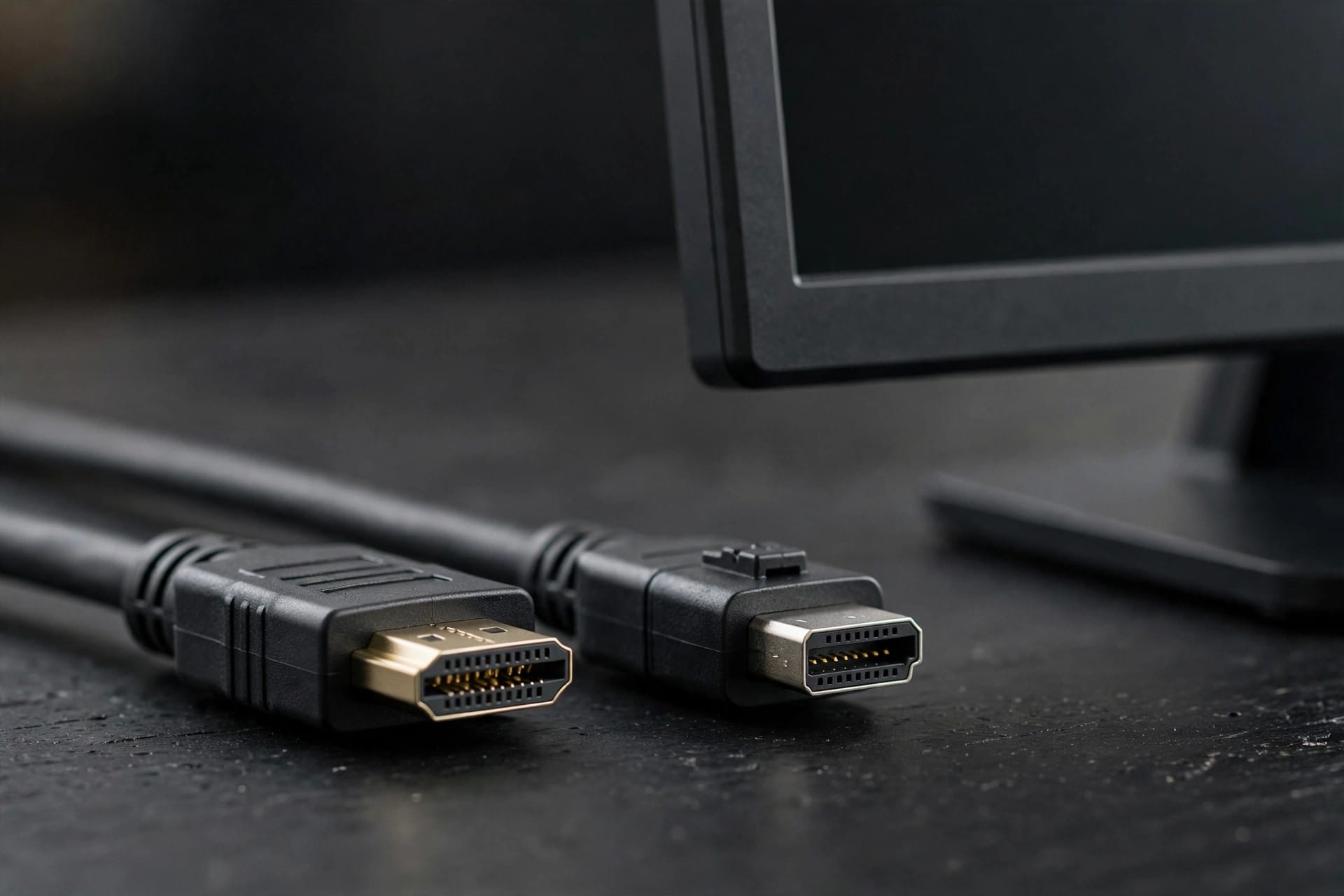
Your new monitor sits on the desk. You look at the back panel: two HDMI ports, one DisplayPort, maybe a USB-C. The quick-start guide says nothing about which one to use. Online forums answer with a shouting match, and both sides sound sure of themselves.
Both sides are half right. HDMI and DisplayPort do the same job with different priorities, and the right pick depends on your screen, your graphics card, and what else hangs off the chain. One more thing before the verdict: a digital signal either arrives intact or it does not. A pricier cable buys certification and build quality, not a prettier picture. Spend on the right standard, not the shiniest box.
Verdict TL;DR: Which Port Should You Use?
- PC monitor, gaming or office: DisplayPort, if both ends support it. You get daisy-chaining, the USB-C Alt Mode path, and generous headroom in every generation.
- TV or AV receiver: HDMI. It owns the living room, with eARC audio return and CEC device control that DisplayPort never picked up.
- Laptop plus a single-cable dock: USB-C carrying DisplayPort Alt Mode. One cable moves video, data, and laptop charging at the same time.
- Mixed or older hardware: use whatever standard the weaker end supports, and buy a certified cable for that tier. A great cable cannot unlock a generation your port lacks.
That covers most desks. The rest of this article explains why those answers hold, with the spec numbers to back them up.
Why HDMI and DisplayPort Grew Up in Different Worlds
HDMI came from the living room. DisplayPort came from the PC. The VESA FAQ states it plainly: “DisplayPort and HDMI are very different technically, and each began with a different product focus. For over ten years, HDMI has been the de-facto connection for home entertainment systems and is used widely on HDTVs as an AV interface. … DisplayPort, a newer standard originally developed to support the higher performance requirements of personal computers…”
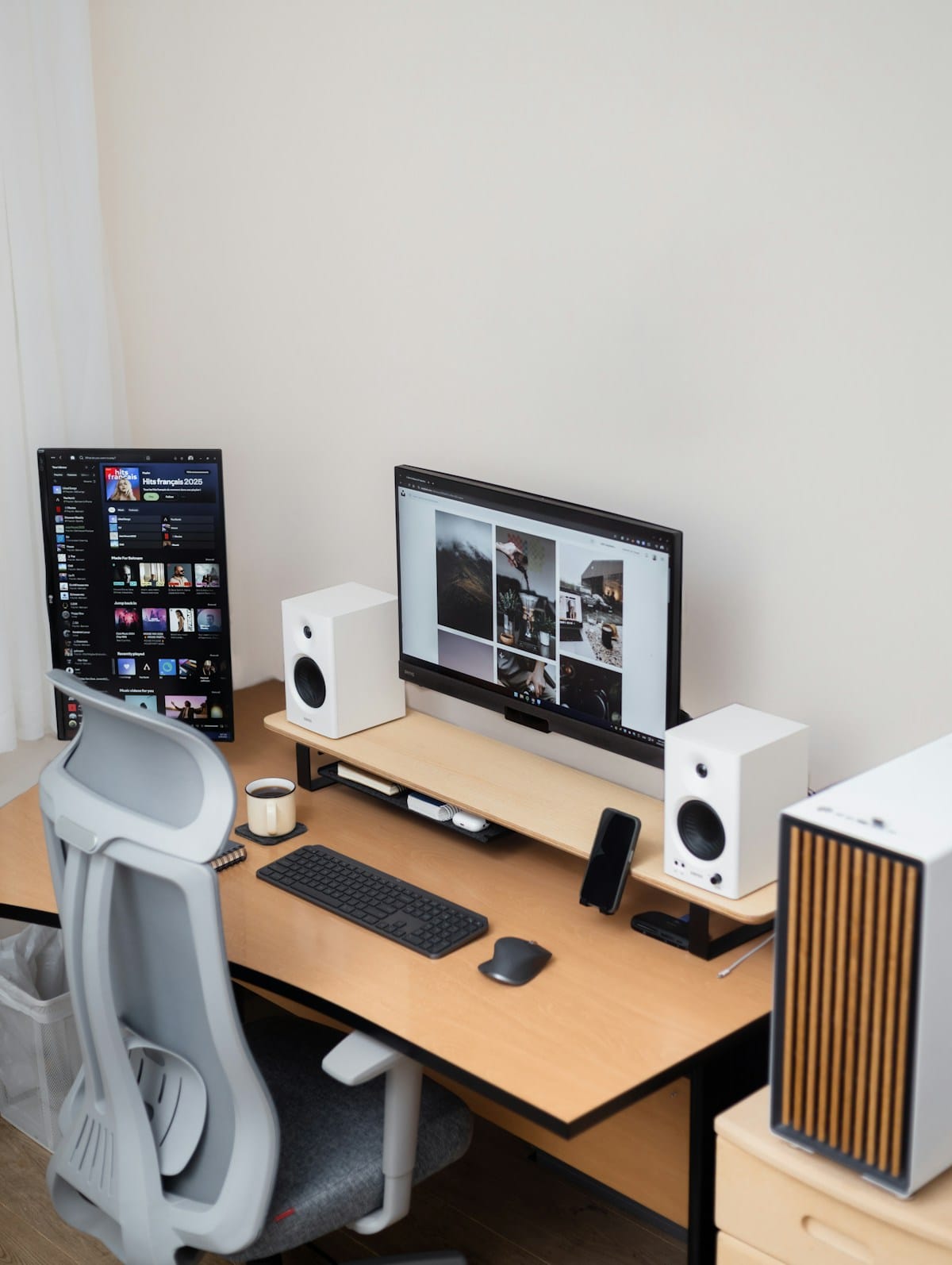
That split explains the feature lists. HDMI carries the home-theater extras: eARC audio return, CEC one-remote control, ALLM auto low-latency mode for consoles. DisplayPort carries the PC extras: MST daisy-chaining for multi-monitor rigs and Alt Mode, which tunnels video over USB-C while the same cable moves SuperSpeed data and laptop power.
The split also shows up in the plugs. A full-size DisplayPort connector has a locking latch that clicks into place, a small mercy behind a desk you cannot reach. HDMI relies on friction fit, which is fine for a TV you touch twice a year. TV makers standardized on HDMI first and never looked back, which is why you will hunt in vain for a DisplayPort input on most television sets.
Neither feature list is decoration. Each answers the needs of the room it was built for, and the gap between the two rooms has never closed.

HDMI vs DisplayPort: Full Spec Comparison
Specs move fast, so here is the current state of play from the standards bodies themselves.
| Feature | HDMI | DisplayPort |
|---|---|---|
| Latest spec | 2.2 | 2.1b |
| Maximum bandwidth | 96 Gbps | 80 Gbps |
| Flagship cable tier | Ultra High Speed (48 Gbps, the 2.1-era tier) | DP80 (80 Gbps); DP40 (40 Gbps) for lighter loads |
| Long active cable option | No certified tier published | Yes: DP80LL holds 80 Gbps out to 3 meters |
| Gaming variable refresh | Yes: VRR plus ALLM auto game mode | Yes: Adaptive-Sync |
| Several monitors, one port | No | Yes: MST daisy-chaining |
| Audio return channel | Yes: eARC up to 192 kHz/24-bit, 32-channel, Dolby Atmos | No |
| Video over USB-C | No native mode | Yes: DP Alt Mode |
| Ports on a typical graphics card | One | Three |
| At home on TVs | Yes: the default input | Rare |
Two rows deserve a closer look. On bandwidth, HDMI 2.2 leads the chart at 96 Gbps against DisplayPort 2.1 at 80 Gbps, per the HDMI 2.2 specification overview. On cables, HDMI’s Ultra High Speed tier dates to the 2.1 era at 48 Gbps and entered the market in 2020, while VESA certifies DP40 at 40 Gbps and DP80 at 80 Gbps, per its DisplayPort 2.1 announcement. VESA also added DP80LL active cables that keep the full 80 Gbps alive across three meters, triple the reach of a passive cable at that speed.
Mixing old and new gear? Tom’s Hardware offers a handy generation ranking: DisplayPort 1.4 beats HDMI 2.0, HDMI 2.1 beats DisplayPort 1.4, and DisplayPort 2.1 beats HDMI 2.1 when the hardware supports UHBR13.5 or higher. Read the full breakdown in their DisplayPort vs HDMI gaming guide. The lesson: check the generation on both ends before you assume the newer-looking cable wins.

Bandwidth, UHBR Tiers, and the DSC Twist
Bandwidth numbers matter once translated into resolution. HDMI 2.2’s 96 Gbps supports up to 12K at 120 Hz and 16K at 60 Hz, with uncompressed full-chroma 8K60 and 4K240 at 10-bit and 12-bit color. Full chroma, written 4:4:4, means the signal carries complete color detail with no shortcuts, the thing color-critical work needs.
DisplayPort 2.1’s 80 Gbps covers uncompressed 8K60 HDR and 4K240 HDR through a single cable. VESA notes the same link can drive two 4K120 HDR displays or four 4K60 HDR displays at once, which is where the multi-monitor story starts.
For buyers today, the middle of the market matters more than the flagship numbers. For a plain-English anchor, see How-To Geek’s 4K monitor guide: HDMI 2.1’s 48 Gbps drives a 10K display at 60 frames per second in full 10-bit color, and DisplayPort 2.1’s 80 Gbps raises that ceiling further. Either standard has room to spare for a 4K144 panel, so the cable is seldom the bottleneck at mainstream resolutions.

On the DisplayPort side, bandwidth arrives in UHBR tiers, and the tier on both ends decides what you get. UHBR10 delivers 40 Gbps, UHBR13.5 delivers 54, and UHBR20 delivers the full 80, each spread across four lanes. A monitor can carry the DisplayPort 2.1 badge without supporting every tier, so confirm the tier in the spec sheet, not just the version number.
Then compression enters the picture. Display Stream Compression squeezes the signal up to 3:1 with what the standard calls a visually lossless result, and it switches on when raw bandwidth runs short, like pushing 8K HDR over an older link. DSC keeps aging ports useful for years longer, at the cost of a processing step both ends must support.
Bandwidth matters up to what your panel can show, and no further. A 4K60 office monitor cannot use 80 Gbps no matter which cable you buy, so pick the panel first and the cable second. Our guide to OLED vs Mini-LED vs IPS panels walks through that choice.
Features You Only Get on One Side
Start with HDMI’s home turf. eARC sends audio back from the TV to a soundbar or receiver at 192 kHz and 24-bit, carrying uncompressed 5.1 and 7.1 surround, 32-channel audio, Dolby Atmos, and DTS:X. The older ARC compressed everything on the return trip; eARC does not. If your setup routes TV audio to external speakers, this single feature ends the debate before it starts.
HDMI also brings CEC, which lets one remote drive the TV, soundbar, and console together, and ALLM, which flips a TV into game mode the moment a console signal appears. They read as small comforts until you live without them.
DisplayPort answers with MST. One output drives several monitors in a daisy chain, each showing its own image, which cuts cable runs and frees dock ports on office rigs and multi-screen workstations. The monitors in the chain need DisplayPort outputs of their own, so check for that second port before you plan the chain.
DisplayPort also owns the USB-C path. Alt Mode carries video over USB-C, and it can do it over two lanes while the remaining lanes move SuperSpeed data at the same time, per the VESA FAQ. That is why single-cable docks speak DisplayPort under the hood even when the plug on your desk is USB-C. Our guide to how much wattage your charger needs keeps the power math honest when you size the dock, since the same cable moves laptop charging too.
For a second screen on the road, see our portable monitor picks for a second screen. Most of them take video straight over USB-C, which makes the Alt Mode discussion practical instead of theoretical.
Which Cable for Your Setup: Five Scenarios
Dual 4K60 office desk. Any modern port handles this workload with room to spare. Pick the standard your dock and monitors share, and put the savings toward the ergonomic desk setup guide instead of a fancier cable. Matching generations on both ends matters more than the logo on the plug, and a certified cable at the right tier removes the one variable that causes flicker.
144 or 240 Hz gaming. DisplayPort first. Adaptive-Sync plus DSC headroom covers the frame rates today’s panels reach, and the three-DP-plus-one-HDMI layout on most graphics cards shows which port GPU makers expect you to use. If your monitor’s best port is HDMI 2.1, use it with VRR and ALLM enabled and you lose nothing that matters. The panel’s port list decides, not the cable drawer.
Laptop plus dock, one cable. USB-C with DisplayPort Alt Mode. Video, peripherals, and charging ride one plug and the desk stays clean. Confirm the dock and the laptop both advertise Alt Mode before you buy. A data-only USB-C port will leave you staring at a black screen, and no adapter fixes a missing feature.
PC to TV with a soundbar. HDMI, no contest. eARC carries full-quality audio back to the soundbar, CEC keeps one remote in play, and every TV speaks the language without adapters. This is the scenario HDMI was born for, and nothing in the DisplayPort camp answers it.
Color-critical or multi-monitor workstation. DisplayPort. MST chains the monitors from fewer outputs, DSC holds image quality at high refresh rates, and the UHBR tiers give you a clear upgrade path when the next panel arrives. Photo and video editors should also confirm the monitor’s tier support, since the badge alone does not guarantee UHBR20.
Conclusion: Pick the Port, Not the Hype
Run this checklist before you buy anything:
- Match generations on both ends. The weaker port sets the ceiling, whatever the cable promises.
- Buy certified cables: Ultra High Speed for HDMI, DP40 or DP80 for DisplayPort. Certification is the one claim on the box worth trusting.
- Driving several monitors from one output? DisplayPort with MST.
- TV or soundbar in the chain? HDMI with eARC.
Four rules, no shouting match. For deeper background, PCMag’s HDMI vs DisplayPort explainer covers the same ground from the buyer’s side.
Now tell us your setup in the comments: your screen, your graphics card, and the cable that made it all behave.

Irfan is a Creative Tech Strategist and the founder of Grafisify. He spends his days testing the latest AI design tools and breaking down complex tech into actionable guides for creators. When he’s not writing, he’s experimenting with generative art or optimizing digital workflows.





 Artificial Intelligent
 Design & Creative
 Freelance
 Gadgets & Gear
 Insights
 Laptop
 Reviews
 Smartphone
 Tech Guides
 Vibe Coding