Ergonomic Home Office Setup: Posture and Productivity Guide
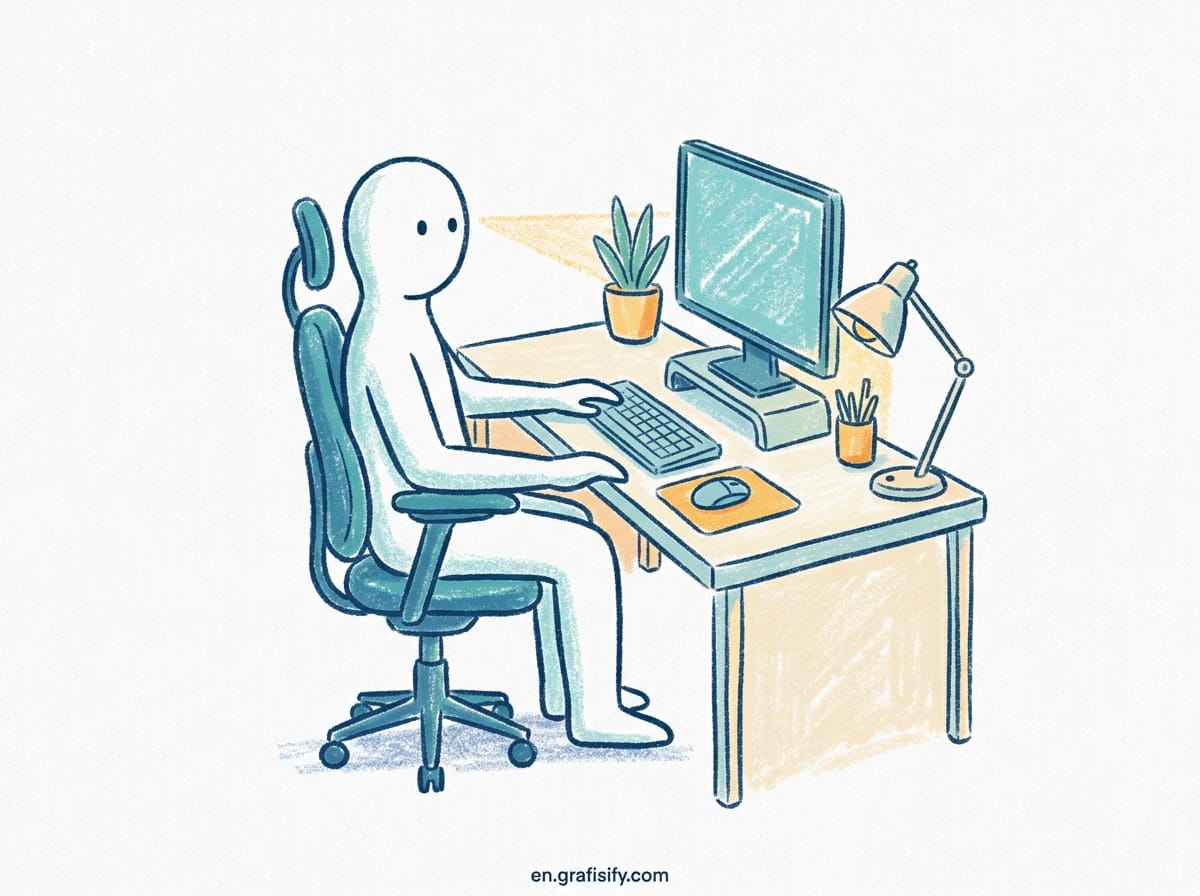
TL;DR: Your desk setup shapes your health and output. Poor posture causes back pain, eye strain, and fatigue. I refined my workspace for years. Fix chair height, set monitor at eye level, alternate sitting and standing every 45 minutes, and layer lighting. Apply three changes this week and feel the difference by Friday.
Working from home offers flexibility, but without a proper workspace your productivity and health suffer. Lower back pain, neck strain, and eye fatigue rank among the top complaints from professionals at a desk eight or more hours daily.
An ergonomic home office is an investment in sustained focus and career longevity. This guide converts biomechanical research into setup principles you can apply today at any budget.
Ergonomic Sitting Posture Science
Your spine has natural curves that absorb impact and distribute weight. When these collapse during prolonged sitting, discs compress unevenly, muscles fatigue, and nerves get pinched. I learned this after months on a kitchen chair left me with chronic lower back stiffness.
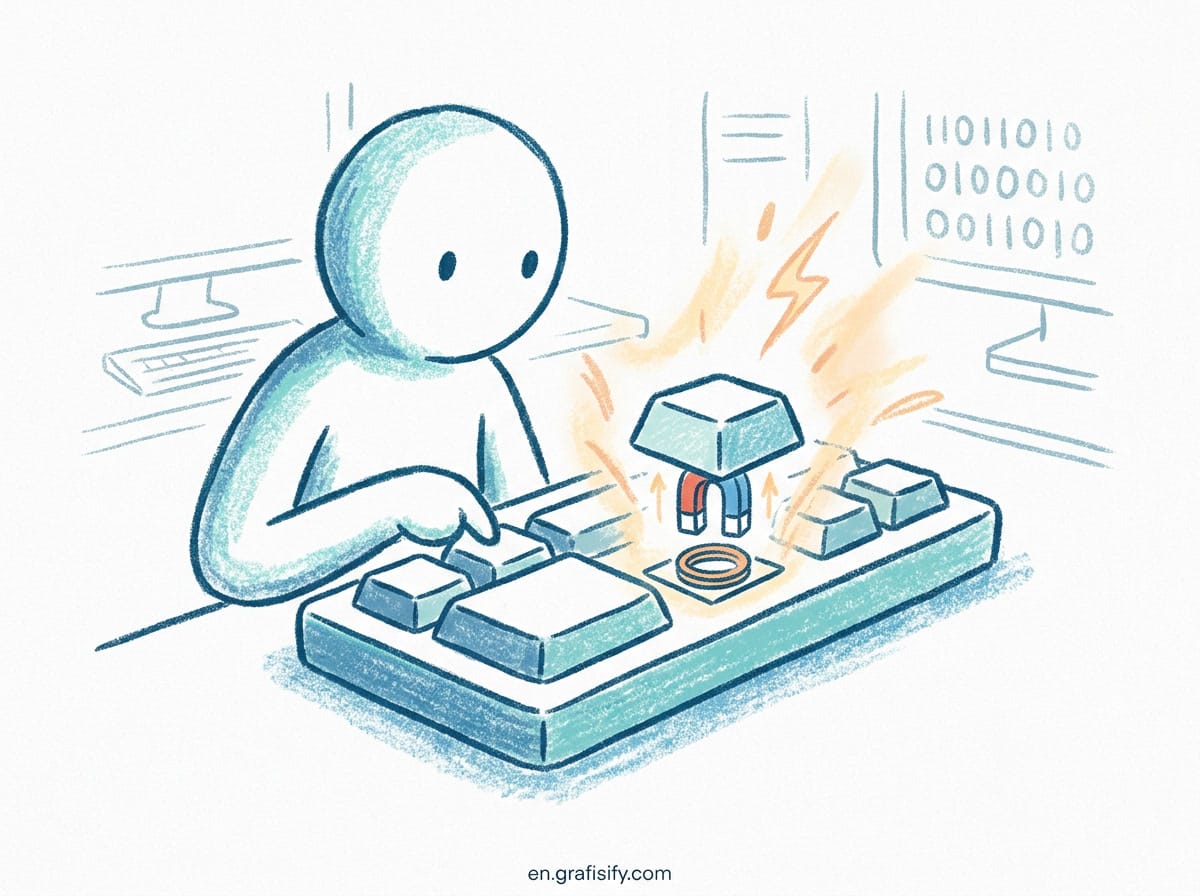
The ideal seated posture maintains three key alignments:
- Hips slightly higher than knees: Creates an open hip angle that reduces lumbar pressure
- Neck neutral: Ears aligned over shoulders, not jutting forward toward the screen
- Shoulders relaxed down: Not hunched toward ears, which causes trapezius tension
Research shows most people slump into a C-curve within 20 minutes, linking to disc degeneration and chronic pain. The fix is not rigid stillness but dynamic support enabling micro-adjustments.
Choosing Your Support Chair
A good ergonomic chair provides four critical supports. I tested several before finding adjustable lumbar depth matters more than any premium label.
- Lumbar support: Should contact your lower back’s natural inward curve. Adjustable depth is essential because fixed bumps often miss the right spot for different body types.
- Seat depth: Leave two to four fingers between the seat edge and the back of your knees. Too deep causes hamstring pressure; too shallow reduces thigh support and stability.
- Armrests: Set at elbow height when typing, maintaining a 90-degree elbow angle. They should support forearms without lifting your shoulders upward.
- Tilt tension: Adjust so reclining requires slight effort. Passive sinking encourages slouching, while resistance keeps your core lightly engaged.
Budget options like the IKEA Markus offer decent support around $250. Premium chairs like the Herman Miller Aeron add refinement at $1,200 but are not mandatory. The differentiator is adjustability range, not brand prestige.

Monitor Positioning for Eye Health
Eye strain accounts for roughly 65% of workplace discomfort among computer users. Proper monitor placement cuts this significantly.
- Distance: Arm’s length away, roughly 20 to 30 inches. Use the 1.6x rule: multiply your screen diagonal by 1.6 to get the ideal viewing distance. A 24-inch monitor works best at about 38 inches away.
- Height: Top third of the screen at or slightly below eye level. Looking downward 10 to 20 degrees reduces neck strain compared to staring straight ahead.
- Tilt: Tilt the screen backward 10 to 20 degrees to maintain perpendicular alignment between your eyes and the display surface.
Dual monitor users should center the primary screen and angle the secondary toward them. OSHA studies confirm this cuts head rotation by 42% versus symmetrical setups. For upgrades, our portable guide covers panels that ease eye strain.

Neutral Wrist Positioning
Repetitive strain starts with subtle misalignments compounding over thousands of keystrokes daily. Your keyboard and mouse should enable these neutral positions:
- Wrist straightness: No upward or downward bending. Use negative tilt keyboards (5 to 15 degrees) or tented designs if flat surfaces cause wrist extension.
- Elbow support: Keep elbows close to your body at 90 to 110 degrees. Mouse pads with wrist rests often encourage harmful wrist flexion, so opt for forearm-supported positions instead.
- Reach zones: Primary tools (keyboard, mouse, pen tablet) should sit within easy fingertip reach without stretching or leaning forward.
Mechanical keyboards with low-profile switches reduce actuation force by 35% versus membrane boards, decreasing finger fatigue during long sessions. See the Cherry MX switch guide for force comparisons. I switched to a split keyboard last year and wrist soreness disappeared within two weeks.
Optimal Lighting Setup
Poor lighting forces your pupils to constantly adjust, causing headaches and focus loss. Implement this three-layer approach to eliminate visual stress:
- Ambient light: 300 to 500 lux overall room illumination from ceiling fixtures or large windows with diffusing curtains.
- Task light: Adjustable desk lamp providing 500 to 1000 lux, positioned opposite your dominant hand to minimize shadows on your work surface.
- Glare control: Position monitors perpendicular to windows. Use matte screen protectors if reflections persist despite repositioning.
Monitor light bars like the BenQ ScreenBar direct illumination downward without screen glare, ideal for dim environments. Our monitor light bar guide covers which models deliver the best results.
Standing Desks: Implementation Strategy
Recent work confirms standing desks alone don’t solve ergonomic issues. The benefit comes from alternating postures. I tried standing three hours straight and got sore knees, learning that transitions matter more than total standing time. Your body needs movement variety throughout the day.
- A 2025 randomized trial found that a 30-minute sitting to 15-minute standing schedule reduced lower back pain by approximately 13% over three months. The systematic review on sit-stand workstations reaches the same conclusion across multiple cohorts.
- Workers reported 22% better concentration during task-switching periods when following structured transitions.
- Productivity metrics improved only when transitions were scheduled deliberately, not when standing happened randomly.
Start with a fixed schedule using phone alarms or a desk timer:
9:00-9:30 AM: Sitting
9:30-9:45 AM: Standing
9:45-10:15 AM: Sitting
Gradually increase standing duration as your leg strength builds. Anti-fatigue mats reduce foot pressure by 47% during prolonged standing, making them a worthwhile $40 investment.
For optimization, check our guide on best monitor light bars and portable monitors.
Standard vs. Ergonomic Workspace Comparison
| Element | Standard Setup | Ergonomic Setup |
|---|---|---|
| Chair | Fixed height, no lumbar support | Adjustable lumbar depth and seat depth |
| Monitor Height | Resting flat on desk surface | Top third aligned at eye level |
| Keyboard Position | Flat on desk surface | Negative tilt or split design |
| Lighting | Overhead ceiling only | Ambient plus task lighting layered |
| Posture Schedule | Sitting all day without breaks | Structured sit-stand rotation |
| Cable Management | Cords lying across floor | Under-desk trays and cable sleeves |
Common Home Office Mistakes
Avoid these frequent pitfalls that undermine even expensive ergonomic equipment. I have seen colleagues spend $2,000 on a chair yet keep their monitor at laptop height, negating the entire investment within a week.
- Laptop as primary device: Forces neck flexion unless you raise the screen to eye level and use an external keyboard and mouse. Working on a laptop for 8 hours daily is one of the fastest paths to chronic neck pain.
- Kitchen table workspace: Fixed table height rarely matches your optimal seated posture dimensions. Standard dining tables sit 2 to 3 inches too high for most people, causing shoulder elevation.
- Ignoring foot support: Dangling feet increase lower back pressure. Use a footrest if your thighs are not fully supported by the seat pan.
- Static positioning: Staying in one posture beyond 45 minutes without micro-breaks leads to muscle fatigue and joint stiffness.
- Poor cable routing: Tripping hazards and equipment strain from tangled power and data lines create both safety risks and gradual port damage.

Daily Routine for Sustainable Ergonomics
Integrate these habits into your workflow to maintain your setup:
- Morning calibration: Before starting work, adjust your chair height until your feet rest flat on the floor and your arms form 90-degree angles at the elbow.
- Hourly reset: Every 60 minutes, stand up and look at a distant object 20 feet or more away for 20 seconds. This resets both your postural muscles and your visual focus.
- End-of-day check: Verify cables are secured and equipment powered down to prevent overnight wear on components and reduce fire hazards.
Perfect ergonomics is not a static endpoint but a responsive practice. Your body changes daily, as does your workload. Regular adjustments prevent cumulative strain before it becomes chronic pain.
Pick three principles from this guide and apply them this week. You will notice reduced fatigue by Friday. I started with chair height, monitor distance, and a standing timer, and the combination paid off faster than expected.
Frequently Asked Questions
How much should I spend on an ergonomic chair? A quality entry-level chair costs $200 to $400. The IKEA Markus remains solid at $250. Premium chairs above $1,000 add refinement but are not required for basic health benefits.
Is a standing desk worth it? Yes, but only with scheduled transitions. Standing all day carries the same risks as sitting all day. Use a timer to alternate every 30 to 45 minutes for measurable back pain reduction.
What is the single most impactful change? Monitor height. Raising your screen to eye level eliminates the neck flexion that causes most chronic desk-related pain.

Irfan is a Creative Tech Strategist and the founder of Grafisify. He spends his days testing the latest AI design tools and breaking down complex tech into actionable guides for creators. When he’s not writing, he’s experimenting with generative art or optimizing digital workflows.




 Artificial Intelligent
 Design & Creative
 Freelance
 Gadgets & Gear
 Insights
 Laptop
 Reviews
 Smartphone
 Tech Guides
 Vibe Coding