How to Keep Your Laptop Cool and Prevent Overheating
The Verdict: Overheating Kills Performance and Lifespan
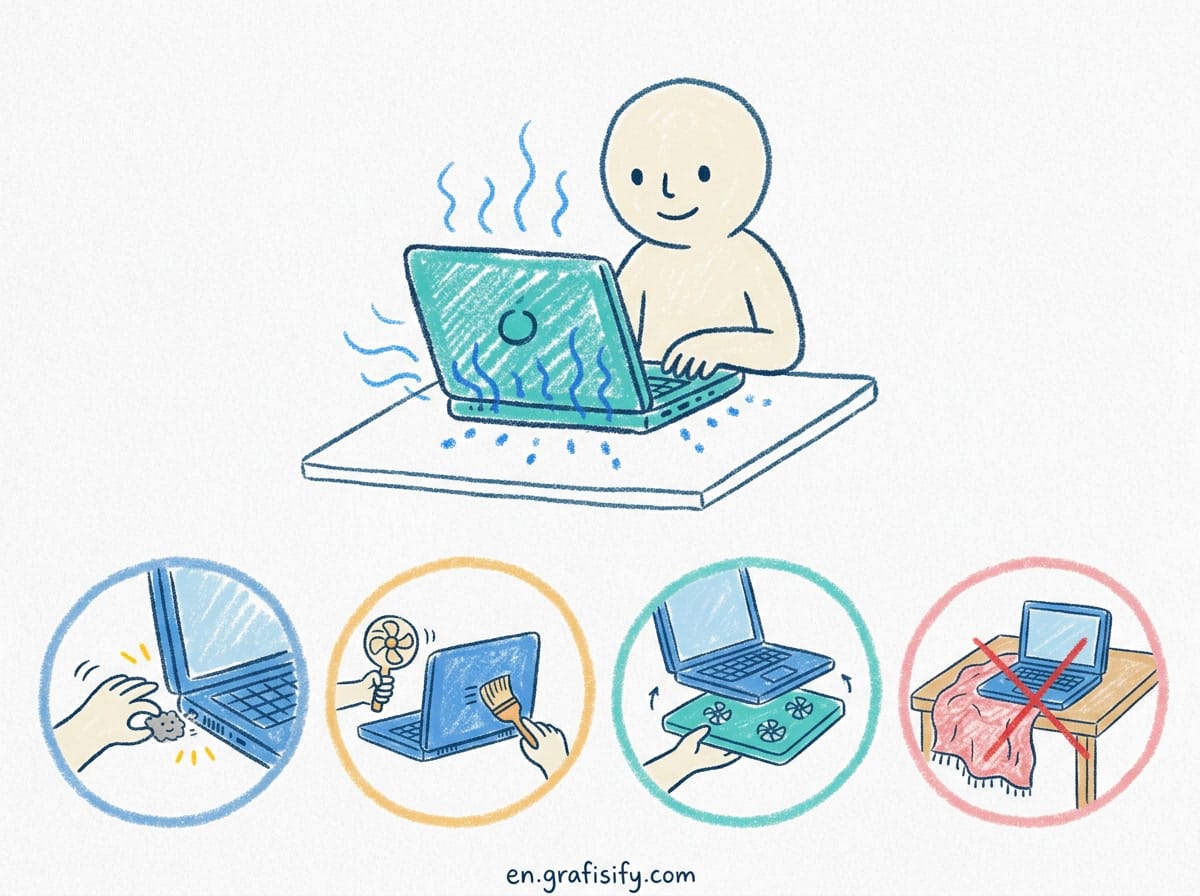
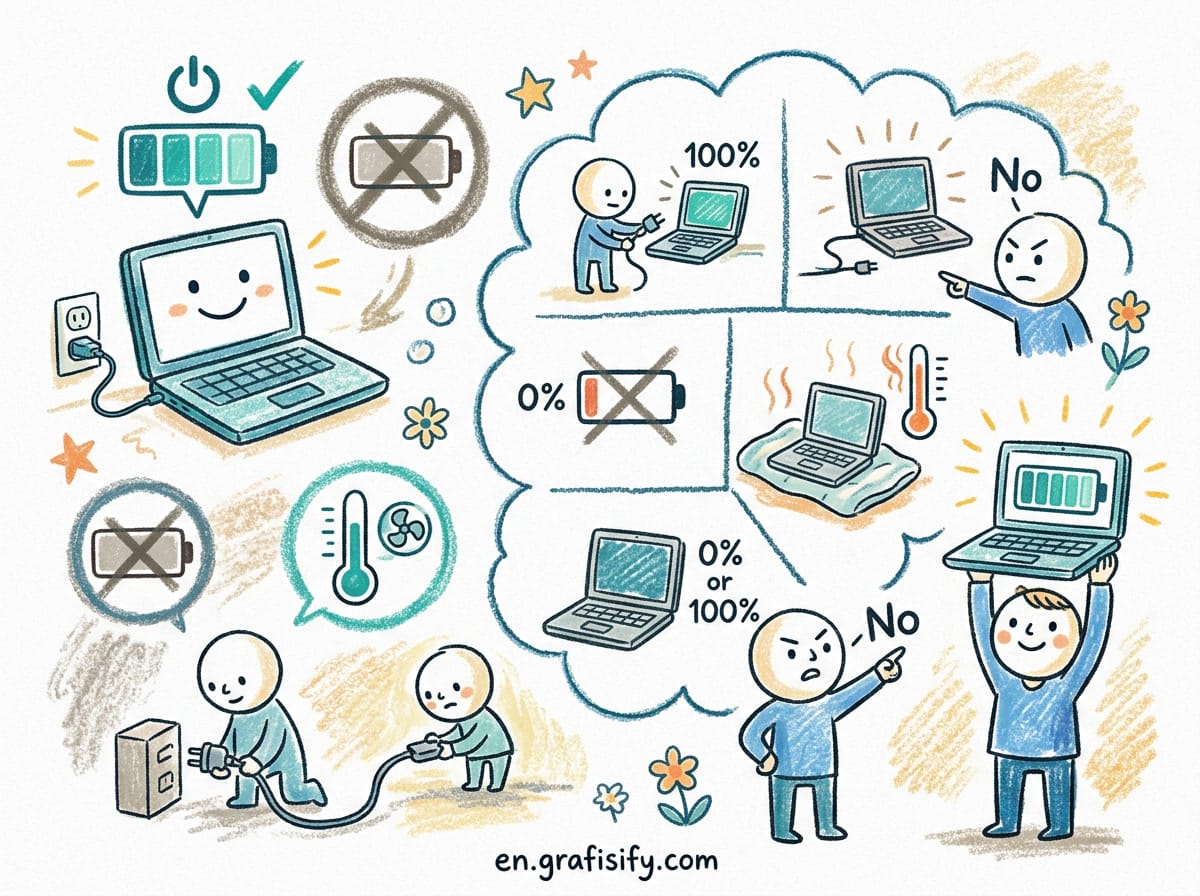
If your laptop runs hot enough that the fans spin loud and the bottom feels uncomfortable to touch, you are losing performance and shortening its life. The short fix: use your laptop on a hard, flat surface, clear the vents, and limit your CPU power to 99% in Windows power settings. For persistent heat, clean the dust from internal fans every six months and consider replacing thermal paste every three to four years. Most overheating problems are caused by blocked airflow and accumulated dust, not by defective hardware, and they are almost always fixable with simple habits.
What Temperature Is Normal for a Laptop
A healthy laptop runs between 35 and 50 degrees Celsius when idle, and between 60 and 80 degrees under normal workload. When you game, render video, or run other heavy tasks, brief spikes into the mid-80s are acceptable. The real danger zone starts above 90 degrees Celsius, as noted in laptop cooling discussions, where the CPU and GPU begin thermal throttling, which means they intentionally slow themselves down to avoid damage.
If your laptop consistently hits 90 degrees or more under light use like web browsing or typing documents, something is wrong. That signals clogged vents, failing thermal paste, or inadequate cooling design for the tasks you are asking it to do.
Laptops are more susceptible to heat than desktop PCs because their components are packed tightly with limited airflow. Manufacturers design the chassis to double as a heat spreader, which is why a warm bottom is normal during heavy work, but hot enough to be uncomfortable on bare skin is a warning sign.
Also Read:

Rule One: Surface and Airflow Matter Most
The single biggest cause of laptop overheating is using it on a soft surface. A bed, a sofa, a thick blanket, or even your lap can block the intake vents on the bottom and the exhaust vents on the sides or back. Within minutes, the trapped heat pushes internal temperatures past safe thresholds.
Always place your laptop on a hard, flat surface like a desk or table. If you need to use it on your lap, buy a lap desk or a flat board that keeps the bottom vents open. Even a hardcover book works in a pinch. The goal is to give the fans room to pull in cool air and push out hot air without obstructions.

Elevating the back of the laptop by an inch or two also helps. Many simple laptop stands cost under 20 dollars and improve airflow noticeably. The angle opens more clearance under the chassis and lets the fans work with less resistance.
Clean the Dust: The Most Overlooked Fix
Dust is the silent killer of laptop cooling. Over months of use, dust and lint accumulate inside the chassis, clogging the fan blades and blocking the fin stacks that radiate heat out of the system. A laptop that ran cool when new can run 10 to 15 degrees hotter after a year of accumulated dust.
Cleaning the internal vents with compressed air every six months, as PCWorld recommends, is the single most effective maintenance task for temperature control. Power off the laptop, hold the fan still with a toothpick or plastic tool to prevent the blades from spinning (spinning them with compressed air can damage the bearings), and blow short bursts through the exhaust vents. Focus on the areas where warm air exits, not just the intake grills.
If you are comfortable opening the laptop, removing the bottom panel to access the fan directly gives a much more thorough clean. Look for a thin layer of dust caked on the fan blades themselves. Even a partial cleaning can drop your peak temperatures by several degrees.
Optimize Power Settings to Reduce Heat
Windows offers a simple trick that many users do not know about. In Power Options, set your maximum processor state to 99% instead of 100%. This disables the CPU boost feature, which is the main source of heat spikes. The performance loss is very small for most tasks, but the temperature drop can be significant, often 5 to 10 degrees.
You can also adjust the Active and Passive cooling policies. Set Active cooling for plugged-in use and Passive for battery use. Active cooling runs the fans sooner, keeping temperatures lower at the cost of more noise. Passive cooling lets the CPU slow down before the fans kick in, saving battery but running warmer.
On macOS, the built-in thermal management is harder to override, but you can use third-party tools like Turbo Boost Switcher to disable boost on Intel Macs. Apple Silicon Macs manage heat more efficiently overall, but they still benefit from good airflow and a clean desk surface.
Consider a Cooling Pad for Heavy Use
For gaming, video editing, or any sustained heavy workload, a cooling pad can help. The best ones use active fans that push cool air directly into the laptop’s intake vents. They are not miracle workers, but they can reduce peak temperatures by 5 to 10 degrees in many cases, which is enough to prevent thermal throttling.
Passive cooling pads, which are just stands with no fans, help mostly by improving airflow underneath. They are quieter and cheaper but provide less direct cooling. For occasional heavy use, a passive stand is fine. For daily gaming or rendering, an active pad is worth the investment.
Before buying a cooling pad, verify that its fan placement aligns with your laptop’s bottom intake vents. A misaligned fan is just a noisy stand.
Monitor Your Temperatures and Know the Warning Signs
Free tools like HWMonitor, Open Hardware Monitor, or Core Temp let you see your CPU and GPU temperatures in real time. Check them during a typical heavy session. If you see consistent temperatures above 90 degrees, you have a cooling problem that needs attention.
Watch for these warning signs: the laptop feels hot to the touch even when idling, the fans run at maximum speed constantly, the system shuts down unexpectedly during heavy tasks, you smell burning or unusual odors, or the chassis starts to warp or bulge near the battery area. A swollen battery from heat damage is a fire risk and requires immediate replacement.
Comparison Table: Cooling Methods at a Glance
| Method | Cost | Temperature Drop | Effort Required |
|---|---|---|---|
| Hard flat surface | Free | 5-15 degrees | None, change your habit |
| Elevate laptop | $0-$20 | 3-8 degrees | Minimal, use a stand |
| Compressed air cleaning | $10 | 5-15 degrees | 5 minutes |
| Thermal paste replacement | $10 | 5-20 degrees | Moderate, open chassis |
| CPU power limit 99% | Free | 5-10 degrees | 30 seconds, set once |
| Active cooling pad | $25-$50 | 5-10 degrees | Zero, plug and use |
Use this table to prioritize. The free and near-free fixes like switching to a hard surface and limiting CPU boost should be your first steps. Only spend money on pads or thermal paste if those changes are not enough.
When to Replace Thermal Paste
Thermal paste sits between the CPU or GPU die and the heat sink. Over time, it dries out and loses its ability to transfer heat effectively. A laptop that is three to four years old and has never had its thermal paste replaced is almost certainly running hotter than it should.
Replacing thermal paste requires opening the laptop, removing the cooling assembly, cleaning the old paste with isopropyl alcohol, and applying a fresh pea-sized dot of new paste. It is not difficult if you follow a guide, but it does require some confidence with small screws and delicate components. If you are not comfortable doing it yourself, most repair shops charge between 30 and 50 dollars for the service, less than the cost of a new laptop from heat damage as Intel explains.
Laptop Maintenance Beyond Cooling
Heat affects more than just the processor. A hot battery ages faster, losing capacity sooner. Hot storage drives can fail earlier. Keeping your laptop cool indirectly extends the life of every component inside it.
Combining good cooling habits with overall maintenance keeps your machine healthy longer. Our guide on prolonging your laptop battery life covers how temperature directly affects battery degradation. And if you are deciding what machine to buy, our comparison of laptop display types and the piece on choosing a laptop for programming can help you pick hardware that runs efficiently from day one.
For creative professionals, our guide on choosing a laptop for graphic design covers thermal considerations for sustained rendering workloads too.
Frequently Asked Questions
Is it normal for my laptop to get hot while gaming?
Yes, gaming generates a lot of heat. Temperatures in the 80 to 85 degree range are normal under load. If you consistently hit 90 degrees or more, take action with the tips above.
How often should I clean my laptop’s fans?
Every six months is a good rhythm. If you smoke, have pets, or work in a dusty environment, increase it to every three months.
Can overheating permanently damage my laptop?
Yes. Prolonged heat degrades the battery, stresses solder joints on the motherboard, and can cause permanent CPU or GPU damage in extreme cases. It is worth addressing early.
Does a cooling pad really make a difference?
An active cooling pad can drop temperatures by 5 to 10 degrees under sustained load. It is not a substitute for cleaning dust or using a hard surface, but it helps as an additional measure.
Should I undervolt my laptop to reduce heat?
Undervolting can help, especially on older Intel laptops. Tools like Throttlestop let you reduce voltage while keeping performance. It is safe if you follow guides carefully, but it is an advanced step, not your first solution.

Final Thoughts: Consistent Habits Beat Expensive Gadgets
Laptop overheating is rarely a mystery. Dust, blocked vents, soft surfaces, and aging thermal paste account for nearly every case I have seen. The good news is that the fixes are cheap or free, and they work immediately. Keep your laptop on a hard surface, clean the vents twice a year, and disable CPU boost if you need quick relief. Those three habits will keep your machine running cooler and lasting longer than any expensive cooling pad or software tweak.
I maintain my own laptop this way, and it has stayed below 80 degrees under load for three years without a single thermal shutdown. That is not special hardware. It is just consistent basic care.

Irfan is a Creative Tech Strategist and the founder of Grafisify. He spends his days testing the latest AI design tools and breaking down complex tech into actionable guides for creators. When he’s not writing, he’s experimenting with generative art or optimizing digital workflows.


 Artificial Intelligent
 Design & Creative
 Freelance
 Gadgets & Gear
 Insights
 Laptop
 Reviews
 Smartphone
 Tech Guides
 Vibe Coding