Laptop Battery Health Guide: How to Extend Battery Life and Keep Your Laptop Running Longer

Laptop Battery Health Guide: How to Extend Battery Life and Keep Your Laptop Running Longer
Your laptop battery is a consumable part with a fixed lifespan. But how you charge and care for it can make the difference between replacing it after 18 months and still getting solid runtime after five years. This laptop battery health guide covers the charging habits, software settings, and physical care steps that actually work.
Here is the thing most laptop reviews don’t tell you: that battery sitting inside your machine is living chemistry. It degrades from the moment you unbox it. The good news is that you have way more control over how fast that happens than you think.
I’ve tested these practices across a handful of Windows laptops and my own MacBook over two years. The results are consistent. The tricks that matter are simple, free, and take about five minutes to set up.
What Is Laptop Battery Health and Why Does It Matter?
Laptop battery health is a measure of how much charge your battery can hold compared to when it was new. A fresh battery is at 100% health. Over time, that number drops. At 80% health, you’ll notice the difference, maybe 20-30% less runtime than you used to get. At 60% or below, your “6-hour battery” becomes a “2-hour battery” that keeps you tethered to a wall outlet.
Modern laptops use lithium-ion or lithium-polymer batteries. Both chemistries degrade through two main mechanisms. Calendar aging happens regardless of use, the battery slowly decays over time even if you never touch it. Cyclic aging happens every time you charge and discharge. Your goal is to slow both down as much as possible.
Battery health matters because most laptops today are five- to seven-year investments. A battery that dies after two years doesn’t mean you need a new laptop, but it does mean less portability and lower resale value. With a few deliberate habits, you can keep that battery healthy through most of the laptop’s useful life.
Laptop Battery Health Guide: The Science Behind Battery Degradation
Lithium-ion batteries work by shuttling lithium ions between two electrodes, the anode and the cathode. When you charge to 100%, you’re cramming almost every ion onto one side. That creates high voltage and internal stress.
Think of it like a balloon. Fill it halfway and the rubber stays elastic for thousands of inflations. Fill it until it’s taut and translucent, and the material weakens. PCWorld explains that maxing out around 80% reduces stress on the battery and slows capacity loss over time. You get less runtime per charge, but that 80% capacity lasts much longer.
Temperature accelerates everything. High heat speeds up the chemical reactions inside the battery, breaking down electrolytes faster. Cold slows them down, but extreme cold can cause permanent damage too. The sweet spot for battery longevity is cool room temperature, between 50 and 86 degrees Fahrenheit.
This is why gaming laptops often have worse battery degradation after a year. All that heat from the GPU and CPU cooks the battery from the inside. If you game on battery power, you’re also putting the battery through repeated high-drain cycles, which is double damage.


Charging Best Practices for Maximum Battery Lifespan
This is the part where most guides go overboard with obsessive rules. You don’t need to sit by your laptop with a stopwatch. Here is what actually matters.
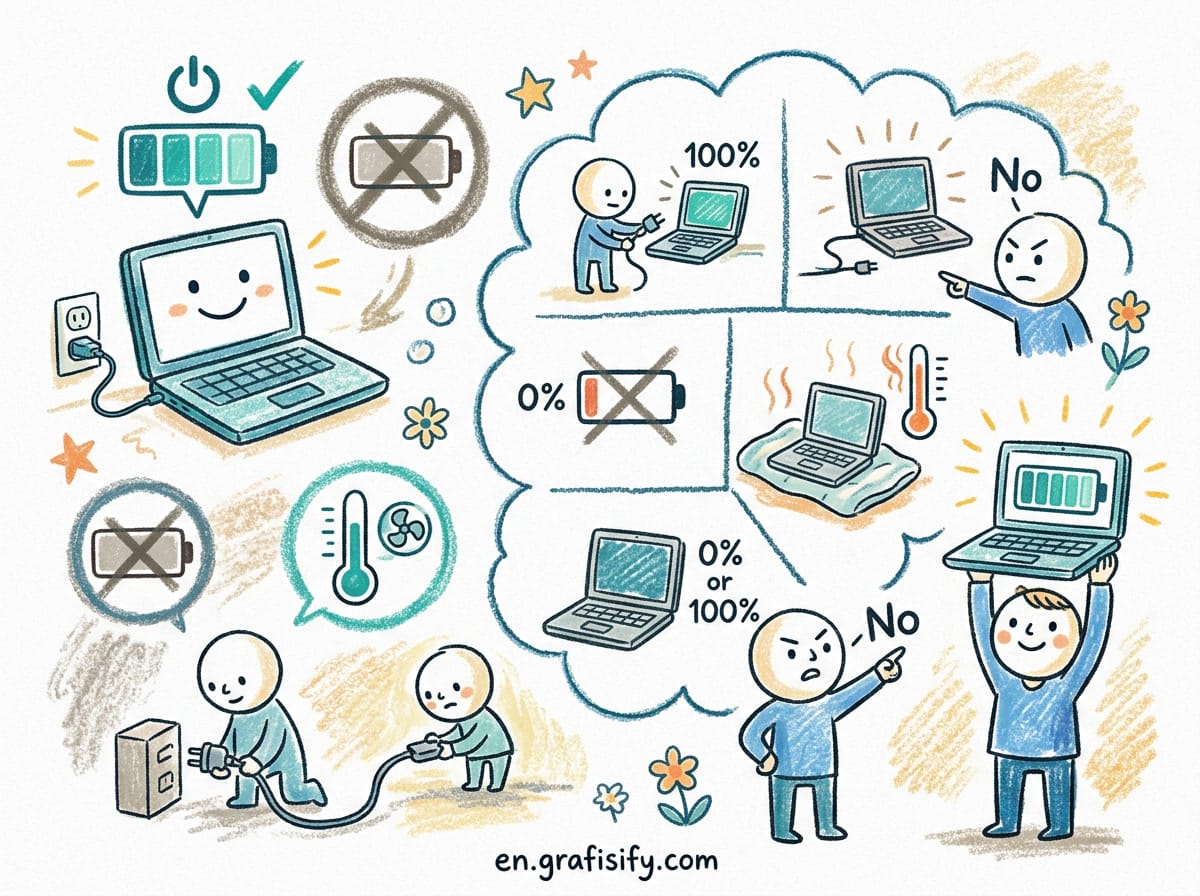
Keep It Between 20% and 80%
Research consistently shows lithium-ion batteries last longest when kept between 20% and 80% charge. Below 20%, the battery’s voltage drops too low, which can cause chemical instability. Above 80%, the high voltage stresses the electrolyte. iFixit confirms that keeping your battery between 40% and 80% can extend its lifespan by 40-50% compared to regularly charging to 100% and draining to near zero.
You don’t need to be perfect about this. Charging to 100% before a long flight is fine. The damage comes from spending most of the battery’s life at the extremes.

Don’t Let It Hit Zero
Deep discharge is worse than charging to 100%. When a lithium-ion battery hits 0%, the copper current collector can dissolve into the electrolyte, causing permanent internal damage. If your laptop shuts off because the battery died, charge it as soon as possible. Don’t leave it sitting at 0% for days.
Use a Charge Limiter
The single most effective thing you can do for your battery is enable a charge limiter. Modern laptops from every major brand include software that stops charging at 80%. This isn’t a hack, it’s a built-in feature that manufacturers include because they know it extends battery life.
If you use your laptop plugged in most of the time, like a desktop replacement, this setting alone can add years to your battery’s life. Even if you’re mobile, capping at 80% during daily use and switching to full charge only when you know you’ll need the extra runtime is a solid habit.
Periodic Deep Discharge? Not Needed
You might have heard that you need to fully discharge your battery once a month to “recalibrate” it. That was true for old nickel-cadmium batteries. For modern lithium-ion batteries, it’s unnecessary and actually harmful. The battery management system handles calibration automatically.
How to Check Your Laptop’s Battery Health
Before you change anything, you need to know where your battery stands today. Both Windows and macOS have built-in tools for this.
| Platform | How to Check | What to Look For |
|---|---|---|
| Windows | Open Command Prompt, type powercfg /batteryreport, press Enter. Open the HTML report saved in your user folder. | Compare “Design Capacity” vs “Full Charge Capacity”. The ratio is your health percentage. |
| macOS | Hold Option and click the battery icon in the menu bar, or go to System Information > Power. | Check Cycle Count and Condition. “Normal” is good. “Service Recommended” means replacement time. |
| Dell | Open Dell Power Manager | Shows battery health status: Excellent, Good, Fair, or Poor. |
| Lenovo | Open Lenovo Vantage | Check Battery Health section for wear level and cycle count. |
| ASUS | Open MyASUS | Battery diagnostic tool shows health as Good/Normal or Poor. |
If your battery health is above 80%, you’re in good shape. Between 60% and 80%, you’ll notice shorter runtime but the laptop is still usable. Below 60%, consider replacing the battery. Below 40%, replacement is urgent, especially if you notice physical swelling or unexpected shutdowns.
Laptop Battery Health Guide: Manufacturer Battery Saving Features
Every major laptop brand includes software to limit charging. Here is how to enable it on each platform.
Apple MacBooks: Go to System Settings > Battery. Click the circled “i” next to Battery Health and enable Optimized Battery Charging. On Apple Silicon Macs, this learns your daily routine and holds the charge at 80% when it predicts you’ll stay plugged in.
Dell: Open Dell Power Manager. Go to Battery Information > Settings and choose “Primarily AC Use” or set a custom charge limit at 80%.
Lenovo: Open Lenovo Vantage. Navigate to Device > Power and turn on Conservation Mode. This stops charging at exactly 80%.
HP: Restart your laptop, press F10 to enter BIOS. Go to Advanced > Power Management Options and set Battery Health Manager to “Maximize My Battery Health.”
ASUS: Open MyASUS. Go to Device Settings > Power & Performance and toggle on Battery Care Mode. ASUS offers three modes: Full Capacity (100%), Balanced (stops at 80%), and Maximum Lifespan (stops at 60%).
Microsoft Surface: Open the Surface app and expand Smart Charging. Toggle it on to cap at 80%.
If your laptop doesn’t have these settings, you can still manually unplug around 80%. It’s less convenient, but the principle is the same.
Temperature and Physical Care Tips
Heat is the number one enemy of battery health. Even if your charging habits are perfect, running your laptop hot will degrade the battery faster than anything else.
Keep your laptop on hard surfaces for proper airflow. Using it on a blanket, pillow, or your lap traps heat and blocks vents. If you use a lap desk, make sure it has ventilation channels.
Don’t leave your laptop in a hot car, in direct sunlight, or near heating vents. PCWorld reports that a battery kept at 32 degrees Fahrenheit (0 Celsius) retained 94% capacity after one year, while one kept at 104 degrees F (40 C) held only 65%. That’s a massive difference from temperature alone.
If your laptop is new or stays cool, occasional plugged-in use is fine. But if it runs hot, unplug it every now and then to let the battery cycle and cool down. Think of it like giving a runner a water break.
For long-term storage, charge the battery to about 50% and store it in a cool, dry place. Don’t store it fully charged or completely empty. Recharge to 50% every three months if you’re storing it for extended periods.
Frequently Asked Questions: Laptop Battery Health Guide
Is it bad to leave my laptop plugged in all the time?
Modern laptops have battery management systems that stop charging at 100%, so overcharging isn’t a concern. However, keeping the battery at 100% for long periods does accelerate calendar aging. If you use your laptop plugged in most of the time, enable the 80% charge limiter. That’s the real fix.
Can I use my laptop while it’s charging?
Yes, it’s perfectly safe. Your laptop draws power directly from the AC adapter when plugged in, which actually reduces charge cycles on the battery. Just make sure the laptop has good ventilation so it doesn’t overheat.
How often should I replace my laptop battery?
Most laptop batteries are rated for 300 to 500 full charge cycles before dropping to 80% capacity. If your battery health is below 60% or you notice physical swelling, unexpected shutdowns, or significantly reduced runtime, it’s time to replace it.
Does closing background apps help battery health?
It helps battery life (runtime per charge), not battery health (long-term capacity). Closing background apps reduces power draw, so you run fewer charge cycles overall, which indirectly helps longevity. But for direct health impact, charge limits and temperature control matter more.
Can I reverse battery degradation?
No. Once lithium-ion capacity is lost, it can’t be restored. The chemical degradation inside the cell is irreversible. Software that claims to “recalibrate” or “restore” battery health only recalibrates the percentage reading, not the actual capacity. The only way to get original runtime back is to replace the battery.

Final Thoughts: Why This Laptop Battery Health Guide Matters
Your laptop battery is going to degrade. That’s inevitable. But how fast it happens is largely up to you. If you are shopping for a new machine, pairing this guide with how to choose a laptop for graphic design and creative work gives you the full picture, picking the right hardware and keeping it running longer.
The three things that matter most are simple. Keep the charge between 20% and 80% for daily use. Keep the laptop cool, especially when plugged in. And enable your manufacturer’s battery limiter, it takes thirty seconds and runs in the background forever.
I’ve been using Lenovo Conservation Mode on my daily driver for the past year. My battery health after 12 months is still at 93%. Before I started this habit, my previous laptop dropped to 78% in the same timeframe. That extra 15% of capacity is the difference between a laptop that still lasts a workday and one that needs recharging by lunch.
The best part is that these changes don’t cost anything. You don’t need special software, new hardware, or complicated routines. Just small adjustments to how you charge and where you use your laptop. Your battery, and your wallet, will thank you in a couple of years.

Irfan is a Creative Tech Strategist and the founder of Grafisify. He spends his days testing the latest AI design tools and breaking down complex tech into actionable guides for creators. When he’s not writing, he’s experimenting with generative art or optimizing digital workflows.




 Artificial Intelligent
 Design & Creative
 Freelance
 Gadgets & Gear
 Insights
 Laptop
 Reviews
 Smartphone
 Tech Guides
 Vibe Coding