How to Choose a Laptop Docking Station
Verdict: Which Dock You Should Buy
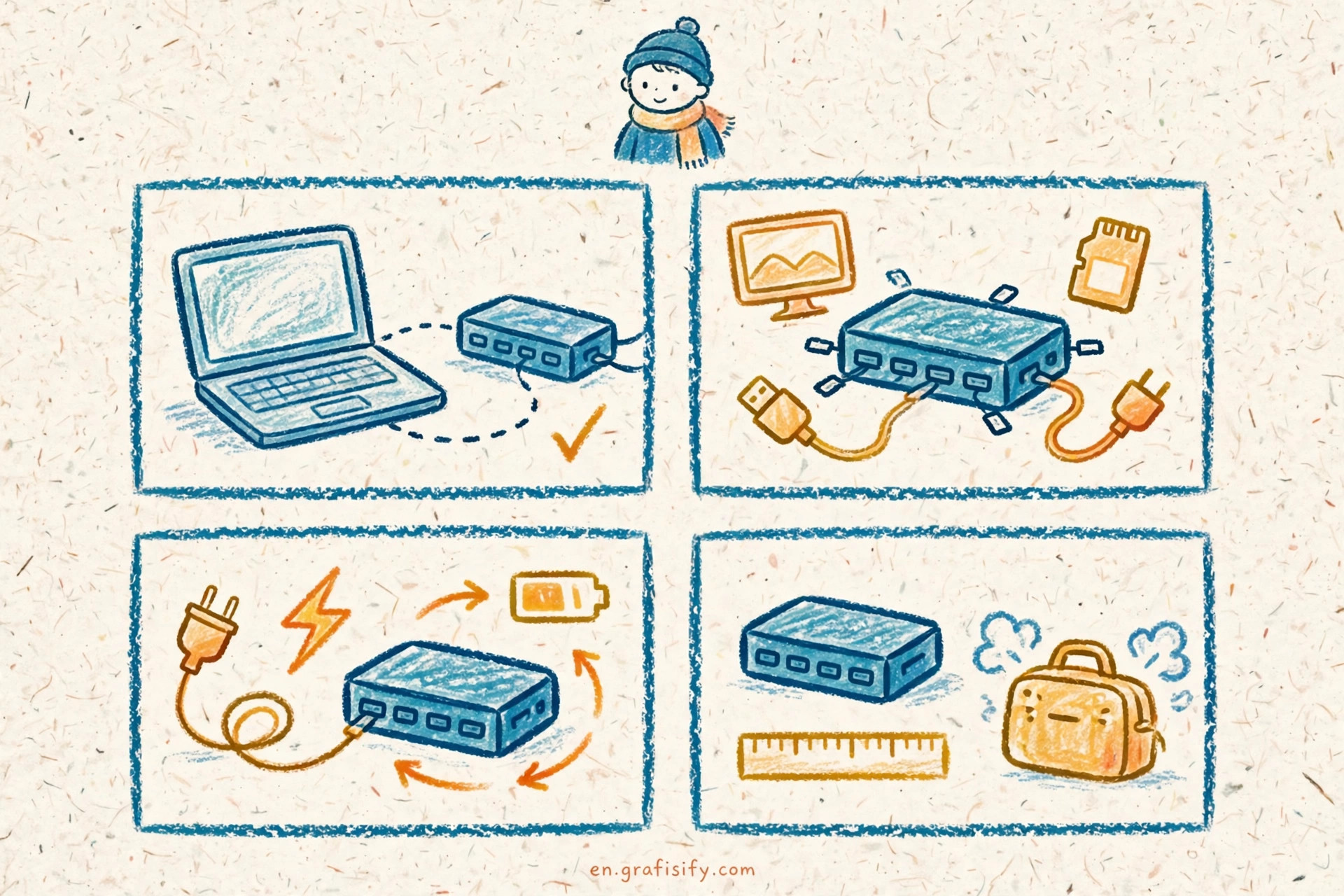
A docking station promises one cable for everything: monitors, Ethernet, storage, and laptop charging. The wrong dock turns that promise into flickering monitors and a battery that drains while plugged in. Match the dock to your port. Ignore the marketing on the box. Price follows capability: a hub costs a fraction of a dock, and a Thunderbolt dock costs more than a USB-C dock. Buy the hub when one display and a few ports cover your day. Spend up only when the port on your laptop can use the extra bandwidth.
- USB-C without Thunderbolt or USB4: buy a basic hub for one display and extra ports, or a full USB-C dock when you want one-cable charging plus wired Ethernet.
- Thunderbolt or USB4: buy a Thunderbolt dock when you drive two or more high-resolution displays or need faster networking.
- Mostly mobile: skip the desk dock. Pair a portable monitor with a small travel hub instead.
- The rule that decides everything: match the dock to your port. Every other feature sits downstream of that decision.
Three Kinds of Docks: Hub, USB-C Dock, Thunderbolt Dock
Manufacturers call all three products “docks.” The three classes perform very differently on the same laptop.
A USB-C hub is the small one. It adds a handful of ports, drives one external display over DisplayPort Alt Mode, and some models pass up to 100W to the laptop. It draws power from the laptop or a small adapter. Hubs fit travel bags and tight budgets.
A USB-C dock is the desk box. It plugs into mains power, charges the laptop at 90 to 100W, adds wired Ethernet, and runs one or two displays over DisplayPort Alt Mode. It works on almost any modern laptop with a full-featured USB-C port, because it needs nothing special from the port.

A Thunderbolt dock needs a Thunderbolt or USB4 port. Thunderbolt 4 moves 40 Gbps. Thunderbolt 5 delivers 80 Gbps bidirectional bandwidth, with Bandwidth Boost pushing up to 120 Gbps for displays, according to Intel. That headroom buys two or more high-resolution monitors, daisy-chained storage, and faster Ethernet tiers. Thunderbolt docks cost more, and the extra money pays off only on ports that can feed them. Many Thunderbolt docks include a second Thunderbolt port for daisy-chaining: dock to monitor to storage in one series, with a single cable back to the laptop. USB-C docks give each monitor its own cable instead.
Reviewers give the same mid-range dock five stars on a Thunderbolt laptop and one star on a USB-C-only machine, because only the port changed.
Comparison Table: Dock Types at a Glance
| Dock type | Upstream bandwidth | 4K at 60 Hz displays | Laptop charging | Ethernet | Best for |
|---|---|---|---|---|---|
| USB-C hub | 5-10 Gbps | 1 | Up to 100W pass-through | 1 GbE or none | Travel, one extra display |
| USB-C dock (DP Alt Mode) | 10 Gbps | 1-2 | 90-100W | 1 GbE | Office desk, one-cable setup |
| Thunderbolt 4 dock | 40 Gbps | 2 | 90-100W | Up to 2.5 GbE | Dual-monitor workstation |
| Thunderbolt 5 dock | 80 Gbps (120 Gbps with Bandwidth Boost) | 2+ high-resolution | Up to 140W | Up to 10 GbE | Creators, high-refresh setups |
Two footnotes keep this table honest. First, USB4 runs up to 80 Gbps over certified cables, but a given laptop may implement USB4 at 40 Gbps. Check the spec sheet, not the logo. Second, “displays” assumes DisplayPort Alt Mode or Thunderbolt tunneling plus Display Stream Compression, covered next.
Bandwidth and Displays: What Your Laptop Port Carries
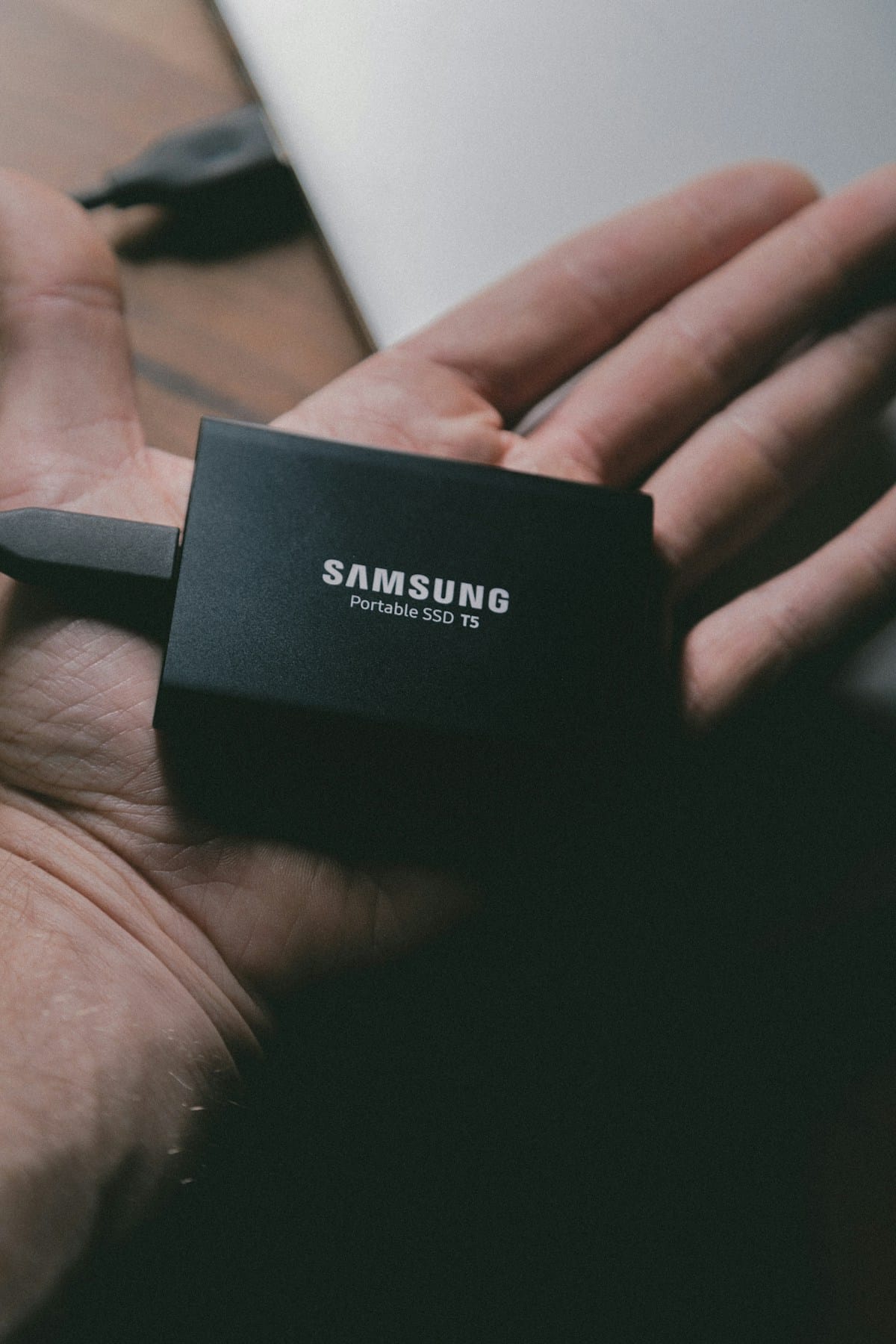
The pixel count one cable can push comes down to bandwidth. USB4 tunnels DisplayPort alongside data on the same wire, which is why a single port can feed monitors, storage, and network at once. The ceiling matters: higher bandwidth means more displays at higher refresh rates without compression artifacts.
Compression closes the gap. VESA’s DisplayPort 2.1 specification states that Display Stream Compression cuts DisplayPort transport bandwidth by more than 67 percent with no visual artifacts, while Panel Replay can reduce tunneling bandwidth by over 99 percent for static content. That math explains how two or three 4K monitors fit down one cable on a good day.
Cables come with their own ratings. VESA certifies DP40 cables to 40 Gbps and DP80 cables to 80 Gbps. The cable in the box decides what the dock can deliver: a 40 Gbps dock paired with a 10 Gbps cable will not drive dual 4K, whatever the box claims. Docks with HDMI ports top out at the HDMI 2.1 ceiling of 48 Gbps over an Ultra High Speed cable, per the HDMI specification page. Refresh rate eats bandwidth too. A 4K panel at 144 Hz needs far more than the same panel at 60 Hz, so budget bandwidth for refresh rate alongside resolution. On some laptops the second display output stays dark no matter what the dock promises. That limit lives in the laptop’s graphics hardware or operating system, not in the dock, which is why the spec-sheet check matters more than the dock’s marketing.
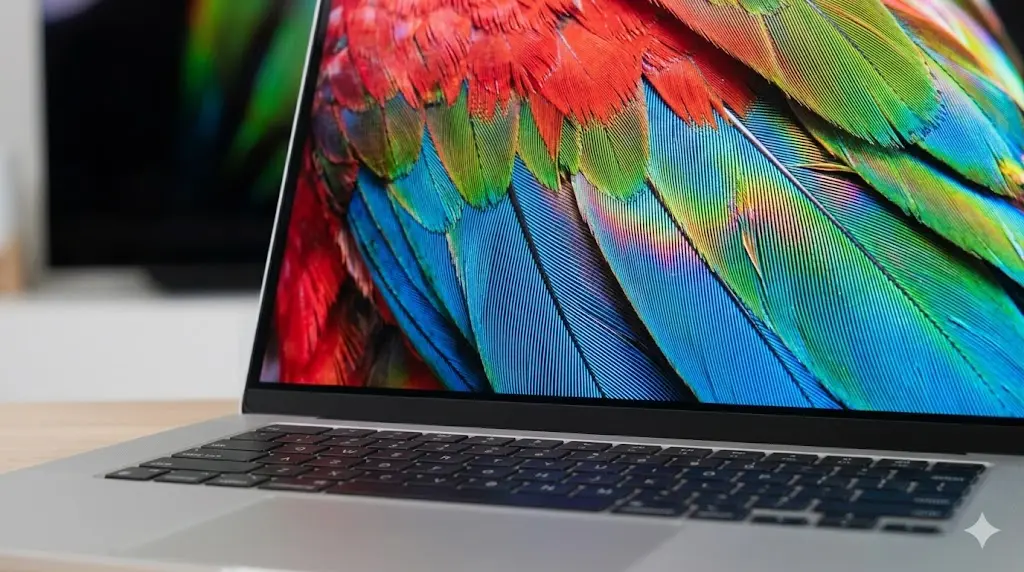
Before buying, identify what your own port supports. Our guide to the difference between Thunderbolt and USB4 shows how to check, and HDMI vs DisplayPort, explained covers which cable to use for each monitor.
Power Delivery: Charging Your Laptop Through the Dock
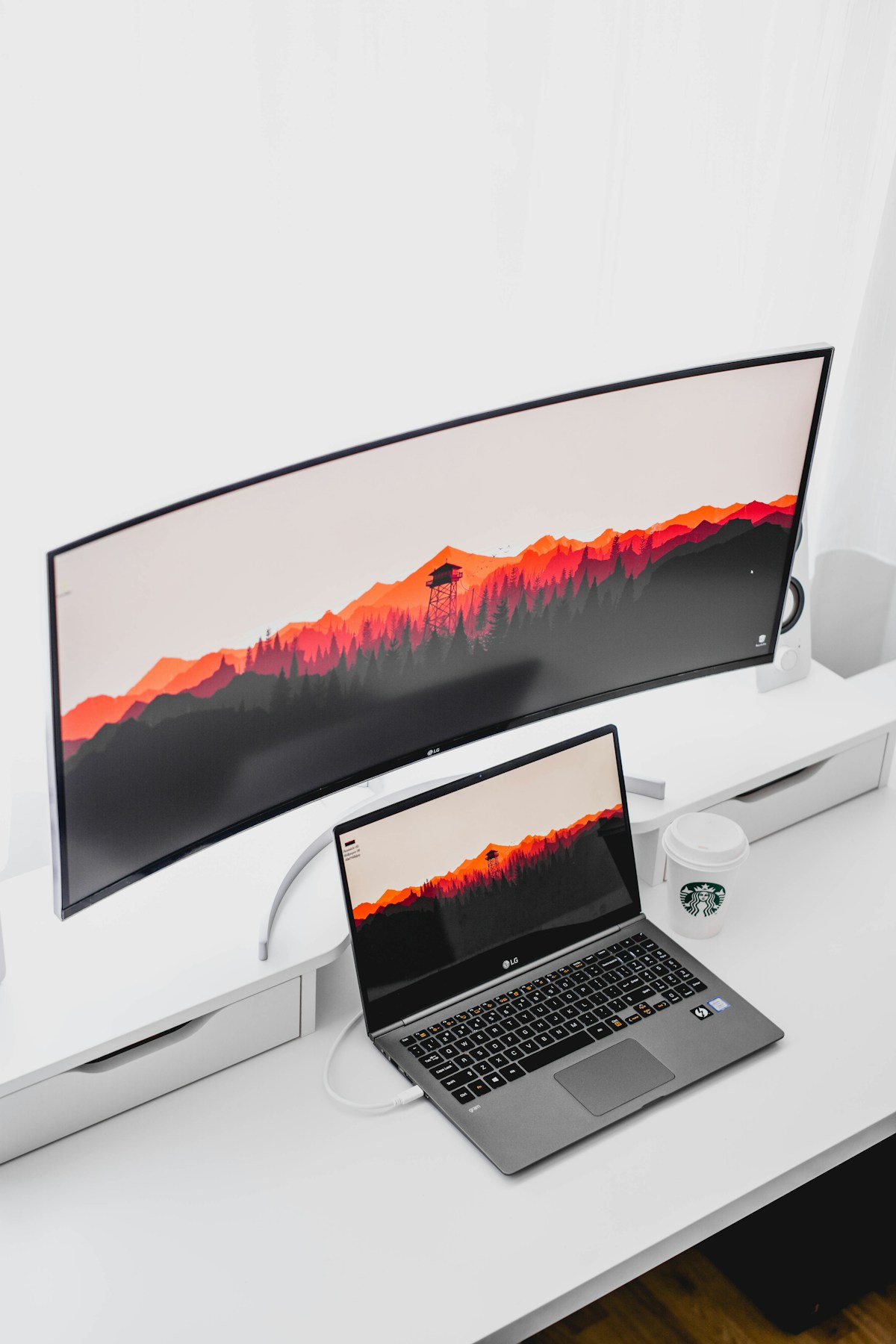
One-cable setups live or die on charging wattage. Before 2021, USB Power Delivery capped out at 100W. The USB PD 3.1 specification raised the ceiling to 240W over USB-C, adding 28V, 36V, and 48V rails that enable 140W, 180W, and 240W power levels. That spec is why modern docks can charge serious laptops through the same cable that carries your monitors.

Reaching 240W also needs an EPR-rated cable. A standard 100W cable caps delivery at 100W even when both ends support more, so check the cable’s rating when you chase the top power levels. Most docks still ship at 140W or below. A 16-inch performance laptop can draw more than that under sustained load, and then two bad things happen: the battery drains while the charger stays plugged in, or the machine throttles performance to stay inside the power budget. Neither shows up on the dock’s marketing page.
The fix takes thirty seconds. Read the wattage printed on your laptop’s original charger brick, then buy a dock that matches or exceeds it. If you charge with a standalone brick instead, our guide to picking the right charger wattage walks through the same math for travel chargers.
Ethernet, USB Ports, and Storage
Wired networking shows the cleanest split between dock classes. Tom’s Hardware’s dock guide reports that Thunderbolt 4 docks top out at 2.5 Gbps Ethernet, Thunderbolt 5 docks reach 10 Gbps, and most USB-C docks stop at 1 GbE. Buy the tier your network can feed: a 10 GbE port adds nothing on a gigabit home connection.
USB ports behind a dock share the upstream pipe. Ten ports on the box mean little when the upstream link runs at 10 Gbps and two 4K monitors already claim most of it. Count the devices you will plug in at the same time, then check each of the dock’s port speeds. Some docks pair fast upstream ports with slow downstream ones. A dock’s USB-A ports may run at 5 Gbps while its USB-C ports run at 10 Gbps. The spec sheet lists each port separately; the marketing page shows only the fastest one.
A few docks add M.2 slots for local SSD storage. Count that as a bonus. Buy for bandwidth, power, and ports, and confirm your operating system supports the feature. Platform support is the quiet dealbreaker across this whole category.
Tom’s Hardware reviewer Brandon Hill warns buyers to read the spec sheet before committing, because external monitor support varies with the hardware and operating system in use. A dock that drives dual 4K on Windows may drive a single display on macOS or Linux. Verify the exact combination of laptop model, OS, and monitor count before you buy.
Buying Checklist, Common Mistakes, and Final Steps
Run this six-item checklist before you pay:
- Identify the port: Thunderbolt, USB4, or plain USB-C. The dock must match it.
- Count your displays and note their resolution and refresh rate.
- Read the wattage on your laptop’s charger and buy a dock that matches it.
- Pick the Ethernet tier your network can feed: 1 GbE, 2.5 GbE, or 10 GbE.
- Confirm OS support for every feature you plan to use, multiple monitors included.
- Use the cable the dock ships with, or a certified cable at the same speed rating.
Four mistakes cause most returns. First, buying a Thunderbolt dock for a USB-C-only laptop: it will run, at USB-C speeds, for Thunderbolt money. Second, swapping the included cable for a random USB-C cable and losing half the bandwidth. Third, assuming every USB-C port pushes dual 4K. Most do not. Fourth, skipping the spec sheet for your exact laptop model and OS, then discovering the dock drives one monitor instead of two.
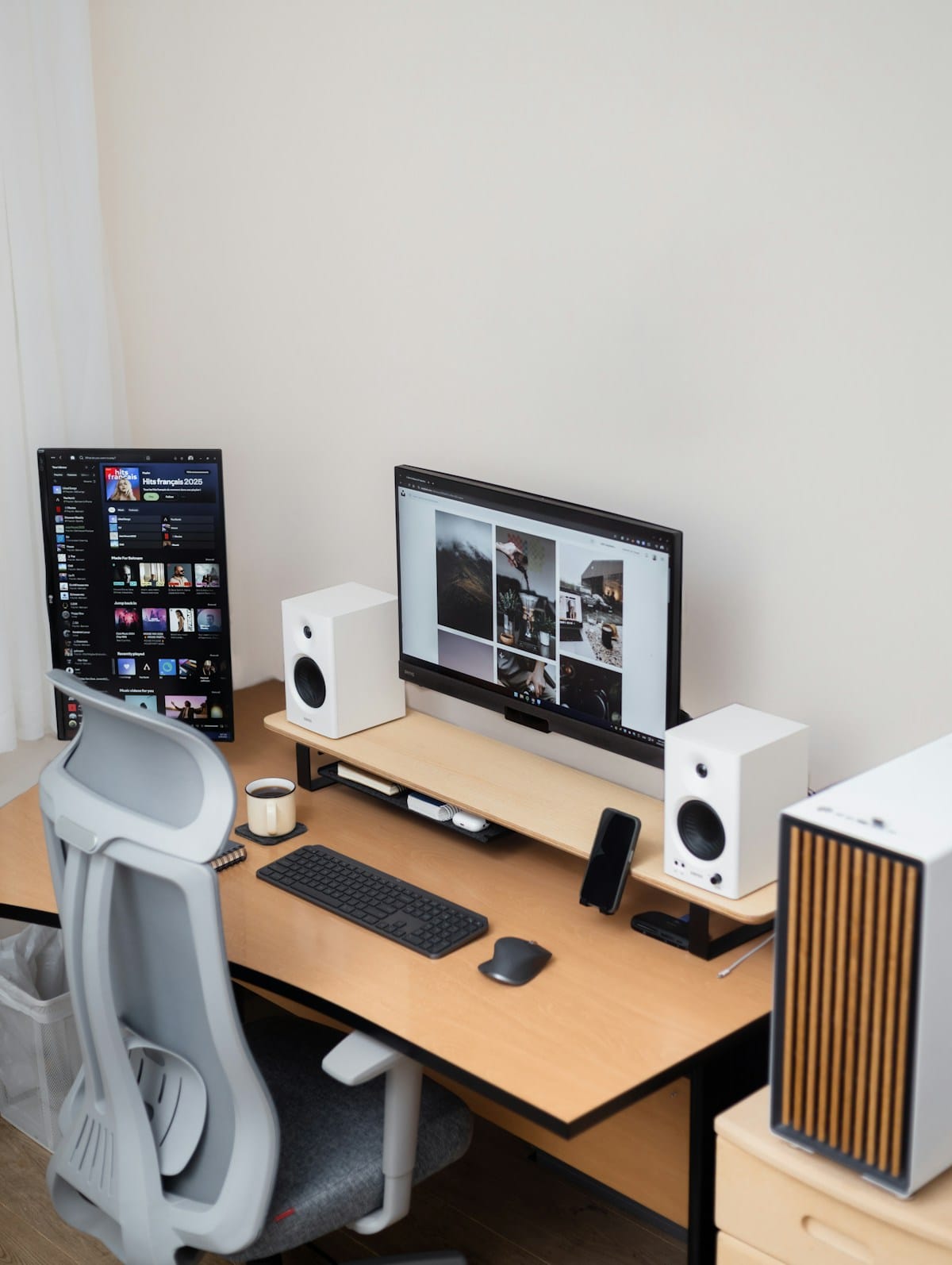
Get those four right and the rest follows. Drop your laptop model and monitor count in the comments if you want a second opinion. For the desk around the dock, our ergonomic desk setup guide covers monitor height and seating, and our docking station roundup lists current picks by desk size.

Irfan is a Creative Tech Strategist and the founder of Grafisify. He spends his days testing the latest AI design tools and breaking down complex tech into actionable guides for creators. When he’s not writing, he’s experimenting with generative art or optimizing digital workflows.




 Artificial Intelligent
 Design & Creative
 Freelance
 Gadgets & Gear
 Insights
 Laptop
 Reviews
 Smartphone
 Tech Guides
 Vibe Coding