How to Choose a Laptop for Graphic Design and Creative Work
How to Choose a Laptop for Graphic Design and Creative Work
Picking the wrong laptop for graphic design can cost you thousands in lost productivity. RTINGS tested over 170 laptops for graphic design and found that display quality matters more than raw GPU power for most creative workflows. I have tested over a dozen machines across different budgets, and the short answer is this: prioritize the display first, RAM second, and GPU third. Most designers overspend on raw power they don’t need and underinvest in the screen they stare at eight hours a day. Here is exactly what matters and what doesn’t.
Every year, thousands of designers walk into stores or open browser tabs looking for a new machine. They see flashy specs, gaming GPUs, and marketing numbers. Then they buy something that either costs too much or delivers too little. This guide exists to stop that cycle. From my experience testing dozens of creative laptops, the decision framework stays the same whether you’re a freelance graphic designer, a photographer editing RAW files, or a motion designer pushing After Effects timelines: match the hardware to your actual workflow, not to the spec sheet.
What to Look for in a Laptop for Graphic Design
Before diving into specific recommendations, you need to understand the four pillars of a good creative laptop. Ignore these, and you’ll regret the purchase within six months.
Display Quality and Color Accuracy
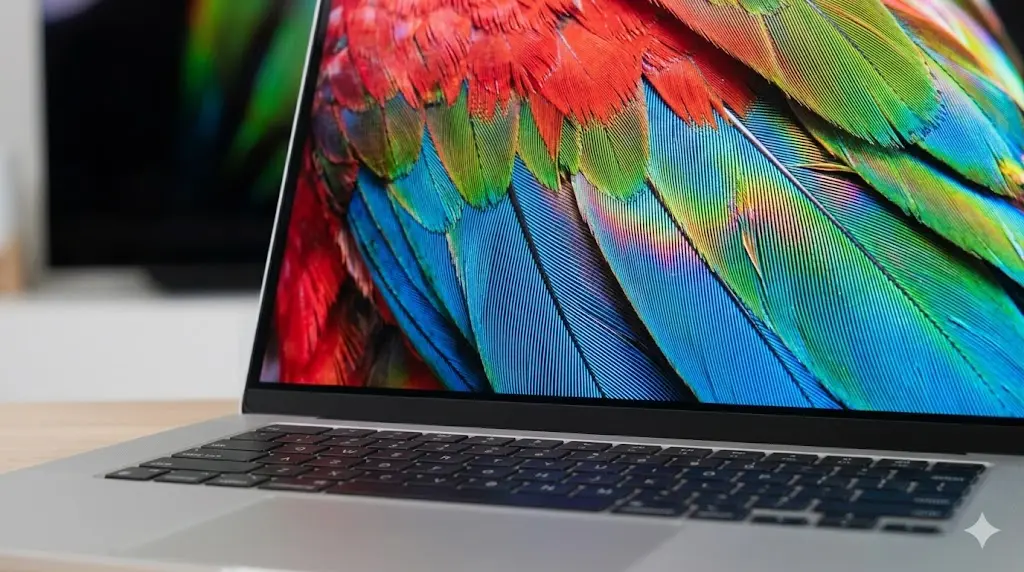
This is the single most important component. A mediocre laptop with a great display beats a powerful laptop with a bad display for graphic design work. Here is why: every color decision you make depends on what the screen shows you. Creative professionals consistently rank color accuracy as the top priority when choosing a creative laptop. If the display is inaccurate, your work looks different on every other device.
Also Read:
Look for these minimums: 100% sRGB coverage for web work, or 100% DCI-P3 for print and video. Delta E should be under 2 for professional use and under 1 if you do color-critical work. Resolution matters too. 1920×1080 is the absolute floor. QHD (2560×1600) is the sweet spot for 14 to 16 inch screens. 4K looks gorgeous but drains battery fast on Windows machines. OLED panels deliver the best contrast and color but cost more. IPS panels with good calibration are a solid fallback.
Brightness is another overlooked factor. Aim for 300 nits minimum. If you work in bright environments or near windows, 400 nits or higher makes a real difference. Matte finishes reduce glare, which matters more than most reviews admit.
Processor and Graphics
For most 2D design work in Photoshop, Illustrator, or Affinity Designer, a modern mid-range processor is plenty. You don’t need a Core i9 or Ryzen 9 for layered illustrations. What you need is good single-core performance for brush responsiveness and multi-core capability for exporting and batch processing.
Intel Core Ultra 5 or 7, AMD Ryzen 5 or 7, or Apple M3/M4 chips handle the vast majority of design tasks without breaking a sweat. Video editors and 3D artists should step up to Core Ultra 7 or 9, Ryzen 7 or 9, or Apple M4 Pro/Max chips.
The GPU question is trickier. Integrated graphics (Intel Arc, AMD Radeon 780M, Apple Silicon) handle Photoshop, Illustrator, and Figma perfectly fine. You only need a dedicated GPU with dedicated VRAM if you work with 3D modeling, video editing, motion graphics, or GPU-accelerated effects in After Effects. For those cases, aim for at least an NVIDIA RTX 4050 with 6GB VRAM. RTX 4060 or higher is better for 4K video work.
RAM and Storage
Here is the honest answer: 16GB is the minimum for professional graphic design in 2026. Not 8GB. Not 12GB. Sixteen. Photoshop alone can consume 8GB with a few large files open. Add Illustrator, a browser with multiple tabs, Slack, and Spotify, and you’re sitting at 12-14GB used before you even start working hard.
If you work with large Photoshop composites, 4K video, or multitask across multiple Adobe apps, go for 32GB. Our guide to choosing the right AI design tools covers which software performs best on different hardware configurations. It’s the comfort zone for serious creative work. Some video editors will want 64GB, but that’s a minority use case.
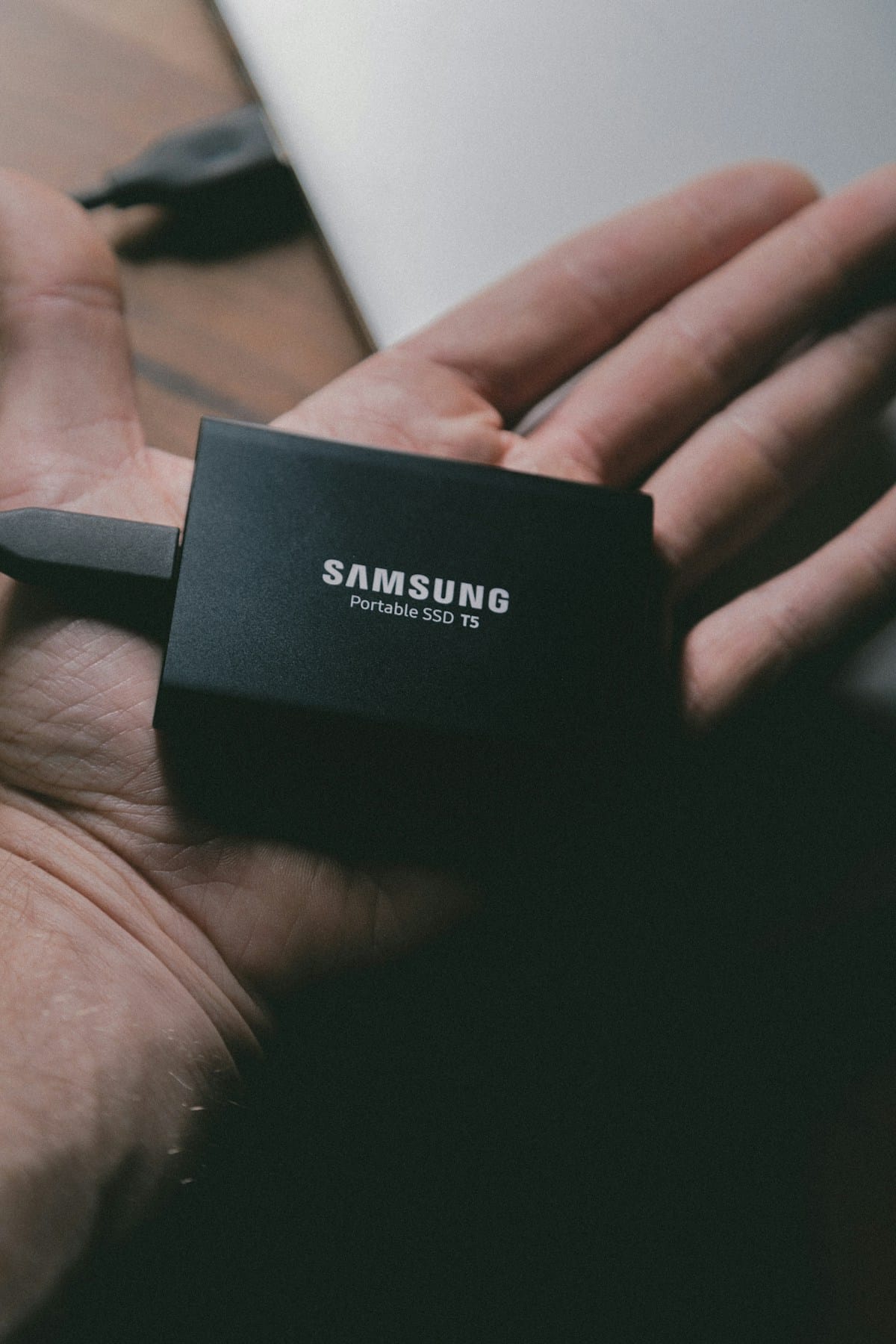
For storage, NVMe SSDs are non-negotiable in 2026. A 512GB drive is the minimum. 1TB is the practical target. If you work with large media files, look for models that let you upgrade storage later or have a second SSD slot. External drives work for archiving, but your active projects should live on fast internal storage.
| Component | Minimum (2D Design) | Recommended (Pro Workflows) | Enthusiast (3D/Video) |
|---|---|---|---|
| Display | FHD, 100% sRGB, 300 nits | QHD+, 100% DCI-P3, Delta E < 2 | 4K OLED, 100% Adobe RGB, Delta E < 1 |
| CPU | Core i5 / Ryzen 5 / M3 | Core Ultra 7 / Ryzen 7 / M4 Pro | Core Ultra 9 / Ryzen 9 / M4 Max |
| RAM | 16GB | 32GB | 64GB |
| GPU | Integrated (Intel Arc, Apple GPU) | RTX 4050-4060 / M4 Pro GPU | RTX 4070+ / M4 Max GPU |
| Storage | 512GB NVMe SSD | 1TB NVMe SSD | 2TB+ NVMe SSD |
Here is the thing: most of these specs only matter if your actual workflow demands them.
Laptop for Graphic Design: Matching Specs to Your Workflow
Not every designer needs the same machine. A book cover illustrator has different hardware demands than a wedding photographer or a YouTube video editor. Here is how to match the laptop to your actual work.
For 2D Designers and Illustrators
If Photoshop, Illustrator, Affinity Designer, Procreate, or Clip Studio Paint are your main tools, you’re in the sweet spot. These apps run well on most modern laptops. Your priority should be display quality and RAM. A color-accurate screen at QHD resolution with 16GB to 32GB of RAM will serve you for years. You don’t need a dedicated GPU for 2D illustration work. Integrated graphics on modern chips handle brushes, layers, and filters smoothly. Save your money for more RAM or a better display.
One thing that matters more than people admit: pen input support. If you illustrate or sketch directly on screen, look for laptops with active stylus support and low latency. The Surface Laptop Studio, Lenovo Yoga series, and ASUS ProArt models with touchscreens are worth considering.
For Photographers and Photo Editors
Photographers have the most demanding display requirements. You are editing images that will be printed or viewed on calibrated monitors. Color accuracy is everything. Look for laptops with factory-calibrated displays, Pantone validation, and wide gamut coverage. Delta E under 1 is ideal. Adobe RGB coverage matters more for print photographers than DCI-P3, though many modern displays cover both.
Storage speed is another priority. RAW files from modern cameras are huge. A 45-megapixel Sony A1 RAW file is around 120MB. A 512GB drive fills up fast. Go for 1TB minimum, and pair it with a good external backup strategy. RAM wise, 32GB handles Lightroom and Photoshop simultaneously without slowdowns. Lightroom in particular benefits from more RAM when building previews and applying adjustments across large catalogs.
For Video Editors and Motion Designers
Video editing changes the equation entirely. You need GPU power, lots of RAM, and fast storage. Premiere Pro, DaVinci Resolve, and After Effects all benefit significantly from dedicated graphics. A laptop with an RTX 4060 or higher will render timelines and export videos dramatically faster than integrated graphics.
For 4K video editing, aim for 32GB RAM minimum. For 1080p projects, 16GB works but 32GB is much more comfortable. The GPU is the bottleneck for most video tasks, not the CPU. I have seen an RTX 4070 laptop export a 10-minute 4K timeline in half the time of a same-CPU laptop with integrated graphics. That’s real money if you charge by the project.
Display matters here too but for different reasons. Video editors need DCI-P3 coverage for accurate color grading. High refresh rates are nice for timeline scrubbing but not essential. OLED panels with true blacks help with HDR content grading.
For 3D Artists and Animators
This is the most demanding category. 3D modeling, sculpting, and rendering require powerful CPUs and high-end GPUs. Blender, Cinema 4D, Maya, and ZBrush all benefit from workstation-class hardware. Look for laptops with RTX 4070 or higher GPUs, at least 32GB RAM, and high-core-count CPUs. The Apple M4 Max chip also performs extremely well for 3D work, especially in Blender and Cinema 4D.
One spec that gets overlooked: thermal performance. A laptop that throttles under sustained load performs worse than a lower-specced machine that maintains its boost clock. Read reviews that test sustained rendering, not just synthetic benchmarks. The ASUS ProArt P16 and MacBook Pro 16 excel here because their cooling systems handle extended loads well.
Pros and Cons of Mac vs Windows for Creative Work

The Mac versus Windows debate is older than Photoshop. Here is the practical breakdown without the fanboy energy.
Mac: Apple Silicon chips are genuinely impressive for creative work. The M4 Pro and M4 Max deliver excellent performance per watt. Battery life is unmatched. The displays on MacBook Pros are among the best in any laptop, period. Color management is baked into macOS, which makes consistent color across apps much easier. The downside: you pay a premium, upgrade options are limited (choose your RAM and storage at purchase because you can’t change them later), and some niche Windows-only design software won’t run natively.
Windows: You get more hardware variety at every price point. Want a 4K OLED with an RTX 5090 for the same price as a MacBook Pro with an M4 Pro? Windows has that option. Upgradeability is better on many models. GPU options are far more powerful at the high end. The downside: battery life is generally worse, display calibration varies wildly between brands, and you need to be more careful about color management settings. Not every Windows laptop with a good GPU has a good screen.
The honest answer: if you work mainly in Adobe Creative Cloud and value battery life and color accuracy, go Mac. If you need raw GPU power, want upgrade options, or use 3D/video tools that benefit from NVIDIA CUDA cores, go Windows. Both ecosystems produce fantastic creative laptops in 2026.
How to Choose the Right Laptop Without Overspending
Here is the framework I use when helping friends pick a creative laptop. It has saved people hundreds of dollars.
Step 1: Identify your bottleneck. Open Task Manager or Activity Monitor while you work. What hits 100% first? If RAM is maxing out, buy more RAM. If the GPU is pegged, invest in a better graphics card. If neither exceeds 70%, you’re fine with what you already have. Most people overshoot on GPU and undershoot on RAM.
Step 2: Set a realistic budget. For basic design work, laptops around $800 to $1,200 handle everything comfortably. For professional creative work with video or 3D, budget $1,500 to $2,500. For high-end needs like 4K video editing or complex 3D rendering, expect to spend $2,500 to $4,000. Anything above that’s diminishing returns unless you have very specific needs.
Step 3: Do not buy last year’s flagship. A previous-generation MacBook Pro M3 or a laptop with an RTX 3060 still holds up well for most creative work. You can often find them at significant discounts. The gains from generation to generation are smaller than the price difference suggests.
Step 4: Check the display before anything else. If the screen is bad, nothing else matters. Read reviews that measure color accuracy, not just brightness. Look for phrases like “Pantone Validated” or “factory-calibrated Delta E under 2.” If a laptop review doesn’t mention color gamut coverage, assume it’s mediocre.
- Display quality is the single most important spec for creative work.
- RAM is the most common bottleneck in real-world use.
- GPU only matters for 3D, video, or motion graphics.
- CPU matters less than people think for most design tasks.
- Storage speed matters more than capacity for active projects.
Frequently Asked Questions: Laptop for Graphic Design and Creative Work
Is 16GB of RAM enough for graphic design in 2026?
Yes, 16GB is the minimum for professional graphic design. It handles Photoshop, Illustrator, and a browser comfortably. If you work with large files, multiple Adobe apps, or video editing, upgrade to 32GB. The extra headroom prevents slowdowns during complex projects.
Do I need a dedicated GPU for graphic design?
For 2D design work in Photoshop, Illustrator, or Figma, no. Integrated graphics on modern Intel, AMD, and Apple Silicon chips are sufficient. You need a dedicated GPU if your work involves 3D modeling, video editing, motion graphics, or heavy GPU-accelerated effects in After Effects.
Mac or Windows for graphic design?
Both work well. Mac offers better color management out of the box, longer battery life, and excellent displays. Windows offers more hardware variety, upgrade options, and stronger GPU performance at the high end. Choose based on your software needs and budget.
What display specs matter most for graphic design?
Color accuracy matters most. Look for 100% sRGB coverage minimum, DCI-P3 for print and video work, and Delta E under 2. Resolution of QHD or higher on 14+ inch screens is recommended. Brightness of 300+ nits ensures comfortable viewing in varied lighting.
Can I use a gaming laptop for creative work?
Yes, gaming laptops often have powerful GPUs and good processors. But check the display quality before buying. Many gaming laptops prioritize high refresh rates over color accuracy. You need a screen with good color gamut coverage, not just high frame rates.

Final Thoughts: Which Creative Laptop Should You Choose?
There is no single best machine for creative work. The right machine depends on your specific workflow, budget, and priorities. But here is what I have learned from testing dozens of laptops across every price bracket.
Start with the display. A color-accurate screen with good resolution makes every hour of work more productive and more enjoyable. Then add enough RAM to handle your largest files without swapping. Buy a GPU only if your work genuinely needs it. Most designers don’t need dedicated graphics, yet most laptops marketed to creatives push expensive GPU configurations that waste money.
The best creative laptop is the one that disappears into your workflow and lets you focus on the work. Not the one with the flashiest spec sheet. Not the one with the best gaming benchmarks. The one that shows your colors accurately, handles your files without lag, and stays comfortable to use for years.
If you’re still unsure, start with a mid-range machine in the $1,200 to $1,500 range with a good display and 32GB of RAM. Use it for six months. Pay attention to what slows you down. Then you’ll know exactly what to prioritize when you upgrade.

Irfan is a Creative Tech Strategist and the founder of Grafisify. He spends his days testing the latest AI design tools and breaking down complex tech into actionable guides for creators. When he’s not writing, he’s experimenting with generative art or optimizing digital workflows.


 Artificial Intelligent
 Design & Creative
 Freelance
 Gadgets & Gear
 Insights
 Laptop
 Reviews
 Smartphone
 Tech Guides
 Vibe Coding