Laptop Display Guide: OLED vs Mini-LED vs IPS
The Short Verdict
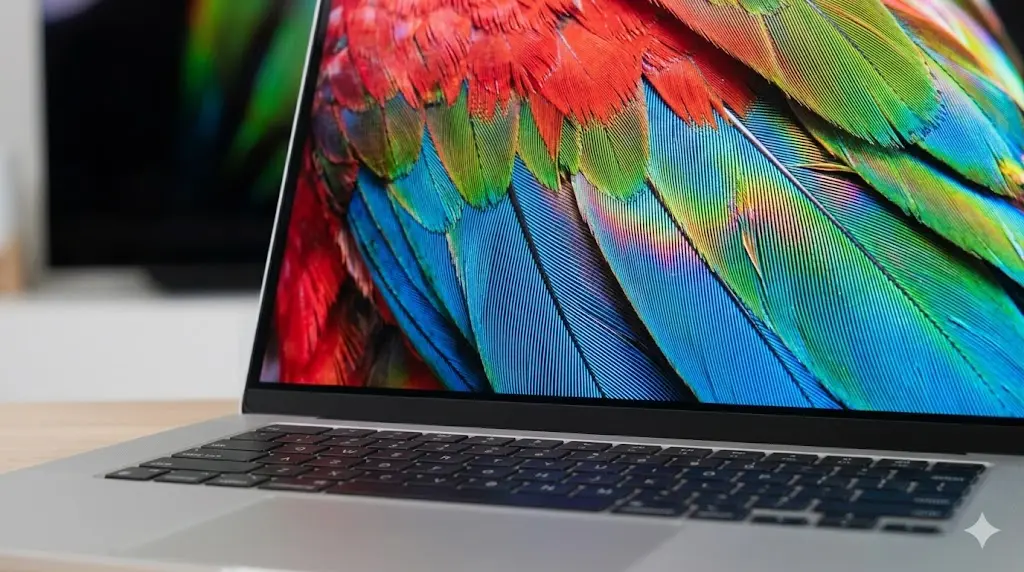
Most buyers treat the laptop screen as one spec line among many. That habit costs you. You stare at this panel for hours each day, and the display technology shapes image quality and battery drain, and it moves the final price more than any other single component.
Buyers face three panel technologies: IPS, Mini-LED, and OLED. OLED delivers perfect blacks and the sharpest motion clarity, at a higher price and with a small but real burn-in risk. Mini-LED pushes the highest brightness and the strongest HDR punch, with no burn-in worry, but it costs a premium and drains batteries in a steady, predictable way. IPS stays affordable, reliable, and easy on battery life, trading away the deep blacks and wow factor of the other two.
This guide walks through how each panel works, where each one wins, and which one fits your daily routine. The right answer depends less on which technology sounds impressive and more on what you open every morning.
IPS, Mini-LED, and OLED Explained
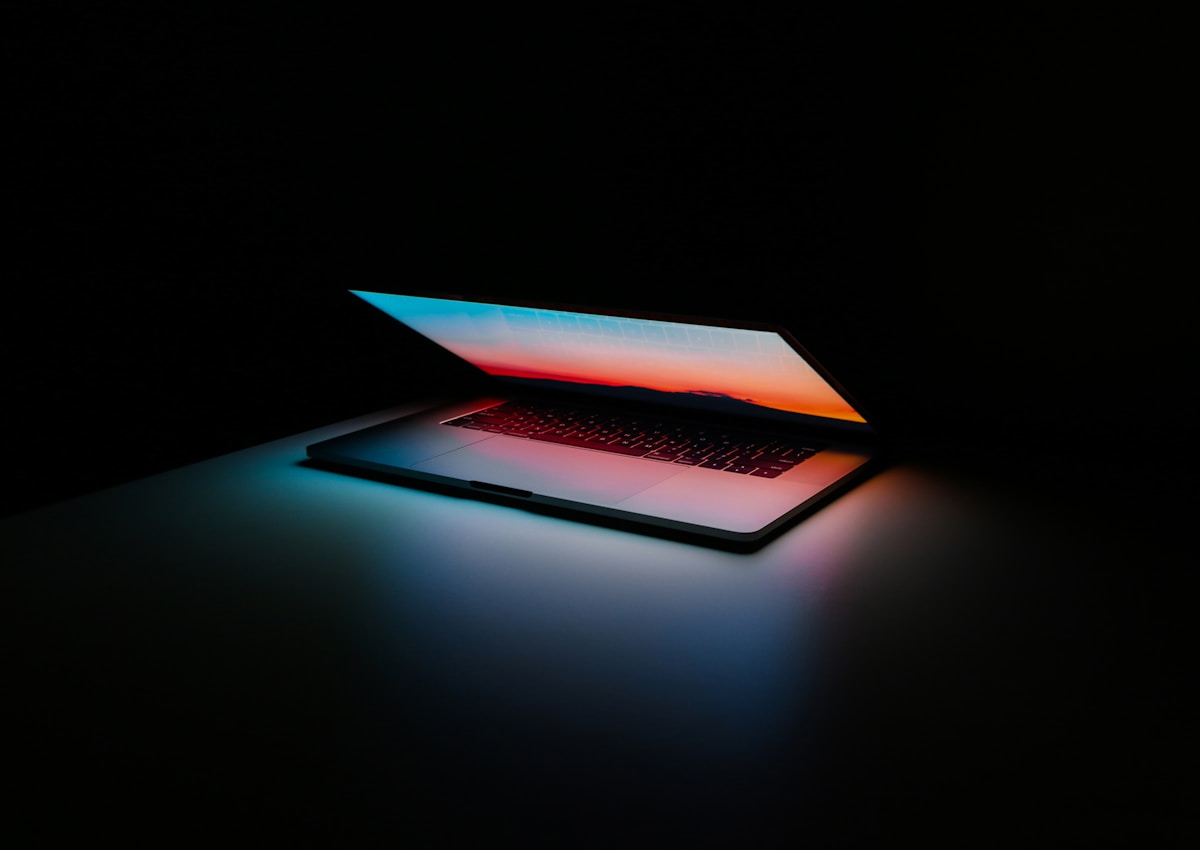
IPS (in-plane switching) is a type of LCD. A backlight shines through liquid crystals, and the crystals twist to let more or less light pass. Every pixel shares the same backlight, so true black stays out of reach. Light leaks around the edges of dark scenes, a glow reviewers call “IPS glow.”
Mini-LED is also LCD, but with a much smarter backlight. Thousands of tiny LEDs sit behind the LCD layer, grouped into hundreds or thousands of dimming zones, each under its own control. Apple groups around 10,000 mini-LEDs into zones on its MacBook Pro XDR display. Dark parts of the image get dim zones, bright parts get bright zones. Contrast climbs far above standard IPS, though it still cannot switch off a single pixel.
OLED drops the backlight for good. Each pixel creates its own light and can switch off. Black pixels draw no power and emit no light, which produces unlimited contrast. No glow, no halo around bright objects on dark backgrounds. The tradeoff: those pixels are made of organic compounds that age as they work, and uneven aging shows up as burn-in.
Panel price follows this ladder too. IPS ships in budget laptops for a few hundred dollars. Mini-LED and OLED add a premium of several hundred dollars to otherwise similar machines. Your Intel Core Ultra vs Ryzen AI comparison matters less to your daily experience than this screen choice, because you look at the screen all day and seldom notice which silicon sits underneath.
Brightness, Contrast, and HDR
Brightness draws the sharpest line between the three technologies. Standard IPS laptop panels top out around 250 to 400 nits, enough for indoor offices but washed out near a sunny window. OLED laptop panels often peak between 400 and 600 nits. Organic materials set this ceiling: pushing them brighter shortens their lifespan. Mini-LED has no such ceiling. Mini-LED laptops push past 1,000 nits in HDR highlights and sustain 600 to 800 nits in normal use.
The gap shows up in manufacturer specs. Apple rates the MacBook Pro Liquid Retina XDR display at 1,000 nits of sustained full-screen brightness and 1,600 nits of peak brightness for HDR content, with a 1,000,000:1 contrast ratio. These numbers come from Apple’s published display specs and its product pages. No IPS or OLED laptop matches that sustained brightness today.
Contrast tells a different story. OLED wins outright. Each pixel controls its own light, so a starfield on OLED shows pinprick stars against true black. Mini-LED comes closer than IPS through its dimming zones, but zones cover many pixels at once, so a bright cursor on a dark background still bleeds a little light into the surrounding darkness. IPS trails far behind: its contrast ratio hovers around 1,000:1, and dark movie scenes look grey rather than black.
HDR content splits the win. Mini-LED takes bright-room HDR, where peak luminance carries the effect. OLED takes dark-room HDR, where shadow detail and black levels carry it. A technical breakdown of the three panel types puts it this way: pick Mini-LED for brightness and HDR punch, pick OLED for beauty and depth, pick IPS for value and reliability.
Motion Clarity and Color Accuracy
Gamers and fast-scrollers care about pixel response time: how fast a pixel changes from one shade to another. Slow pixels smear moving objects across the frame. OLED pixels transition in about 0.03 milliseconds, a full 150 times faster than an average LCD pixel. The physics explains it. OLED pixels flip an electrical state. LCD pixels wait for liquid crystals to swing into position.
Practical reviews confirm the difference. DisplayMaster Pro measured zero ghosting and zero smearing on OLED panels, and esports testers reported easier target tracking in fast shooters on OLED versus Mini-LED at any overdrive setting. Fast IPS panels have narrowed the gap at 144Hz and 240Hz, and they remain the sensible default for competitive players on a budget. For pure motion clarity, though, OLED stands alone.
Color accuracy belongs to no single technology. High-gamut IPS panels serve print designers and photographers well, because their color stays stable across brightness levels and viewing angles. OLED covers the wide DCI-P3 color gamut with more saturation and punch, which suits video work and creative portfolios. Mini-LED panels also hit wide gamuts on premium machines. Any of the three can serve creative work if you buy a factory-calibrated panel; the cheaper low-gamut IPS panels in entry laptops cannot.
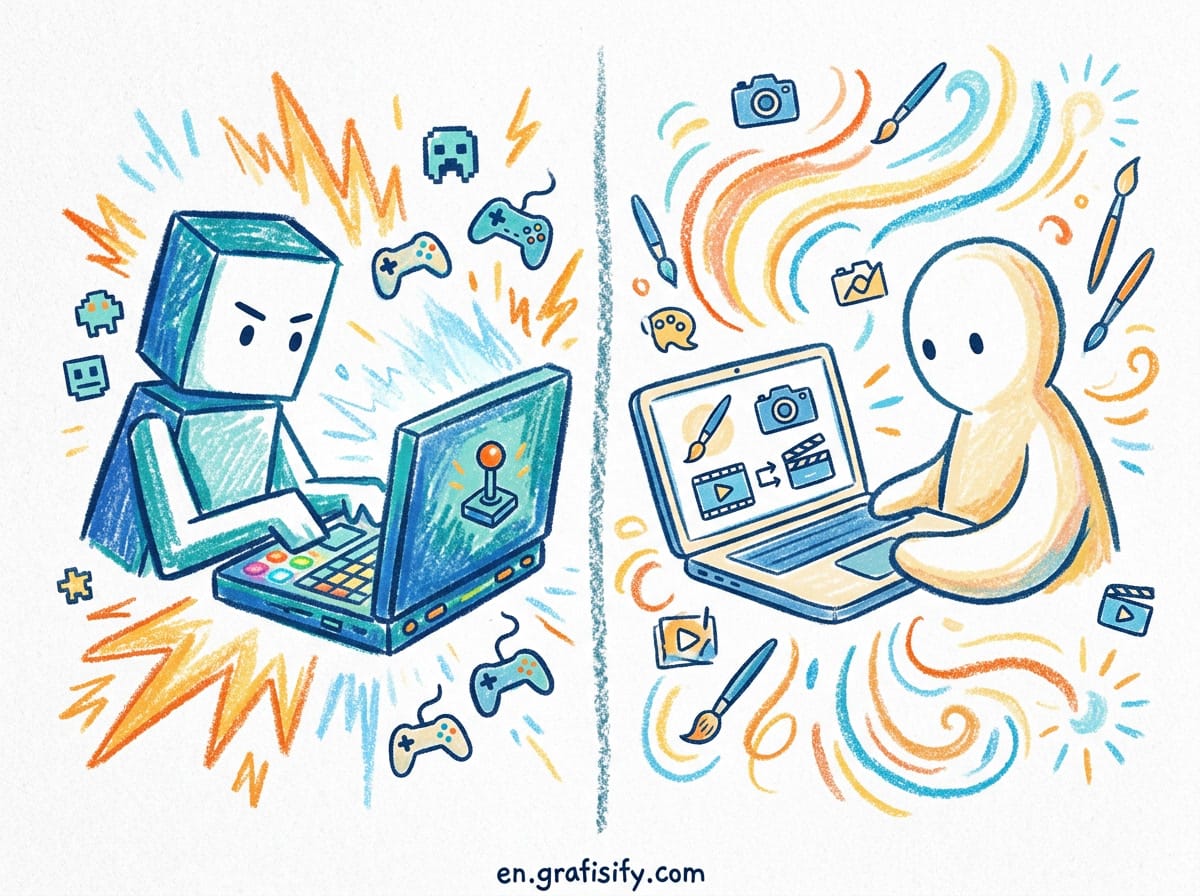
If you split time between games and creative apps, read our gaming laptop vs creator laptop comparison before you commit. The display section there covers which buyers benefit most from high refresh rates versus color fidelity.
Battery Life: Real-World Tradeoffs
Battery behavior is where marketing claims get slippery. Each panel technology treats your content its own way, and the winner changes with your screen habits.
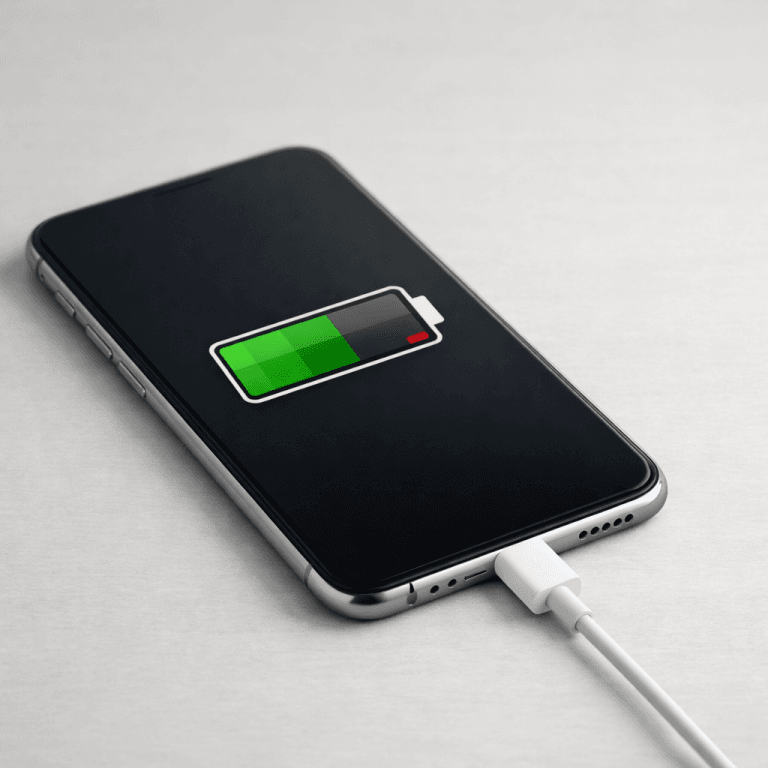
OLED sips power on dark content and drinks it on bright content. A black pixel draws nothing. A full white screen lights every pixel at maximum, which drains the battery fast. Dark mode users and night owls get the efficiency win. Spreadsheet warriors who stare at white cells all day pay the penalty.
Mini-LED and IPS draw power in a steady, predictable way. The backlight stays on regardless of what the pixels show. Mini-LED uses more energy than standard IPS because it drives thousands of LEDs plus dimming logic, but the draw holds steady across dark and bright content.
Test data shows how messy this gets in practice. Digital Trends measured a Dell XPS 13 with an IPS panel at 14 hours and 6 minutes of web browsing, against 7 hours and 17 minutes for the OLED version. The comparison favors IPS by a wide margin, but the two machines also used different resolutions: Full HD Plus on the IPS model, 2.8K on the OLED model. Resolution alone moves battery numbers by hours. Their full battery test data across several laptops shows OLED sometimes beating IPS on other models, which proves the point: battery life depends on the whole machine, not the panel alone.
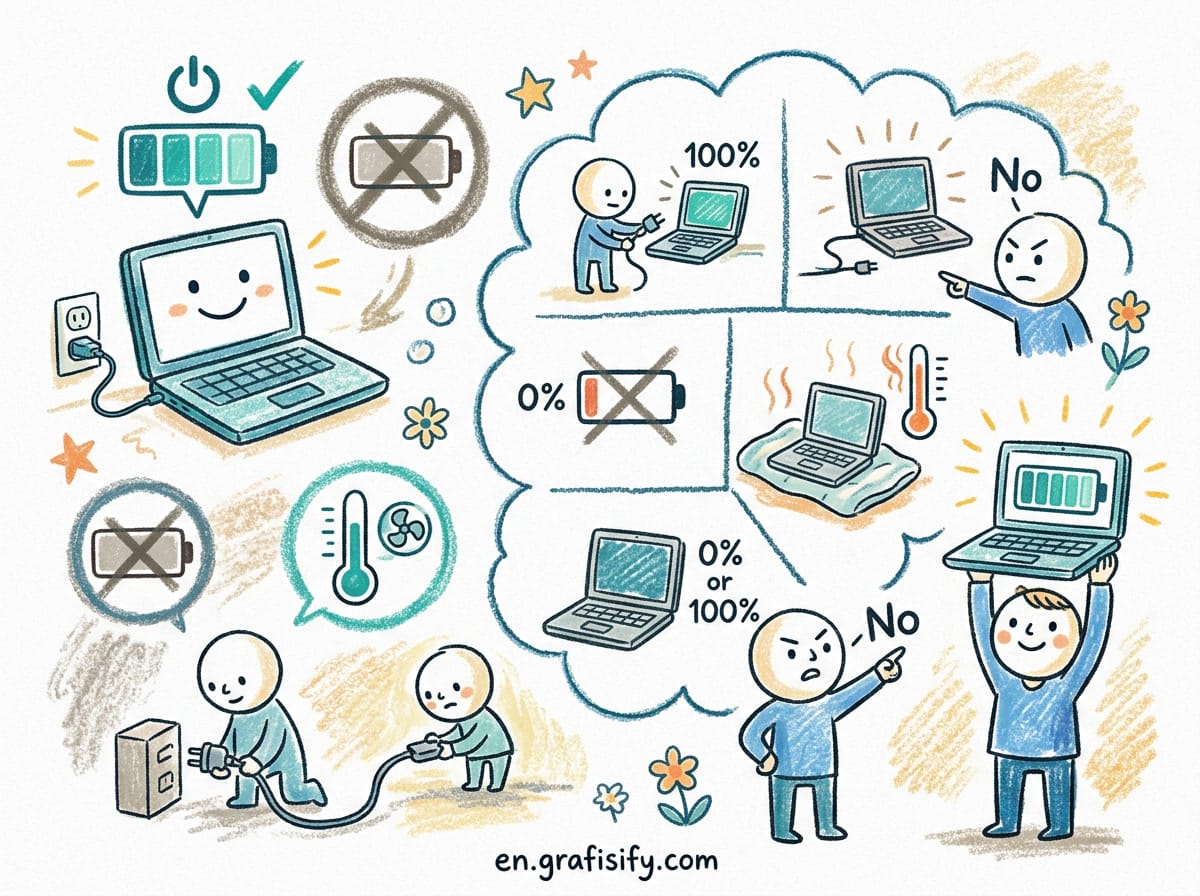
The practical takeaway: buyers who live on the road and work in bright documents should favor IPS or Mini-LED for predictable endurance. Buyers who watch films in dark mode, edit video, or live in dim rooms will find OLED a good fit, sometimes better. Either way, good battery health habits matter more than panel choice over a laptop’s lifetime.
The Real Burn-In Risk
Burn-in is the OLED conversation nobody can skip. Static elements that sit in the same pixels for months, the Windows taskbar, a code editor’s menu bar, a game HUD, age those pixels faster than the rest. Over time the worn area shows a faint ghost of the static image. LCD panels cannot burn in, because their backlight ages in lockstep and their crystals wear down at the same rate. Mini-LED inherits this immunity.
The risk is real but smaller than it used to be. Modern OLED laptops ship with several layers of protection working in the background. Pixel shift nudges the whole image by a pixel or two at intervals, so static elements never hammer one fixed set of pixels. Pixel refresh runs a calibration cycle that evens out pixel wear. ASUS builds both into ASUS OLED Care, enabled by default, with pixel refresh launching after 30 minutes of idle time. MSI’s OLED Care 2.0 goes further with taskbar detection that dims the Windows taskbar on its own, logo detection that dims static brand marks, and boundary detection that softens high-contrast edges. LG Display’s panels include logo luminance reduction that works the same way on static marks.
You can stack your own habits on top. Keep brightness between 40 and 60 percent for desk work. Auto-hide the taskbar. Run dark mode across the operating system and your main apps. Set a screensaver to start after a few idle minutes. A detailed burn-in protection guide walks through each setting step by step for Windows 11.
For most buyers, these protections keep the panel healthy for the machine’s useful life. Risk concentrates in two groups: people who pin the same bright dashboard to the screen eight hours a day for years, and people who run maximum brightness around the clock. If that describes your work, Mini-LED or IPS removes the worry for good. For everyone else, OLED’s risk is manageable, not disqualifying.
Longevity-minded buyers should also read our Framework vs ThinkPad durability test. Display panels age, hinges loosen, and batteries fade, and repairability shapes which machine makes it to year seven.
Comparison Table: OLED vs Mini-LED vs IPS
| Feature | IPS | Mini-LED | OLED |
|---|---|---|---|
| Peak brightness | 250 to 400 nits | 1,000+ nits HDR peak | 400 to 600 nits |
| Contrast | Around 1,000:1 | High, zone-dependent | Unlimited |
| Black levels | Grey, with backlight glow | Deep, slight haloing | True black |
| Pixel response | 5 to 8 ms standard, 1 ms fast IPS | Similar to IPS | About 0.03 ms |
| Burn-in risk | None | None | Low with protections, not zero |
| Battery behavior | Steady and efficient | Steady, a touch higher draw | Great on dark content, poor on bright |
| Outdoor usability | Weak | Excellent | Decent |
| Color gamut (premium) | Wide on calibrated panels | Wide on calibrated panels | Wide with extra punch |
| Price premium | None, the baseline | High | High |
| Best for | Office, students, long trips | Bright rooms, HDR, no-risk premium | Films, games, creative work |

The Bottom Line
Match the panel to your screen habits, not to the spec sheet that impressed you most.
Pick OLED if you watch films, play games, or edit photos and video in controlled lighting. The contrast and motion clarity reward every hour you spend on rich content. Enable the manufacturer’s OLED care tools on day one, auto-hide the taskbar, and keep brightness moderate for desk work. Your panel will outlive the laptop’s relevance.
Pick Mini-LED if you want a premium screen with zero anxiety. Outdoor workers, frequent travelers who face bright terminals and airport lounges, and buyers who pin static dashboards all day get the brightness and HDR without the burn-in homework. You pay for that peace of mind, so weigh it against an otherwise identical IPS machine.
Pick IPS if your laptop is a workhorse, not a cinema. Writers, students, developers, and office workers gain the best battery predictability, the lowest price, and a panel that asks nothing of them. Fast IPS variants at 144Hz or 240Hz handle gaming well when paired with a strong GPU. The grey blacks bother you for the first week, then you stop noticing.
There is no single best laptop display, only the best display for your routine. OLED renders the most beautiful image and the cleanest motion, Mini-LED survives the brightest environments with zero maintenance anxiety, and IPS delivers dependable value that keeps your money for the parts that matter more to your work. Spend the premium where your eyes spend their hours.
Before you buy, also check how much RAM your laptop needs, since memory shortages degrade a laptop faster than any panel choice. Then pick the screen you will enjoy looking at for the next five years.

Irfan is a Creative Tech Strategist and the founder of Grafisify. He spends his days testing the latest AI design tools and breaking down complex tech into actionable guides for creators. When he’s not writing, he’s experimenting with generative art or optimizing digital workflows.




 Artificial Intelligent
 Design & Creative
 Freelance
 Gadgets & Gear
 Insights
 Laptop
 Reviews
 Smartphone
 Tech Guides
 Vibe Coding