MCP Servers in Cursor: Complete Setup Guide
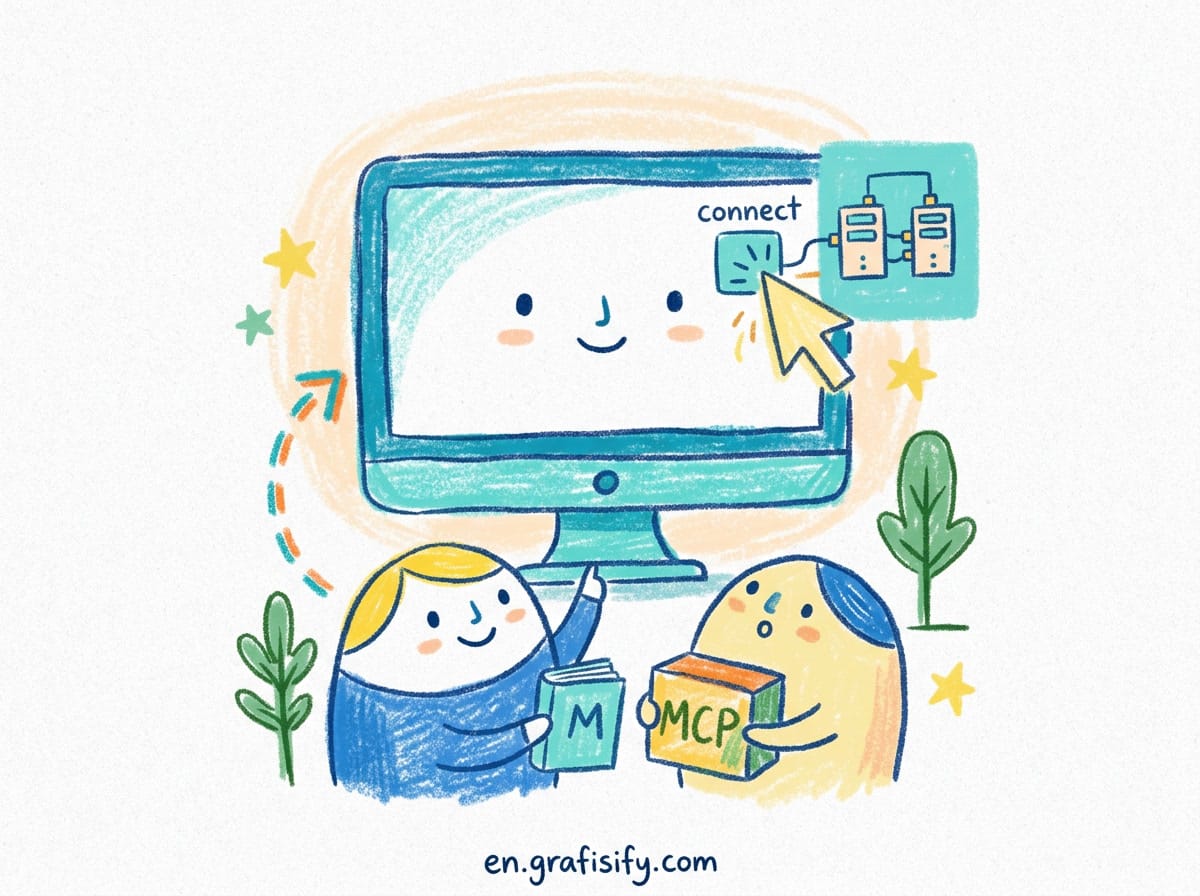
Your AI coding assistant is only as useful as the tools it can reach. Out of the box, Cursor can edit files and answer questions, but it cannot read your database, open a pull request, or check the docs for the exact library version you installed. MCP servers fix that. They plug external tools and data sources straight into Cursor so the agent acts where your work actually lives.
This guide walks you through setting up MCP servers in Cursor from scratch. You will learn what MCP is, how to configure local and remote servers, which ones are worth installing first, and how to avoid the mistakes that leave the agent with a pile of broken tools.
What MCP Is and Why It Matters
The Model Context Protocol is an open standard that lets an AI assistant call external tools through a consistent interface. Instead of hardcoding a tool definition into every app, you build or install a server once and connect it to any MCP-compatible client. Cursor, Claude, Windsurf, and OpenAI all speak the protocol natively, so the same server works everywhere.
The scale tells you this is not a niche feature. The protocol crossed 97 million monthly SDK downloads and more than 10,000 public server implementations in 2026, according to developer tutorials tracking the ecosystem. Community directories now list upward of 9,800 servers.
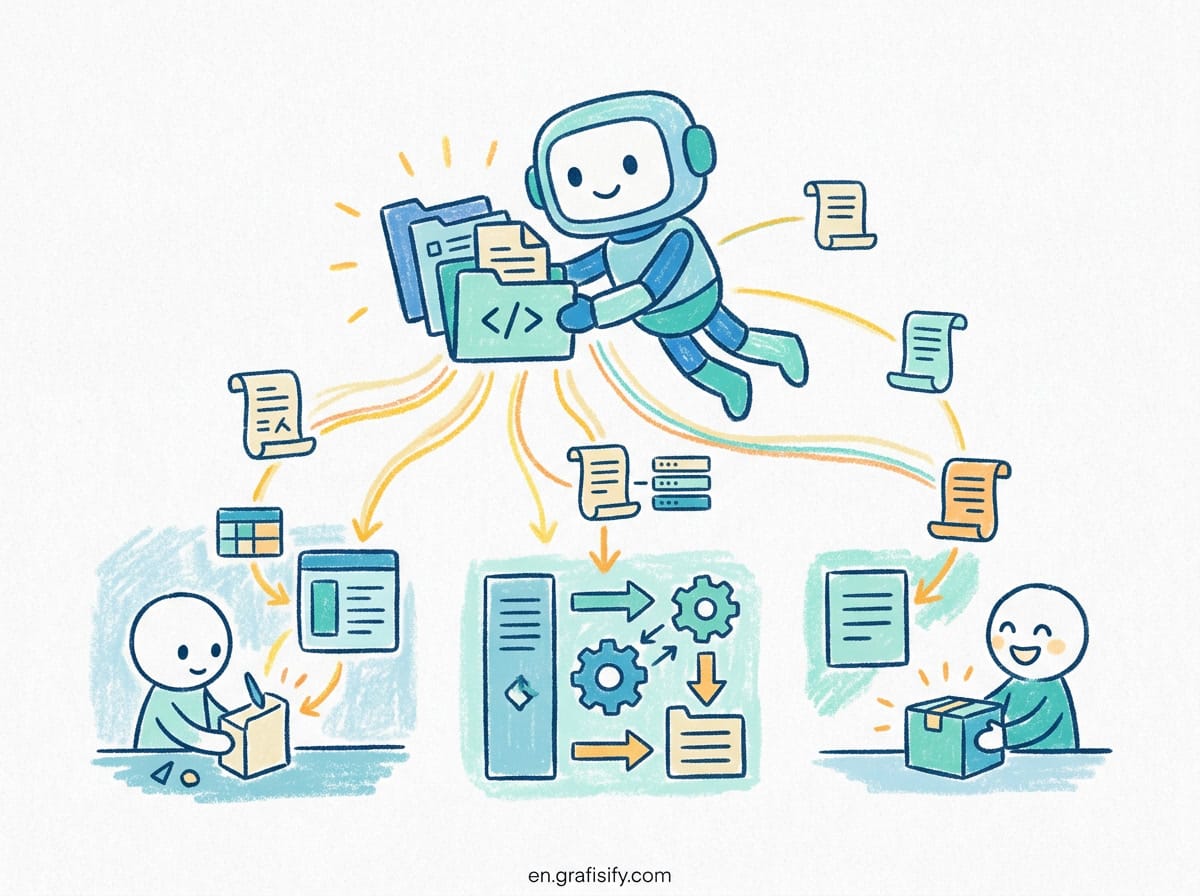
Adoption data explains the momentum. Anthropic’s research from 2025 found developers using MCP servers report 40 percent fewer tool switches during a coding session. When the agent can query the database, read the repo, and run tests without you pasting results, you stay in flow. For a vibe coder, that is the difference between sketching an idea and shipping it.
How MCP Works Inside Cursor
Cursor connects to a server through one of three transports. The choice depends on whether the tool runs on your machine or somewhere remote.
| Transport | Runs | Config Field | Best For |
|---|---|---|---|
| stdio | Local | command | Node.js and Python tools launched by Cursor |
| SSE | Local or remote | url | Any server exposing an SSE endpoint |
| Streamable HTTP | Local or remote | url | Cloud-hosted and team-shared servers |
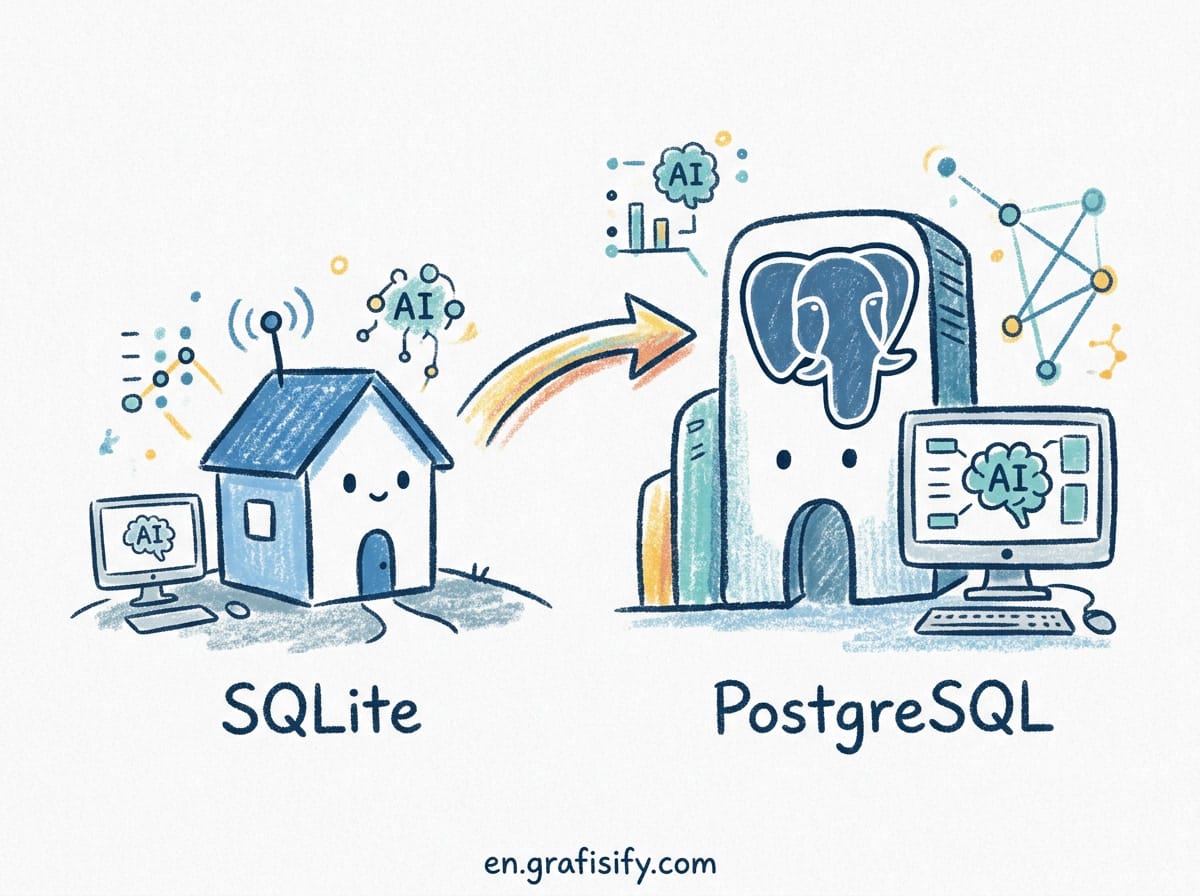
For local tools, Cursor manages the server process for you. You give it a command such as npx or python, plus the arguments, and Cursor launches the process when needed, talking to it over standard input and output. For remote servers, you supply a URL, and Cursor handles the connection over HTTP or SSE. It figures out the transport type automatically, so you usually do not choose one explicitly.
When the agent decides a tool is relevant, the server becomes available in your chat or agent mode. You can see which tools are live under the available tools list, and you can toggle servers on and off from the Customize menu in the sidebar.
Where Cursor Stores MCP Config
Cursor reads MCP configuration from a JSON file in one of two places. You can use either, and both are loaded at the same time.
- Project config:
.cursor/mcp.jsonin your project root. This is shared with teammates when you commit it, which makes it the right home for team tools. - Global config:
~/.cursor/mcp.jsonin your home directory. This applies to every project you open, which suits personal tools you always want.
The two files are merged. If the same server name appears in both, the project-level entry wins. That lets you set a default globally and override it per project.
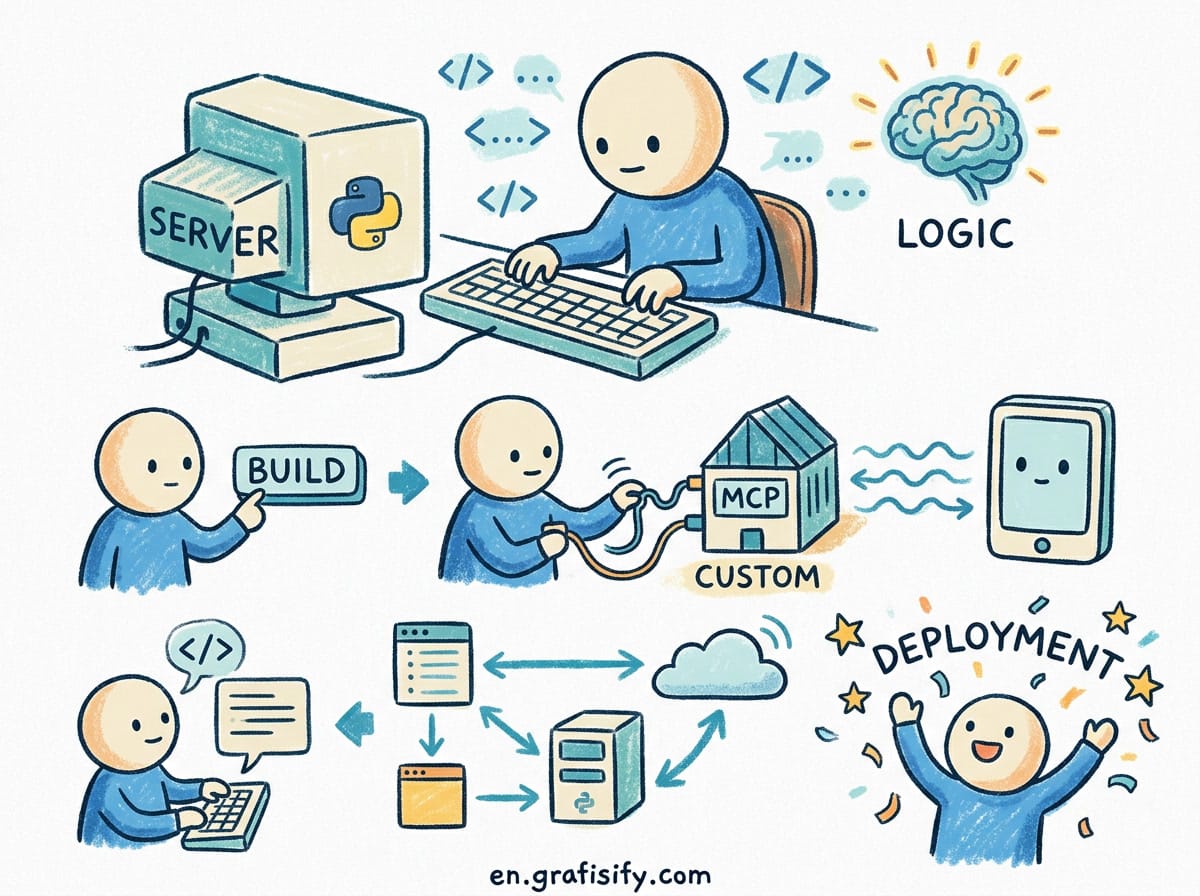
One caution before you commit the file: keep secrets out of version control. A config that includes a live API key in args will expose that key to anyone with repo access. Use environment variables or a local .env file instead, as shown below.
Setting Up a Local MCP Server, Step by Step
The fastest way to test MCP is a local stdio server. Here is the full flow with a real example.
Step 1. Create the config directory and file. From your project root, run mkdir -p .cursor and create .cursor/mcp.json.
Also Read:

Step 2. Add a server definition. Start with one server so you can verify the setup before loading more. A Supabase example looks like this:
{
  "mcpServers": {
    "supabase-mcp": {
      "command": "npx",
      "args": ["-y", "@supabase/mcp-server-supabase"],
      "env": {
        "SUPABASE_ACCESS_TOKEN": "${env:SUPABASE_ACCESS_TOKEN}"
      }
    }
  }
}
The mcpServers object is the top level. Each key is a name you choose. command is the executable that starts the server, usually npx, node, python, or docker. args holds the arguments, and the -y flag confirms the npx install prompt automatically. env passes environment variables to the server process.
Note the ${env:SUPABASE_ACCESS_TOKEN} interpolation. Cursor resolves this from your shell environment, so the key never sits in the committed file.
Step 3. Reload Cursor. Save the file, then press Cmd+Shift+P on macOS or Ctrl+Shift+P on Windows and Linux, and run Reload Window. Cursor reads the config on startup and launches the server.
Step 4. Verify the connection. Open Cursor’s MCP settings panel and confirm the server shows a healthy status. Then test it in chat. Ask something like “List all tables in my Supabase project.” If the agent calls the Supabase tools and returns results, everything works.
For a Python server, the command changes to python with the script path. If the server lives in your virtual environment, reference that interpreter explicitly so Cursor uses the right one:
{
  "mcpServers": {
    "my-python-server": {
      "command": "${workspaceFolder}/.venv/bin/python",
      "args": ["${workspaceFolder}/mcp-server.py"],
      "env": { "API_KEY": "${env:API_KEY}" }
    }
  }
}
The ${workspaceFolder} variable keeps paths portable across machines, which matters when a teammate on Windows and one on macOS share the same committed config.
Adding Remote MCP Servers
Remote servers are simpler to configure because you only need a URL. This is the recommended route for the official GitHub MCP server, for example. It avoids the PULL the local Docker image and the maintenance that comes with it.
{
  "mcpServers": {
    "github": {
      "url": "https://api.githubcopilot.com/mcp/",
      "headers": {
        "Authorization": "Bearer ${env:GITHUB_PAT}"
      }
    }
  }
}
This hosted endpoint gives the agent access to your repositories, issues, pull requests, and Actions logs. It requires a GitHub personal access token and Cursor version 0.48.0 or later for Streamable HTTP support.
Many remote servers authenticate with OAuth instead of a token. When the provider gives you a fixed client ID and a redirect URL to whitelist, you can store those in the config. Cursor registers fixed redirect URLs for web and desktop authentication, so the same server works from either surface.
Which MCP Servers Are Worth Installing First
You can install a dozen servers and end up with an agent that wastes its context on tool-switching. Cursor caps the agent at roughly 40 tools, so a focused set beats a crowded one. Most guides and hands-on reviews converge on a small starting trio: GitHub for repositories, Context7 for documentation, and Playwright for browser testing.
| Server | What It Does | Install | Cost |
|---|---|---|---|
| GitHub | Repos, issues, PRs, Actions | Remote URL plus PAT | Free |
| Context7 | Up-to-date library docs | npx -y @upstash/context7-mcp | Free |
| Playwright | Real browser automation | npx -y @playwright/mcp | Free |
| Supabase | Postgres schema and queries | npx, OAuth | Free with account |
| Filesystem | Scoped file access | npx server-filesystem | Free |
| Firecrawl | Web search and scraping | npx, API key | Freemium |
GitHub MCP is the single most useful server for most people. It gives the agent first-class access to the repositories you already work in, so it can open a pull request or check why a CI run failed without leaving the editor. Skip it only if your team lives on GitLab or Bitbucket, in which case you install their server instead.
Context7 eliminates a daily frustration: the model writing against a deprecated API. It pulls version-specific documentation for thousands of packages into the prompt on demand. Many reviews call it the highest-impact server for any coding agent, and several recommend installing it first. It works without a key, and an API key raises your rate limits.
Playwright, built by Microsoft, lets the agent drive a real browser through accessibility snapshots. It can navigate, click, fill forms, take screenshots, and assert state, which makes it ideal for end-to-end tests and for verifying a UI the agent just built.
Supabase connects the agent to your Postgres backend through browser OAuth, with no token to paste. Adding ?read_only=true scopes what the agent can touch, a good safety habit for a production database.
Filesystem gives sandboxed read and write access to directories you explicitly allow. In Cursor it is less essential, because the editor already exposes the open project, but it helps for a shared assets folder or a sibling project.
Firecrawl turns any website into clean, LLM-ready data for search, scraping, and structured extraction. It is a solid choice when your work involves gathering data from the web while you code.
Most of these are free. You can build a strong setup covering integration, docs, browser, and data without spending anything. Only a few, like Brave Search or paid tiers of some servers, cost money.
Config Interpolation and Managing Secrets
Hardcoding API keys and file paths in your config is a security hole and a maintenance trap. Cursor supports variable interpolation in the command, args, env, url, and headers fields.
The useful variables are ${env:NAME} for environment variables, ${userHome} for your home folder, ${workspaceFolder} for the project root, and ${workspaceFolderBasename} for the project name. For stdio servers you can also load a .env file with the envFile field, which keeps keys inside the project without committing them.
Set the key in your shell environment or a gitignored .env, reference it with ${env:NAME} in the config, and commit only the structure. A teammate clones the repo, sets their own key, and the same config works.
Common Setup Problems and Fixes
MCP setup fails in predictable ways, and most are quick to fix.
Server failed to start. Check that Node.js is installed and npx is on your PATH, that the package name in args is spelled correctly, and that you have network access, because npx downloads the package on first run. Test the command manually in a terminal before blaming Cursor.
Server starts but tools are not visible. Confirm the server actually exposes tools once configured, reload Cursor after editing the config, and remember some tools only appear in agent mode rather than basic chat. If you added multiple servers, check you did not hit the tool ceiling.
Configuration file not found. You are looking in the wrong directory or the file was not created. Create it explicitly with touch ~/.cursor/mcp.json and verify the path matches the platform. On Windows it lives under %USERPROFILE%\.cursor\mcp.json.
Server crashes or times out. Check the server logs, confirm network connectivity for remote servers, and raise the timeout in the config if the server supports it. For a remote GitHub server that will not connect, make sure Cursor is version 0.48.0 or later and the personal access token has the right scopes.
Key Takeaways
- MCP plugs external tools and data into Cursor, and the same server works across Claude, Windsurf, and OpenAI.
- Configure servers in
.cursor/mcp.jsonfor your project or~/.cursor/mcp.jsonglobally; both load and the project wins on conflict. - Local servers use a
command, remote servers use aurl, and Cursor detects the transport automatically. - Start with GitHub, Context7, and Playwright, then add servers only when a real workflow needs one.
- Keep your active set small, around three to six servers, to stay under the tool cap and preserve agent accuracy.
- Never commit secrets. Use
${env:NAME}interpolation or a gitignored.envfile. - Reload Cursor after editing the config, and test each server with a concrete request before relying on it.
MCP is where the promise of AI coding actually shows up. A few well-chosen servers turn Cursor from a clever autocomplete into a teammate that reads your repo, checks your docs, and drives your browser. Set up the two or three that match the work you do, verify each one with a real task, and add more as the gaps appear. That keeps the setup lean, the agent accurate, and your flow unbroken.

Irfan is a Creative Tech Strategist and the founder of Grafisify. He spends his days testing the latest AI design tools and breaking down complex tech into actionable guides for creators. When he’s not writing, he’s experimenting with generative art or optimizing digital workflows.




 Artificial Intelligent
 Design & Creative
 Freelance
 Gadgets & Gear
 Insights
 Laptop
 Reviews
 Smartphone
 Tech Guides
 Vibe Coding