Thunderbolt vs USB4: What Your Laptop Port Does

Verdict: Which Laptop Port Do You Actually Need?
Every USB-C port on a modern laptop looks identical. The performance behind it ranges from 5 Gbps to 120 Gbps. Thunderbolt 4 gives you a certified, guaranteed baseline. Thunderbolt 5 pushes the ceiling three times higher for display-heavy setups. USB4 lands between them, but its real speed depends on the laptop maker.
Match the port to the job:
- Two external 4K monitors or one 8K display: get Thunderbolt 4 or Thunderbolt 5.
- One 1080p display plus a keyboard and mouse: any USB-C port handles it.
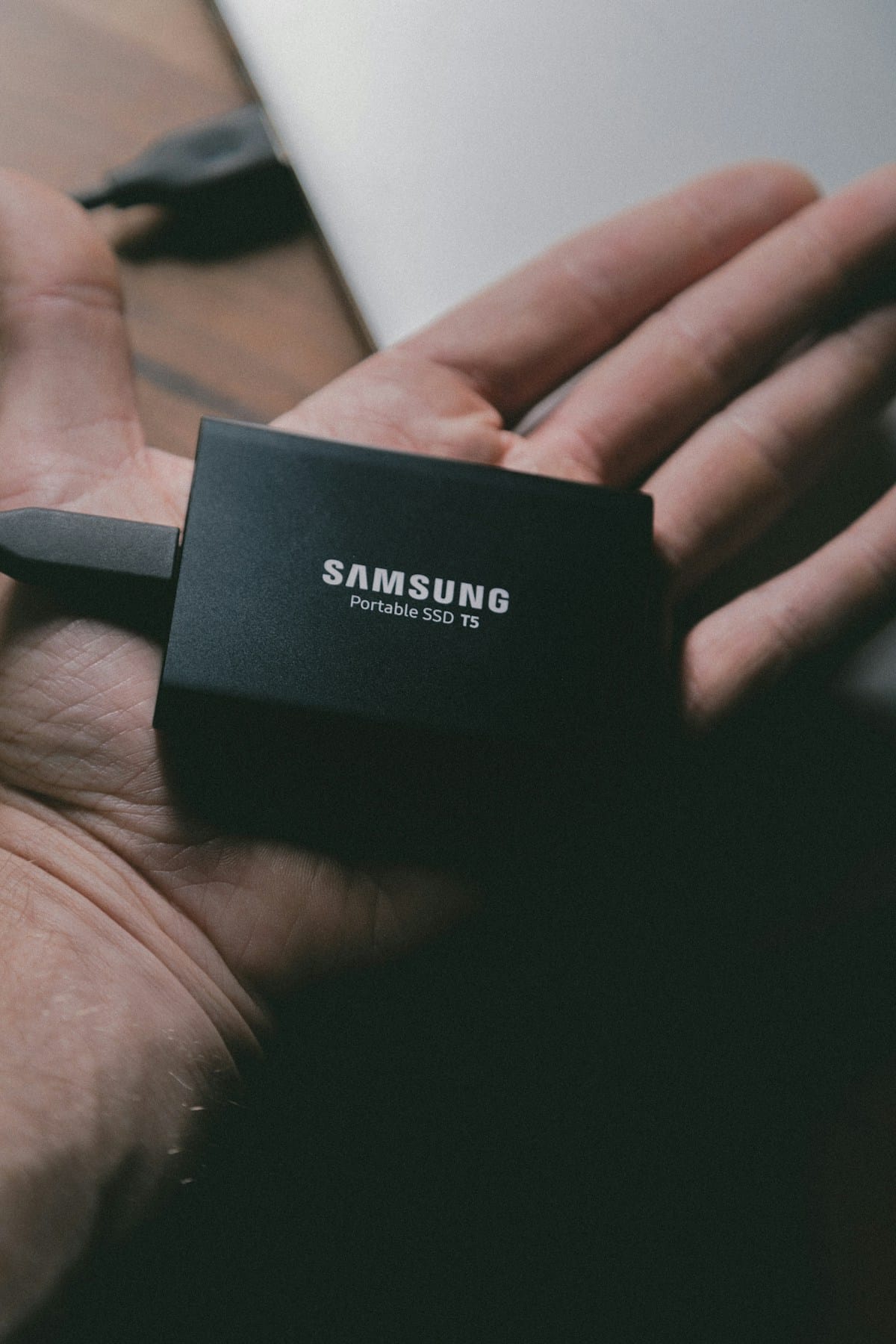
- A fast external SSD for video editing: you want 40 Gbps minimum, which means Thunderbolt or a full-speed USB4 port.
- An external GPU: Thunderbolt only, and only on platforms that support it.
For most buyers, Thunderbolt 4 remains the sweet spot: certified, predictable, and fast enough for docks, drives, and dual 4K monitors. Read the sections below in order for the full picture, or jump straight to the checklist at the end if you already know your workload.

One Shape, Four Speeds: The USB-C Naming Problem
The connector shape tells you almost nothing. Under the USB-C shell, the USB-IF specifications define five transfer rates: 80, 40, 20, 10, and 5 Gbps. A port can run any of them, and the laptop box rarely spells out which one you get.
The USB-IF knows this is confusing. Its January 2024 naming guidelines say consumers should see only speed numbers, and that specification names like “USB 3.2 Gen 2×2” must not appear in product names, packaging, or marketing. In practice, many products skip USB-IF certification entirely, so even the logo system is unreliable.
Two logos matter when they are present. The lightning bolt marks Thunderbolt. The USB trident sometimes carries a number showing the rated speed. When neither logo appears next to the port, assume the slowest plausible speed until the spec sheet proves otherwise. Our USB-C cable guide covers the cable side of the same problem, because the cable can bottleneck the port.
Thunderbolt 4 vs Thunderbolt 5 vs USB4: Spec Comparison
The key to reading the table below: Intel publishes minimum requirements, USB-IF publishes protocol maxima. A Thunderbolt 4 port is guaranteed to hit every number in its column. A USB4 port is allowed to reach its ceiling, but the laptop maker decides how close it gets. That apples-to-oranges framing is the source of most confusion in this market.
| Specification | Thunderbolt 3 (min) | Thunderbolt 4 (min) | Thunderbolt 5 | USB4 | USB4 v2 (80Gbps) |
|---|---|---|---|---|---|
| Max data bandwidth | 40 Gbps | 40 Gbps | 80 Gbps, up to 120 Gbps with Bandwidth Boost | Up to 40 Gbps* | 80 Gbps, asymmetric 120/40 Gbps mode |
| Guaranteed PCIe throughput | 16 Gb/s | 32 Gb/s | Double Thunderbolt 4 | Not guaranteed | Not guaranteed |
| Guaranteed video | One 4K display | Two 4K or one 8K display | Above Thunderbolt 4 | Varies by implementation | Varies by implementation |
| Accessory power | 15W | 15W | 15W | 7.5W | 7.5W |
| PC charging on port | No | Required on at least one port | Required on at least one port | Optional | Optional |
| Universal cable length | Up to 0.8 m passive | Up to 2 m at 40 Gbps | Up to 1 m passive at 80 Gbps | Varies | Existing 40 Gbps passive cables supported; new active 80 Gbps cables defined |
| Standards basis | Intel proprietary | USB4 compliant | USB4 v2, DisplayPort 2.1, PCIe Gen 4 | USB4 | USB4 v2 |
| Certification | Intel | Intel, mandatory | Intel, mandatory | USB-IF, optional | USB-IF, optional |
*Intel’s own 2020 comparison chart lists USB4 at 20 Gbps. That figure is a baseline-requirement framing from 2020, while the USB-IF advertises the 40 Gbps ceiling. Treat Intel’s number as a floor and the USB-IF’s as a ceiling.
Thunderbolt 5 numbers come from Intel’s September 2023 announcement: 80 Gbps bidirectional, up to 120 Gbps for displays with Bandwidth Boost, and double the PCIe data throughput of Thunderbolt 4 for storage and external graphics. Thunderbolt 4’s guarantees (two 4K displays, 32 Gb/s PCIe, 2-meter universal cables, mandatory charging on one port, VT-d DMA protection) come from Intel’s 2020 press materials, which also claim it doubles the minimum video and data requirements of Thunderbolt 3. For a plain-language refresher on the whole USB naming mess, Tom’s Hardware has a thorough explainer.

What the Numbers Feel Like: Docks, Displays, and Storage
Gigabits per second mean little until you map them to tasks. Intel’s comparison materials translate the tiers into storage speeds: up to 3,000 MB/s on Thunderbolt 4, up to 1,500 MB/s on USB4, and up to 450 MB/s on USB 3.2. Those are spec-based figures, not independent benchmarks, but the ratios hold: a Thunderbolt 4 enclosure moves a 50 GB video project roughly twice as fast as a USB4 one and six times faster than USB 3.2.
Displays tell a similar story. Thunderbolt 4 guarantees two 4K monitors from a single port. USB4 makes no such promise, so a USB4 laptop might drive the same setup or might not; only the spec sheet knows. If you are shopping for a second screen, our portable monitor guide and HDMI vs DisplayPort breakdown pair well with this one, and the OLED vs Mini-LED vs IPS panel guide helps you pick the panel itself.
DisplayPort 2.1 adds another layer. VESA certifies two cable tiers for tunneling display signals over USB4: DP40 tops out at 40 Gbps and DP80 at 80 Gbps. Display Stream Compression can cut the transport bandwidth a signal needs by more than two thirds, which is how a single cable can carry resolutions that raw bandwidth math says should not fit.

Docks are where ports quietly throttle. A 40 Gbps upstream link shared between a 5K display, an NVMe enclosure, and gigabit ethernet splits that bandwidth three ways. Before blaming the dock, check whether the laptop port itself is the bottleneck; an internal drive upgrade sometimes beats an external one, as our laptop SSD upgrade guide explains.
Power: Charging Your Laptop Over the Same Port
The same port that carries your display signal can charge the laptop, but wattage varies just as wildly as data speed. Until 2021, USB Power Delivery topped out at 100W (20V at 5A). The PD 3.1 specification raised the ceiling to 240W by adding 28V, 36V, and 48V rails, which unlock 140W, 180W, and 240W charging levels over a full-featured Type-C cable.
Thunderbolt 4 requires the laptop to accept charge on at least one of its Thunderbolt ports, so any certified Thunderbolt 4 machine charges over USB-C. USB4 leaves charging optional. Accessory power differs too: Thunderbolt ports can supply 15W to a connected device, against 7.5W for USB4 and 4.5W for USB 3.2, which matters for bus-powered docks and drives.
Practical advice: match the charger to the laptop’s real draw, not the port’s maximum. A 65W ultrabook gains nothing from a 240W brick. Full-featured 240W cables carry an e-marker chip that tells both ends what they can handle; without it, charger and laptop negotiate down to a safe level. Our guide on how to pick the right charger wattage walks through the math.
eGPUs, Docks, and Platform Gotchas
External GPUs are the strictest test of a port, and they are platform-gated. Apple supports eGPUs only on Intel-processor Macs with Thunderbolt 3 running macOS High Sierra 10.13.4 or later. Apple silicon Macs are excluded regardless of port speed. Check the platform policy before buying the enclosure, because the fastest port in the world cannot override it.
On the Windows side, Thunderbolt 5’s doubled PCIe throughput directly benefits external graphics and fast storage arrays. I treat a dock as the fastest way to learn what a port can actually do: plug in a display, a drive, and ethernet at once, then watch which link saturates first. I have seen docks marketed as “8K ready” that lean on compression to hit that label while the port underneath sets the real limit. The bottleneck is usually the port, not the dock.
How to Check Your Laptop’s Ports
Run this checklist before you buy cables, docks, or drives:
- Read the manufacturer’s spec sheet, not the store listing. Look for the words “Thunderbolt 4”, “Thunderbolt 5”, or a USB4 speed rating in Gbps.
- Check the port diagram for logos. A lightning bolt means Thunderbolt. A USB trident with a number (10, 20, 40, 80) states the rated speed.
- On Windows, Device Manager lists Thunderbolt controllers under System devices. On macOS, System Report shows the Thunderbolt and USB4 hardware attached to each port.
- Buy accessories by the job. Count the displays, measure the drive speed you need, then pick the cable and dock that cover those numbers.
I start every laptop purchase with the port diagram, because the port determines the ceiling for every accessory you will buy later. Ports look identical across machines that differ by an order of magnitude in throughput, and the spec sheet is the only reliable way to tell them apart.
Final Word
Thunderbolt 4 remains the safe default: certified, guaranteed, and fast enough for nearly every desk setup. Thunderbolt 5 is the pick for multi-display workstations and external GPUs once hardware ships broadly. USB4 is fine for everyday use, but verify the speed rating instead of assuming the best case. Pick the dock and cable by requirement, not by price, and the port will stop being a mystery.

Irfan is a Creative Tech Strategist and the founder of Grafisify. He spends his days testing the latest AI design tools and breaking down complex tech into actionable guides for creators. When he’s not writing, he’s experimenting with generative art or optimizing digital workflows.





 Artificial Intelligent
 Design & Creative
 Freelance
 Gadgets & Gear
 Insights
 Laptop
 Reviews
 Smartphone
 Tech Guides
 Vibe Coding