How to Pick the Right Webcam for Remote Work
Verdict: Sensor and Lighting Beat 4K
If you buy one webcam for remote work, optimize for sensor quality, autofocus, and low-light handling, not the resolution number on the box. Most meeting platforms compress your video to 1080p before anyone sees it, so a 4K label rarely survives the trip to your coworkers’ screens. A larger sensor, reliable autofocus, and decent lighting will make you look sharper on every call than any 4K webcam shooting in a dark room.
For most remote workers, the practical playbook is simple: fix your lighting first (free), then pick a webcam with a strong sensor and good low-light performance. Budget picks around 55 dollars handle daily calls well, mid-tier 4K models near the 200 dollar mark add detail for recording and cropping, and AI-tracking cameras near 300 dollars serve presenters who move. Read the full breakdown below to match a camera to your actual use case.
Resolution Is Not the Whole Story
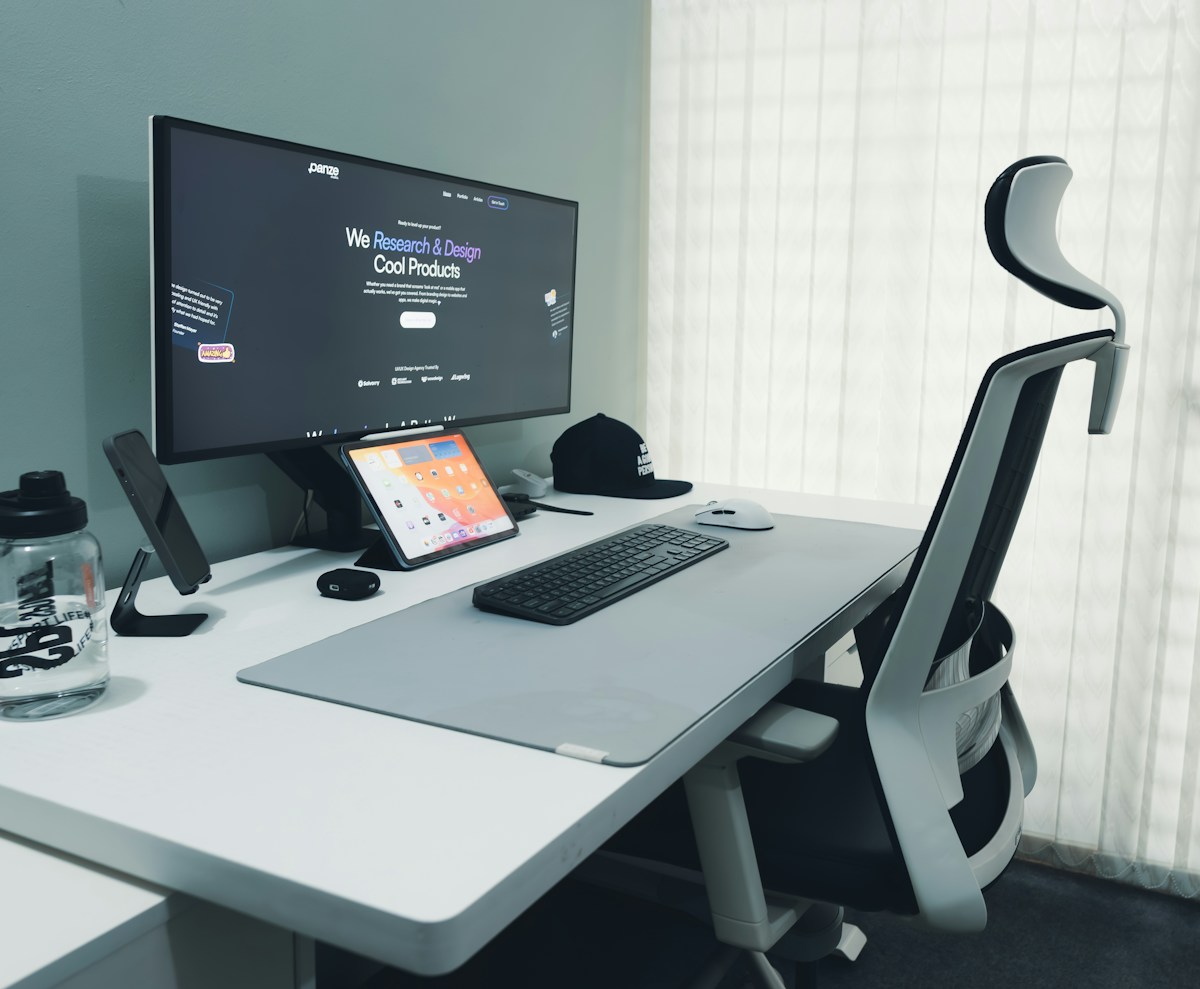
Webcam marketing revolves around resolution, and it is the least useful spec on the box. Zoom, Google Meet, and Microsoft Teams commonly cap webcam video at 1080p, and many calls run even lower when bandwidth dips. You can buy a 4K camera, but the person on the other side sees a 1080p feed with compression on top.
Also Read:
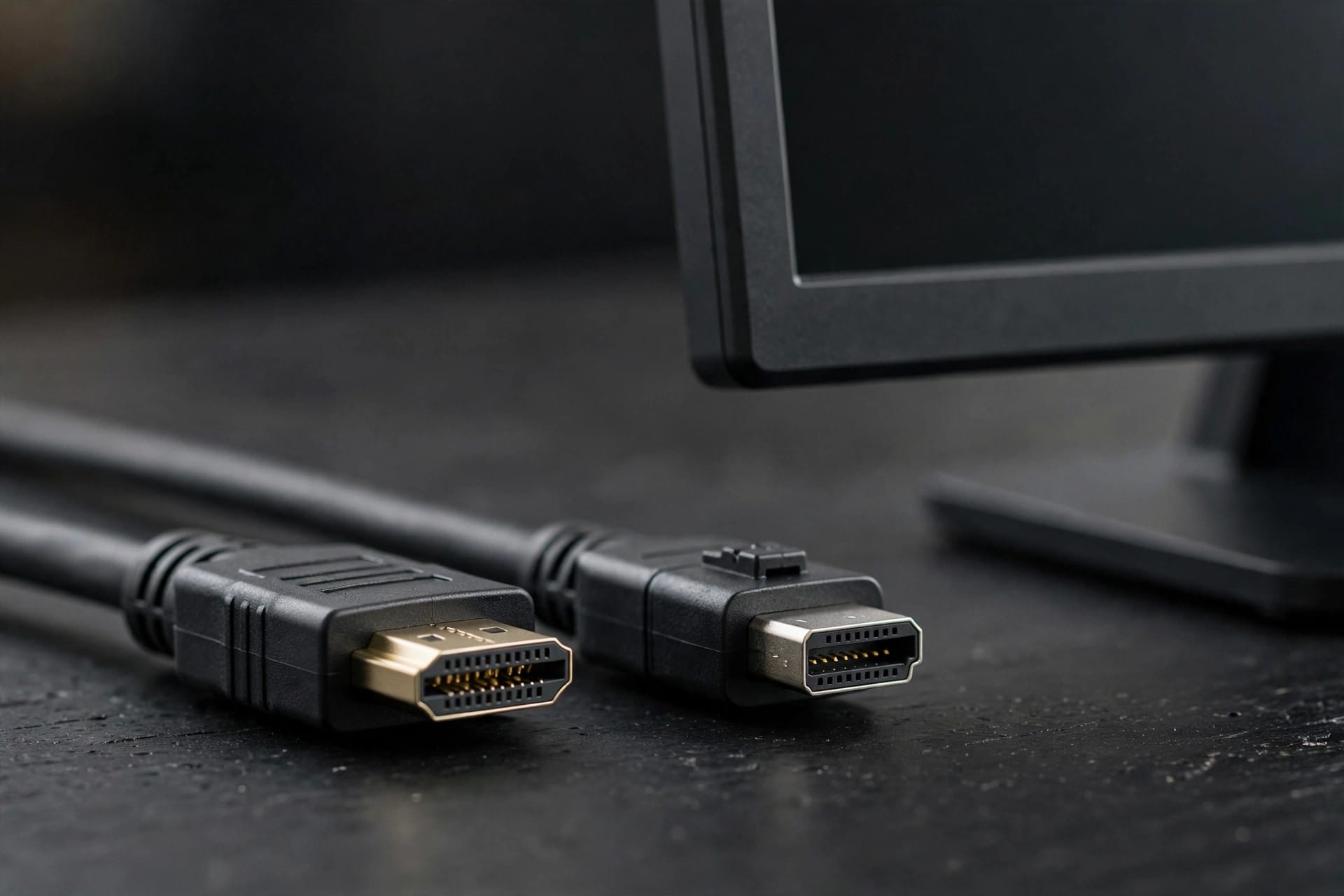
Resolution still matters in specific ways. A 4K sensor gives you room to crop and digitally zoom without turning into a blur, which helps when you frame wide and trim later. It also records sharper local video if you save meetings or create clips. But for the live call itself, what your colleagues notice is clarity, exposure, and color, and those come from the sensor, the lens, and your lighting, not from 4K.
The industry consensus lands in the same place: for standard work-from-home calls, 1080p at 30fps is the practical ceiling, and autofocus quality plus low-light performance decide how good you look on screen. Spend your budget there before chasing higher numbers.
Sensor Size and Low-Light Performance
Your webcam is probably fighting bad light. Home offices run dim, screens glow unevenly, and most laptop cameras use tiny sensors that fall apart the moment light drops. A webcam with a larger sensor keeps detail and color when the room is dark, and this is the single biggest visible upgrade you can buy.

Sony STARVIS-class sensors have become the benchmark here, and STARVIS 2 generation chips push it further. The Razer Kiyo Pro Ultra pairs a large Sony STARVIS 2 sensor with an f/1.7 aperture and HDR, a combination built specifically for difficult lighting. On paper that sounds like streamer gear, but the same problem, a dim room at 8 AM, is exactly what remote workers face daily.
Aperture and HDR matter because they widen the range your camera can capture. A wide aperture pulls in more light; HDR holds detail in bright windows and dark corners at the same time. When a review praises a webcam for looking good in a normal room, it is praising these traits, not resolution.
Resolution and Frame Rate: 1080p vs 4K
Here is how the common tiers actually compare for remote work, ignoring the marketing:
| Tier | Typical specs | Best for | Tradeoffs |
|---|---|---|---|
| 1080p / 30fps | Basic sensors, fixed or simple autofocus | Daily calls on capped platforms | Struggles in dim rooms; no cropping headroom |
| 1080p / 60fps | Better sensors, solid autofocus | People who gesture or move during calls | Small visible gain over 30fps for most meetings |
| 4K / 30fps | Large sensors, STARVIS class common | Recording, streaming, cropping flexibility | Needs USB 3.0 and decent light; 4K rarely reaches callers |
| 4K / 60fps | Premium sensors, manual controls | Content creation alongside calls | Premium price; overkill for meetings alone |
Frame rate deserves a note because it confuses buyers. 60fps smooths motion, which matters for streamers and anyone presenting animated content. For a talking head on a standup call, 30fps looks identical and saves bandwidth. Higher frame rates also demand more light, so 60fps can look worse in a dim room unless the sensor is strong.
The takeaway: match the tier to your work, not to ambition. If you never record, 1080p/30fps with a good sensor beats 4K/30fps with a weak one.
Autofocus, Field of View, and Framing
Blurry video usually means weak autofocus, not low resolution. Fixed-focus webcams assume you sit at one distance; lean in to read something and your face drifts soft. Autofocus tracks you as you move, which is why mid-tier cameras often look sharper in real use than spec sheets suggest. When a camera specs page lists autofocus alongside 1080p, treat that as a feature worth paying for.

Field of view (FOV) controls how much of your room the camera shows. The Logitech MX Brio adjusts its diagonal FOV between 65, 78, and 90 degrees, and that range maps well to real desks: 65 degrees keeps you tight and crops clutter, 78 covers a natural desk view, and 90 degrees fits two people or a whiteboard behind you. Cameras with a single wide FOV force you to crop the frame in software or accept a tiny face in a big room.
AI framing goes a step further. The Insta360 Link 2 mounts its camera on a 3-axis gimbal and uses AI to follow you around the room, with gesture control to recenter. It is the right call for people who present standing up, walk to whiteboards, or teach on camera. Seated workers do not need it, and it is wasted money if your calls are 90 percent talking head.
Framing basics cost nothing and beat most upgrades. Put the camera at eye level, leave a small margin above your head, and face your key light. A cheap laptop stand plus these habits closes half the gap between a 55 dollar camera and a 200 dollar one.
Audio and Privacy: The Extras That Matter
Webcam microphones have improved, but they remain a compromise. The Logitech MX Brio carries dual beamforming mics that isolate your voice up to about 1.2 meters and cut background noise, and several mid-tier cameras now include some form of noise reduction. For casual calls this is fine. For anything that matters, a dedicated mic or a good pair of noise-cancelling earbuds still wins, because mics sit far from the camera lens and pick up room echo the same way your ears do.
Privacy hardware is the extra worth checking on any shortlist. An integrated privacy shutter lets you physically block the lens, which ends the debate about whether some app is watching. It is a small detail, and it signals a camera designed for professional use rather than streaming alone.
One more feature to note: Windows Hello support. Infrared-based cameras unlock your PC with your face, which removes one password from your morning. If you buy a webcam for a Windows laptop, check for IR support, since not every premium camera includes it. The Logitech MX Brio, for example, skips the IR sensor that the older Brio 4K had, a tradeoff buyers on Windows should know before switching.
Webcam Picks by Use Case
Match the camera to the work you actually do:
| Model | Resolution / FPS | Sensor | FOV | Mic | Privacy shutter | Typical price | Best for |
|---|---|---|---|---|---|---|---|
| Logitech C920x | 1080p / 30fps | Standard | Fixed ~78 deg | Stereo | Yes | Around 55 dollars | Budget daily calls |
| Logitech Brio 500 | 1080p / 30fps | Improved | Adjustable | Noise-reducing | Yes | Mid 100s | Step-up calls, USB-C desks |
| Logitech MX Brio | 4K / 30fps, 1080p / 60fps | 8.5MP Sony STARVIS | 65 / 78 / 90 deg | Dual beamforming | Yes | Around 200 dollars | Premium all-rounder |
| Insta360 Link 2 | 4K / 30fps | Large | Auto-tracking gimbal | Noise-cancelling | Yes | Around 300 dollars | Presenters who move |
| Elgato Facecam Pro | 4K / 60fps | Sony STARVIS | Wide with crop | None (mic-less) | No | Premium | Streamers and creators |
The C920x has survived for years because it does the one job most people need: a sharp, reliable 1080p feed for a little over 50 dollars. Reviews consistently rank it as the budget pick for work-from-home calls, where 1080p at 30fps is the practical ceiling and autofocus quality matters more than resolution.
The MX Brio earns its premium with the STARVIS sensor, 65/78/90 degree adjustable field of view, dual beamforming mics rated to about 1.2 meters, and a built-in privacy shutter, certified for Teams, Zoom, and Google Meet. It launched around 200 dollars, and it is the camera to beat if you want one device that handles calls, recording, and the occasional stream. Full specs are covered in TweakTown’s MX Brio rundown and TechRadar’s webcam buying guide.
The Insta360 Link 2 suits a narrower crowd: its AI-powered 3-axis gimbal follows you, and gesture control lets you recenter without touching the camera. If you teach, demo, or present standing up, it replaces a tripod and a camera operator. If you sit, save the money.
The Elgato Facecam Pro is the streamer pick, with true 4K at 60fps and manual controls on a Sony STARVIS sensor, but it ships without a microphone or a shutter. It assumes you already own audio gear and care about recording quality above all else. For meeting-heavy workers, it is the wrong camera despite the impressive specs.
Prices drift, so treat these as ballpark figures. The pattern is stable though: big sensor and good low-light handling at your budget beats a higher resolution tier with a weaker sensor. Analytics Insight’s 2026 webcam roundup and TestBeforeYouBuy’s 4K webcam guide both land on the same conclusion.
Conclusion: Fix Lighting Before Buying
Most webcam upgrades fail because they skip the free step. Before spending a dollar, sit facing a window or a desk lamp, raise the camera to eye level, clean the lens, and pick a calm background. These moves fix the majority of “I look bad on calls” complaints, and they cost nothing.
If you still want better video after that, buy for the sensor first, autofocus second, and resolution last. A 1080p camera with a strong sensor in good light outperforms a 4K camera in a dark room every time, and your coworkers, watching a compressed 1080p feed, will never see the resolution you paid extra for.
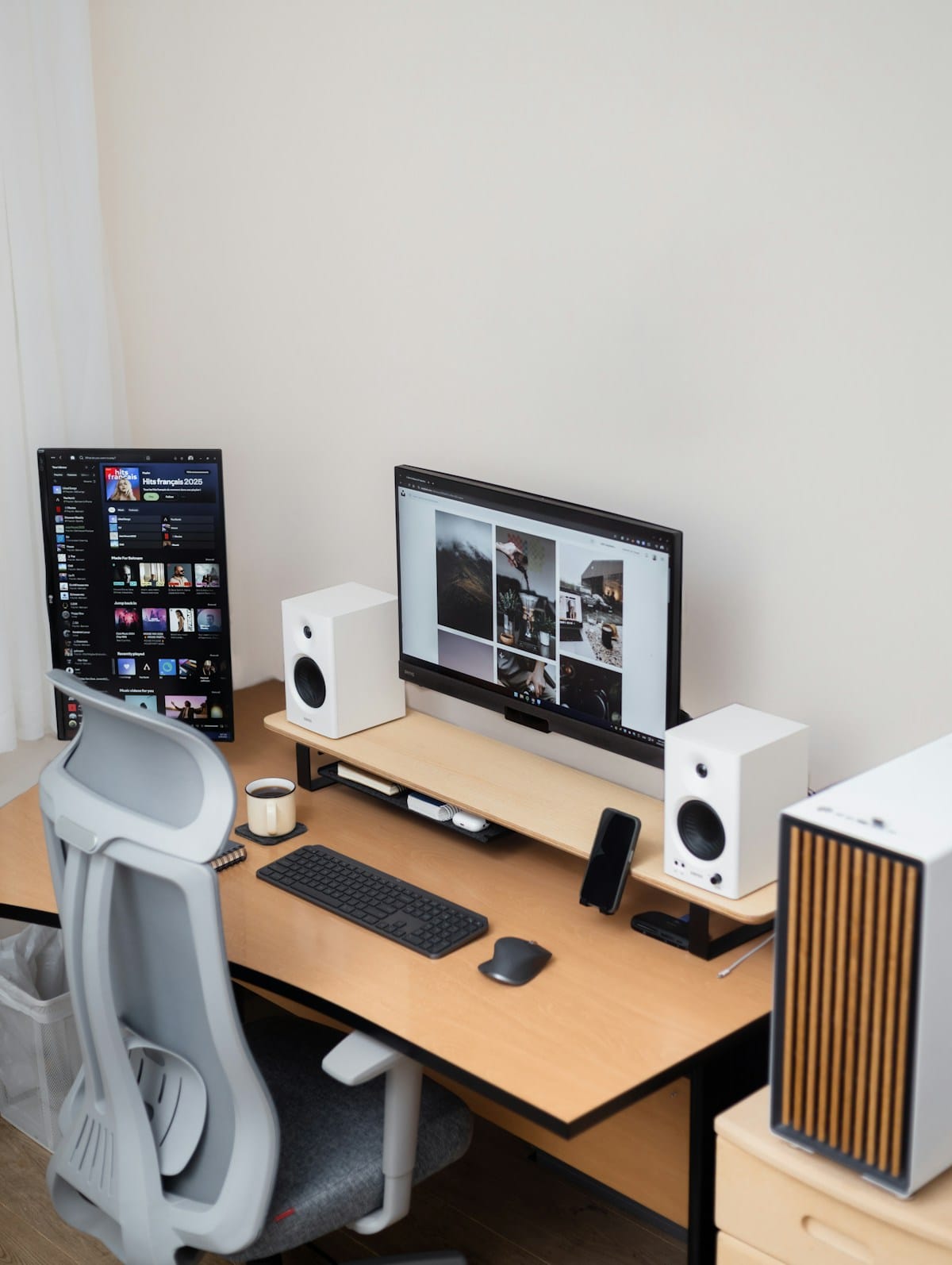
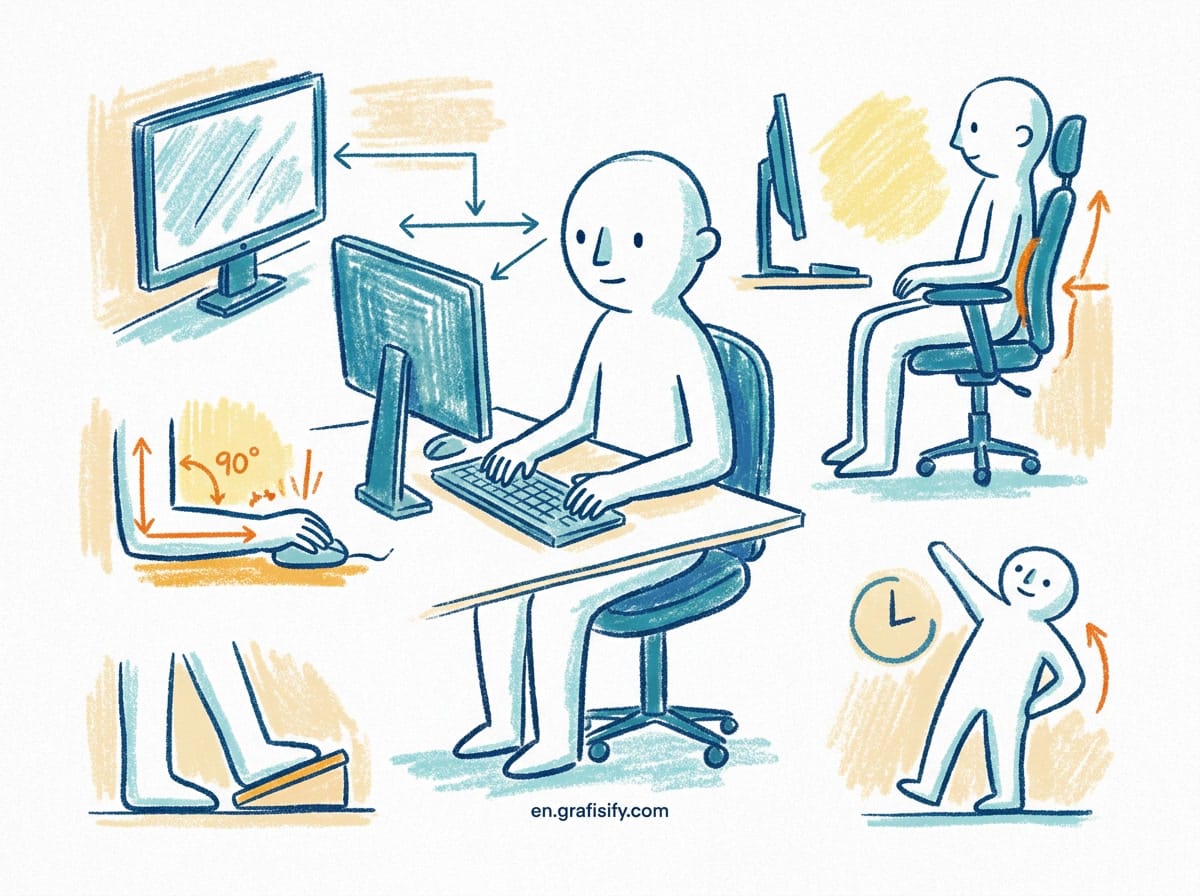
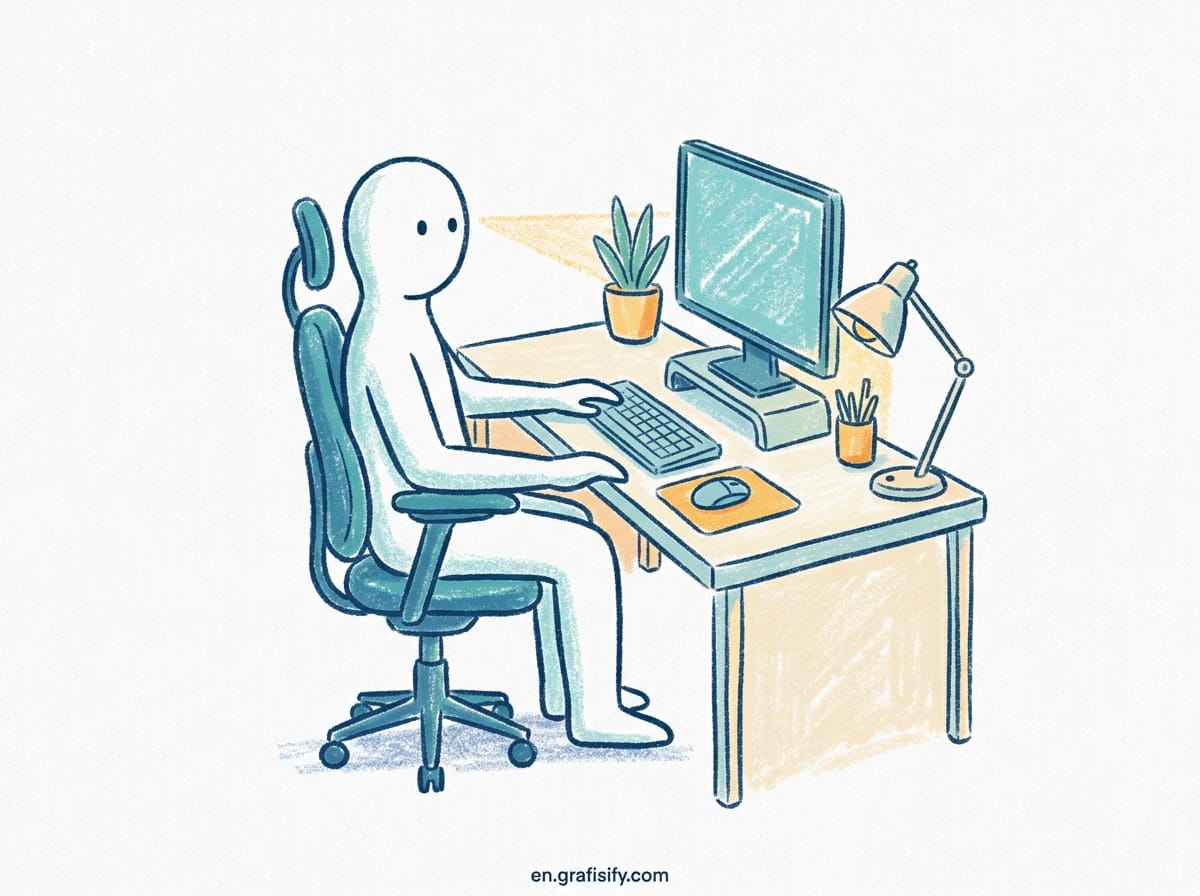
Your webcam sits inside a bigger setup, so treat it that way. Pair it with an ergonomic desk setup that keeps you comfortable through long calls, borrow ideas from minimalist desk setups to keep your background clean, and check your GaN charger guide so your USB-C hub powers everything you plug in. Good video is a system, not a camera, and the camera is just the last piece.

Irfan is a Creative Tech Strategist and the founder of Grafisify. He spends his days testing the latest AI design tools and breaking down complex tech into actionable guides for creators. When he’s not writing, he’s experimenting with generative art or optimizing digital workflows.



 Artificial Intelligent
 Design & Creative
 Freelance
 Gadgets & Gear
 Insights
 Laptop
 Reviews
 Smartphone
 Tech Guides
 Vibe Coding