Why Your Laptop Overheats and How to Cool It Down

Verdict: Heat Is a Symptom, Not the Whole Story
A hot laptop is rarely a mystery. It is a cooling system that can no longer keep up with the heat its processor and graphics chip produce, or a workload that pushes both chips harder than the chassis can handle. Before you buy a cooling pad or open the case, find out which one you are dealing with. A five minute temperature check tells you more than a week of guessing.
Most laptops run warm under load and that is normal. Trouble starts when the machine slows down, the fan screams during light work, or the system shuts off without warning. Those are signs of thermal throttling or a cooling fault, and each one has a different fix. This guide walks through diagnosis first, then the fixes in order from free to advanced, so you spend money only on the step that fits your machine.
I have seen this pattern across budget ultrabooks and thick gaming laptops alike. The fix that worked was almost never the first accessory bought. It was the step that matched the actual cause: blocked vents, dried thermal paste, a power profile set too high, or a fan that had given up. Work through the checks below and you will know which one applies to you.


How Laptop Cooling Works in Plain Terms
Your processor and graphics chip turn electricity into heat. A metal heatsink pulls that heat away from the chips, heat pipes carry it to a fin stack, and a small fan blows air across the fins and out through the vents. The whole chain has one job: move heat out of the case faster than the chips make it.
Thin laptops have less room for that chain. The heatsink is smaller, the fan is thinner, and the air path is shorter. That is why an ultrabook can feel hot doing work a thicker laptop handles in silence. It is not a defect on its own. It is a trade made for portability, and it means the cooling system has less margin when dust builds up or room temperature rises.
Two limits protect the chips. The first is thermal throttling: when the processor reaches its maximum junction temperature, often around 100 degrees Celsius for Intel mobile chips, it cuts its clock speed to bring heat down. Intel describes throttling as a mechanism that reduces clock speed when temperature passes TJ Max, to protect the processor and signal an overheating problem. The second limit is a forced shutdown if throttling cannot hold the temperature. A shutdown is the last resort, not the first warning.
Also Read:

That distinction matters for diagnosis. A laptop that slows down after ten minutes of gaming is throttling. A laptop that powers off during a video call has a deeper problem, and you should treat it as urgent rather than annoying. Either way, the temperature reading tells you where you stand.
Step One: Measure Before You Fix Anything
Download a temperature monitor before changing a setting. HWMonitor and HWiNFO cover Windows, and Macs Fan Control or iStat Menus cover macOS. Open the tool, then run the workload that causes trouble for ten to fifteen minutes while you watch the CPU and GPU readings.
Write down three numbers: idle temperature, temperature under your normal workload, and temperature under heavy load. People often panic over numbers that are fine. A CPU at 85 degrees during a game render is working hard, not failing. A CPU at 95 degrees while you write email is a different story. Context decides whether a number is a problem, so judge readings against the workload that produced them.

| Situation | Typical CPU Range | What It Means |
|---|---|---|
| Idle or light browsing | 40 to 60 degrees | Normal for most laptops |
| Office work and video calls | 55 to 75 degrees | Normal, fan may be audible |
| Gaming or video rendering | 70 to 90 degrees | Normal under sustained load |
| Light work above 90 degrees | 90 degrees and up | Cooling problem, investigate |
| Repeated shutdowns | At the chip limit | Urgent, stop heavy use and inspect |
Also watch clock speed next to temperature. If utilization stays high while clock speed drops sharply as temperature rises, you are watching throttling happen in real time. That pattern separates a heat problem from a slow storage drive or a shortage of memory. If you want to rule out memory as the bottleneck, our guide to upgrading your laptop SSD explains how storage speed shapes perceived slowness, and it pairs well with this check.
One more check costs nothing: look at the vents. Shine a light into the exhaust slots. If you see a mat of dust pressed against the fins, airflow is already compromised and cleaning may be the whole fix. If the vents look clear and temperatures still climb, move to software settings before you touch hardware. Room temperature shifts the whole map too. A laptop in a 30 degree room has less headroom than the same laptop in a 20 degree room.
Fix the Free Things First
Start with placement. A laptop on a bed, a cushion, or your lap blocks the intake vents on the bottom of the case. Move it to a hard, flat surface and give the exhaust slots a few centimeters of clear space. A simple stand that lifts the rear of the machine can drop temperatures by a few degrees on its own, because it opens the intake path.
Next, check power settings. Windows offers a power mode under Settings, System, Power. Balanced mode suits most daily work. Best performance mode holds higher clock speeds and produces more heat, so it makes sense only for short, heavy sessions. On macOS, Low Power Mode under battery settings does similar work. If your laptop only overheats in Best performance mode, the cooling system may be fine and the power profile may be the problem.
Then look at background load. A browser with dozens of tabs, a cloud sync client uploading a large folder, and a video call running at once can push a thin laptop hard. Close the apps you are not using and check Task Manager or Activity Monitor for a process eating CPU in the background. I once traced a “broken fan” complaint to a single stuck updater process. The fan was doing its job. The workload was the fault.
Update drivers and BIOS from your laptop maker support page. BIOS updates sometimes adjust fan curves and power limits, and graphics driver updates fix bugs that keep the GPU busy for no reason. Use the maker utility or the support site for your exact model, not a generic driver tool.
Clean the Fans and Vents the Safe Way
Dust is the most common cause of gradual overheating. Over months, lint packs into the fin stack and chokes airflow. The fan spins faster to compensate, noise rises, and temperatures climb anyway. Cleaning every few months prevents that slow decline, and it is the fix with the best return for the effort.
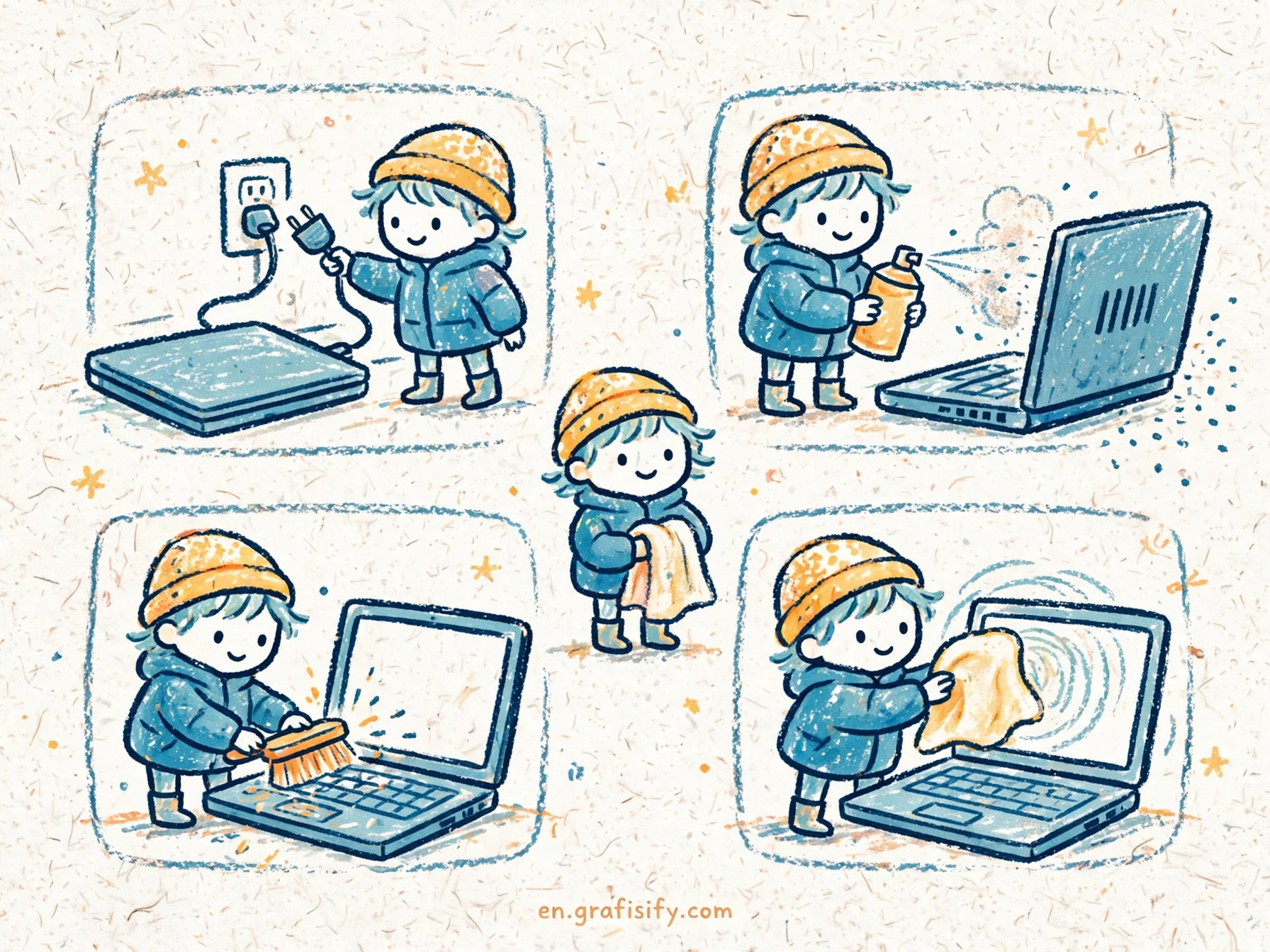
Shut the laptop down fully and unplug it before you start. Use short bursts of compressed air through the exhaust vents, and hold each fan still with a soft tool while you blow, so the fan does not spin past its rated speed. Work in a ventilated area and keep the can upright. If your model has a removable bottom panel and you are comfortable opening it, a soft brush on the fins does a more thorough job than air alone.
Do not use a vacuum cleaner on the vents. Static and uncontrolled suction can damage small parts. Do not spray liquid cleaners into the case. If the laptop is still under warranty and the manual warns against opening it, clean only the external vents and leave internal work to the maker service. A warranty is worth more than a few degrees.
After cleaning, repeat the temperature test with the same workload. If temperatures drop by 5 degrees or more, dust was a major part of the problem. If nothing changes, the cause sits deeper: thermal paste, a worn fan, or a power limit set by the maker.
Cooling Pads, Thermal Paste, and Fan Replacement
A cooling pad is a stand with fans that push extra air toward the laptop base. It helps most when the laptop intake sits on the bottom and the pad fan lines up with it. Sealed designs that press a foam ring against the base tend to work better than open mesh stands, because the air has nowhere to go except into the intake. Expect a modest gain, often 3 to 8 degrees under load. That is enough to stop light throttling and quiet the internal fan, but it will not rescue a laptop with clogged fins or dried paste. Buy the pad after cleaning, not instead of cleaning.
Pick a pad that fits your laptop size, runs quietly at the speed you will use, and tilts to a comfortable typing angle. If you work at a desk, a passive metal stand plus a separate monitor often beats a pad, and our guide on how to choose a laptop docking station covers the desk setup side of that choice. For travel, skip the pad. A folding stand weighs less and delivers most of the placement benefit.
Thermal paste sits between the processor and the heatsink and carries heat across that joint. Over two to three years of heat cycles, paste can dry out and lose contact. When it does, the heatsink cannot pull heat away fast enough even with clean fans. Fresh paste can restore 5 to 10 degrees on an aged machine. This step is for confident DIY users only. Opening a laptop can void a warranty, and the job needs care: power off and unplug, remove the battery connector if the design allows, unscrew the heatsink in a diagonal pattern, clean old paste with isopropyl alcohol and a lint free cloth, apply a pea sized dot of quality paste to each chip, and refit the heatsink with even pressure.
If a fan grinds, rattles, or stops spinning, replacement beats repair. Fans are model specific parts, so order by exact model number and follow a teardown guide for that machine. If any step feels uncertain, a repair shop can do the paste and fan job for a modest fee, and that fee is cheaper than a damaged board. The same logic applies to other hardware faults: our guide on a laptop that will not turn on shows how to separate a simple fault from a repair shop job before you pay.
Heat, Battery, Screen, and When to Get Help
Heat does not only slow the processor. It ages the battery faster, and a hot battery loses capacity sooner. If your laptop runs hot and battery life has faded in the same period, the two trends are likely linked. Our guide to laptop battery health myths separates the habits that help from the ones that do nothing, and keeping the machine cooler is one of the few habits that clearly helps.
Display settings add heat too. A bright screen at full refresh rate draws power and warms the chassis. Dropping brightness to a comfortable level and using a sensible refresh rate for office work trims heat without touching performance. If you are choosing a panel, our laptop display guide comparing OLED, Mini-LED, and IPS explains the power and heat tradeoffs of each panel type. Operating system choice changes the picture as well. A light Linux install can run cooler on older hardware than a heavy Windows setup, and our look at Linux laptop compatibility covers which machines handle that switch without driver headaches.
Some symptoms mean the machine needs a technician, not another tweak. Stop and seek help if the laptop shuts down during light tasks after cleaning, if you smell burning plastic or see discoloration near vents, if a fan makes grinding noise or does not spin at all, or if temperatures stay above 95 degrees for minutes despite clean vents and balanced power settings. Bring your temperature notes to the repair shop. A log that says “idle 55, office work 88, fan cleaned, still throttling” saves diagnostic time and keeps the conversation on the fault rather than on guesswork. For older machines, weigh repair cost against replacement. A fan and paste job is usually worth it. A board level repair on a five year old budget laptop often is not.
Conclusion: Diagnose, Then Fix in Order
Cooling a hot laptop is a sequence, not a single purchase. Measure temperatures under your real workload. Fix placement and power settings for free. Clean the vents. Add a cooling pad only if airflow is the limit. Repaste or replace a fan only when age or a failed part points that way. Each step answers a question the previous step raised, and that order keeps you from spending on the wrong fix.
Start today with the temperature check. It takes five minutes, it costs nothing, and it turns a vague complaint about a hot laptop into a number you can act on. If the number is fine, you can relax and get back to work. If it is not, you now know exactly which fix to try first. For deeper background on how processors protect themselves from heat, see Intel support on what throttling is and how to resolve it, and for a practical walkthrough of the full fix sequence, see the cooling guides at GadgetScout and SIIT. Microsoft lists the baseline hardware bar for Windows machines on its Windows 11 specifications page, which is a useful reference when you judge whether a machine is simply underspecced for its workload.

Irfan is a Creative Tech Strategist and the founder of Grafisify. He spends his days testing the latest AI design tools and breaking down complex tech into actionable guides for creators. When he’s not writing, he’s experimenting with generative art or optimizing digital workflows.






 Artificial Intelligent
 Design & Creative
 Freelance
 Gadgets & Gear
 Insights
 Laptop
 Reviews
 Smartphone
 Tech Guides
 Vibe Coding