How to Transfer an eSIM to a New Phone
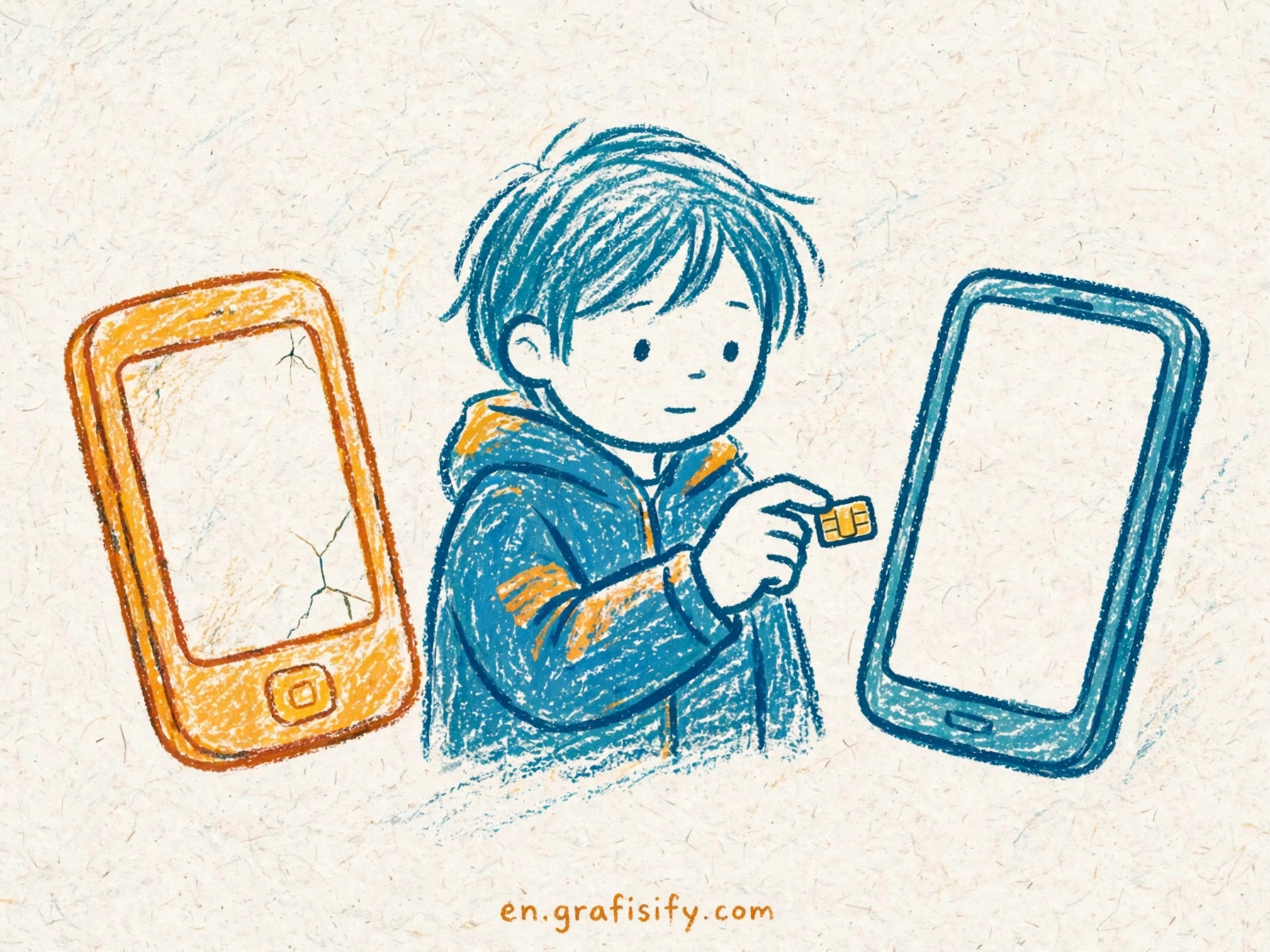
Verdict: The Short Answer for Each Upgrade Path
Swapping phones in the US now means moving an eSIM, not a SIM card. Apple pulled the SIM tray from US iPhone 14 models back in 2022, and every major carrier now runs digital profiles alongside plastic. The transfer itself takes minutes once the preconditions hold.
iPhone to iPhone: use eSIM Quick Transfer. Both phones need iOS 18.4 or later, Bluetooth on, and a carrier that supports the feature. No carrier call required.
Android to Android: use the built-in transfer tool during setup, or later under Settings › Network and internet › SIMs. Both phones need Android 12 or later plus current Google Play Services and a screen lock.
iPhone to Android, or back: you need iOS 26 or later plus support from your carrier or the phone maker. When that combination misses, your carrier can move the profile with eSIM Carrier Activation or a QR code.
Also Read:
Any path that stalls: open your carrier app or call support. Keep the old phone in hand and signed in until the new line makes and receives calls. Carriers use the old phone to authenticate the move; a wiped or sold old phone turns a five-minute job into a long support call.
Inside the Transfer: How an eSIM Profile Moves
An eSIM transfer moves a profile, not a number. The carrier issues a fresh profile to the new phone. The new profile activates, and the old profile dies. Your number, plan, and account stay untouched.
People confuse this with porting. Porting moves your number from one carrier to another and can take a day or more. A transfer keeps the same carrier and finishes in minutes.
The old phone must stay present for two reasons. First, activation binds to a signed-in session on that phone, which proves the request comes from you. Second, several carriers push an approval prompt to the old device mid-flow.
Apple’s support page puts it plainly: with carrier support for eSIM Quick Transfer, you can move the SIM from an old iPhone to a new iPhone without contacting the carrier. Apple also notes an iPhone can store eight or more eSIMs, and iOS 26 or later can move more than one phone number in a single transfer.
A physical SIM slots into any phone. An eSIM profile ties to one device at a time. That tie is the whole reason the transfer flow exists: the carrier must retire the old profile and issue a new one, and the phone makers built one-tap flows around that handshake. If you have not decided between digital and plastic yet, I cover the eSIM vs physical SIM trade-offs in a separate guide.
Six Preconditions Before You Start
Most failures happen before the transfer starts. Run this checklist first.
- Update both phones. iPhone to iPhone needs iOS 18.4 or later on both devices. Android needs Android 12 or later plus current Google Play Services. Cross-platform needs iOS 26 on the iPhone side. These floors move with each OS release; I read Apple’s support page at research time and the numbers above hold now.
- Connect the new phone to Wi-Fi. The new profile downloads over the internet. Without Wi-Fi the transfer stalls at the first step.
- Keep both phones nearby with Bluetooth on. Apple’s Quick Transfer pairs the phones over Bluetooth. Android’s flow uses a nearby-device handshake too.
- Sign in and unlock. Both phones need a passcode or screen lock, and the Apple Account or Google account must be signed in on both.
- Confirm carrier support for eSIM transfer. Nearly every major US carrier supports it, but prepaid brands and MVNOs vary. A two-minute check on your carrier’s support page beats a dead end mid-setup.
- Keep the old phone in hand. Verizon states it plainly: on single-line accounts you need the old phone for authentication. Sell or wipe it and you lose your fastest recovery path.
While the new phone downloads the profile, do something useful: check your phone’s battery health on day one so you know the baseline before the return window closes.

Step-by-Step: iPhone, Android, and Cross-Platform
iPhone to iPhone
- Place the phones next to each other with Bluetooth on.
- On the new iPhone, start setup or open Settings › Cellular › Add eSIM.
- Choose Transfer From Nearby iPhone.
- Approve the request on the old iPhone and follow the prompts on both screens.
- Wait for the carrier activation banner, then test with a real call.
Apple’s full walkthrough lives on Apple’s eSIM transfer support page, which also covers adding eSIMs on a fresh setup and moving multiple numbers on iOS 26 or later.
Android to Android
- On the new phone, start setup and choose the transfer option, or later open Settings › Network and internet › SIMs › Add SIM › Transfer SIM from another device.
- Confirm the three hard requirements: Android 12 or later, current Google Play Services, and a screen lock on both phones.
- Approve on the old phone when the prompt appears.
- Google notes your existing eSIM keeps working if the transfer fails, so a retry costs nothing.
Google documents the exact screens in the Pixel eSIM transfer guide, which applies to most Android phones with small menu-name differences.
iPhone to Android, or Android to iPhone
Apple’s wording on this path stays careful: “With iOS 26 and later, some carriers and select smartphone manufacturers support transferring your SIM from Android to iPhone, or vice versa.” Read the full conditions on Apple’s cross-platform transfer page before you start. When your carrier or device lacks support, ask the carrier for eSIM Carrier Activation or a QR code, scan the code on the new phone, and follow the activation prompts.
Carrier Support Compared: AT&T vs T-Mobile vs Verizon
The big three all move eSIMs, but each runs its own flow with its own gotcha.
| Carrier | Transfer method | Self-service | Old phone required | Fee | Watch out |
|---|---|---|---|---|---|
| AT&T | Device-support tutorials for during and after initial setup | Partial | Depends on the flow | Not published | AT&T documents its own flows rather than Apple’s Quick Transfer by name |
| T-Mobile | Support-page steps plus carrier help | Yes | No | Not published | Turn off SIM Protection first; a missed toggle throws an error |
| Verizon | My Verizon app | Yes | Yes, on single-line accounts | No charge | Service on the old phone dies once the new phone activates |
AT&T publishes separate transfer tutorials for moves after the initial setup and for moves during it. T-Mobile’s SIM and eSIM support page calls out the SIM Protection toggle as the step people miss. Verizon’s eSIM FAQ states the no-fee policy and the old-phone requirement; Verizon labels that page as AI-generated, so treat its wording as Verizon’s own and not as human-authored support copy.
I could not verify Google Fi, Mint Mobile, or US Cellular transfer specifics at research time, so the table covers the big three only. MVNO support varies, so check your provider’s page before you rely on a one-tap flow.
When a Transfer Fails: Fixes and Fallbacks
You see a “contact your carrier” banner. Do exactly that. A support agent can push eSIM Carrier Activation from their side or issue a QR code you scan on the new phone.
You hit a profile limit. An iPhone stores eight or more eSIMs, but only one or two stay active at once. Delete stale profiles under Settings › Cellular, but only after the new line works.
The phones cannot find each other. Move them side by side, toggle Bluetooth off and back on, and make sure neither phone sits in a metal case that blocks the handshake.
T-Mobile throws a SIM Protection error. Open the T-Mobile app, turn SIM Protection off, and retry. T-Mobile’s own page names this as the step that blocks upgrades.
You deleted the profile by accident. Carriers reissue eSIMs. Check the lost-eSIM or replacement-eSIM page on your carrier’s site before you panic; most let you pull a fresh profile without a store visit.
The old phone is gone. A sold or wiped old phone kills the one-tap flows. The carrier falls back to identity checks: account PIN, photo ID, or an in-store visit. Slower, but it works.
Nothing above moves. Ask the carrier for a QR code or walk into a store. Store staff activate eSIMs all day; a ten-minute visit beats a two-hour troubleshooting loop.
Conclusion: Do This Before You Unbox the New Phone
Run the checklist before you open the box: update both devices, confirm carrier support, charge both phones, and keep the old one in hand until the new line works. The transfer itself is the easy part; the prep is the whole job.
Timing upgrades around device lifespan helps too. I explain how long smartphones actually last so you can spot a failing battery or a dying update window before it forces a rushed switch. And if the worst happens and you need a different phone after all, repairability teardown scores tell you which models survive daily life without a repair bill.
Context for the curious: the US leads eSIM adoption by a wide margin. Counterpoint data quoted by TechCrunch puts eSIM capability in 41 percent of devices launched in the US in 2024, so the one-tap flows above will only get smoother from here. Read the original numbers in TechCrunch’s eSIM adoption piece and the tray-removal context in Apple’s iPhone 14 announcement.
Questions about your carrier or your specific phone pair? Drop them in the comments. If this guide saved you a support call, share it with the next person unboxing a phone.

Irfan is a Creative Tech Strategist and the founder of Grafisify. He spends his days testing the latest AI design tools and breaking down complex tech into actionable guides for creators. When he’s not writing, he’s experimenting with generative art or optimizing digital workflows.





 Artificial Intelligent
 Design & Creative
 Freelance
 Gadgets & Gear
 Insights
 Laptop
 Reviews
 Smartphone
 Tech Guides
 Vibe Coding