Self-Host n8n with Docker Compose: A Real Production Setup

Self-Host n8n with Docker Compose: A Real Production Setup

Most n8n self-hosting guides stop at a single container and a localhost URL. That works for a weekend test. It breaks the moment you wire up a Telegram bot, schedule 12 workflows, and leave the thing running for your clients. This guide walks through a setup that survives real use: Docker Compose with a real Postgres database, Redis for queue mode, and a reverse proxy with a proper domain. You keep your data, your webhooks stay reachable, and the box does not fall over when two workflows fire at once.
Why Bother Self-Hosting n8n
The hosted n8n cloud is fine for getting started, but it caps executions and puts your workflow data on someone else’s infrastructure. When you run it yourself, you remove per-execution limits, connect to internal services behind a firewall, and store credentials on hardware you control. For freelancers automating client work, that last point matters: client API keys should not sit in a third party’s database.
Cost is the other driver. The cloud tiers charge by execution volume, and a single workflow that polls an inbox every five minutes adds up fast across dozens of clients. A 4 GB VPS at a fixed monthly price runs unlimited workflows once you own the stack. The break-even point usually lands within the first month of serious use.

The trade-off is real. You own uptime, backups, and security. A Docker Compose stack keeps that manageable because every piece is a disposable container with a pinned version. Break something, roll back the image. Need more power, bump the worker count.
What the Stack Actually Needs
n8n’s documented minimum is 2 CPU cores, 2 GB RAM, and 20 GB SSD on Linux with Docker or Node.js 20.19 or newer. That figure is a development number. The moment you run scheduled workflows and a few active webhooks, 2 GB gets tight. The queue-mode setups from the community standardize on 2 vCPU and 4 GB RAM, and that is the floor I recommend for anything you rely on.
Four components make up a solid install:

Skip any one of these and you trade away either durability, scale, or reach. SQLite instead of Postgres loses executions on restart. No Redis means no queue mode. No proxy means no clean webhook URL. The full four-part stack is the smallest unit that behaves like production.
- n8n main instance serves the editor and API.
- Postgres holds workflow definitions and execution history, replacing the default SQLite file that does not survive container restarts cleanly under load.
- Redis carries the job queue when you enable queue mode.
- Reverse proxy (Caddy or Nginx) terminates SSL and exposes n8n on a domain.
| Component | Required? | Purpose |
|---|---|---|
| Postgres | Yes for prod | Durable workflow and execution storage |
| Redis | Only in queue mode | Distributes jobs to worker processes |
| Reverse proxy | Yes | HTTPS, domain, webhook exposure |
| Worker containers | Only in queue mode | Run executions off the main process |
The Docker Compose File
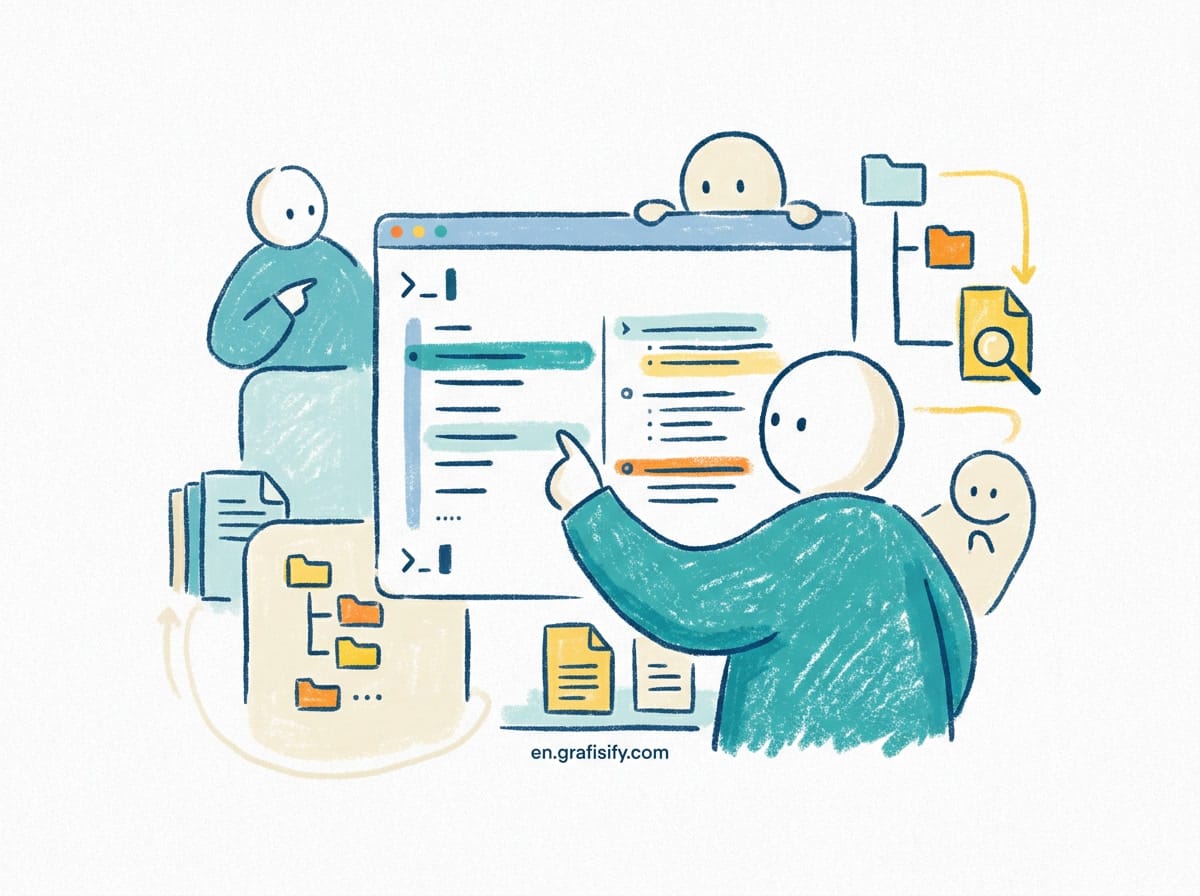
Start with a compose file that pins versions and maps a volume for each stateful service. The structure below keeps n8n, Postgres, and Redis on one network. Caddy sits in front and handles the certificate.
Pin every image to a specific tag instead of latest. A surprise n8n upgrade can change node behavior and break a production workflow at the worst time. Pick a version, test it, and bump it on your schedule, not the registry’s.
version: "3.8"
services:
  postgres:
    image: postgres:16
    environment:
      - POSTGRES_USER=n8n
      - POSTGRES_PASSWORD=change_me
      - POSTGRES_DB=n8n
    volumes:
      - postgres_data:/var/lib/postgresql/data
    healthcheck:
      test: ["CMD-SHELL", "pg_isready -U n8n"]
      interval: 10s
      timeout: 5s
      retries: 5

  redis:
    image: redis:7
    volumes:
      - redis_data:/data

  n8n:
    image: n8nio/n8n:1.90.0
    ports:
      - "5678:5678"
    environment:
      - DB_TYPE=postgresdb
      - DB_POSTGRESDB_HOST=postgres
      - DB_POSTGRESDB_PORT=5432
      - DB_POSTGRESDB_USER=n8n
      - DB_POSTGRESDB_PASSWORD=change_me
      - DB_POSTGRESDB_DATABASE=n8n
      - N8N_SECURE_COOKIE=true
      - N8N_BASIC_AUTH_ACTIVE=true
      - N8N_BASIC_AUTH_USER=admin
      - N8N_BASIC_AUTH_PASSWORD=change_me
      - WEBHOOK_URL=https://automate.yourdomain.com/
    volumes:
      - n8n_data:/home/node/.n8n
    depends_on:
      postgres:
        condition: service_healthy

  caddy:
    image: caddy:2
    ports:
      - "80:80"
      - "443:443"
    volumes:
      - ./Caddyfile:/etc/caddy/Caddyfile
      - caddy_data:/data
    depends_on:
      - n8n
The WEBHOOK_URL line is the part people miss. Without it, n8n generates webhook URLs pointing at localhost, and external services like Stripe or Telegram can never call back. Point it at your real domain.
Turning On Queue Mode
By default n8n runs in “regular” mode: the main process executes every workflow itself. Two heavy workflows at the same time and the editor starts to lag. Queue mode splits the work. The main instance accepts jobs, Redis holds them, and one or more worker containers pick them up.
The setup needs three matching pieces. The main n8n container, the workers, and the Redis connection all reference the same queue. Miss the Redis block on a worker and it silently runs in regular mode, defeating the whole point. The n8n docs list every variable that binds these together, and the queue-mode guide shows the exact worker command.

To enable it, set EXECUTIONS_MODE=queue on both the main instance and each worker. Add the Redis connection variables, then run a second container from the same image with the worker command. The community Docker Compose examples for queue mode use exactly this split, with Postgres and Redis as shared backends.
One setting earns its place early: EXECUTIONS_DATA_PRUNE=true. n8n stores the full payload of every execution. Leave that on indefinitely and Postgres bloats within weeks. Pruning keeps the last batch of runs and drops the rest on a schedule you control.
Securing the Domain
Running n8n on an open IP with port 5678 exposed is how instances get scraped and abused for crypto mining. Put it behind a domain with HTTPS. Caddy does this with a one-line Caddyfile that proxies your domain to the n8n container and pulls a free certificate automatically.
Keep basic auth enabled even behind the proxy. Defense in depth means a leaked proxy config does not hand attackers the editor. Generate a long random password, not “change_me”, and store it in a secrets file rather than inline in compose.
Related reading on this site covers self-hosting Vaultwarden for your own credentials and backing up a VPS with Restic, both of which pair well with an n8n host.
Keeping It Alive

A self-hosted box is only as good as its backup. Snapshot the Postgres volume daily, and export your workflow JSON to object storage weekly. n8n’s import and export endpoints let you script this so a wiped disk becomes a 10-minute restore instead of a lost afternoon.
Watch the logs with docker compose logs -f n8n during the first week. Failed webhook deliveries and OAuth token expiry show up there first. Set the container to restart unless stopped so a crash at 3 a.m. does not wait for you to notice.
If you run client automations, the freelancer AI agent guide and the MCP explainer show where n8n fits inside a bigger automation stack.
Backing Up Workflows the Easy Way
A nightly export beats a manual one every time. Use n8n’s CLI from inside the container to dump every workflow to a timestamped file, then push that file somewhere off the box. A short cron job does the work while you sleep:
docker compose exec -T n8n n8n export:workflow --all --output=/home/node/.n8n/backup.json
docker compose exec -T postgres pg_dump -U n8n n8n > /backups/n8n-$(date +%F).sql
aws s3 cp /backups/n8n-$(date +%F).sql s3://my-backups/n8n/
This two-line routine captures both the live database and the workflow JSON. Restore is the reverse: load the SQL into a fresh Postgres, point n8n at it, and import the JSON. Test the restore once on a staging box so you trust it on the day it matters.
Scaling Workers and Reading the Queue
Queue mode pays off the moment one workflow hogs the CPU. Add worker containers by running more of the same n8n image with the worker command and the same EXECUTIONS_MODE=queue plus Redis settings. Two workers share the load; four handle a steady stream of webhook traffic. Watch the Redis queue depth with redis-cli llen commands to see if jobs pile up faster than workers drain them.
The main instance stays light because it no longer runs executions. It accepts edits, serves the API, and hands jobs to Redis. That separation is why the editor stays responsive even when a data-heavy workflow chews through 10,000 rows in the background.
Common Mistakes
| Mistake | Symptom | Fix |
|---|---|---|
| SQLite in prod | Executions vanish after restart | Switch to Postgres volume |
| Missing WEBHOOK_URL | External webhooks never fire | Set domain in env |
| No execution prune | DB grows until slow | EXECUTIONS_DATA_PRUNE=true |
| Port 5678 public | Instance gets scraped | Proxy behind domain + auth |
Final Thoughts
Self-hosting n8n is not harder than running any other stateful app, it just needs the parts most quick-start guides skip. Postgres for real storage, Redis and workers for scale, a proxy for a clean domain, and a backup you actually test. Build it once as a compose file, and every future automation drops into a stack you already trust.
Start with the single-container version if you are unsure, confirm your workflows run, then promote to this stack when the work matters. The external references below cover the official install path and the environment variables that control every setting described here.
Sources:

Irfan is a Creative Tech Strategist and the founder of Grafisify. He spends his days testing the latest AI design tools and breaking down complex tech into actionable guides for creators. When he’s not writing, he’s experimenting with generative art or optimizing digital workflows.



 Artificial Intelligent
 Design & Creative
 Freelance
 Gadgets & Gear
 Insights
 Laptop
 Reviews
 Smartphone
 Tech Guides
 Vibe Coding