Remove Windows 11 Bloatware and Lock Down Privacy

Remove Windows 11 Bloatware and Lock Down Privacy
A fresh Windows 11 install ships with more than just the operating system. Microsoft bundles a long list of preinstalled apps, background telemetry, and advertising surfaces that most people never asked for. Some of these apps duplicate tools you already use. Others quietly send usage data to Microsoft servers in the background. You do not need to accept any of it.
This guide walks through a practical, repeatable cleanup you can run in under 30 minutes. It covers what to remove, what to disable, and which free tools do the heavy lifting safely. No paid software, no risky registry hacks from anonymous forum posts. If you also run Linux or want a cross platform workflow, our Docker self hosting guide shows the same mindset applied to your server stack.
TL;DR: The Verdict
Start with the built-in Settings cleanup, then run one scripted tool to remove the rest of the bloat, and finish with a privacy tool to switch off telemetry. The combination below removes the junk, stops most background data collection, and leaves you with a faster, cleaner machine. Do this right after a clean install or a factory reset so the changes stick.
What Windows 11 Ships That You Did Not Ask For
A standard Windows 11 Home or Pro install includes dozens of apps delivered through the Microsoft Store. Many are useful. Many are not. The list varies by region and hardware maker, but common offenders include Candy Crush Saga, Xbox Game Bar promotions, LinkedIn, TikTok, Spotify, and several “Get started” and “Tips” tiles that push Microsoft services you may never open.

Beyond visible apps, Windows runs telemetry services that report diagnostic data, an advertising ID that tracks you across apps, and Cortana leftovers. These run whether or not you launch them. The impact on a modern SSD is small for any single service, but together they add startup delay, background network usage, and a noisier system tray. Microsoft documents these connections in its own operating system component telemetry documentation, which lists the endpoints Windows contacts by default.
The good news is that nearly all of it is removable or disableable without breaking the OS. Windows still receives security updates after you strip the bloat. If your machine feels slow before you even begin, our Windows 11 speed up guide covers the performance side separately. Microsoft also publishes a Manage connections reference that maps every outbound connection Windows makes, useful when you want to verify what each privacy toggle actually blocks.

Step 1: Manual Cleanup in Settings
Before touching any script, do the quick wins yourself. Open Settings, then Apps, then Installed apps. Sort by size or date and uninstall anything you will not use. Right click each app and choose Uninstall. Pay attention to these categories:
- Trial antivirus and OEM utilities from your PC maker. Windows Security already covers virus protection.
- Game launchers you do not play, such as Xbox promotions and third party stores.
- News, weather, and “Get Started” widgets that push content to your lock screen and taskbar.
Next, open Settings, then Privacy and Security. Turn off the advertising ID under General. Switch off app diagnostics and personalized ads. These toggles remove the most visible tracking without any tooling. Microsoft’s privacy management documentation explains what each toggle controls if you want the detail.
This manual pass gets you maybe 60 percent of the way. The rest needs a script because Windows reinstalls some apps during feature updates and hides others from the normal uninstall list. For a deeper command line approach, our terminal tools guide shows how command line habits save time across every OS.
Step 2: Win11Debloat for App Removal
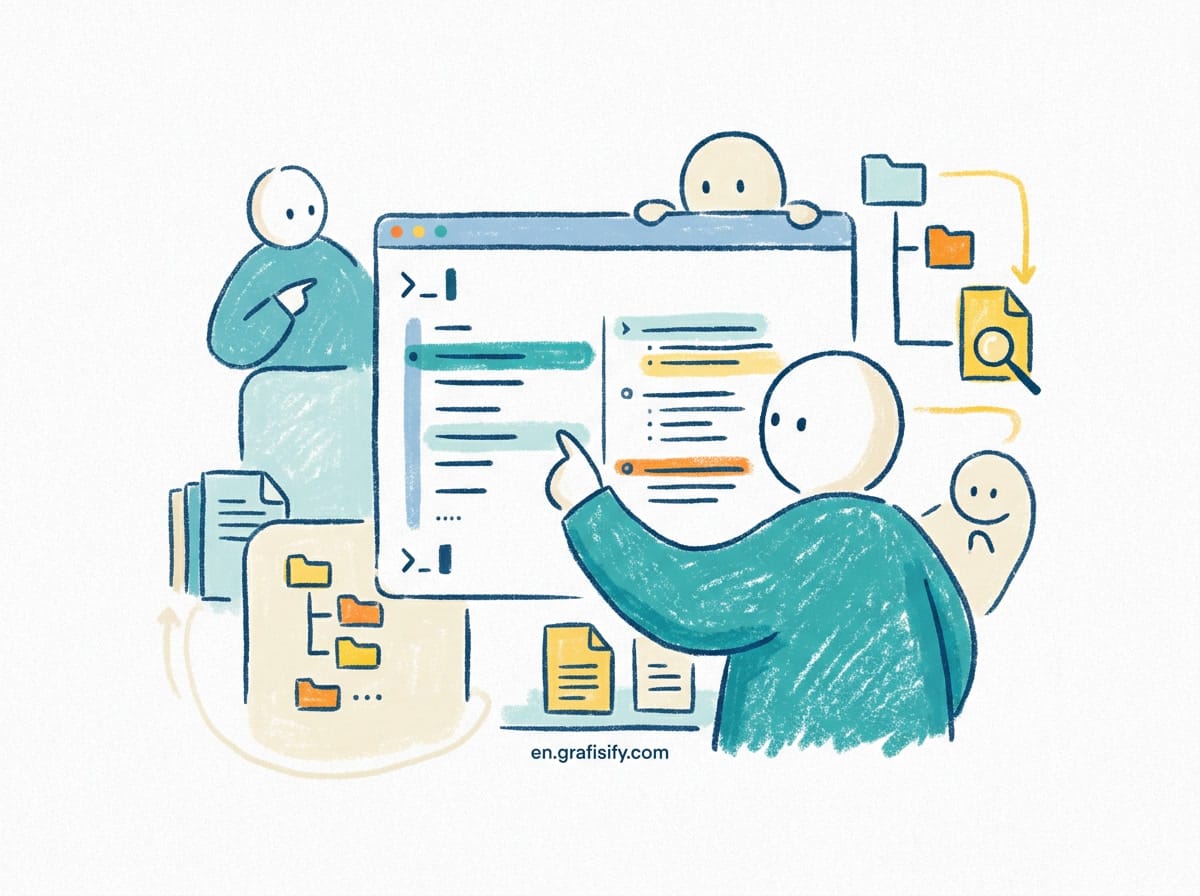
Win11Debloat is a lightweight PowerShell script maintained by Raphire on GitHub (github.com/Raphire/Win11Debloat). It removes preinstalled apps, disables telemetry, and applies a set of decluttering changes. It works on both Windows 10 and Windows 11. The project documents exactly which apps it removes, so you can review the list before running it. The GitHub repository describes it as a simple, lightweight script to remove pre-installed apps and disable telemetry while customizing the Windows experience.
To use it, open PowerShell as administrator and run the command from the project’s GitHub README. The script presents a simple menu. You can choose a full default run or pick individual options. It does not delete your files or touch system drivers. The most aggressive option removes the Xbox app and Edge, so skip those if you rely on them. The wiki page on app removal lists every target by name, from Clipchamp to Microsoft To Do bloat, so there are no surprises.
What makes Win11Debloat safe is transparency. You decide what stays. After it finishes, reboot once and the removed apps stay gone even after cumulative updates. This is the single highest value step in the whole process. The project also keeps a release history on GitHub, so you can pin a known good version if you prefer stability over the latest changes.

Step 3: O&O ShutUp10++ for Privacy
Removing apps is only half the job. Windows still phones home with diagnostic data. O&O ShutUp10++ is a free, portable tool from O&O Software (oo-software.com/en/shutup10) that exposes deep privacy settings normally buried in Group Policy or the registry. You run it, review the recommendation level, and apply the changes with one click. No installation required. The vendor describes it as a fast way to adjust data protection settings in Windows 10 and 11 at no charge.
The tool groups settings by risk. Green recommendations are safe for everyone. Yellow ones may affect a feature you use, such as location services for Maps. Red ones can disable things like Windows Update delivery optimization. The 2025 builds added options to block Windows Copilot and Recall on Copilot plus PCs, which matters if you bought a new ARM laptop with those features enabled by default.
Use the “Recommended settings” preset as your baseline, then re enable only what you actually need. Export your configuration so you can reapply it after a major Windows reinstall. If you manage several machines, this exported file saves real time.
Step 4: Chris Titus Tech WinUtil for One Click Tweaks
WinUtil, built by Chris Titus Tech, is an all in one Windows utility (winutil.christitus.com) that installs apps, applies tweaks, and manages the system from a single window. It uses WinGet to install hundreds of programs with one click, which is handy after a clean install when you need your editor, browser, and tools back. The official documentation describes it as a way to install apps, apply tweaks, run fixes, and manage Windows from one place.
WinUtil is broader than Win11Debloat. It includes a debloat tab, a tweaks tab for performance and privacy, and an install tab. The privacy tweaks overlap with ShutUp10++, so pick one approach for telemetry and use WinUtil mainly for app installation and convenience tweaks. Do not stack three tools doing the same thing, or you may toggle a setting on and off in a loop and wonder why nothing changed.
Tool Comparison
These three tools cover different ground. Use the table to decide what fits your comfort level.
| Tool | Best for | Install needed | Safe for beginners |
|---|---|---|---|
| Win11Debloat | Removing preinstalled apps and telemetry | No, runs in PowerShell | Yes |
| O&O ShutUp10++ | Deep privacy and telemetry toggles | No, portable exe | Yes, use presets |
| CTT WinUtil | App install plus broad tweaks | No, runs in terminal | Medium, broad scope |
What to Keep and What to Skip
Not everything preinstalled is junk. The Microsoft Store, Calculator, Photos, and Notepad are fine and receive updates through the Store. The Xbox app matters if you use Game Pass. Edge is baked deep into Windows, and forcing it out can cause update issues, so most people should leave it alone. If you are torn between a clean Windows setup and a lighter OS entirely, our local LLM laptop guide covers hardware choices that matter more than the bundled software.
Skip any tool or script that promises to “boost FPS by 300 percent” or sells a registry cleaner. Windows does not need a registry cleaner. The built in tools above handle the real problems. If a script demands admin rights and comes from a random zip file, do not run it. Stick to the three named projects, all of which publish source code openly.
Final Thoughts
A clean Windows 11 setup takes about half an hour and pays off every time you boot. Start with the manual Settings pass, run Win11Debloat for the apps, apply O&O ShutUp10++ for privacy, and use WinUtil only for what it does best. You end up with a machine that boots faster, sends less data outward, and shows you the tools you chose instead of the ones Microsoft promoted. Microsoft’s own Manage connections documentation lists the services that contact its servers, which is the clearest proof of why a privacy pass matters.
Revisit this after every major Windows feature update. Microsoft sometimes restores promoted apps during those upgrades, and a quick rerun of Win11Debloat puts things back in order. Treat the cleanup as a recurring habit, not a one time event, and your PC stays lean for years.

Irfan is a Creative Tech Strategist and the founder of Grafisify. He spends his days testing the latest AI design tools and breaking down complex tech into actionable guides for creators. When he’s not writing, he’s experimenting with generative art or optimizing digital workflows.




 Artificial Intelligent
 Design & Creative
 Freelance
 Gadgets & Gear
 Insights
 Laptop
 Reviews
 Smartphone
 Tech Guides
 Vibe Coding