Ollama vs llama.cpp: Which Local LLM Runtime Should You Use?

Verdict: Which Runtime Belongs on Your Workstation?
If you want a single command that pulls, manages, and serves local open-source models with an OpenAI-compatible API, install Ollama. It handles memory allocation, GGUF quantization selection, and GPU offloading automatically. If you need precise control over context window size, custom GGUF quantization levels, multi-GPU layer splitting, or zero-overhead CLI inference, compile and run llama.cpp directly. Because Ollama uses llama.cpp as its underlying inference engine, raw token generation speed between the two is virtually identical when configured with matching settings. Your choice comes down to operational convenience versus raw technical control.
Understanding the Architecture: llama.cpp vs Ollama
Running large language models locally on consumer hardware requires an efficient inference backend. For years, running a 7-billion parameter model required enterprise GPUs with high VRAM allocations. The introduction of GGUF (GPT-Generated Unified Format) changed local AI development by allowing quantized weights to execute efficiently across CPUs, consumer NVIDIA GPUs via CUDA, and Apple Silicon via Metal. As we noted in our guide on why small AI models win in production, executing compact 7B and 8B parameters locally yields impressive throughput while preserving privacy.
llama.cpp is the foundational C and C++ library created by Georgi Gerganov. It implements hardware-accelerated tensor operations, custom memory management, and quantized matrix multiplication from scratch without heavy framework dependencies like PyTorch. It provides maximum execution speed, zero unnecessary background processes, and granular command-line flags for every aspect of the inference pipeline.
Ollama is an application wrapper built directly on top of llama.cpp. It packages the underlying C++ inference engine into a client-server architecture with a background daemon, a Modelfile configuration format, a local registry for downloading pre-quantized weights, and a REST API endpoint. Ollama eliminates the need to manual clone repositories, compile C++ code, or manage individual GGUF binary files on disk.
Feature Comparison: Control vs Convenience
Choosing between these two tools requires evaluating how much manual configuration your workflow demands. The table below breaks down the primary technical differences between llama.cpp and Ollama.
| Feature | llama.cpp | Ollama |
|---|---|---|
| Primary Interface | CLI / C++ API / llama-server | REST API / CLI wrapper / Desktop App |
| Underlying Engine | Native C/C++ Implementation | llama.cpp (Embedded Core) |
| Model Format | Raw GGUF Files | Ollama Modelfiles / GGUF Blobs |
| Setup Complexity | Medium (Compile or pre-built binary) | Low (One-click installer or package manager) |
| Memory Footprint | Minimal (Only loaded model memory) | Slight Overhead (Daemon + background API) |
| VRAM Layer Offloading | Manual command-line flags (-ngl N) | Automatic hardware detection |
| Context Window Tuning | Explicit flag (-c N) | Default settings (Configurable via Modelfile) |
| OpenAI API Parity | Supported via llama-server | Native (/v1/chat/completions) |
Performance Benchmarks and Memory Management
Because Ollama executes inference through embedded llama.cpp C++ code, token generation throughput on identical hardware is nearly identical. However, default configuration choices cause noticeable differences in memory usage and initial response latency.
1. VRAM Layer Offloading and Multi-GPU Splitting
In llama.cpp, you control exact GPU offloading using the -ngl (number of GPU layers) parameter. If a model has 32 layers and your graphics card has 8GB of VRAM, you can offload exactly 22 layers to the GPU while leaving the remaining 10 layers in system RAM. This precision allows you to maximize speed without triggering out-of-memory errors.

Ollama automates this process by querying your GPU VRAM during startup and calculating an optimal layer split automatically. While this automation works for standard desktop setups, it can make conservative choices on systems with non-standard VRAM allocations or unified memory setups, resulting in fewer GPU layers offloaded than the hardware can handle.
2. Memory Retention and Background Overhead
llama.cpp operates as a direct executable. When a generation task finishes and the process exits, memory is freed instantly. When running llama-server, the process retains memory until explicitly stopped.
Ollama runs as a persistent background daemon. By default, it keeps loaded models in VRAM for 5 minutes after your last request to make subsequent prompts instant. If you switch between coding agents and context-heavy tasks, this retention behavior can lock VRAM needed by other applications. You can modify this behavior by setting the OLLAMA_KEEP_ALIVE environment variable to zero or adjusting the timeout in your configuration settings.

Setting Up Ollama for Fast Developer Workflows
Ollama is the fastest way to integrate local models into developer tools like Cursor, Continue.dev, or custom Python scripts. Getting started requires a single command on most operating systems.
Step 1: Installation and Pulling Models
Install Ollama on Linux or macOS using the standard terminal installer:
curl -fsSL https://ollama.com/install.sh | shOnce installed, pull a model directly from the Ollama library. For developer tasks, Qwen 2.5 Coder or Llama 3.1 are standard recommendations:

ollama pull qwen2.5-coder:7bStep 2: Customizing Model Parameters with a Modelfile
If you need to expand the context window or adjust system prompts in Ollama, create a custom Modelfile. By default, Ollama assigns a standard 2048 or 4096 token context window to preserve system memory. You can expand it easily:
FROM qwen2.5-coder:7b
PARAMETER num_ctx 16384
PARAMETER temperature 0.2
SYSTEM "You are an expert systems engineer. Provide concise, production-ready code without unnecessary explanations."
Build your customized model entry with a single CLI command:
ollama create custom-coder -f ModelfileSetting Up llama.cpp for Maximum Technical Control
If you want to run bleeding-edge model architectures before they hit official registries, experiment with custom GGUF quantization formats (like Q4_K_M or Q8_0), or minimize idle RAM usage, build llama.cpp from source.
Step 1: Compiling with Hardware Acceleration
Clone the official llama.cpp repository and build the binaries with CUDA support for NVIDIA GPUs or Metal support for Apple Silicon:
git clone https://github.com/ggml-org/llama.cpp
cd llama.cpp
cmake -B build -DGGML_CUDA=ON
cmake --build build --config Release
Step 2: Executing Inference via CLI
Download your target GGUF model file directly from Hugging Face. Run single-prompt inference with full hardware offload control:
./build/bin/llama-cli -m ./models/qwen2.5-7b-instruct-q4_k_m.gguf \
  -p "Explain the difference between mutex and semaphore in Linux C programming." \
  -n 512 \
  -c 8192 \
  -ngl 99
The -ngl 99 flag instructs the runner to offload all layers to your GPU, while -c 8192 sets an explicit 8,192 token context window.
Step 3: Running a Dedicated Local Server
To expose an OpenAI-compatible endpoint without Ollama’s background management layer, launch the bundled HTTP server:
./build/bin/llama-server -m ./models/qwen2.5-7b-instruct-q4_k_m.gguf \
  --port 8080 \
  -c 16384 \
  -ngl 99
Your local applications can now send standard REST requests to http://localhost:8080/v1/chat/completions.
Key Factors When Selecting Your Runtime
Before standardizing your local AI setup, consider these technical requirements:
First, evaluate your integration needs. If you build internal developer platforms, AI coding agents, or terminal workflows that consume standard OpenAI endpoints, Ollama offers zero-maintenance model orchestration. If you are configuring coding environments, check our guide on AI coding agent rules files that work to connect Ollama seamlessly to editor workflows. You can also deploy persistent services in isolated containers, similar to our guide on how to build a custom MCP server with Python.
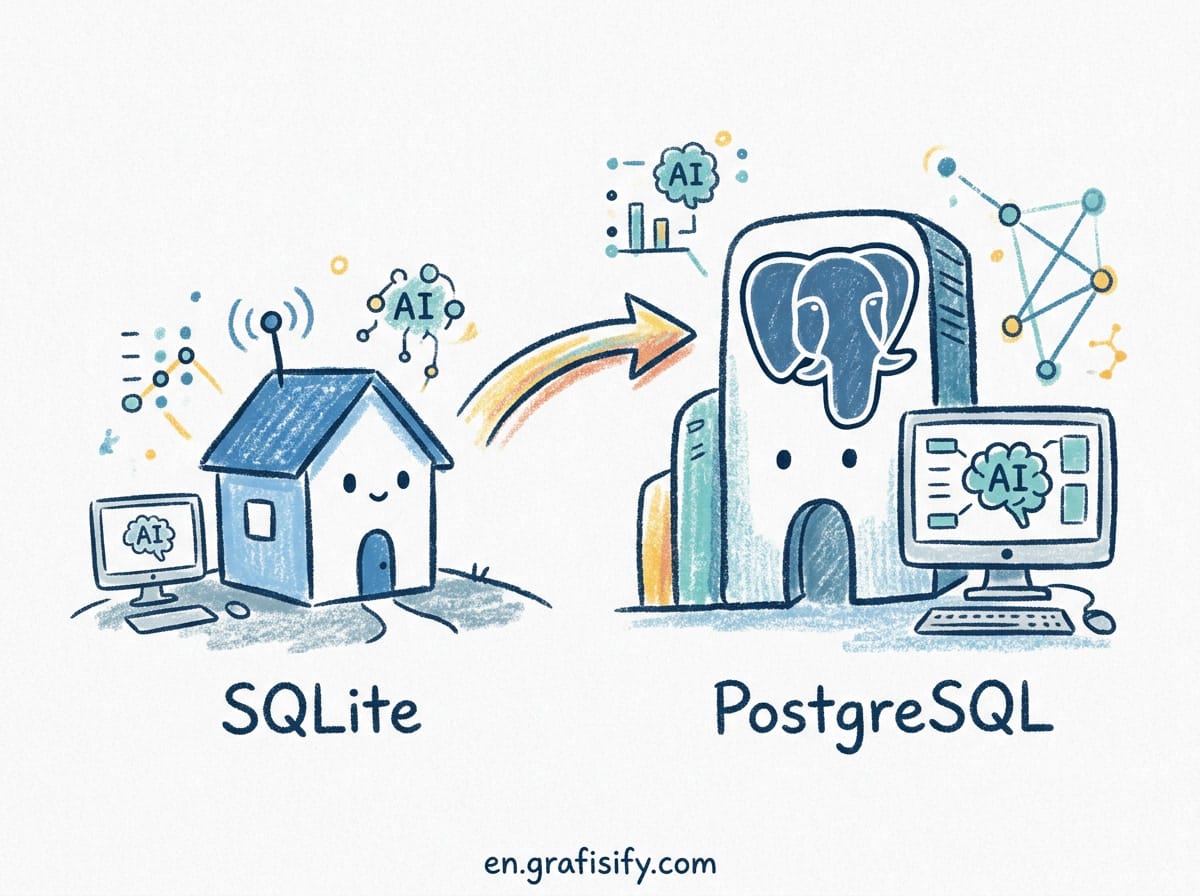
Second, evaluate your hardware configuration. If you operate heterogeneous GPU clusters, systems with mixed VRAM types, or embedded Linux environments where every megabyte of RAM matters, llama.cpp provides the precise command-line controls required to maintain system stability. Additionally, for database-backed local agents, review our technical breakdown on PostgreSQL vs SQLite for local AI apps.
Third, assess your model customization habits. If you frequently download experimental GGUF quantizations straight from Hugging Face repositories, llama.cpp accepts raw files instantly without requiring a model conversion or import step.
Frequently Asked Questions
Can I run Ollama and llama.cpp on the same machine?
Yes. They do not conflict because Ollama runs as a background service on port 11434 by default, while llama.cpp runs on demand or on a user-specified port like 8080. You can keep Ollama active for daily developer tools while using llama.cpp for manual benchmarking sessions.
Is token generation speed faster in llama.cpp than Ollama?
No. When configured with identical GGUF quantization weights, context window sizes, and GPU layer offloading flags (-ngl), raw generation speed is virtually identical because Ollama runs llama.cpp as its core engine.
Which quantization format offers the best balance of speed and quality?
For most 7B and 8B parameter models, Q4_K_M (4-bit medium quantization) offers the optimal tradeoff between VRAM usage and perplexity retention. If you have extra VRAM available, Q8_0 provides near-fp16 precision with minimal accuracy degradation.
Final Recommendations
For most software engineers and creators, starting with Ollama delivers the optimal balance between speed, ease of management, and integration flexibility. It eliminates the manual friction of tracking GGUF binary files on disk while maintaining peak generation performance through its embedded llama.cpp core engine. You get immediate access to thousands of pre-quantized models with a single CLI command.
If you hit specific constraints with Ollama’s automated VRAM allocation, require specialized hardware build flags for custom edge devices, or want to embed raw C++ bindings into a native software application, transition to compiling llama.cpp directly. Understanding how both runtimes operate behind the scenes ensures your local open-source AI infrastructure remains fast, reliable, cost-effective, and fully private.

Irfan is a Creative Tech Strategist and the founder of Grafisify. He spends his days testing the latest AI design tools and breaking down complex tech into actionable guides for creators. When he’s not writing, he’s experimenting with generative art or optimizing digital workflows.


 Artificial Intelligent
 Design & Creative
 Freelance
 Gadgets & Gear
 Insights
 Laptop
 Reviews
 Smartphone
 Tech Guides
 Vibe Coding