Best Screen Recording Software for Freelancers: Loom, OBS Studio, and Screen Studio Compared
Best Screen Recording Software for Freelancers: Loom, OBS Studio, and Screen Studio Compared
Screen recording is a core part of modern freelance work. You use it to send a quick walkthrough to a client, record a training video for a course, capture a bug report, or build a polished product demo. The tool you pick shapes how much time you spend recording, editing, and sharing.
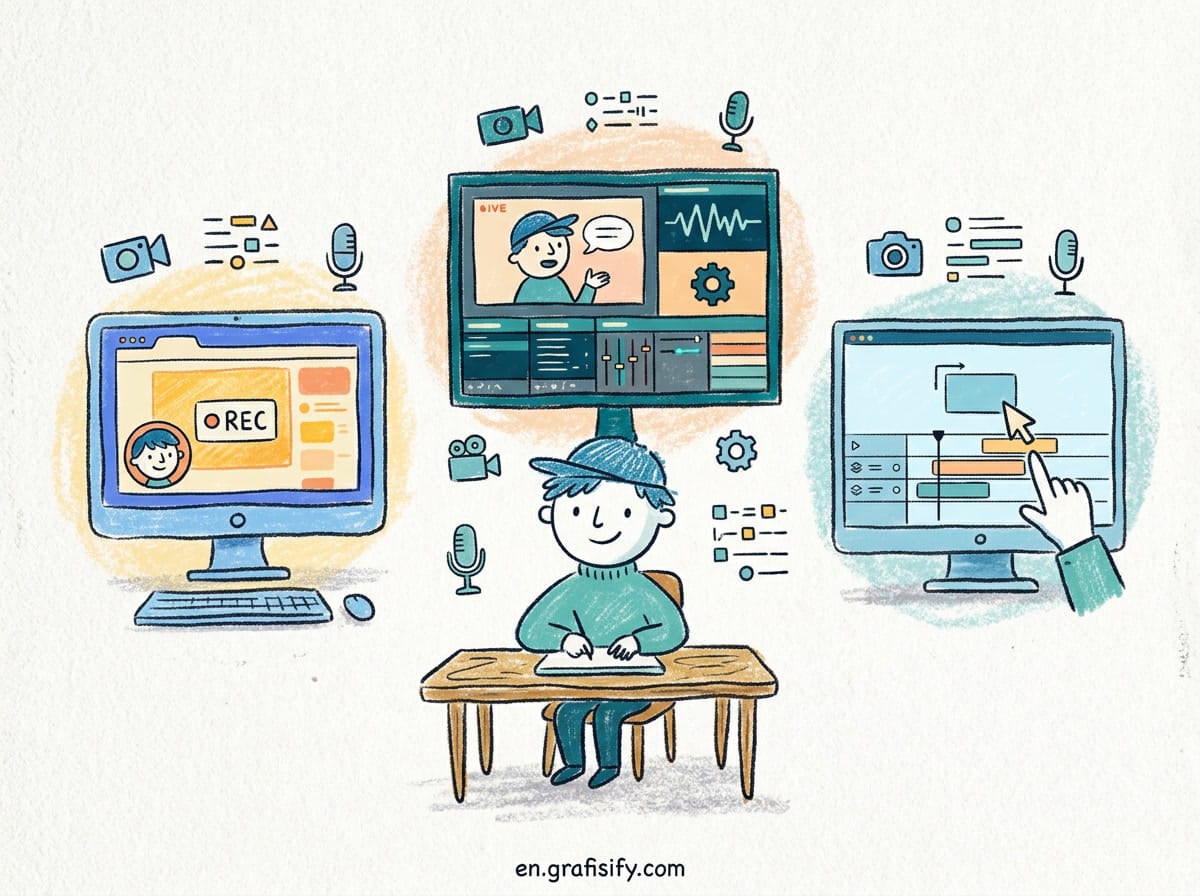
Most people reach for the first recorder they find and never revisit the choice. That is a mistake. The three tools covered in this article sit at completely different points in the market, and each one solves a different problem. Loom is built for fast async video and sharing. OBS Studio is a free, powerful encoder that runs on every desktop OS. Screen Studio is a Mac-only recorder focused on cinematically clean product demos.
This guide compares all three across the factors that actually matter to a working professional: cost, ease of use, platform support, editing power, and how the final video gets delivered to a client. By the end you will know which one fits your workflow and exactly where to draw the line between them.
Why the choice affects your workflow
The recorder you use sets the ceiling on how fast you can ship a video. If you send a lot of short async updates, a tool that records and publishes in one click changes your whole day. If you batch-record tutorials for a course, you want local files, no upload queue, and full control over resolution and bitrate. If you make polished demo videos for a product page, you want automatic cursor effects and clean motion, not hours of manual keyframing in a separate editor.
Also Read:
There is no single best tool. There is only the right tool for the type of recording you do most often. That is why the comparison below is organized around use cases, not a winner-takes-all ranking.
The three candidates at a glance
Loom is a cloud-based screen recorder owned by Atlassian. It records your screen and webcam together, uploads the video to its servers, and gives you a shareable link with viewer analytics. Its free tier is limited to five-minute recordings, and paid plans lift that limit and remove watermarks. Over 22 million people use it, mostly for fast async communication at work.
OBS Studio is free and open source. It records locally to your drive in MP4, MKV, or MOV and also streams live to platforms like Twitch and YouTube. It runs on Windows, macOS, and Linux. There is no cloud, no account, and no upload limit, but you trade away simple sharing in exchange for total control over encoding.

Screen Studio is a macOS-only recorder designed for product demos and tutorials. Its standout feature is automatic zoom that follows your cursor, smooth mouse movement, and clean click highlights. It exports finished clips so you do not have to spend time in a separate video editor.
Cost comparison
Price is the first thing most freelancers check, and the spread here is wide.
Loom’s free plan caps recordings at five minutes with a watermark. Its Business plan costs about $12.50 per user per month when billed annually, and that tier unlocks unlimited recording length, removal of the watermark, and viewer analytics that let you see who watched and for how long. For a solo freelancer the free tier is often enough for short client updates, but the five-minute wall becomes annoying fast.
OBS Studio costs nothing. It is free and open source, funded by sponsors and backers. There is no subscription, no watermark, and no limit on recording length or file size. The real cost is your time learning the interface.
Screen Studio is a paid macOS app. It is not free, despite showing up on lists of free Loom alternatives. Pricing runs around $29 per month or roughly $108 per year on annual billing, with an option for a one-time perpetual purchase depending on current promotions. Some reviews report different price points, so verify the current number on the official site before deciding.
| Tool | Free tier | Paid price | Watermark |
|---|---|---|---|
| Loom | Yes, 5 min recordings | From $12.50/user/mo (annual) | Yes, removed on paid plans |
| OBS Studio | Yes, fully free | No paid tier | No |
| Screen Studio | No | ~$29/mo or ~$108/yr or one-time | No |
If cost is your only constraint, OBS Studio wins without debate. If you value your time and prefer a tool that produces usable output immediately, the paid options start to justify themselves.
Ease of use
Loom is the easiest of the three to start using. You install it, sign in, and hit record. When you stop, it uploads and copies a link to your clipboard. You can paste that link into an email or Slack message and be done. That simplicity is why it became the default for async video at work.
OBS is the hardest to learn. The interface is dense, with scenes, sources, and a settings panel full of encoder options. A new user can be confused by the difference between the preview and the actual recording, and getting clean audio can require fiddling with input devices and filters. The payoff is control, but the learning curve is real.
Screen Studio sits in the middle. It is easier than OBS because the recording window is simple and the editing happens automatically at export. You record, the app applies cursor tracking and zoom, and you export a finished clip. It is not as effortless as Loom’s one-click share, but it requires far less setup than OBS.
Platform support
Platform coverage matters if you share a computer with a team or switch between machines.
Loom runs on Windows, macOS, Linux, iOS, and Android, with browser extensions for Chrome and other Chromium browsers. That broad reach makes it the safe choice for cross-platform teams.
OBS Studio runs on Windows, macOS, and Linux. It is the only tool in this comparison that gives you a first-class native option on all three desktop operating systems, which is a decisive point for Linux users who have few good screen recording choices.
Screen Studio is macOS only. If you work on a PC or a Linux machine, it is not an option at all. That single-platform limitation is the biggest reason it is not a universal recommendation.
Editing and output quality
For polished output, the editing workflow matters more than the raw recording.
Loom offers light built-in editing: you can trim the start and end, add a call to action, and use basic annotations. It is not a full editor. Deep editing on a Loom video means exporting and opening it in another application, which defeats the purpose of the one-click workflow.
OBS gives you raw, high-quality files but no editing at all. It encodes your choice of MP4, MKV, or MOV at whatever bitrate you set. The output is clean and lossless enough for professional use, but you must handle trimming, captions, and effects in a separate editor like DaVinci Resolve or Premiere.
Screen Studio is the strongest of the three for finished product. It applies automatic zoom to mouse actions, smooth cursor motion, click highlights, and custom backgrounds and padding. It has aspect ratio presets for different platforms and exports fast. For a software freelancer who needs clean demo videos without learning keyframing, this is the standout feature set. The trade-off is price and macOS exclusivity.
Sharing and delivery
How the final video reaches your client is a deciding factor for freelancers.
Loom wins on sharing. Uploads go to the cloud automatically and you get a public link with optional password protection and viewer analytics. You can see exactly who watched and how long they stayed. For client work that demands proof of delivery, that analytics layer is genuinely useful.
OBS produces a file on your hard drive. To share it you must upload it somewhere, which means a side trip to Google Drive, Dropbox, YouTube, or a file-transfer service. That adds a step to every delivery. For a one-off client video it is fine, but for frequent async communication it gets tedious.
Screen Studio also produces local files, so you handle uploads yourself. There is no built-in link or viewer tracking. The advantage is that you control the final asset and can store it wherever you like, but you lose the convenience of a one-step share link.
Which tool fits which job
Match the tool to the work you actually do, not the one that looks most popular.
Pick Loom for fast async communication. If you send short updates, record quick walkthroughs for clients, or collaborate with a remote team, Loom’s one-click record, upload, and share flow is unmatched. The five-minute free limit is the main friction point, and paying to remove it is worth it if you record often.
Pick OBS Studio for long recordings and live streaming. If you record courses, capture gameplay, stream on Twitch or YouTube, or need lossless local files, OBS is free, cross-platform, and unlimited. The learning curve is the price of admission, and you will need a separate editor for trimming and captions.
Pick Screen Studio for polished product demos on a Mac. If you make promotional videos for software, tutorials for a paid course, or social clips where clean cursor animation matters, Screen Studio saves you hours of editing time. It only works on macOS, so it is a non-starter on Windows or Linux.
| Factor | Loom | OBS Studio | Screen Studio |
|---|---|---|---|
| Best for | Async client updates | Long recordings, live streaming | Polished product demos |
| Price | Free tier + paid plans | Free | Paid, one-time or sub |
| Platforms | Win, Mac, Linux, mobile | Win, Mac, Linux | macOS only |
| Editing | Light trim only | None built in | Automatic zoom and effects |
| Sharing | Cloud link + analytics | Local file, you upload | Local file, you upload |
Frequently asked questions
Is OBS Studio really free?
Yes. OBS Studio is free and open source software. There is no subscription, no watermark, and no paid tier. It is funded by community contributions and runs on Windows, macOS, and Linux.
Does Loom have a free plan?
Loom has a free plan, but recordings are capped at five minutes and include a watermark. Paid plans remove the watermark and lift the length limit, with Business pricing around $12.50 per user per month billed annually.
Is Screen Studio free?
No. Screen Studio is a paid macOS application. It is not a free tool, and it does not have a free tier with a watermark. Current pricing is roughly $29 per month or around $108 per year, with a one-time purchase option depending on active promotions.
Can I use Screen Studio on Windows?
No. Screen Studio is available only for macOS. Windows and Linux users should use Loom or OBS Studio instead.
Which screen recorder is best for Linux users?
OBS Studio is the strongest option on Linux. It is free, open source, and one of the only full-featured screen recorders with native Linux support.
Key takeaways
- Loom is the best choice for fast async video with one-click sharing and viewer analytics, at the cost of a restrictive free tier.
- OBS Studio is free, cross-platform, and unlimited, but it demands a learning curve and a separate editor for clean output.
- Screen Studio produces the most polished product demos with automatic cursor effects, but only on macOS and only for a fee.
- There is no universal winner. Match the tool to your dominant use case: communication, long-form recording, or polished marketing videos.
Screen recording does not need to be a recurring headache. Decide whether you are mostly talking to clients, recording long-form content, or producing polished demos, and the right tool becomes obvious. Start with the free option that matches your workflow, and only pay for a tool once it clearly saves you time you would otherwise spend editing.

Irfan is a Creative Tech Strategist and the founder of Grafisify. He spends his days testing the latest AI design tools and breaking down complex tech into actionable guides for creators. When he’s not writing, he’s experimenting with generative art or optimizing digital workflows.
You might also like



 Artificial Intelligent
 Design & Creative
 Freelance
 Gadgets & Gear
 Insights
 Laptop
 Reviews
 Smartphone
 Tech Guides
 Vibe Coding