Why Your Wi-Fi Is Slow and How to Fix It Fast

TL;DR: Why Your Wi-Fi Is Slow and How to Fix It Fast
Slow Wi-Fi is almost never your internet service provider’s fault. In most homes, the bottleneck is router placement, crowded wireless channels, or apps quietly eating your bandwidth in the background. The good news is that the fastest fixes are free and take minutes, not a new bill.
Start by placing your router high and central, away from walls and metal. Then switch to a less crowded channel, and check which devices are hogging your connection. If you still need more, look at a mesh system or a Wi-Fi 6 router. This guide walks through every step in order, cheapest first.
Why Your Wi-Fi Is Slow and It’s Not Your ISP
Before you call your provider, run a quick test. Plug a laptop into the router with an Ethernet cable and run a speed test. If you get close to your plan’s speed over cable but your phone drops to a fraction of that over Wi-Fi, your local network is the problem, not your connection.
Several factors slow down wireless that have nothing to do with your bill:
Also Read:

- Your router sits too low, too far, or behind furniture.
- Too many neighbors on the same channel cause interference.
- Old devices force the whole network to use slower settings.
- Background apps sync, upload, or stream without you noticing.
It is worth testing the actual speed you are getting. A quick measurement tells you whether a fix worked. Use a reliable tool like Speedtest by Ookla before and after each change.
Fix Your Router Placement First
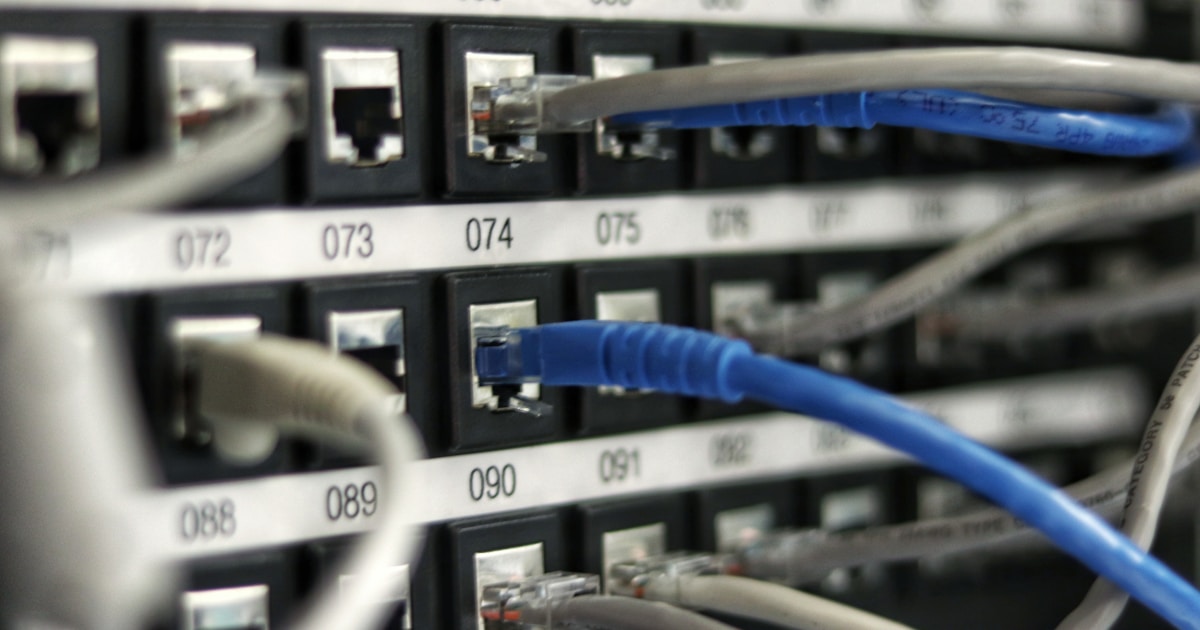
Where you put the router matters more than almost any setting. Radio waves spread in a rough sphere, so the center of your home at chest height is the sweet spot. A router on the floor behind a TV is fighting the signal from the start.

Follow the guidance from Netgear’s router placement guide: keep it elevated, away from walls, metal objects, microwaves, and fish tanks. Water and metal absorb or reflect the signal. Even a stack of books can shift coverage noticeably.
For larger homes, one router in the corner rarely covers everything. A Wi-Fi optimization guide from NetSpot explains how to map your coverage and find dead zones. That map tells you whether you need a second access point or just a better spot.
Switch Bands and Channels to Cut Interference
Most routers broadcast two or three bands: 2.4 GHz, 5 GHz, and on newer gear 6 GHz. The 2.4 GHz band travels farthest but carries the most interference because it is shared with baby monitors, Bluetooth, and microwaves. The 5 GHz band is faster and cleaner but shorter range.

Use 5 GHz for devices near the router, like your TV and desktop, and 2.4 GHz only for far-away gadgets that do not need speed, like smart bulbs. This simple split often fixes the frustrating “fast on my phone, slow on my laptop” pattern.
Channel congestion is the quiet killer. When every neighbor’s router defaults to the same channel, they step on each other. Log into your router’s admin page and pick a less crowded channel, or enable auto-select. The official standards body, the Wi-Fi Alliance, maintains the specs that define these bands and channels.
Stop Apps From Hogging Your Bandwidth
A single app can choke your whole network. Cloud backups, game updates, video conferencing, and streaming uploads all run in the background and rarely pause for you. You do not always need a router upgrade to fix this; you need to see what is using your connection.

On a phone, open Settings and look at data usage per app. On a laptop, open Task Manager on Windows and sort by network. You will often find a backup client uploading gigabytes or a browser tab streaming video you forgot about.
If your router supports Quality of Service (QoS), enable it and prioritize video calls and gaming over large downloads. This keeps latency low when someone else is uploading. Combined with killing the worst offenders, this step alone clears up most “Wi-Fi is slow” complaints. For more system-level speed tips, see our guide on how to speed up a slow Windows PC without formatting.
When to Upgrade: Router, Mesh, or Wi-Fi 7
Free fixes get you 80 percent of the way. When placement, bands, and bandwidth management are handled but coverage still falls short, it is time to spend money. The choice comes down to your home size and how many devices you run.
| Option | Best for | Worth it? |
|---|---|---|
| New Wi-Fi 6 router | Medium homes, many devices | Yes |
| Mesh system | Large or multi-floor homes | Yes |
| Wi-Fi 6E or 7 router | Heavy streaming and gaming | Only if devices support it |
| Powerline adapter | One room far from router | Sometimes |
Mesh systems place multiple nodes so the signal reaches every corner, which beats one powerful router for coverage. A single newer router with Wi-Fi 6 handles speed better for homes with many connected devices. The newest standards add more spectrum and lower latency, but you only benefit if your phones and laptops support them. Most older gadgets will connect, just not at the top speed.
Key Takeaways
- Test over Ethernet first to confirm the problem is Wi-Fi, not your ISP.
- Place the router high and central before buying anything.
- Split devices across bands and switch to a less crowded channel.
- Find and stop the apps that hog bandwidth in the background.
- Upgrade only when free fixes fall short for your home size.
Common Mistakes That Keep Your Wi-Fi Slow
Even after you fix the obvious problems, a few habits can quietly drag your connection back down. These mistakes are common because they are easy to overlook, and each one is simple to correct once you know what to look for.
The first mistake is leaving the router on the floor behind furniture. Routers broadcast best from an open, elevated position, and a low shelf or a cabinet blocks the signal in every direction. Move it up and into the open and you will often see an instant improvement in range and speed.
The second mistake is cramming every device onto the same band. Most routers broadcast on both a slower, longer-range band and a faster, shorter-range band. If your laptop, phone, and smart TV all connect to the slower one, they compete for the same airtime. Split your devices so bandwidth-heavy gadgets use the faster band whenever they are close enough.
The third mistake is ignoring the devices you no longer use. An old phone or a forgotten smart speaker that stays connected in the background still holds a spot on your network and can wake up to update at the worst time. Remove unused devices from your network to free up bandwidth and reduce interference.
The fourth mistake is placing the router next to metal objects or large appliances. Microwaves, refrigerators, and metal shelving all absorb or reflect wireless signals and cause dead zones. Give the router a clear path, and keep it away from anything that generates heat or electrical noise.
The fifth mistake is upgrading hardware without changing the placement first. A newer router helps, but it cannot fix a location problem. Before you spend money on a mesh system or a Wi-Fi 6 router, make sure the free fixes are already in place so your upgrade starts from the best possible baseline.
Frequently Asked Questions
Why is my Wi-Fi slow even when my internet plan is fast? A fast plan only guarantees speed up to your router. After that, your Wi-Fi speed depends on router placement, channel congestion, distance, and the number of connected devices. If you are far from the router or on a crowded channel, your wireless speed will lag behind your plan even when the connection to your home is healthy.
Should I restart my router to fix slow Wi-Fi? Restarting is a fast first step and often helps. Routers can accumulate small errors and memory leaks over time, and a restart clears them. If the problem returns quickly or never goes away, restarting alone is not the fix, and you should look at placement, channels, and background apps instead.
Does a mesh system really speed up my Wi-Fi? A mesh system improves coverage more than raw speed. It adds extra nodes that spread a steady signal across a larger home, which reduces dead zones and drops. If your issue is distance or thick walls, a mesh helps. If you already have good coverage but slow speeds, the bottleneck is elsewhere.
How do I check which apps are using my bandwidth? Your router’s admin page usually shows a list of connected devices and live traffic. From there you can see which gadgets are transferring the most data. On a computer, the operating system’s task manager also shows network usage by app, so you can spot a download or backup running in the background.
Is upgrading to a Wi-Fi 6 router worth it? It depends on your devices and your home size. Wi-Fi 6 handles many connected devices more efficiently and offers better speeds on newer hardware. If you have a large number of smart devices or a newer phone and laptop, it is a worthwhile upgrade. If your main issue is coverage in a small space, placement fixes come first.
Fix Your Wi-Fi in One Weekend
Slow Wi-Fi is one of the easiest home tech problems to solve once you know where to look. Work through the free steps in order, measure your speed after each one, and you will usually find the culprit without spending a cent. If coverage is still patchy, a mesh or a newer router is a clear, justified upgrade.
Want more ways to make your home tech run smoother? Check our guide to the Internet of Things to understand every connected gadget on your network, or read about protecting your privacy on a home network. For a calmer workspace while you sort out the tech, our home office ergonomics tips pair well with a faster connection. Bookmark this guide and save it for the next time a video call drops out, and you will know exactly what to check first.

Irfan is a Creative Tech Strategist and the founder of Grafisify. He spends his days testing the latest AI design tools and breaking down complex tech into actionable guides for creators. When he’s not writing, he’s experimenting with generative art or optimizing digital workflows.


 Artificial Intelligent
 Design & Creative
 Freelance
 Gadgets & Gear
 Insights
 Laptop
 Reviews
 Smartphone
 Tech Guides
 Vibe Coding