How to Choose an Ergonomic Mouse That Fits Your Hand
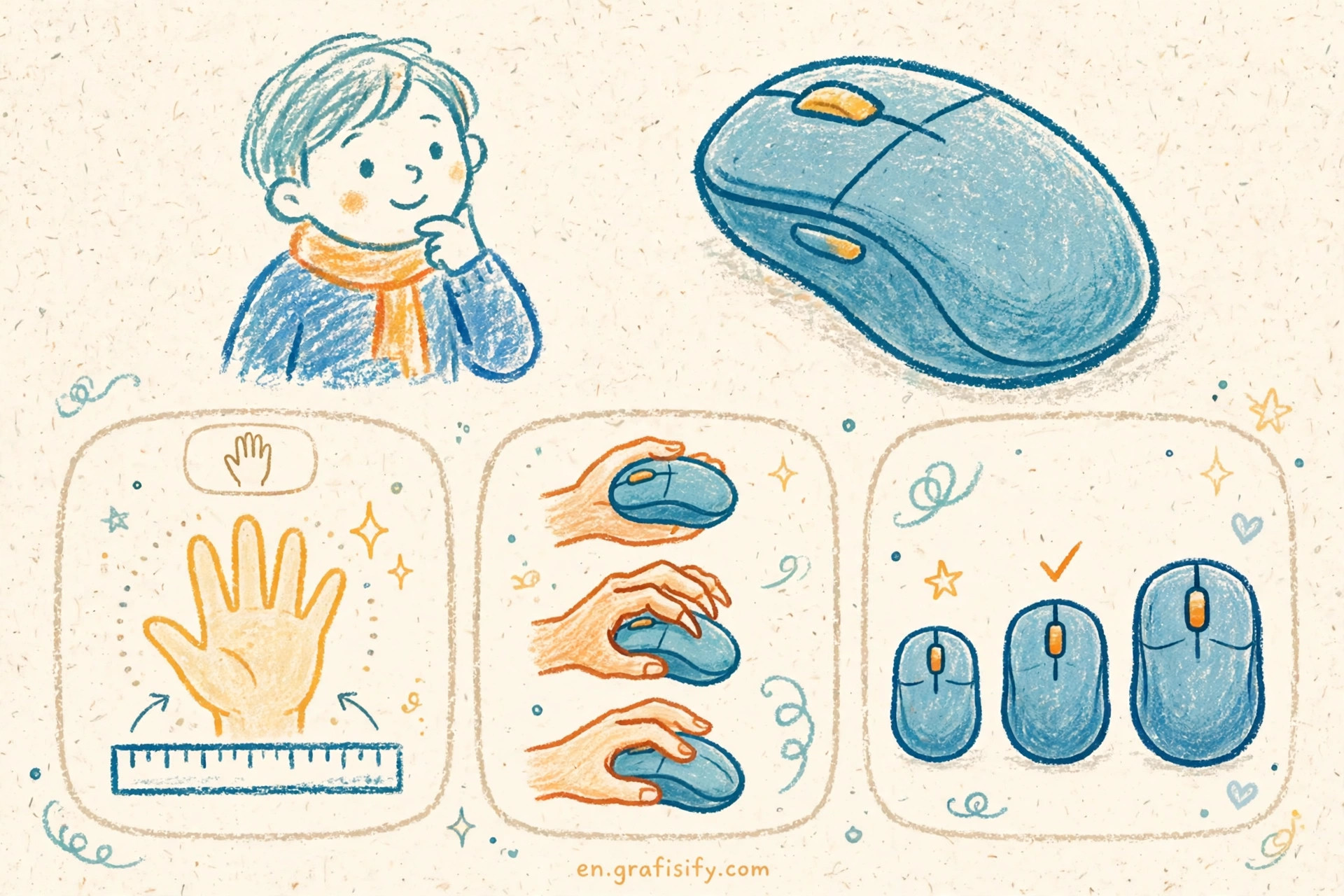
Your mouse is the tool your hand holds for hours every workday, yet most people choose one the way they choose a pen at a hotel desk: whatever is closest. That casual choice has a cost. A mouse that is too small forces your fingers into a cramp. One that is too large stretches your hand and drags your wrist sideways. Over weeks and months, those small mismatches add up to soreness, fatigue, and slower, sloppier work.
The good news is that picking the right ergonomic mouse is not guesswork. It comes down to three things you can measure and observe in ten minutes: your hand size, your natural grip, and where you actually feel strain. Get those three right and the rest of the spec sheet falls into place.
The Verdict: Key Takeaways
Measure your hand before you shop. Hand length under about 17 centimeters is small, 17 to 19 centimeters is medium, and over 19 centimeters is large, and that single number rules out half the mice on the shelf. Match the shape to your grip, not to a marketing photo: palm grips need a tall, full bodied shell, claw grips need a medium arch, and fingertip grips need a smaller, lighter body. If your forearm twists uncomfortably during long sessions, try a vertical or slanted mouse, but treat it as one option among several, not a cure. Finally, ignore headline DPI numbers. For office work, a sensor that tracks cleanly at a moderate sensitivity matters far more than a maximum DPI figure you will never use.
Measure Your Hand First
I learned this lesson the expensive way, after years of buying mice that looked comfortable in photos and felt wrong by Friday afternoon. The fix takes a ruler and sixty seconds. Measure from the crease of your wrist to the tip of your middle finger for hand length, then measure across your knuckles, excluding the thumb, for palm width. Write both numbers down and keep them on your phone. They turn vague advice like “choose a medium mouse” into a concrete filter.

Why does size matter so much? A mouse that is too small for your hand forces your fingers to curl tightly and your palm to hover, which tires the small muscles of the hand. A mouse that is too large forces your fingers to stretch for the buttons and your thumb to reach around a wide flank. Both problems feel minor for the first hour and obvious by the end of the week. Size guides from university ergonomics programs, including a buying guide published by Temple University, put size and fit at the top of the impact list for exactly this reason: a properly sized mouse lets your hand rest in a neutral posture instead of compensating all day. You can read that guide for the full feature ranking in the sources at the end of this article.
As a rough guide, hands under 17 centimeters long usually suit compact mice, hands between 17 and 19 centimeters suit the standard mice most brands call medium, and hands over 19 centimeters need the larger shells that many manufacturers label large or right handed ergonomic. Palm width matters too. A wide palm on a narrow mouse leaves your outer fingers hanging off the side, while a narrow palm on a wide mouse has to splay to reach the buttons. If you fall between sizes, favor the larger option when you use a palm grip and the smaller option when you use a fingertip grip, since those grips punish the opposite error most.
Identify Your Grip Style
Your grip is simply how your hand naturally sits on a mouse when you are not thinking about it. Watch yourself work for a minute and you will see one of three patterns. In a palm grip, your whole palm rests on the shell and your fingers lie flat on the buttons. In a claw grip, your palm touches the back of the mouse while your fingers arch up and strike the buttons from above. In a fingertip grip, only your fingertips touch the mouse, and your palm floats above it.

Each grip pairs with a different shape. Palm grips need larger, taller mice with a pronounced arch that fills the hand, because a low shell leaves the palm unsupported. Claw grips work best with medium sized mice that have a moderate arch and a shorter body, giving the fingers room to arch without stretching. Fingertip grips suit smaller, lighter mice, since the fingers do all the steering and extra weight becomes fatigue. A mouse that forces a different grip than your natural one will feel awkward no matter how good its sensor is, so treat grip compatibility as a hard requirement, not a nice extra.
If you are unsure which grip you use, check the wear marks on your current mouse. Shiny patches on the top of the shell and the side buttons tell you where your hand actually lives. I also recommend testing your grip on a mouse you already own for a full workday before judging a new one, because a shape that feels strange for ten minutes in a store can feel natural once your hand stops paying attention to it.

Shape Options Compared: Standard, Vertical, Slanted, and Trackball
Once you know your hand size and grip, the shape decision gets simpler. Standard ergonomic mice keep a familiar horizontal layout but add a thumb rest, a higher palm cup, and a sculpted side. They are the easiest transition if you already like a conventional mouse and want a gentler version of it. Vertical mice rotate your hand into a handshake posture, typically at an angle between 55 and 60 degrees, which reduces forearm twisting. They help many people with forearm discomfort, but they ask you to relearn button placement, and small hands can find them cramped.
Slanted mice sit between the two, tilting the hand partway without going fully vertical. They are a sensible middle step if a full vertical mouse feels too strange. Trackballs take a different approach entirely: the mouse stays still while your thumb or fingers roll a ball, so your arm barely moves. They suit people whose strain comes from reaching and arm movement rather than from grip, and they are worth trying if shoulder or elbow discomfort is your main complaint. No shape is universally better. The right one depends on where you feel strain, and honest buying guides say the same: slanted and vertical designs reduce forearm muscle activity compared with a flat mouse, but no shape removes strain on its own. Breaks, posture changes, and alternating tasks do more than any single purchase.
| Shape | Best for | Tradeoff to accept |
|---|---|---|
| Standard ergonomic | Palm and claw grips, easy transition | Least change to forearm angle |
| Vertical | Forearm twist and wrist discomfort | Adjustment period, needs a medium or large hand |
| Slanted | A gentler step toward vertical | Less forearm relief than a full vertical mouse |
| Trackball | Shoulder and elbow strain, small desks | Learning curve for precise pointing |
| Ambidextrous flat | Left handed users, shared desks | Little ergonomic shaping, small sizes only |
DPI, Sensors, and Buttons: What Actually Matters
DPI, or dots per inch, measures how far the cursor moves for each inch you move the mouse. A higher number means a more sensitive cursor, not a better mouse. For office work, most people are comfortable between 800 and 1600 DPI, and many ergonomic mice offer far more than that on paper. The number to care about is whether the sensor tracks smoothly on your desk surface at the sensitivity you actually use. Modern optical and laser sensors handle wood, cloth pads, and matte desks well, and premium models such as the Logitech MX Master 3S add sensors that track even on glass. If your cursor skips or stutters on your desk, the problem is usually the surface or a dirty sensor window, not a low maximum DPI.

Buttons deserve the same practical look. Light, responsive clicks reduce finger fatigue over thousands of clicks a day, and side buttons for back and forward in a browser save real time once they become habit. Programmable buttons are useful only if you will actually assign them, so be honest with yourself: a mouse with eight buttons you never configure is heavier and more expensive than a mouse with four buttons you use daily. Scroll wheel quality matters too. A smooth, quiet wheel suits long documents, while a notched wheel gives better control when you step through spreadsheets line by line. Some mice offer both modes with a switch, which is a genuinely useful feature for mixed work.
Weight is the last spec people underestimate. A heavy mouse steadies fine movements but tires the wrist over a long day, while a very light mouse feels nimble but can feel twitchy if you rest your whole palm on it. Palm grip users usually tolerate more weight because the hand supports the mouse, while fingertip users benefit from lighter bodies they can lift and reposition easily. If a manufacturer publishes weight, compare it with your current mouse so the change is not a surprise.
Wireless, Battery, and Software
For office work, wireless connectivity is no longer a compromise. A 2.4 GHz receiver connection has latency far below what any office task can reveal, and Bluetooth works well for travel and for machines with limited USB ports. The real choice is about battery habits. Some mice use rechargeable batteries that last weeks or months per charge, while others use replaceable AA batteries that last up to a year but add weight. I prefer rechargeable models for a desk that stays in one place, and replaceable battery models for a bag mouse, where a dead battery far from a charger is a real problem.
Software matters more than most buyers expect. Companion apps let you remap buttons, adjust sensitivity per application, and set the scroll wheel behavior. That is how a good mouse becomes a great one for your specific workflow, whether you assign copy and paste to a side button or slow the cursor for detailed design work. Check that the software runs on your operating system before you buy, since some features are limited on certain platforms. And if you share a desk or travel between machines, look for a mouse that pairs with several devices and switches between them with a button, a feature that removes a daily annoyance from multi device setups. Pairing your mouse choice with the rest of your desk pays off too: our guides to choosing a mechanical keyboard, choosing a portable monitor, and choosing a laptop docking station cover the neighbors your mouse will live with.
Mistakes That Waste Money
The most common mistake is buying the most expensive ergonomic mouse and assuming the price guarantees a fit. Price buys features, materials, and brand, not a match for your hand. The second mistake is judging a mouse after five minutes. A new shape, especially a vertical one, feels odd at first because your muscles are learning a new posture. Give it at least a week of real work before deciding, and buy from a retailer with a fair return policy so that week costs you nothing if it fails.
A third mistake is treating a mouse as medical equipment. A well fitted mouse can reduce discomfort, but it does not diagnose or treat injury, and persistent pain deserves a clinician, not a shopping cart. A fourth mistake is ignoring the rest of the setup. A perfect mouse on a desk that is too high, with a monitor at the wrong height, still leaves your shoulder doing extra work. Our ergonomic home office setup guide and our guide to picking the right webcam for remote work help with the wider picture, and a power bank that fits your devices keeps the travel side of your kit covered. Finally, do not rest your wrist on a wrist rest while you move the mouse. Ergonomics guidance warns that pressing the wrist into a rest during movement raises pressure in the carpal tunnel, so use a rest for pauses between typing, not as a track for the mouse hand.
Conclusion and Next Steps
Choosing an ergonomic mouse comes down to a short checklist you can run before you spend anything. Measure your hand, name your grip, and note where you feel strain. Use those answers to pick a shape, then check size, weight, buttons, and connectivity in that order, and ignore maximum DPI as a deciding factor. Try the winner for a full work week, and return it without guilt if your hand still complains.
Start today by measuring your hand and checking your current grip, then shortlist two mice in your size and shape category rather than twenty across the whole catalog. Your hand will thank you by Friday, and your work will feel a little less like wrestling with your tools. For deeper reading, see the Temple University ergonomics buying guide, the Logitech MX Master 3S specifications, and the grip and shape guides linked below: Temple University ergonomic mouse buying guide, Logitech MX Master 3S, WFH Lounge grip and hand guide, Smart Picks ergonomic mouse guide, and OSHA ergonomics resources.

Irfan is a Creative Tech Strategist and the founder of Grafisify. He spends his days testing the latest AI design tools and breaking down complex tech into actionable guides for creators. When he’s not writing, he’s experimenting with generative art or optimizing digital workflows.






 Artificial Intelligent
 Design & Creative
 Freelance
 Gadgets & Gear
 Insights
 Laptop
 Reviews
 Smartphone
 Tech Guides
 Vibe Coding