How to Deploy Docker Compose on a Linux VPS
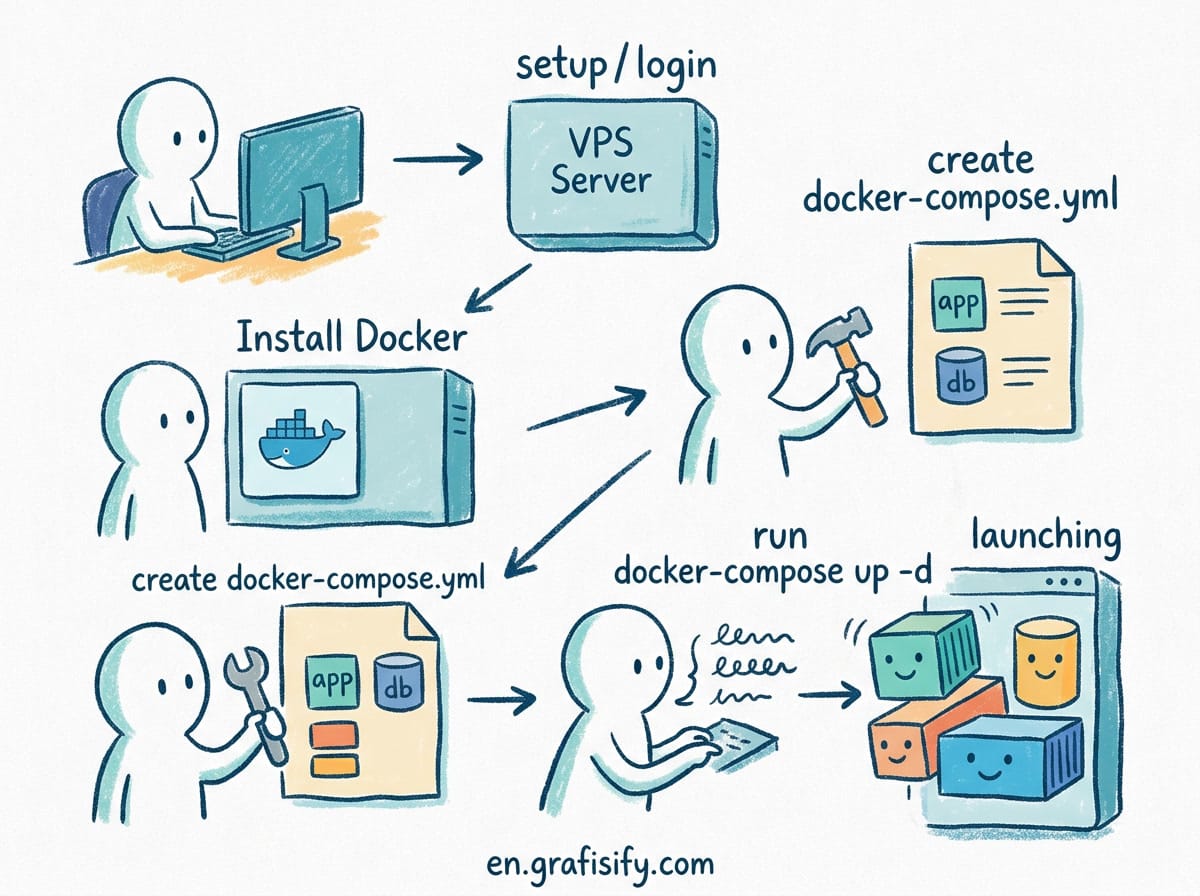
Verdict: The Modern Standard for Self-Hosted Infrastructure
If you run web services, databases, or AI tools on a Linux Virtual Private Server (VPS), deploying applications individually with isolated docker run commands quickly becomes unmanageable. Docker Compose solves this by turning multi-container setups into clear, version-controlled YAML files. Whether you host internal dev environments or public-facing microservices, mastering Docker Compose deployment on a VPS ensures reproducible builds, seamless restart recovery, and minimal overhead.
| Deployment Method | Configuration Style | Multi-Container Linking | Production Suitability |
|---|---|---|---|
| Raw Docker Run Commands | Imperative CLI Flags | Manual Bridge Networks | Low (Hard to maintain) |
| Docker Compose (V2 Plugin) | Declarative YAML | Automatic Isolated DNS | High (Ideal for single VPS) |
| Docker Swarm / Kubernetes | Declarative Manifests | Overlay Routing Mesh | Enterprise Cluster Only |
For related infrastructure tutorials on our platform, check out our guide on How to Set Up UFW Firewall on Linux VPS to prevent Docker from bypassing your firewall rules, or explore How to Set Up Nginx Proxy Manager on a VPS for effortless SSL certificate management.
Key Takeaways for VPS Container Management
- Use the Modern V2 Plugin: Modern Linux systems use
docker compose(space-separated CLI plugin) rather than the deprecated standalonedocker-composePython binary. - Isolate Networks Per Stack: Define custom internal networks in your YAML files to prevent containers in one stack from accessing ports in another.
- Secure State with Named Volumes: Always persist configuration files, database records, and logs to external named volumes or dedicated host mounts.
- Configure Automatic Restart Policies: Protect service uptime by setting
restart: unless-stoppedacross all key service definitions.
1. Prerequisites: System Setup and User Permissions
Before deploying containerized services, ensure your Linux VPS (Ubuntu 22.04 or 24.04 LTS recommended) has the official Docker engine and Compose V2 plugin installed directly from Docker’s official repository rather than default distribution mirrors.
You should create a dedicated non-root deployer user and attach it to the docker security group. This enables container orchestration without risking global administrative damage from compromised application processes:

- Create a system user dedicated to service deployment.
- Add the user to the
dockergroup to grant socket communication access without requiring elevated privileges. - Verify that the installation runs
docker compose versioncleanly.
Avoid running application processes inside containers as root whenever possible. Setting proper file system permissions on your VPS host directory prevents containerized services from altering system-level environment variables.
2. Structuring Production-Ready Docker Compose Files

A production docker-compose.yml file must be clear, modular, and resilient. Instead of hardcoding sensitive secrets directly inside the manifest, store configurations in external environment files (.env) kept outside version control systems.
Below is a standard production layout for a web stack containing an application service, an Nginx reverse proxy, and a backend database:

version: "3.8"

services:
  app:
    image: node:20-alpine
    container_name: web_application
    restart: unless-stopped
    env_file:
      - .env
    networks:
      - app_net
    volumes:
      - app_data:/app/data

  db:
    image: postgres:16-alpine
    container_name: postgres_db
    restart: unless-stopped
    environment:
      POSTGRES_DB: ${DB_NAME}
      POSTGRES_USER: ${DB_USER}
      POSTGRES_PASSWORD: ${DB_PASSWORD}
    networks:
      - app_net
    volumes:
      - db_data:/var/lib/postgresql/data

networks:
  app_net:
    driver: bridge

volumes:
  app_data:
  db_data:
By enforcing restart: unless-stopped, your containers automatically boot up whenever the Linux VPS reboots, ensuring zero downtime after system kernel updates or scheduled maintenance reboots.
3. Environment Variables and Secret Isolation
Hardcoding API credentials, database passwords, or secret keys directly inside Compose files is a major security hazard. Always pair your setup with a local .env file stored within the deployment directory.
Structure your directory layout like this on the VPS host filesystem:

/opt/stacks/web-app/docker-compose.yml/opt/stacks/web-app/.env/opt/stacks/web-app/config/
Verify that your .gitignore rules exclude .env files if you sync stack definitions through continuous integration repositories. For teams operating multiple environments, maintain separate template files such as .env.example containing placeholder entries for onboarding documentation.
4. Managing Networking and Service Isolation
By default, Docker Compose generates a single bridge network for all services listed inside a manifest file. Containers discover each other using service names as hostname DNS aliases (for example, connecting to db:5432 directly from the application service).
However, when operating multiple stacks on the same VPS, you should restrict cross-stack communication:

- Internal Bridge Networks: Keep databases and caching containers hidden from external ports by omitting public port bindings (e.g., expose ports only within internal networks, avoiding
0.0.0.0:5432:5432bindings). - External Proxy Networks: Attach web applications to a shared external overlay or bridge network (like
proxy-net) so a central Nginx Proxy Manager or Caddy instance can handle SSL termination.
5. Essential Deployment Commands and Daily Operations
Managing live container stacks on a Linux server requires familiarity with core Compose CLI operations. Execute these standard commands from your stack directory:
- Launch Stack in Background:
docker compose up -d - Inspect Running Services:
docker compose ps - View Live Container Logs:
docker compose logs -f --tail=100 app - Gracefully Stop Services:
docker compose down - Rebuild and Update Images:
docker compose pull && docker compose up -d --remove-orphans
Regularly prune unused image layers to prevent your VPS storage from filling up over time. Executing docker image prune -a periodically removes dangling images without disturbing active container volumes.
6. Frequently Asked Questions
What is the difference between docker-compose and docker compose?
The hyphenated docker-compose refers to the legacy standalone Python implementation (V1), which reached end-of-life status. The modern docker compose syntax is a native Go plugin built directly into the official Docker Engine (V2), offering faster execution speeds and superior resource efficiency on Linux VPS instances.
How do I update containers without losing application data?
As long as persistent data is written to external named volumes or host directory mounts (defined under the volumes: block), pulling new container images and re-launching the stack with docker compose up -d safely replaces container filesystems while keeping all database records and user uploads completely intact.
Should I publish database ports to the host network?
No. In production deployments, databases should communicate exclusively over internal Docker bridge networks. You should only bind database ports to public interfaces if direct remote management is strictly required, and even then, bind strictly to 127.0.0.1 to enforce SSH tunneling for connections.
7. Advanced Optimization: Logging Drivers and Resource Limits
In high-throughput environments, default container configurations can consume excessive server disk space through unrotated logs. Docker Compose allows you to specify log rotation limits per service directly within your configuration file:
services:
  app:
    image: node:20-alpine
    logging:
      driver: "json-file"
      options:
        max-size: "10m"
        max-file: "3"
    deploy:
      resources:
        limits:
          cpus: '1.50'
          memory: 1024M
        reservations:
          memory: 512M
By enforcing resource limits (CPUs and memory), you prevent single application memory leaks from triggering Out-Of-Memory (OOM) kernel panics that could bring down your entire Linux VPS.
8. Automated Container Updates with Watchtower
Maintaining security on a Linux server requires keeping running container images updated with the latest security patches. While manual image pulling works for static deployments, you can automate this maintenance using Watchtower as a sidecar service within your stack:
- Automated Scanning: Configure Watchtower to check your container registry on a regular interval (e.g., every 24 hours).
- Graceful Re-creation: Watchtower automatically pulls new upstream image builds, gracefully terminates stale containers, and restarts the stack using your original runtime flags.
- Scoped Monitoring: Restrict automatic update monitoring strictly to containers tagged with custom labels to avoid unintended major version upgrades in critical databases.
9. Troubleshooting Common Docker Compose Errors
Even experienced system administrators encounter deployment hurdles on Linux VPS setups. Below are the most frequent issues and their straightforward resolutions:
- Port Allocation Conflicts: If
docker compose upthrows abind: address already in useerror, check host process port consumption withsudo netstat -tulpnorsudo lsof -i :80to identify conflicting background daemons. - Volume Permission Mismatches: When containerized applications cannot write to persistent host mounts, verify that the numeric User ID (UID) of the container process matches the ownership permissions of the host directory.
- Yaml Indentation Syntax Errors: Yaml files strict prohibit tab characters. Always inspect configuration syntax using
docker compose configbefore initiating deployment runs.
10. Backup and Disaster Recovery Strategies for Docker Stacks
Deploying application containers on a Linux VPS is only half the battle; maintaining long-term reliability requires a disciplined backup strategy. Since application state resides within named volumes or bind mounts, your backup workflow must focus on capturing persistent host directories without causing database corruption.
- Database Volume Snapshots: Never copy raw PostgreSQL or MySQL data directories while the database container is actively writing. Instead, execute automated SQL dumps via containerized CLI tools:
docker exec -t postgres_db pg_dumpall -U postgres > /backups/db_backup.sql. - Stack Definition Versioning: Commit all custom
docker-compose.ymlfiles, static configuration templates, and operational scripts to a private Git repository. This allows you to rebuild your entire VPS application suite on a fresh Linux instance in minutes. - Offsite Volume Archiving: Use encrypted archivers like Restic or BorgBackup to compress host volume paths (e.g.,
/var/lib/docker/volumes/) and transfer them to offsite cloud storage providers on a daily cron schedule.
By pairing declarative Compose manifests with automated offsite backups, you guarantee full infrastructure recovery even in the event of complete VPS hypervisor failure.
Final Thoughts
Deploying application stacks with Docker Compose on a Linux VPS provides an optimal balance between simplicity and production-grade stability. By enforcing environment isolation, using named volumes for database persistence, and establishing clear internal networking rules, you build an efficient infrastructure that scales seamlessly without unnecessary maintenance overhead. I recommend adopting modular stack directories from day one to keep your production server organized and secure.

Irfan is a Creative Tech Strategist and the founder of Grafisify. He spends his days testing the latest AI design tools and breaking down complex tech into actionable guides for creators. When he’s not writing, he’s experimenting with generative art or optimizing digital workflows.
You might also like





 Artificial Intelligent
 Design & Creative
 Freelance
 Gadgets & Gear
 Insights
 Laptop
 Reviews
 Smartphone
 Tech Guides
 Vibe Coding