AnythingLLM vs Jan.ai: Which Local AI Desktop App Should You Choose?
Quick Verdict
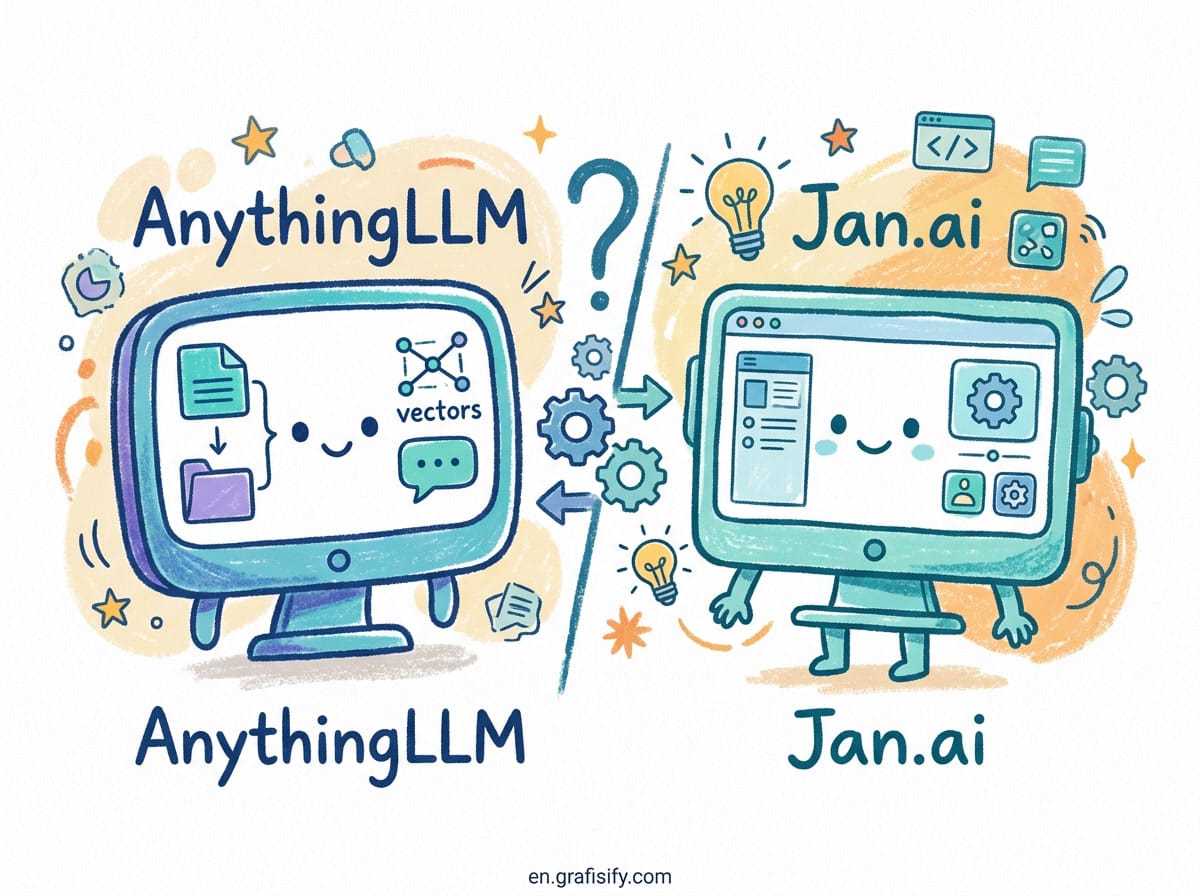
Running LLMs locally on your own desktop hardware has transformed from an experimental tech project into a viable daily workflow. When picking a dedicated desktop client for offline AI, AnythingLLM and Jan.ai represent two distinct design philosophies. If your primary goal is document querying, knowledge bases, multi-user workspace management, and rich vector database integration, AnythingLLM is the clear winner. However, if you want a clean ChatGPT-like desktop application that runs completely offline with a single click, features a built-in model hub, and operates with zero configuration overhead, Jan.ai provides a smoother daily experience. I tested both applications extensively on consumer hardware to evaluate performance, resource usage, retrieval accuracy, and long-term usability.
For users who want to host local models alongside server workflows or manage self-hosted environments, you can also read my complete breakdown on Open WebUI vs LibreChat for multi-user server setups.
Understanding Local AI Desktop Clients
Cloud-based artificial intelligence services deliver high reasoning capabilities, but they require internet connectivity, recurring monthly subscriptions, and constant data transmission to third-party servers. As open-weight LLMs like Llama 3, DeepSeek, and Mistral continue to improve rapidly, running models locally on personal computers has become common among developers, researchers, and privacy-conscious users.
To run these open-source LLMs without touching terminal scripts, desktop wrapper applications provide graphical user interfaces, chat histories, system prompts, and document parsing engines. Both AnythingLLM and Jan.ai serve as bridges between raw inference engines like Ollama or llama.cpp and the end user. However, their internal architecture targets different operational tasks. Understanding these differences helps prevent unnecessary software friction when building your personal local workspace.

If you are actively optimizing your local computing budget and software tools, check out our guide on how to cut AI subscription costs without losing value.

AnythingLLM vs Jan.ai Feature Comparison
To summarize how these two local desktop applications perform across core categories, the table below provides a direct feature comparison based on local testing:
| Feature Category | AnythingLLM | Jan.ai |
|---|---|---|
| Primary Focus | Workspace RAG and Document Vectorization | Turnkey Offline ChatGPT Alternative |
| RAG & Document Parsing | Native support for PDF, DOCX, CSV, TXT, Web Scrape | Basic thread attachment, external plugin support |
| Vector Database Support | LanceDB (default), Chroma, Pinecone, Qdrant, Weaviate | In-memory / SQLite vector indexing |
| Inference Engine Support | Ollama, LM Studio, LocalAI, Azure, OpenAI, Anthropic | Built-in Nitro engine (llama.cpp wrapper), Ollama, Remote APIs |
| Multi-User & Workspaces | Yes (Isolated workspace spaces and role permissions) | No (Single-user desktop client layout) |
| Model Downloader | Imports from connected backends or HuggingFace links | Built-in HuggingFace model hub with 1-click install |
| System Overhead | Moderate (Node/Electron runtime + local vector store) | Lightweight (C++ core backend with Electron shell) |
| API Server Output | Developer API for querying workspaces externally | Local OpenAI-compatible REST server (port 1337) |
Retrieval-Augmented Generation (RAG) and Knowledge Isolation
Retrieval-Augmented Generation (RAG) allows a local LLM to search your private documents and inject relevant factual excerpts into its context window before drafting a reply. In my daily testing with technical documentation, AnythingLLM demonstrated clear architectural superiority for RAG workflows.
AnythingLLM organizes data using dedicated workspaces. Each workspace acts as an isolated folder containing its own document files, system prompts, embedding settings, and vector database collections. I uploaded hundreds of pages of technical PDFs and plain text files into a single workspace, and AnythingLLM split the text into chunks, calculated vector embeddings using local embedding models like Nomic-Embed-Text, and stored them into LanceDB. When asking questions, the application provided accurate source attribution citations pointing directly to specific pages.
Jan.ai has improved its document attachment capabilities, but its design focuses primarily on conversational threads rather than deep knowledge base management. In Jan.ai, you can attach files to an active chat window, which converts text into context chunks for the local model. However, Jan.ai lacks multi-workspace segregation, granular chunking configuration, and choice of external vector databases like Chroma or Qdrant. If your routine heavily relies on chatting with large reference documents or maintaining separate project knowledge repositories, AnythingLLM is far more capable.
For engineers interested in extending local toolchains and developer automation, take a look at our comparison between Claude Code and GitHub Copilot CLI.
Installation, User Experience, and Model Downloaders
When setting up local AI for non-technical users or clients who prefer simplicity, Jan.ai provides an exceptional out-of-the-box experience. Jan.ai presents a sleek user interface modeled directly after popular cloud chat applications, available as a clean binary for Windows, macOS, and Linux.
Inside Jan.ai, the built-in Hub tab connects directly to Hugging Face repositories. You can browse popular quantizations (GGUF format) of models like Llama 3.1, Qwen 2.5, or DeepSeek-R1, check VRAM requirements before downloading, and click install. Jan.ai automatically configures its internal C++ engine called Nitro (powered by llama.cpp) to utilize hardware acceleration, whether you have an NVIDIA GPU, AMD card, or Apple Silicon Mac.
AnythingLLM offers desktop installers as well, but its configuration sequence requires more decision-making. You must select an LLM provider (such as Ollama, LM Studio, or an API service), choose an embedding model provider, and select a vector database engine. While AnythingLLM can download Ollama automatically during setup, navigating between backend connections, workspace settings, and document managers requires a steeper learning curve than Jan.ai.
Local Server Capabilities and Developer APIs
Beyond desktop conversation, both tools can serve as local API providers for external developer workflows or custom applications.
Jan.ai features a built-in OpenAI-compatible REST server. By toggling the local server setting, Jan.ai exposes standard endpoints (such as http://localhost:1337/v1/chat/completions) on your machine. This allows you to point third-party software, browser extensions, or custom scripts to Jan.ai while keeping data entirely local. Because it runs a native C++ backend under the hood, inference startup times are quick and VRAM release is immediate when closing sessions.
AnythingLLM provides a robust Developer API designed around its workspace architecture. Through its API endpoints, you can trigger document ingestions, clear workspace memories, query specific vector collections programmatically, or issue chat queries to designated workspaces. Additionally, AnythingLLM can be deployed as a Docker container on remote servers or local hardware, allowing teams to share a centralized RAG server with multi-user authentication and permissions.
If you plan to self-host backend developer platforms or deployment dashboards on a VPS alongside local services, read our guide on how to deploy Coolify on VPS.
Hardware Resource Usage and Performance Benchmark Notes
Running local language models requires careful attention to system RAM, GPU VRAM, and CPU core utilization. During testing on an 8-core CPU with an 8GB VRAM GPU and 32GB system RAM, I recorded distinct performance behaviors across both clients:
- Idle Memory Footprint: Jan.ai idle RAM usage sits around 350MB to 500MB when no model is loaded into VRAM. AnythingLLM utilizes around 650MB to 900MB due to its internal background services and vector database bindings.
- Inference Speed (Tokens/Second): When configured with identical GGUF model weights (Llama-3-8B-Instruct Q4_K_M) via Ollama, both tools achieved nearly identical output generation speeds (approximately 42-45 tokens per second on GPU offload). However, when using Jan.ai’s native Nitro engine with full GPU layer offloading, prompt ingestion for short queries felt slightly snappier.
- Vector Embedding Overhead: During large document ingestions, AnythingLLM actively utilizes CPU and GPU resources to process text chunks and write vectors. The CPU usage spikes temporarily during parsing, but once indexed, query retrieval latency stays under 120 milliseconds on local LanceDB storage.
Which Local AI App Should You Choose?
Choosing between AnythingLLM and Jan.ai comes down to your primary use case, technical background, and data workflows.
Choose AnythingLLM if:
- Your primary workflow involves analyzing PDFs, complex text documents, spreadsheets, or web links.
- You need isolated workspaces for separate projects or client research data.
- You want freedom to pick advanced vector databases like Chroma, Pinecone, or Qdrant.
- You plan to host a multi-user RAG server via Docker or integrate workspace APIs into custom software.
Choose Jan.ai if:
- You want an offline ChatGPT replacement that installs in minutes with zero setup friction.
- You prefer downloading GGUF model weights directly from Hugging Face through a clean graphical interface.
- You need an easy local OpenAI-compatible API server running on port 1337 for local coding extensions.
- You prefer a lightweight single-user application focused on fast conversational interaction.
Both applications are open source, actively maintained, and free to use. Testing both on your desktop setup will quickly highlight which workflow best complements your daily productivity requirements.

Irfan is a Creative Tech Strategist and the founder of Grafisify. He spends his days testing the latest AI design tools and breaking down complex tech into actionable guides for creators. When he’s not writing, he’s experimenting with generative art or optimizing digital workflows.



 Artificial Intelligent
 Design & Creative
 Freelance
 Gadgets & Gear
 Insights
 Laptop
 Reviews
 Smartphone
 Tech Guides
 Vibe Coding