Logitech MX Master 3S Review: The Productivity Beast You Need
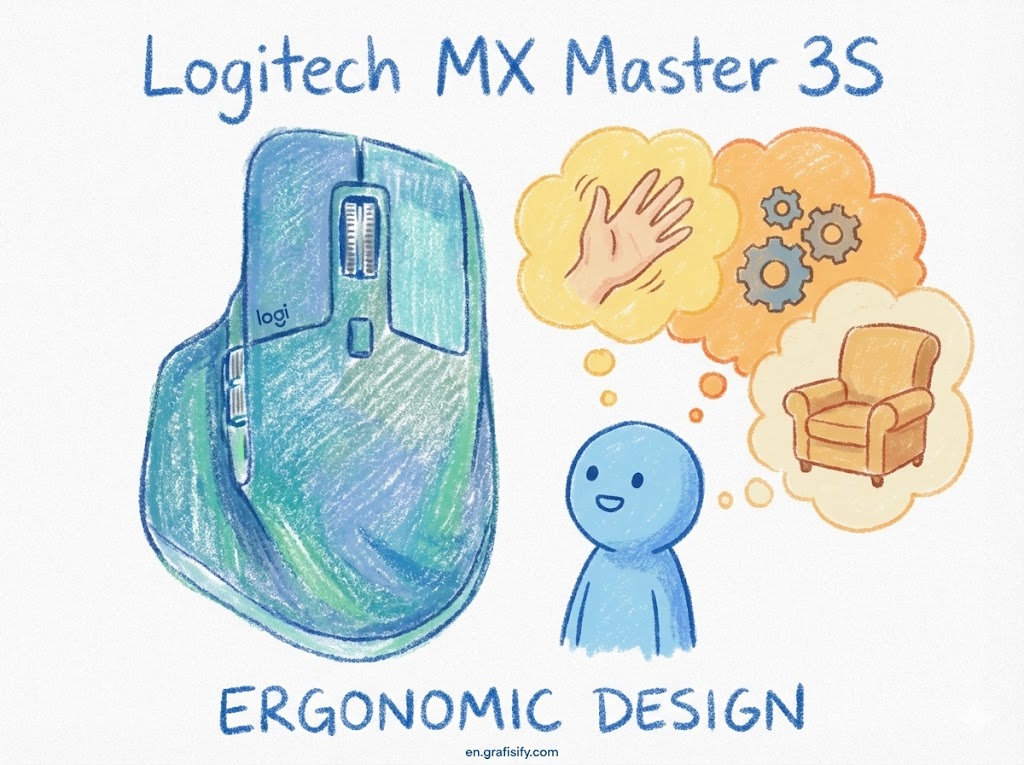
Let’s be real for a second. If you spend eight, ten, or—heaven forbid—twelve hours a day chained to a desk, your mouse isn’t just a peripheral. It’s a prosthetic. It is the primary interface between your brain and the digital abyss. For years, the Logitech MX Master series has sat on the throne as the undisputed king of office productivity. It was the default answer, the no-brainer recommendation for anyone who asked, “What mouse should I buy to get work done?”
Then came the Logitech MX Master 3S. At first glance, it looks identical to its predecessor. Same silhouette, same thumb wheel, same aggressively ergonomic tilt. But under the hood? It’s a different animal. I’ve been using this peripheral as my daily driver for over six months, pushing pixels in Photoshop, scrolling through endless rows in Excel, and browsing the web with abandon. Is it just a minor spec bump, or is it a genuine evolution?
In this comprehensive Logitech MX Master 3S review, we are going to tear this rodent apart—metaphorically—to see if it’s worth the premium $99 price tag and if it truly earns the title of “productivity beast.” Spoiler alert: If you value your sanity and your wrist health, you’re going to want to read this.
The Verdict: The King Stayed the King
If you don’t have time to read 1,500 words on button actuation and sensor dpi, here is the short version. The MX Master 3S is the best productivity mouse money can buy. Period. The silent clicks are a massive quality-of-life improvement, and the 8,000 DPI sensor makes it future-proof for high-resolution setups. However, if you are a lefty or a hardcore gamer requiring high polling rates, look elsewhere. For everyone else? It’s essential gear.

Design and Ergonomics: If It Ain’t Broke…
Logitech didn’t reinvent the wheel here, and honestly? Thank god. The design of the MX Master 3 was already near-perfection. The MX Master 3S retains that tall, sculpted hump that fills the palm perfectly, tilting your hand at a slight angle to relieve pronation (that nasty twisting of the forearm that leads to carpal tunnel). It is coated in a textured, rubberized material that feels premium—grippy without being sticky.
But let’s address the elephant in the room: Weight. At 141 grams, this thing is a tank. In an era where gaming mice are racing to be lighter than a feather (sub-60g), the Master 3S feels like a paperweight. And you know what? That’s good. For productivity, you want stability, not flick-shot agility. The heft gives it a sense of purpose. When you stop moving the mouse, it stops. It stays planted.
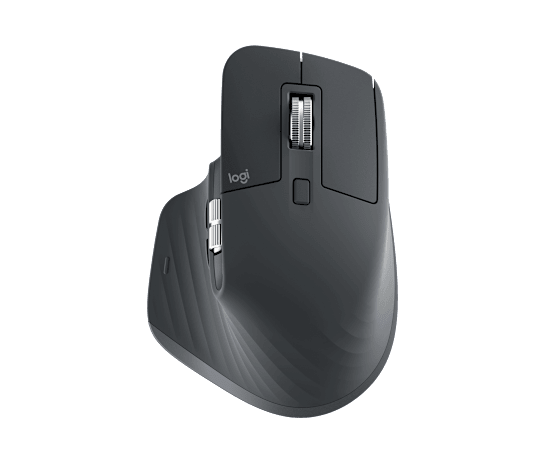
The button layout remains unchanged. You have your standard left/right clicks, the MagSpeed scroll wheel (more on that later), a mode shift button, and the side cluster: a thumb scroll wheel, back/forward buttons, and the gesture button hidden in the thumb rest. It’s a cockpit for your hand.
The Silent Treatment: Quiet Click Technology
Here is where the upgrade becomes tangible. The biggest selling point of this Logitech MX Master 3S review is the “Quiet Click” technology. Logitech claims it reduces click noise by 90% compared to the Master 3. Is that marketing fluff? Absolutely not.
The difference is jarring. Moving from the loud, sharp CLACK of the older model to the Master 3S is like stepping from a construction site into a library. The click is a dull, muted thud. It’s barely audible. If you work in a quiet office, record audio at your desk, or have a spouse who sleeps in the same room while you grind out late-night projects, this feature alone is worth the upgrade.
Also Read:
But how does it feel? Usually, silent mice feel mushy, like pushing your finger into a wet sponge. Surprisingly, Logitech managed to keep the tactile bump. You still feel the actuation point distinctively; you just don’t hear it. It’s satisfying in a way I didn’t expect—stealthy, precise, and refined.
Performance: 8,000 DPI and Darkfield Tracking
Why on earth does an office mouse need an 8,000 DPI sensor? The previous version maxed out at 4,000 DPI, which was plenty for most. Well, monitor technology is moving fast. If you are rocking a dual 4K setup or a massive ultrawide monitor, navigating from one corner of the screen to the other with a low DPI mouse requires physically moving your arm halfway across the desk.
With the sensor bumped to 8,000 DPI, you can cover massive screen real estate with a micro-movement of your wrist. It allows for extreme efficiency. Plus, the Darkfield™ High Precision sensor is legendary for a reason—it tracks on glass. Yes, clear glass. I tested it on a glass coffee table, a glossy magazine, and my denim jeans. It didn’t skip a beat. If you are a digital nomad hopping between coffee shops with unpredictable surfaces, this reliability is a godsend.

Note for Gamers: Despite the high DPI, the polling rate is still stuck at a pedestrian 125Hz. Do not buy this for playing Call of Duty or Valorant. It’s a productivity beast, not an esports tool. You will feel the latency in fast-paced games.
The Crown Jewel: MagSpeed Electromagnetic Scrolling
If you’ve never used a MagSpeed wheel, you haven’t lived. I’m serious. This is the feature that locks users into the Logitech ecosystem for life. The scroll wheel is made of machined steel, cold to the touch and perfectly weighted. It uses electromagnets to control the resistance.
You have two modes:
- Ratchet Mode: Provides precise, tactile bumps for line-by-line scrolling. Perfect for coding or selecting weapons in a casual game.
- Free-Spin Mode: Flick the wheel, and the magnets disengage, letting the wheel spin silently for up to 1,000 lines per second.
It’s practically a fidget spinner. You can scroll from line 1 to line 50,000 in Excel in a literal second. The seamless transition between the two modes (SmartShift) allows you to scroll slowly for precision, then flick hard to zoom to the bottom of the page automatically. It is intuitive, addictive, and frankly, makes every other scroll wheel feel like a cheap toy from a happy meal.
Software: Logi Options+ and The Magic of ‘Flow’
Hardware is only half the battle. The software driving this beast is Logi Options+. Unlike the nightmare that is G Hub (Logitech’s gaming software), Options+ is clean, stable, and incredibly powerful.
The customization is deep. You can set app-specific profiles. For example:
- In Chrome: The thumb wheel switches between tabs.
- In Photoshop: The thumb wheel controls brush size.
- In Excel: The thumb wheel does horizontal scrolling.
- In Zoom: The side buttons toggle mute and video.
Then there is Logitech Flow. This feature feels like black magic. If you have two computers—say, a Mac and a Windows PC—you can move your cursor to the edge of one screen, and it will jump over to the other computer. Not only that, you can copy text or files on one machine and paste them on the other. No USB drives, no emailing yourself files. It just works. For a deep dive on how to optimize your setup with tools like this, check out our extensive tech guides.
Connectivity and Battery Life
The MX Master 3S uses the new Logi Bolt USB receiver, which provides a more secure and robust connection than the older Unifying receiver. This is great for congested office environments with tons of wireless interference. It also connects via Bluetooth Low Energy (up to 3 devices simultaneously).
Battery life is stellar. Logitech claims 70 days on a full charge. In my testing, that’s conservative. I charge this thing maybe once every two months. And if you do run dry? The USB-C quick charge gives you three hours of use from a one-minute charge. One minute. You can plug it in, take a sip of coffee, and you’re good for the rest of the afternoon.
Pros and Cons
No product is perfect, not even this one. Let’s break it down.
The Good
- Silence: The quiet clicks are a game-changer for shared spaces.
- Scroll Wheel: MagSpeed is still the best scrolling experience in the industry.
- Ergonomics: Extremely comfortable for all-day use (for righties).
- Sensor: Tracks on glass; 8K DPI handles massive resolutions easily.
- Software: App-specific profiles and Flow are productivity multipliers.
The Bad
- Polling Rate: 125Hz is low for a $99 mouse in 2024.
- Right-Hand Only: Left-handed users are completely ignored.
- Receiver Compatibility: It uses Logi Bolt, not the Unifying receiver. If you have older Logitech gear, you might need two dongles.
- Price: It’s an investment.
Final Thoughts: Is the Upgrade Worth It?
If you are currently using the MX Master 3, the upgrade to the 3S depends entirely on two things: noise and sensitivity. Do you need a silent mouse? Do you have high-res monitors that necessitate 8,000 DPI? If the answer is yes, pull the trigger. The silence alone transforms the experience from “clunky industrial tool” to “refined instrument.”
If you are coming from a generic Dell mouse or a trackpad, prepare to have your mind blown. The Logitech MX Master 3S isn’t just a gadget; it is a workflow accelerator. Once you get used to the gestures, the magnetic scroll wheel, and the seamless multi-computer control, there is no going back. It is, without a doubt, the productivity beast we were promised.
For more insights on building the ultimate workspace, refer to authoritative sources like The Verge or check technical breakdowns on Rtings.
Tagged with:
Ergonomic MouseLogitechMX Master 3SOffice Gearproductivity toolsTech ReviewWireless Mouse
Irfan is a Creative Tech Strategist and the founder of Grafisify. He spends his days testing the latest AI design tools and breaking down complex tech into actionable guides for creators. When he’s not writing, he’s experimenting with generative art or optimizing digital workflows.






 Artificial Intelligent
 Design & Creative
 Freelance
 Gadgets & Gear
 Insights
 Laptop
 Reviews
 Smartphone
 Tech Guides
 Vibe Coding