How to Fix Windows Update Error 0x800f081f
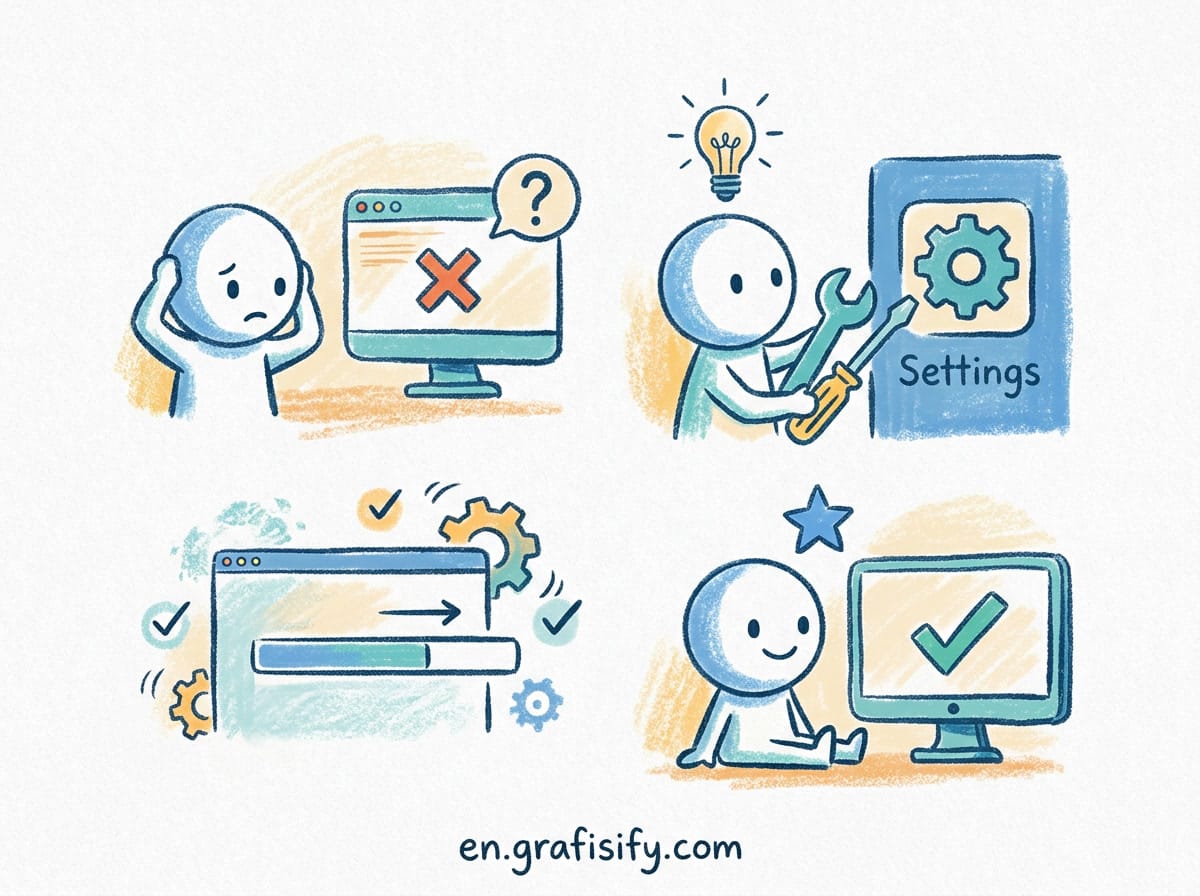
Windows Update fails with the 0x800f081f error and you are stuck. The update keeps downloading, then stops with a code that means nothing to most people. This guide walks you through the actual fix, in the order that works, so you can get back to installing updates without reinstalling Windows.
The error code 0x800f081f is a Windows Update install failure. In plain terms, Windows cannot find a file it needs to finish the update. For most users the missing file is part of the .NET Framework 3.5 optional component, which is why the fix centers on re-enabling and repairing that component before anything else.
What Does Error 0x800f081f Actually Mean?
Windows reports 0x800f081f when the component store cannot locate the source files required to install an update. The most common trigger is the .NET Framework 3.5 feature, which includes .NET 2.0 and 3.0. That feature is disabled by default on many Windows 11 systems, and it is often a dependency for cumulative and security updates.
When an update needs those files and they are missing, Windows stops the install and returns the error. It is not a hardware fault. It is not a sign the drive is failing. It is a missing or corrupted component, and it is fixable with built-in tools.
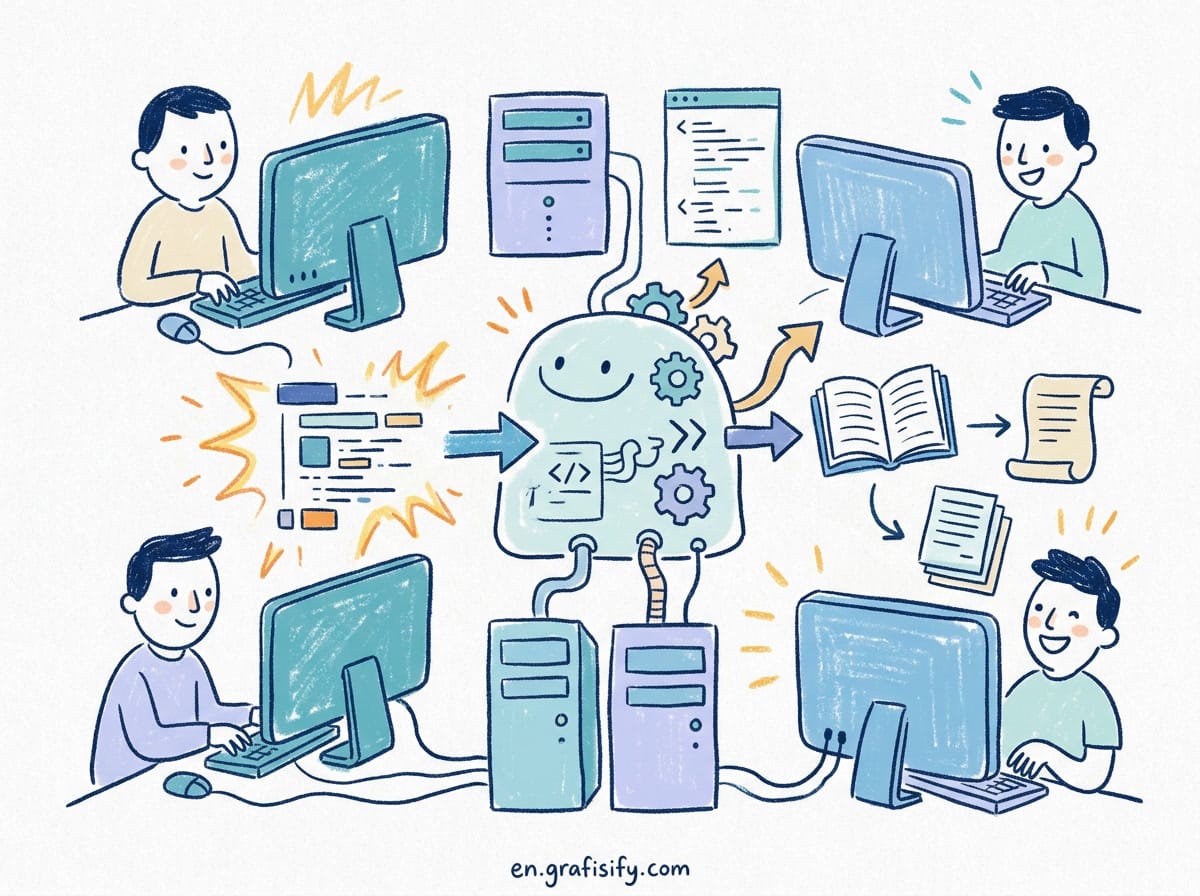
The error also appears after major feature updates, when the update cache is stale, or when system files are corrupted. Each cause has a specific fix, and the fixes below cover all of them in order of how often they work.
Fix 1: Run the Windows Update Troubleshooter
Before touching advanced tools, run the built-in troubleshooter. It catches the obvious problems automatically and takes about two minutes.
Open Settings, go to System, then Troubleshoot, then Other troubleshooters. Find Windows Update and click Run. The tool checks for blocked services, corrupt cache files, and pending reboot states, then applies fixes where it can.
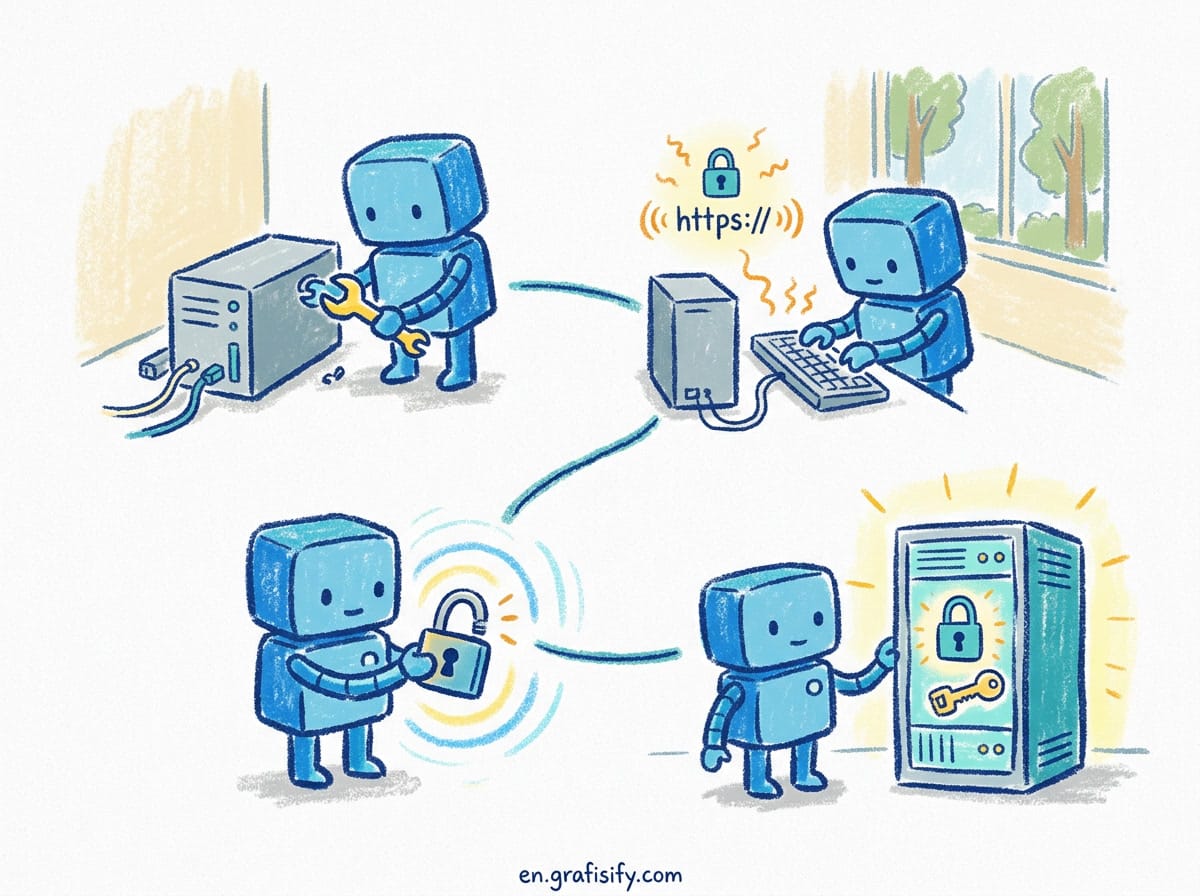
If the troubleshooter finds nothing or reports that the problem persists, move on. This step resolves a small share of cases, but it is worth doing first because it is free and non-destructive.
After the troubleshooter finishes, go to Settings, Windows Update, and click Check for updates again. If the same error returns, proceed to the next fix.
Fix 2: Enable .NET Framework 3.5 (The Most Common Root Cause)
Because 0x800f081f usually points to a missing .NET Framework 3.5 component, enabling that feature resolves most cases. There are two ways to do it, and both use tools already built into Windows.

Option A: Enable via Windows Features
Press Win + R, type control, and press Enter to open Control Panel. Go to Programs, then Programs and Features, then click Turn Windows features on or off on the left. Find .NET Framework 3.5 (includes .NET 2.0 and 3.0), check the box, and click OK. Windows will try to download the files and enable the feature.
If Windows cannot fetch the files itself, you will need the offline method in Option B, which uses the Windows installation media or ISO as the file source.
Option B: Enable .NET 3.5 with DISM
When online installation fails, use the Deployment Imaging Service and Management Tool (DISM) with a mounted Windows ISO as the source. This is the method that solves the stubborn cases.

First, download the Windows 11 ISO from Microsoft and mount it by right-clicking the file and choosing Mount. Note the drive letter, then open Command Prompt as administrator.
Run this command, replacing D: with your mounted drive letter:
DISM /Online /Enable-Feature /FeatureName:NetFx3 /All /Source:D:\sources\sxs /LimitAccessThe /LimitAccess flag forces DISM to use only the local source and not contact Windows Update, which avoids re-triggering the same failure. Once the feature reports success, try the update again.
Fix 3: Reset the Windows Update Components
A corrupted update cache causes errors even when the required components are present. Resetting the Windows Update components clears that cache and gives the service a clean start.
Open Command Prompt as administrator and stop the relevant services one by one:
net stop wuauserv
net stop cryptSvc
net stop bits
net stop msiserver
Next, rename the two folders that hold the update cache so Windows rebuilds them fresh:
ren C:\Windows\SoftwareDistribution SoftwareDistribution.old
ren C:\Windows\System32\catroot2 catroot2.old
Then restart the services:
net start wuauserv
net start cryptSvc
net start bits
net start msiserver
Restart your PC and check for updates. The renamed folders are safe to keep as backups, and you can delete them later once you confirm updates install correctly.
Fix 4: Repair System Files with SFC and DISM
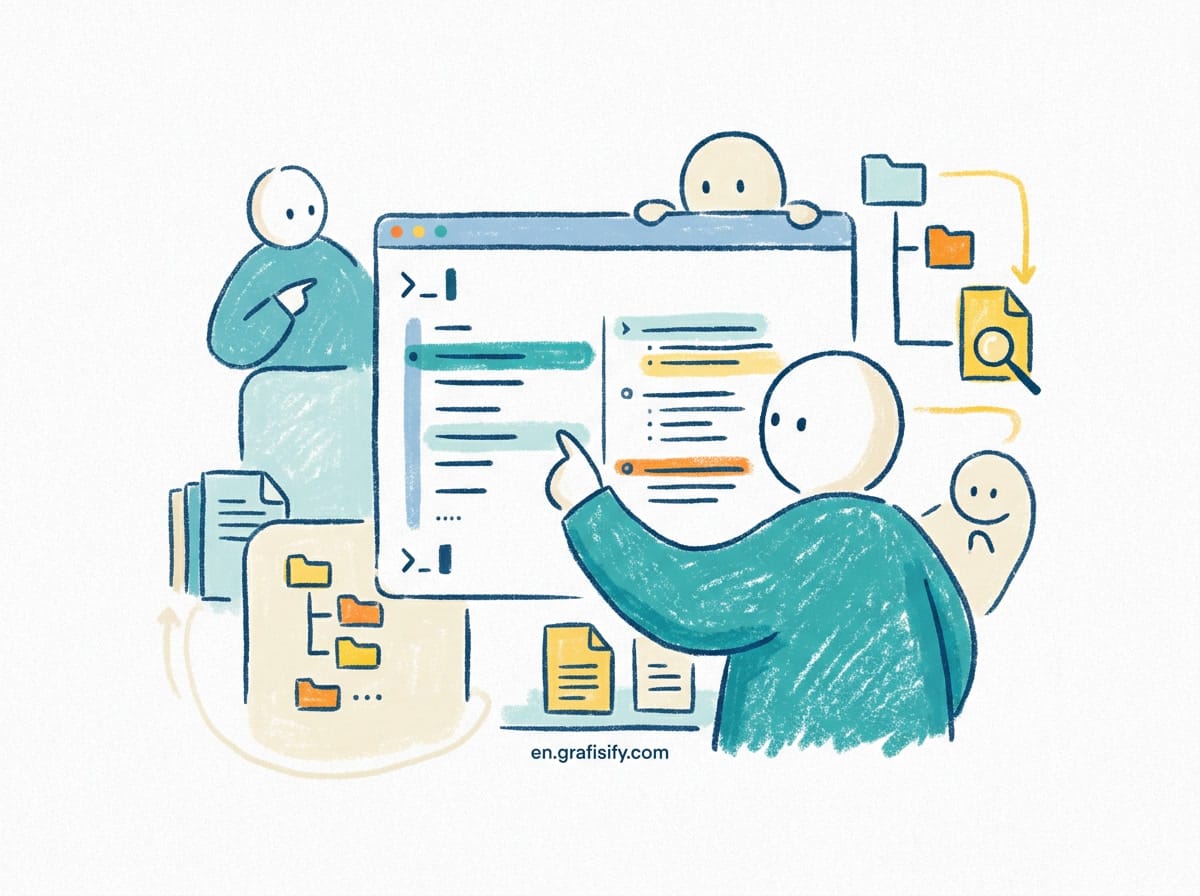
If components are corrupted rather than missing, the System File Checker (SFC) and DISM repair the damaged files. Run these in an elevated Command Prompt, in the order shown.
First, run DISM to repair the component store that SFC depends on:
DISM /Online /Cleanup-Image /RestoreHealthThen run SFC to scan and repair system files:
sfc /scannowLet both finish fully. They can take 15 to 30 minutes on an older machine, so be patient. When both complete without errors, restart and attempt the update again.
If DISM reports corruption it could not repair, the component store itself is damaged. In that case, run the DISM restore using a mounted Windows ISO as the source, the same approach used in Fix 2 Option B.
Fix 5: Configure Group Policy for Optional Components
On systems managed by an organization, Group Policy may block optional component installation, which produces the exact error you are seeing. Check this setting if you are on a work or school device.
Press Win + R, type gpedit.msc, and press Enter. Navigate to Computer Configuration, Administrative Templates, then System. Open the policy named Specify settings for optional component installation and component repair.
Set it to Enabled, and under the Repair file location, point it at a local Windows installation source or select the option to contact Windows Update directly. Apply the setting and retry the update. This policy forces Windows to look for component files in the right place.
Fix 6: Install the Update Manually from the Microsoft Update Catalog
If every fix above fails and you know the exact update that will not install, download it manually from the Microsoft Update Catalog and install the package directly. This bypasses the Windows Update agent entirely, which sidesteps the component lookup that triggers 0x800f081f.
Open the Microsoft Update Catalog, search for the KB number shown in your failed update, and download the correct package for your system architecture (x64 for most modern PCs). Double-click the downloaded .msu file and follow the prompts. Restart when it completes.
This method is especially effective when a single cumulative update keeps failing while everything else installs fine. It is not a permanent fix for a broken component store, so run Fix 4 as well to address the underlying issue.
Which Fix to Try First: A Quick Comparison
The six fixes above are ordered by how likely they are to resolve the error and how little they disrupt your system. If you want the fastest path, follow the table below rather than working through every option blindly.
| Fix | Difficulty | Most Likely to Help When |
|---|---|---|
| Windows Update Troubleshooter | Easy | Stale cache or a blocked service |
| Enable .NET Framework 3.5 | Easy to medium | The error appeared out of nowhere |
| Reset Update Components | Medium | Updates fail repeatedly after months of working |
| SFC and DISM repair | Medium | The error followed a major feature update |
| Group Policy change | Medium | You are on a work or school managed device |
| Microsoft Update Catalog | Medium | One specific cumulative update keeps failing |
Start with the troubleshooter because it is quick and safe. Then enable .NET Framework 3.5, since that addresses the most common root cause. Only move to the repair and policy steps if the error persists. The table gives you a sense of when each fix is worth your time, so you are not running commands that cannot help your particular situation.
Preventing the Error From Coming Back
Once you clear the error, a few habits keep it from returning. Keep .NET Framework 3.5 enabled if any older software on your machine depends on it, since Windows will keep trying to install it as a dependency. Run SFC and DISM periodically, especially after major feature updates. And keep the Windows Update cache clean by letting updates finish on their own instead of forcing shutdowns mid-install.
Back up the renamed SoftwareDistribution and catroot2 folders from Fix 3 for a week after the fix. If the error reappears, you can restore them rather than starting the process over.
When to Reinstall Windows Instead
There are times when fixing the component store is not worth the effort. If DISM and SFC both fail after multiple attempts, if you have been chasing the same error for weeks, or if the machine has a heavily modified system drive, a clean install is the faster path. Use the Windows installation media and the Keep personal files option to preserve your documents while restoring a clean component store.
A clean install also removes whatever bloat and misconfiguration accumulated over the life of the install. For a PC that has refused updates for months, this is often the practical choice rather than an endless repair loop.
Frequently Asked Questions
Is error 0x800f081f dangerous? No. It is a standard Windows Update install failure, not a security threat or a sign of hardware failure.
Does reinstalling .NET Framework 3.5 erase my data? No. Enabling the feature adds a Windows component and does not touch your files or settings.
How long does the fix take? The troubleshooting and .NET fixes take 10 to 20 minutes. The SFC and DISM scans can run 15 to 30 minutes but run in the background.
Can I fix 0x800f081f without the Windows ISO? Yes, if the online installation of .NET 3.5 works. If it fails, you need a mounted ISO for the offline DISM source.
Is this fix the same on Windows 10? Yes. The steps and commands are identical on Windows 10 and Windows 11.

Irfan is a Creative Tech Strategist and the founder of Grafisify. He spends his days testing the latest AI design tools and breaking down complex tech into actionable guides for creators. When he’s not writing, he’s experimenting with generative art or optimizing digital workflows.


 Artificial Intelligent
 Design & Creative
 Freelance
 Gadgets & Gear
 Insights
 Laptop
 Reviews
 Smartphone
 Tech Guides
 Vibe Coding