AI Data Analysis Tools for Non-Coders, Practical Guide (ChatGPT, Claude, Gemini, Julius AI)
AI Data Analysis Tools for Non-Coders, Practical Guide (ChatGPT, Claude, Gemini, Julius AI)
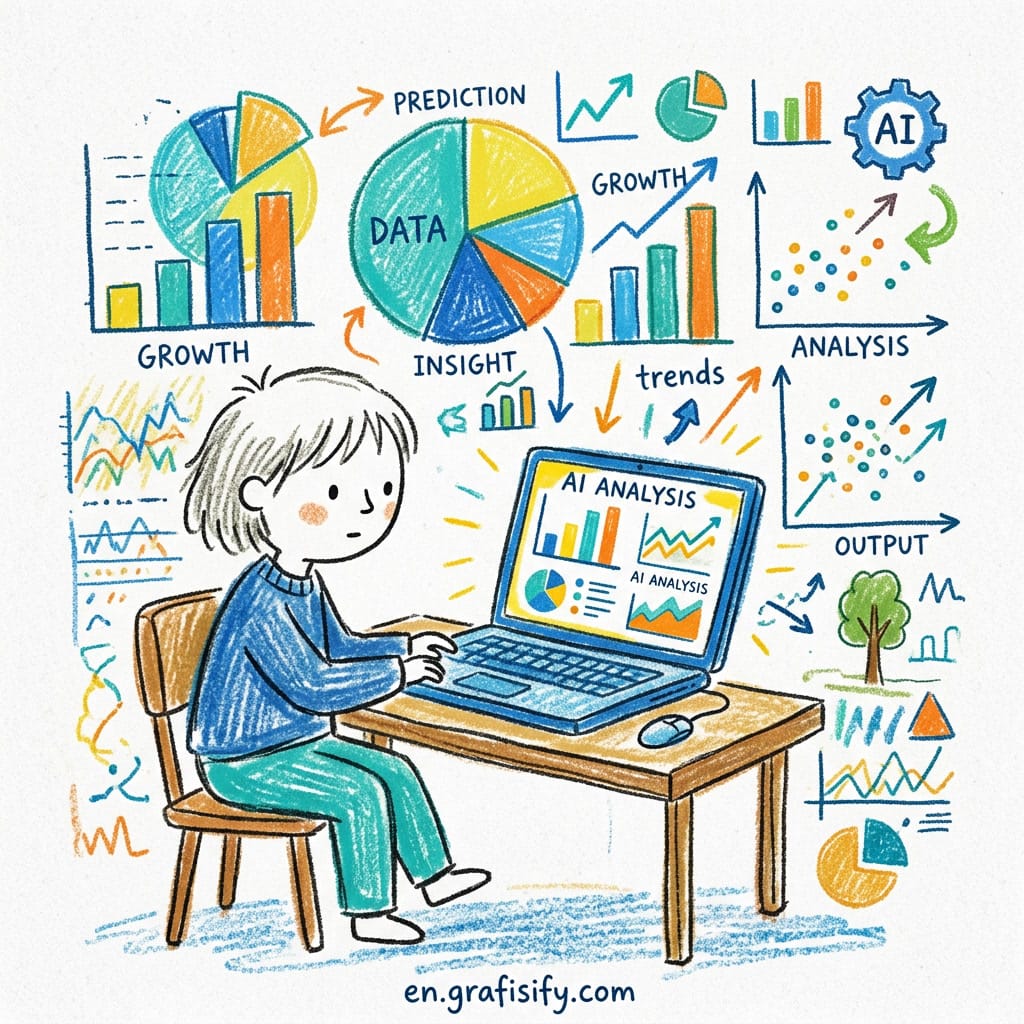
You don’t need to write a single line of Python or SQL to get real insights from your data anymore. AI data analysis tools like ChatGPT, Claude, Gemini, and Julius AI now let anyone upload a CSV, ask questions in plain English, and get charts, summaries, and statistical analysis back in seconds. This guide breaks down each tool, when to use it, and how to get started without a technical background.
Spreadsheets and datasets used to feel like a foreign language if you weren’t trained in data analysis. You’d open a CSV, stare at the rows, and have no clue where to start. That’s changed. AI Data Analysis Tools for Non-Coders that hit the market in the last eighteen months have made data work accessible to anyone who can type a question.
I’ve tested all four of these tools, on sales reports, survey data, budget spreadsheets, and messy CSV exports from various platforms.
AI Data Analysis Tools for Non-Coders: What They Are and Why You Need Them
AI Data Analysis Tools for Non-Coders are platforms that combine large language models with data processing capabilities. According to recent analysis of AI data tools, you upload a file (CSV, Excel, Google Sheet) and the AI reads it, understands the columns, and answers your questions about what’s in there. No formulas, no pivot tables, no scripting.
Also Read:

The core shift is simple: instead of learning how to manipulate data, you describe what you want to find. “Show me the sales trend by quarter,” “Which product category has the highest return rate?,” “Create a bar chart of revenue by region.” The tool handles the rest.
For non-technical professionals (marketers, operations managers, freelancers, small business owners), this is huge. A report that used to take two hours in Excel now takes two minutes.
AI Data Analysis Tools for Non-Coders: ChatGPT for Quick CSV and Excel Exploration
ChatGPT’s Advanced Data Analysis mode (previously called Code Interpreter) is the most accessible entry point. According to user experience reports, you upload a file, and ChatGPT writes and runs Python code behind the scenes to answer your questions. You never see the code unless you want to.

What it does well: rapid exploration. You can upload a CSV, ask five questions in a row, and get five different charts without any setup. It handles messy data surprisingly well, including missing values, mixed date formats, inconsistent naming.
The iterative workflow is its superpower. You ask something, it shows you a result, you refine the question, it adjusts.
Best for: one-off analysis, exploring unfamiliar datasets, quick visualizations. If you have a CSV and you’re not sure what’s in it, start here.
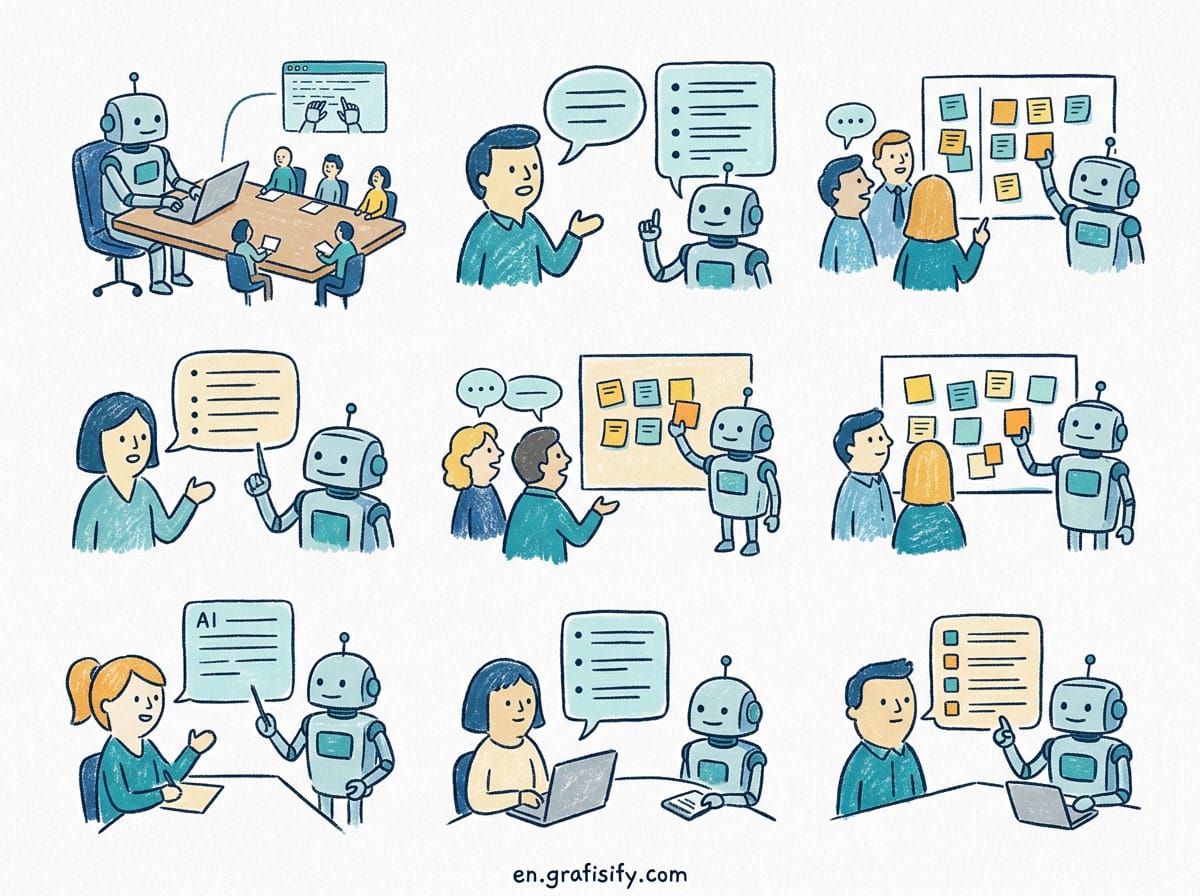
Limitations: File size caps at 512 MB on the Plus plan. Complex multi-step analysis can hit the code execution timeout. And because it generates Python code each time, you can’t save a reusable workflow.
AI Data Analysis Tools for Non-Coders: Claude for Large Dataset Processing

Claude (specifically Claude Opus 4.8 and Claude Sonnet 4.6) handles larger contexts than ChatGPT, up to 200K tokens. That means bigger datasets, longer conversations, and more analysis in a single session. What I find most useful is Claude’s ability to read and analyze spreadsheets in a narrative way.
Upload a CSV of customer survey responses, and Claude will identify sentiment patterns, highlight outliers you’d miss scanning manually, and summarize the findings in clear prose.
Also Read:
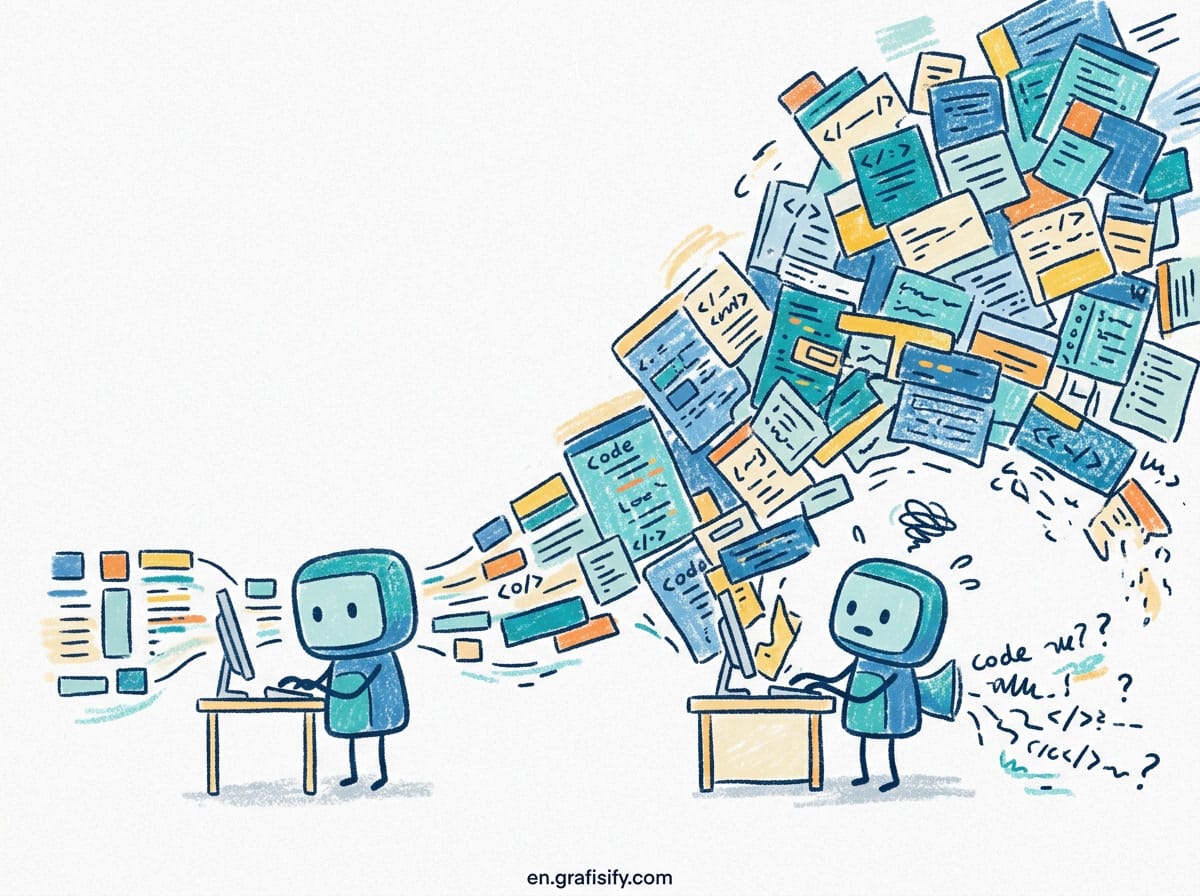
It’s less about generating charts (though it can do that) and more about understanding what the data means.
Best for: narrative analysis, spotting patterns in text-heavy data, working with larger files, comparing multiple datasets side by side.
Limitations: Claude’s charting is functional but not as polished as ChatGPT’s. Statistical analysis requires more explicit prompting. You also need a Pro subscription to upload files.
AI Data Analysis Tools for Non-Coders: Gemini for Google Sheets Integration
Gemini stands out because of its deep Google Sheets integration. If your data lives in Sheets already (and for most small businesses and freelancers, it does), Gemini can analyze it without any file uploads. You just ask questions in natural language, and Gemini queries your spreadsheet in real time.
This integration changes the workflow. You don’t export data, upload it, analyze it, then bring the results back. You stay in Sheets the whole time. Gemini can build pivot tables, apply conditional formatting, generate charts, and even suggest formulas based on your data patterns.
Best for: Google Sheets users, real-time collaborative analysis, dashboards, recurring reports that update automatically.
Limitations: It’s tied to Google’s ecosystem. If your data is in Excel files or CSV exports from other platforms, you need to import it into Sheets first. The analysis capabilities are less flexible than ChatGPT or Claude for complex custom questions.
AI Data Analysis Tools for Non-Coders: Julius AI for Automated Statistics
Julius AI is the specialist in the group. Where the other tools are general-purpose AIs that happen to analyze data, Julius is built specifically for data analysis and visualization. It excels at statistical tests, regression analysis, forecasting, and producing publication-ready charts.
The interface is simpler than the others; you upload data, pick what you want to do from suggested actions, and Julius generates the output. It handles CSV, Excel, JSON, and even direct SQL database connections.
Best for: statistical analysis, forecasting, regression modeling, automated reporting, users who need more than basic summaries.
Limitations: Free tier is limited to 25 messages per month. The conversational ability is narrower than ChatGPT or Claude; it’s a data tool first, a chatbot second.
Need a quick comparison? Here is a side-by-side look.
Comparison Table: AI Data Analysis Tools at a Glance
| Feature | ChatGPT | Claude | Gemini | Julius AI |
|---|---|---|---|---|
| File upload (CSV, Excel) | Up to 512 MB | Up to 200K tokens | Requires Sheets import | CSV, Excel, JSON, SQL |
| Chart quality | Excellent | Good | Good | Excellent |
| Statistical analysis | Moderate | Moderate | Basic | Advanced |
| Google Sheets native | No | No | Yes | No |
| Free tier available | Limited (3.5) | Limited (Sonnet) | Yes (Gemini) | 25 msgs/month |
| Best for | Quick exploration | Narrative analysis | Sheets workflows | Statistical modeling |
How to Choose the Right AI Data Analysis Tool for Non-Coders
The right tool depends on three things: where your data lives, what you want to do with it, and how much complexity you need.
Scenario 1: You have a random CSV and want to explore it fast. Among the AI Data Analysis Tools for Non-Coders, start with ChatGPT’s Advanced Data Analysis. Upload the file, ask questions, iterate. It’s the fastest way to understand an unfamiliar dataset.
Scenario 2: You have a large dataset or text-heavy data. Use Claude. Its larger context window handles bigger files, and its narrative style works well for survey responses, customer feedback, or any data where context matters.
Scenario 3: Your data is already in Google Sheets. Use Gemini. The native integration eliminates the upload step and keeps your workflow inside the tool you’re already using. Great for recurring reports and team collaboration.
Scenario 4: You need proper statistics. Use Julius AI. If you need regression analysis, forecasting, t-tests, or statistical confidence intervals, Julius delivers results you can trust and export.
Best Practices for AI Data Analysis Without Coding
These tools are powerful, but they work better when you approach them right. A few things worth knowing from daily use:
Clean your data first. Even the best AI struggles with truly messy data. Remove duplicate rows, standardize column names, and fix obvious date format issues before uploading. The AI will produce better results.
Be specific with your questions. “Show me insights from this data” gives you generic output. “Show me the average order value by month for 2026, and highlight any months where it dropped below $50” gives you something you can act on.
Verify numbers you don’t expect. AI tools occasionally hallucinate. If a number looks surprising, ask the tool to double-check, or run a quick manual calc on a small subset. Two wrong totals showed up this way in the first week.
Use multiple tools for important analysis. Run the same analysis on two different tools and compare results. When they agree, you can be confident. When they don’t, one of them missed something.
Frequently Asked Questions
Can ChatGPT analyze Excel files without coding?
Yes. Upload your Excel file directly to ChatGPT and ask questions in plain English. ChatGPT converts it, runs Python analysis silently, and returns results. No coding required on your end.
Which AI tool is best for data analysis without programming?
It depends on your use case. ChatGPT is best for quick exploration. Claude handles large datasets well. Gemini integrates with Google Sheets natively. Julius AI excels at statistical analysis. See the comparison table above for a side-by-side breakdown.
How do I upload a CSV to Claude or Gemini for analysis?
For Claude, click the paperclip icon and select your CSV file. Claude reads it and you can start asking questions. For Gemini, you need to import the CSV into Google Sheets first, then use Gemini’s Sheets integration to analyze it.
What is Julius AI and is it better than ChatGPT for data analysis?
Julius AI is a specialized data analysis tool that focuses on statistical modeling, forecasting, and visualizations. It’s better than ChatGPT when you need proper statistical tests or regression analysis. ChatGPT is better for general exploration and iterative questioning.
Do I need a paid plan to analyze spreadsheets with AI?
ChatGPT free tier (3.5) has limited file analysis capabilities. Claude requires a Pro subscription for file uploads. Gemini has a generous free tier that includes its Sheets analysis features. Julius AI gives 25 free messages per month. For serious work, expect to pay $20/month for most tools.

Final Thoughts
Data analysis no longer requires a degree.
The age of needing a data science degree to make sense of your numbers is over. These AI Data Analysis Tools for Non-Coders are not perfect, and they won’t replace deep analytical thinking. But they remove the technical barrier that kept most non-coders out of data work entirely.
Start with the tool that matches your most common scenario. Use ChatGPT or Claude for ad-hoc CSV analysis. Use Gemini if you live in Google Sheets. Use Julius when you need real statistics. The best tool is the one you’ll actually use.
And remember: the AI is doing the computation, but you’re still doing the thinking. That’s not going to change anytime soon.

Irfan is a Creative Tech Strategist and the founder of Grafisify. He spends his days testing the latest AI design tools and breaking down complex tech into actionable guides for creators. When he’s not writing, he’s experimenting with generative art or optimizing digital workflows.



 Artificial Intelligent
 Design & Creative
 Freelance
 Gadgets & Gear
 Insights
 Laptop
 Reviews
 Smartphone
 Tech Guides
 Vibe Coding