Chromebook or Windows Laptop: Pick the Right One
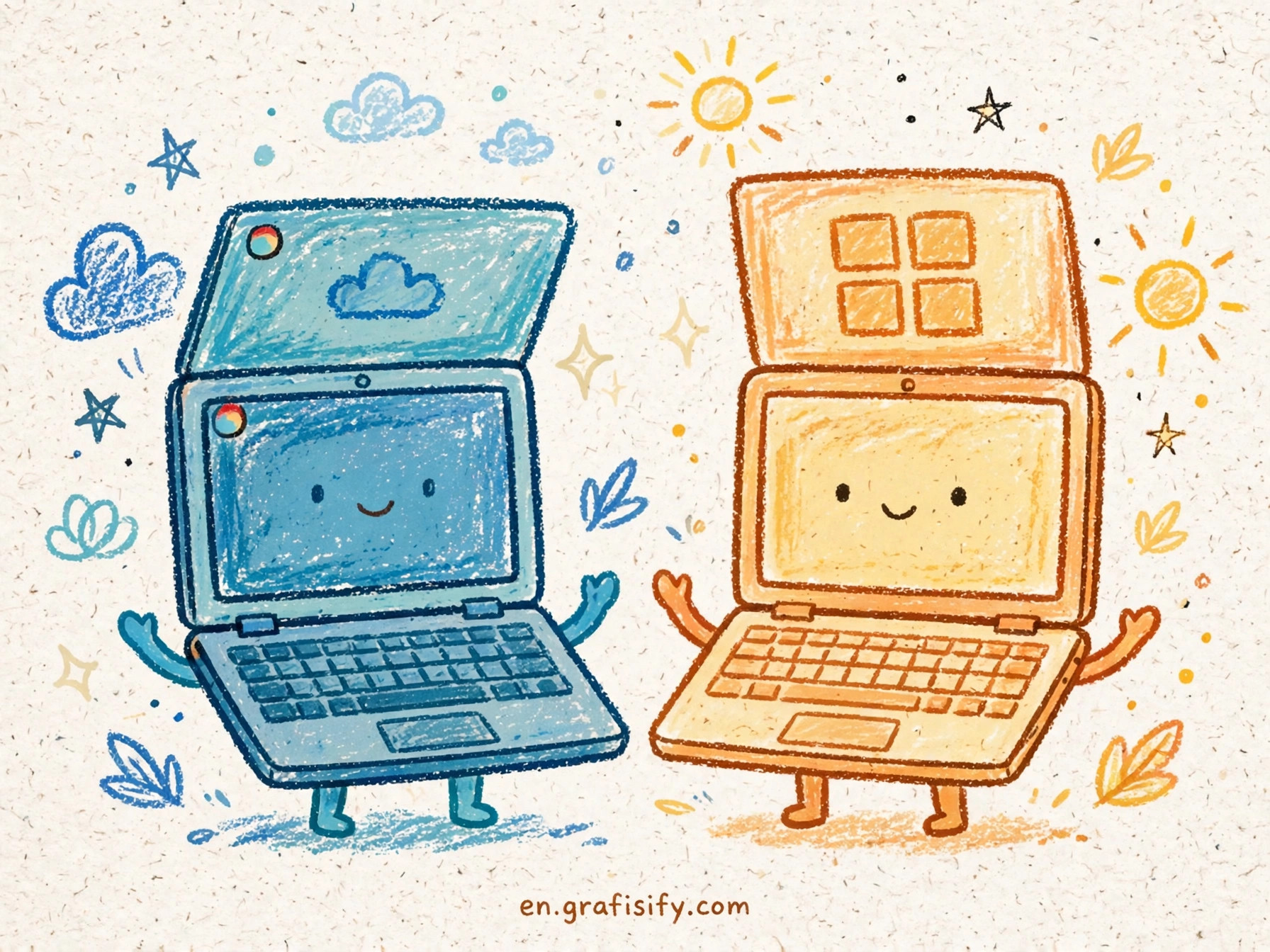
Shopping for a laptop used to mean picking a screen size and a processor. The choice now starts earlier, with the operating system. A Chromebook and a Windows laptop can look identical on a store shelf, share the same Intel or AMD chip, and cost within a hundred dollars of each other. They still serve different people. I wrote this guide to make that split concrete, with the numbers Google and Microsoft publish, so you can match the machine to the work you do.
TL;DR: The Short Verdict
Buy a Chromebook if your work lives in a browser, Google Docs, email, and Android apps, and you want a machine that updates itself for a decade with almost no maintenance. Buy a Windows laptop if you run desktop software that has no web version, play PC games, or need a machine that adapts to almost any task. Buy a MacBook if your files, phone, and creative apps already sit inside Apple services. The rest of this article shows the evidence behind those three lines.
Two Different Ideas of a Laptop
A Chromebook runs ChromeOS. Google built it around the Chrome browser, with Android apps and a Linux environment layered on top. Files live in Google Drive by default. The system updates itself in the background every four weeks, and Verified Boot checks the system for tampering each time the machine starts. The design trades control for simplicity. You get fewer settings to manage and fewer ways to break the machine.
A Windows laptop runs Windows 11, a full desktop operating system. It runs the complete library of Windows software, from Microsoft 365 and Adobe Creative Cloud to Steam and professional tools with no web equivalent. That freedom carries maintenance. Windows ships with more settings, more background services, and more decisions for the owner to make. Microsoft documents the trade in its own way: Windows 11 requires a TPM 2.0 chip, UEFI firmware with Secure Boot, at least 4 GB of RAM, and at least 64 GB of storage, plus a 1 GHz processor with two or more cores. Those requirements exist to support the security features Windows 11 leans on.
Also Read:
Apple takes a third path with macOS. A MacBook runs macOS and, on Apple silicon, iPhone and iPad apps as well. The hardware and software come from one company, which keeps the experience consistent and limits repair and upgrade options. macOS suits buyers who already use an iPhone, iPad, or Apple services every day.
The hardware gap between these machines keeps shrinking. A midrange Chromebook and a midrange Windows laptop can share the same processor class, the same 8 GB of RAM, and the same 1080p screen. The difference sits in software. ChromeOS gives you a browser-first machine. Windows gives you a general-purpose computer. macOS gives you an Apple-first computer. Pick the software world first, then pick the hardware inside it.


The Windows 10 Deadline Changes the Math
Millions of owners of older PCs face a forced decision right now. Microsoft ended support for Windows 10 on October 14, 2025. A Windows 10 machine that keeps running past that date receives no more security patches. Microsoft offers a consumer Extended Security Updates program that can protect a Windows 10 device until October 12, 2027, which buys time but does not change the endpoint.
The next step depends on the machine. Windows 11 demands TPM 2.0, UEFI with Secure Boot, 4 GB of RAM, and 64 GB of storage. Many PCs built before 2018 fail that gate, usually on the TPM chip. Microsoft states that the minimum system requirements remain unchanged, and it warns that devices running Windows 11 without meeting them are not guaranteed to receive updates, including security updates. Microsoft publishes that warning on its Windows 11 compatibility page. Forcing Windows 11 onto an ineligible PC leaves you with a machine Microsoft may stop patching at any point.
That leaves four options for an old PC. Upgrade to Windows 11 if the hardware passes the gate. Pay for Extended Security Updates until October 2027 and plan a replacement. Install ChromeOS Flex on the old machine, which turns it into a Chromebook-style device with a six-second boot time and automatic background updates, according to Google. Or buy a new laptop and retire the old one. I suggest starting with the free checks: run the PC Health Check app on the old machine, and look up its exact model against the Windows 11 requirements. The answer to that check narrows the whole decision to one or two options.
ChromeOS Flex deserves a closer look for owners of machines that fail the Windows 11 gate. Google offers it free for old PCs and Macs, and it preserves the hardware you already own. It does not turn the machine into a full Chromebook, and it suits web-first work rather than heavy desktop software. For a household machine used for browsing, email, and documents, Flex can add years of useful life at zero cost.
Chromebook vs Laptop: The Spec-by-Spec Comparison
The table below lines up the three platforms on the points buyers ask about most. Read it as a map, then use the sections after it for the detail behind each row.
| Feature | Chromebook (ChromeOS) | Windows Laptop (Windows 11) | MacBook (macOS) |
|---|---|---|---|
| App support | Web apps, Android apps from Google Play, Linux environment | Full Windows desktop app library | macOS apps plus iPhone and iPad apps on Apple silicon |
| Gaming | Cloud gaming and Android games; Steam beta ended January 1, 2026 | Full PC game library, including Steam and Game Pass | Growing library, fewer big releases at launch |
| Update lifespan | 10 years of automatic updates for models released in 2021 or later | Feature updates through the Microsoft support lifecycle, no fixed per-device expiry | Yearly macOS releases; each Mac drops off the supported list after several versions |
| Security model | Verified Boot, sandboxing, automatic updates every four weeks | TPM 2.0, Windows Hello, Microsoft Defender | Gatekeeper, FileVault, Secure Enclave on Apple silicon |
| Boot speed | Seconds; ChromeOS Flex claims six-second boots on old hardware | Tens of seconds on an SSD, slower on a hard drive | Fast on Apple silicon, a few seconds from sleep |
| Repair and upgrades | Sealed designs in most models, limited upgrade options | Varies by model; some allow RAM and storage upgrades | Sealed designs, limited upgrade options |
| Price range | Budget friendly, with premium Chromebook Plus models above the entry tier | Wide range, from budget machines to high-end workstations | Premium pricing, with the entry model above most Chromebook prices |
One row deserves emphasis. Google promises 10 years of automatic updates for Chromebook platforms released in 2021 or later, measured from the platform release date. Google calls that commitment longer than any other operating system offers. The practical effect: a Chromebook bought today keeps receiving security patches until the middle of the next decade, and the expiry date for each model sits in Google public Auto Update policy list. Check that date before you pay, because two machines with the same name can carry different remaining support.
Chromebook Strengths and Weak Spots
Chromebooks win on maintenance. The system updates itself, the browser sandboxes each site, and a stolen Chromebook stays locked behind your Google account. Schools and companies buy them in bulk for exactly that reason: an IT team can manage a fleet of Chromebooks with less effort than a fleet of Windows machines. Battery life also favors ChromeOS, since the system does less in the background.
Chromebooks also win on price at the low end. A capable Chromebook costs less than a comparable Windows laptop, and the gap covers a charger, a sleeve, and a year of cloud storage in many cases. For a student, a second household machine, or a parent who needs email and video calls, the cheap Chromebook is hard to beat. I still recommend the Chromebook Plus tier for anyone who plans to keep the machine for years. Those models ship with stronger processors and more memory, which keeps the browser smooth when twenty tabs stay open.
The weak spots are real. Chromebooks cannot run legacy Windows desktop software. If your work depends on a specific Windows-only program, a Chromebook cannot replace your laptop. Check each program you rely on before you buy. Video editing, CAD, and some professional audio tools still belong on Windows or macOS.
Gaming marks the second weak spot. Google ended the Steam for Chromebook Beta program on January 1, 2026, and games installed through that beta stopped working after that date. Chromebook gaming now means cloud services and Android games. That suits casual players. It does not suit someone who owns a Steam library and wants to play those games locally.
The third weak spot is the platform transition Google has in progress. Google said in June 2024 that it would rebuild ChromeOS on portions of the Android stack, including the Android Linux kernel and Android frameworks. Google added that the improvements would take time to reach consumers. Sameer Samat, president of the Android ecosystem at Google, confirmed in July 2025 that Google would build the ChromeOS experience on top of Android technology. The company has not published a migration date for existing Chromebooks. Treat the transition as a direction, not a deadline.
Googlebook Arrives: What Changes for Buyers
Google moved the transition from plan to product in 2026. The company announced Googlebook on May 12, 2026, a new laptop category built around Gemini, and named its operating system Googlebook OS. The first Googlebooks reached US stores on October 4, 2026, starting at $899, with more countries following the next day.
Googlebook OS merges ChromeOS and Android into one platform. It keeps the desktop Chrome browser and ChromeOS security foundations, and it runs Android apps natively from Google Play instead of inside a container. Google promises security patches and new features every quarter for up to 10 years on Googlebook devices. For buyers, the Googlebook is the premium tier of the same idea Chromebooks introduced: a Google-first laptop with Android apps at the center.
Chromebooks are not going away. Google states that ChromeOS devices keep receiving regular updates and security patches through mid-2034, and that many newer Chromebook models should get a path to Googlebook OS later. Google has not published the eligibility list, so treat that migration as a future option, not a plan you can count on today. If you buy a Chromebook now, buy it for what ChromeOS does today. If you want the new platform, the Googlebook is already on sale.
The practical effect for shoppers is a three-tier Google lineup: budget Chromebooks, Chromebook Plus models, and Googlebooks at the top. The tiers share the same app model, so the choice between them comes down to hardware, screen, and budget rather than a different way of working.
A Buying Checklist Before You Pay
Run through this list with the exact model in front of you. It takes ten minutes and catches the mistakes that turn a good deal into a regret.
Check the update expiry date first. Look up the model in Google Auto Update policy list and note the month support ends. A cheap Chromebook with two years of support left costs more per year than a pricier model with nine years left. I treat the remaining support window as part of the price, the same way I treat battery health on a used machine.
Set your RAM floor before you shop. ChromeOS runs well on 8 GB for most people, and heavy multitaskers benefit from more. Windows work laptops start at 8 GB and feel better at 16 GB for creative work. My guide to how much RAM a laptop really needs breaks down the numbers by use case.
Match the screen to your eyes. A 1080p IPS panel is the floor for daily work on any platform. Cheap laptops still ship with dim, low-resolution panels, and no processor upgrade fixes a bad screen. Sit with the machine under store lighting if you can.
Weigh refurbished against new. A refurbished Windows laptop can beat a new Chromebook when you need desktop software and the budget is tight. My comparison of weighing refurbished vs new laptops covers the checks that matter: battery health, warranty, and seller reputation. A used machine with a worn battery is no bargain.
Clean up Windows before you judge it. A new Windows laptop ships with preinstalled apps you will never open. My guide to locking down Windows 11 privacy walks through the removal and the privacy settings worth changing on day one.
Consider Linux for a tinkerer. If you enjoy configuring your own system, putting Linux on an old laptop can revive it with more control than ChromeOS Flex offers. My Linux laptop compatibility guide lists what works out of the box and what needs extra drivers.
Plan the old machine retirement. Once the new laptop arrives, move your files, check that nothing stayed behind, and then wipe the old machine before selling it. A factory reset is not enough on its own; the guide covers the full wipe so your data does not travel with the hardware.
The Final Call
The Chromebook vs laptop question has no single winner. It has a right answer for each buyer. A Chromebook fits the browser-first worker, the student, and the household that wants a machine that maintains itself. A Windows laptop fits the person who runs desktop software, plays PC games, or needs a computer that bends to any job. A MacBook fits the buyer already inside Apple services. I would start from your software list, not from a spec sheet. Write down the five programs you open every week. If all five run in a browser or on Android, a Chromebook saves you money and maintenance. If even one needs Windows or macOS, buy the machine that runs it.
Before you pay, run the two free checks in this guide: confirm the Windows 11 hardware gate on your old PC, and look up the Chromebook update expiry date for the model you want. Those two numbers decide more than any review. Then tell us in the comments which machine you picked and what tipped the decision. Your answer helps the next buyer who lands here with the same question.

Irfan is a Creative Tech Strategist and the founder of Grafisify. He spends his days testing the latest AI design tools and breaking down complex tech into actionable guides for creators. When he’s not writing, he’s experimenting with generative art or optimizing digital workflows.






 Artificial Intelligent
 Design & Creative
 Freelance
 Gadgets & Gear
 Insights
 Laptop
 Reviews
 Smartphone
 Tech Guides
 Vibe Coding