10 Essential Steps in Your Laptop Buying Guide for Any Budget
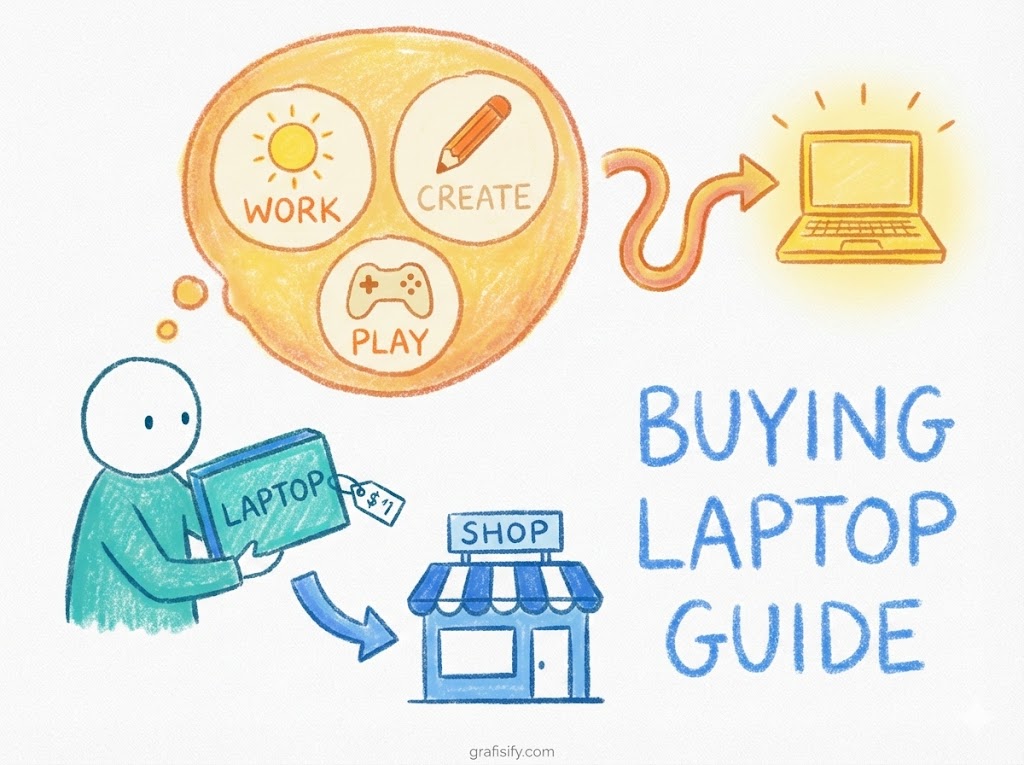
Quick Summary: This comprehensive guide breaks down the complex jargon of processor speeds, storage types, and display resolutions into ten manageable steps. By following our expert advice, you will confidently select a machine that perfectly balances performance with your financial limits, ensuring you don’t overpay for features you don’t need.
What is a Laptop Buying Guide?
A Laptop Buying Guide is a structured resource designed to help consumers navigate the complicated landscape of modern computer specifications. It translates technical metrics like CPU cores, RAM capacity, and GPU performance into real-world benefits, empowering users to make informed purchasing decisions that align with their specific workflow requirements and budgetary constraints.
10 Steps to Choosing the Perfect Laptop
1. Choose Your Operating System Wisely
Before diving into hardware specs, the first stop in any effective laptop buying guide is selecting the software ecosystem that runs the show. Your choice here dictates the user interface, available software, and compatibility with your other devices. Windows is the versatile workhorse, offering the widest compatibility for gaming and business software. macOS is the darling of creatives, known for its seamless integration with iPhones and iPads, while Chrome OS offers a lightweight, budget-friendly alternative centered around web-based tasks.
Don’t just stick with what you know out of habit; consider what you actually do daily. If you are a student who lives in Google Docs and streams Netflix, a Chromebook might save you hundreds of dollars. Conversely, if you are an engineering student needing CAD software, a Windows machine is non-negotiable. Making the wrong OS choice is the most common reason for buyer’s remorse, so choose the platform that supports your primary applications.

2. Deciphering the CPU Hierarchy
The Central Processing Unit (CPU) is the brain of your computer, and understanding it is crucial. In the world of Windows, you’ll mostly see Intel (Core i3, i5, i7, i9) and AMD (Ryzen 3, 5, 7, 9). As a general rule for this laptop buying guide, Core i5 or Ryzen 5 processors offer the sweet spot for most users, handling multitasking and general productivity with ease. Only power users needing to render 4K video or compile massive codebases usually need to look at the i7/Ryzen 7 tier or above.
For Apple users, the landscape has shifted to Apple Silicon (M1, M2, M3 chips). These chips have revolutionized the market by offering incredible performance per watt. Even the base M1 or M2 chip outperforms many high-end Intel chips from just a few years ago. Understanding CPU architecture helps you avoid paying a premium for processing power that will just sit idle while you browse the web.
3. How Much RAM Do You Really Need?
Random Access Memory (RAM) allows your computer to work on multiple tasks simultaneously. Think of it as your desk space; the more you have, the more papers you can spread out at once without getting disorganized. In 2024, 8GB is the absolute minimum we recommend for a functional Windows or Mac laptop. If you attempt to run Windows 11 on 4GB of RAM, you will likely experience significant slowdowns and frustration.

For those who keep dozens of browser tabs open or do light photo editing, 16GB is the new standard for longevity. It ensures your system remains snappy for years to come. If this laptop buying guide were aimed solely at professional video editors or 3D modelers, we would suggest starting at 32GB. Remember, in many modern laptops, RAM is soldered to the motherboard, meaning you cannot upgrade it later—buy what you need now.
4. Storage: The SSD Standard
Gone are the days of the slow, clicking Hard Disk Drive (HDD). If a laptop you are looking at lists an HDD as its primary drive, walk away. Your primary drive must be a Solid State Drive (SSD). SSDs are significantly faster, more durable, and silent. This speed difference affects everything from how fast your computer boots up to how quickly apps launch.
Regarding capacity, 256GB is the entry-level baseline, but it fills up fast with photos, updates, and applications. We highly recommend aiming for 512GB or more if your budget allows. If you are stuck with lower storage to save money, ensure the laptop has high-speed USB-C or Thunderbolt ports so you can easily attach fast external storage later.

5. Display Quality and Resolution
You will be staring at the screen for hours, so don’t skimp here. At a minimum, look for a resolution of 1920×1080 (Full HD). Anything less will look pixelated and limit the amount of screen real estate you have for multitasking. Panel technology matters too; look for “IPS” (In-Plane Switching) screens, which offer wider viewing angles and better color accuracy than cheap TN panels.
Brightness is another factor often overlooked in a standard laptop buying guide. A screen rated at 250 nits will struggle in a bright office or outdoors. Aim for 300 nits or higher for a comfortable viewing experience. If you are a gamer or creative professional, you might also look into refresh rates (120Hz+) or color gamut coverage (sRGB, DCI-P3), but for the average user, resolution and brightness are king.
6. Graphics: Integrated vs. Dedicated
Most laptops come with “integrated graphics,” meaning the GPU is built into the processor. Modern integrated graphics (like Intel Iris Xe or AMD Radeon) are surprisingly capable, handling 4K streaming and even light gaming (like League of Legends) without breaking a sweat. For 90% of users, this is sufficient and helps keep the laptop thin and the battery life long.

However, if you plan to play AAA games like Cyberpunk 2077 or use heavy rendering software like Blender, you need a “dedicated” or “discrete” graphics card, typically from NVIDIA’s GeForce RTX series. Be warned: dedicated GPUs consume more power, generate more heat, and significantly increase the price and weight of the machine.
7. Connectivity and Ports
The trend toward thinner laptops often results in fewer ports, which can be a hassle (the “dongle life”). A good laptop should ideally have a mix of old and new: at least one USB-A port for legacy devices (like your mouse or flash drive) and USB-C for modern accessories and charging. An HDMI port is incredibly useful for connecting to monitors or projectors without needing an adapter.
Thunderbolt 4 support (common on Intel and Mac laptops) is a massive plus. It allows for super-fast data transfer and the ability to connect to high-resolution external displays and docking stations with a single cable. Check for an SD card slot if you are a photographer; its absence is a minor annoyance that becomes a major headache over time.
8. Keyboard and Touchpad Ergonomics
Specs on paper tell you how fast a computer is, but they don’t tell you how it feels to use. Keyboard travel (how far the keys go down) and spacing are vital for typing comfort. A cramped keyboard or a stiff touchpad can ruin an otherwise great machine. Look for backlit keyboards if you often work in dim environments—it’s a feature you won’t want to live without once you have it.
The touchpad should be responsive and support multi-touch gestures smoothly. Windows Precision drivers have largely closed the gap with Apple’s legendary trackpads, but cheap laptops still suffer from jumpy or unresponsive pads. If you can’t test it in person, read reviews specifically focusing on the input devices.
9. Battery Life: Claims vs. Reality
Manufacturer battery claims are often conducted under ideal conditions (low brightness, video playback only) that don’t reflect real-world usage. If a spec sheet says “10 hours,” expect about 7-8 hours of actual mixed usage. For a truly portable experience, look for devices with large watt-hour (Wh) ratings relative to their size.
Efficiency is just as important as battery size. This is where Energy Star certified devices or laptops with ARM-based chips (like the MacBook Air or Snapdragon-powered Windows laptops) shine, often delivering all-day battery life that actually lasts all day. Fast charging capabilities are also a modern necessity, allowing you to get a few hours of juice in just 30 minutes.
10. Setting a Realistic Budget
Finally, your laptop buying guide journey ends at the checkout. It is essential to set a strict budget but leave a little wiggle room for quality-of-life upgrades. Sub-$300 laptops usually involve heavy compromises in build quality and speed. The $600-$900 range is generally the “sweet spot” for excellent consumer laptops that will last 3-4 years.
Premium laptops ($1000+) offer better materials (aluminum vs. plastic), better screens, and faster components, but the returns diminish as you go higher. Ask yourself if you are paying for performance you will use or just for a sleeker chassis. Sometimes, buying last year’s flagship model can save you hundreds while offering 95% of the performance of the newest release.
Common Mistakes to Avoid When Buying
One of the biggest pitfalls is buying for today rather than tomorrow. Saving $50 by getting 4GB of RAM instead of 8GB might seem smart now, but it will force you to upgrade your entire machine years earlier than expected. Another common error is obsession with the “thinnest” laptop. Ultra-thin laptops often suffer from poor thermal management, meaning they get hot and noisy, and they throttle performance to cool down.
Also, do not ignore the warranty and support. Buying a niche brand from overseas might get you better specs for the price, but if the motherboard dies in six months, you might be out of luck. Stick to reputable brands with established support channels in your country unless you are technically proficient enough to handle repairs yourself.
The Pros & Cons of Premium vs. Budget Laptops
✅ The Good (Premium Models)
- Build Quality: Metal chassis and durable hinges last longer.
- Display: Higher brightness, better color accuracy, and higher resolution.
- Longevity: Faster processors and more RAM mean the laptop stays relevant for more years.
❌ The Bad (Premium Models)
- Price: High upfront cost can be prohibitive for many students or casual users.
- Diminishing Returns: A $2000 laptop isn’t necessarily twice as fast as a $1000 one.
- Repair Costs: High-end integrated components can be expensive or impossible to repair.
Final Thoughts
Navigating the market doesn’t have to be a headache. By focusing on the core components—CPU, RAM, and Storage—and aligning them with your budget and OS preference, you can find a device that serves you well for years. Remember that the “best” laptop isn’t the one with the highest specs; it’s the one that fits seamlessly into your life and workflow.
Take your time, compare models, and don’t be swayed by marketing hype alone. Prioritize the features you interact with most, like the screen and keyboard. Read our related guide on setting up your new computer for maximum productivity once you’ve made your purchase.
Tagged with:
Budget TechComputer HardwareConsumer ElectronicsHardware TipsLaptopsPC SpecsStudent LaptopsTech GuideTechnologyWindows vs Mac
Irfan is a Creative Tech Strategist and the founder of Grafisify. He spends his days testing the latest AI design tools and breaking down complex tech into actionable guides for creators. When he’s not writing, he’s experimenting with generative art or optimizing digital workflows.
You might also like





 Artificial Intelligent
 Design & Creative
 Freelance
 Gadgets & Gear
 Insights
 Laptop
 Reviews
 Smartphone
 Tech Guides
 Vibe Coding