AI Coding Assistant Advanced Workflows (for Solo Developers) — Part 2
AI Coding Assistant Advanced Workflows (for Solo Developers) — Part 2
This is Part 2 of our guide to AI coding assistants for solo developers. Read Part 1: How to Set Up an AI Coding Assistant (Step-by-Step Guide for Solo Developers)
You installed an AI coding assistant, ran a few prompts, and it worked. Now you need it to ship real features, refactor messy code, and help you debug the problems that make you want to close the laptop. This guide covers the AI coding assistant advanced workflows that turn a toy assistant into a daily productivity multiplier.
The setup guide covered the basics: install a tool, configure it, run your first prompt. That gets you 20 percent of the value. The other 80 percent comes from how you use it day to day, on real code, under real deadlines.
I have been coding solo for six years. Shipped products, broken production, rebuilt the same feature three times because the design was wrong the first two. AI assistants changed my workflow, but not because they write code for me. It’s because I learned to use them as thinking partners, not autocomplete on steroids.
This article assumes you already have an assistant installed. If you still need help setting one up, check our step-by-step setup guide first.
AI Coding Assistant Advanced Workflows: What Comes After Setup
The first mistake most developers make after setup is treating the assistant like a search engine. You ask for a function, it writes one, you copy it in. That works for isolated tasks, but it falls apart on real projects where every new function touches existing code, follows established patterns, and shares types with the rest of the codebase.
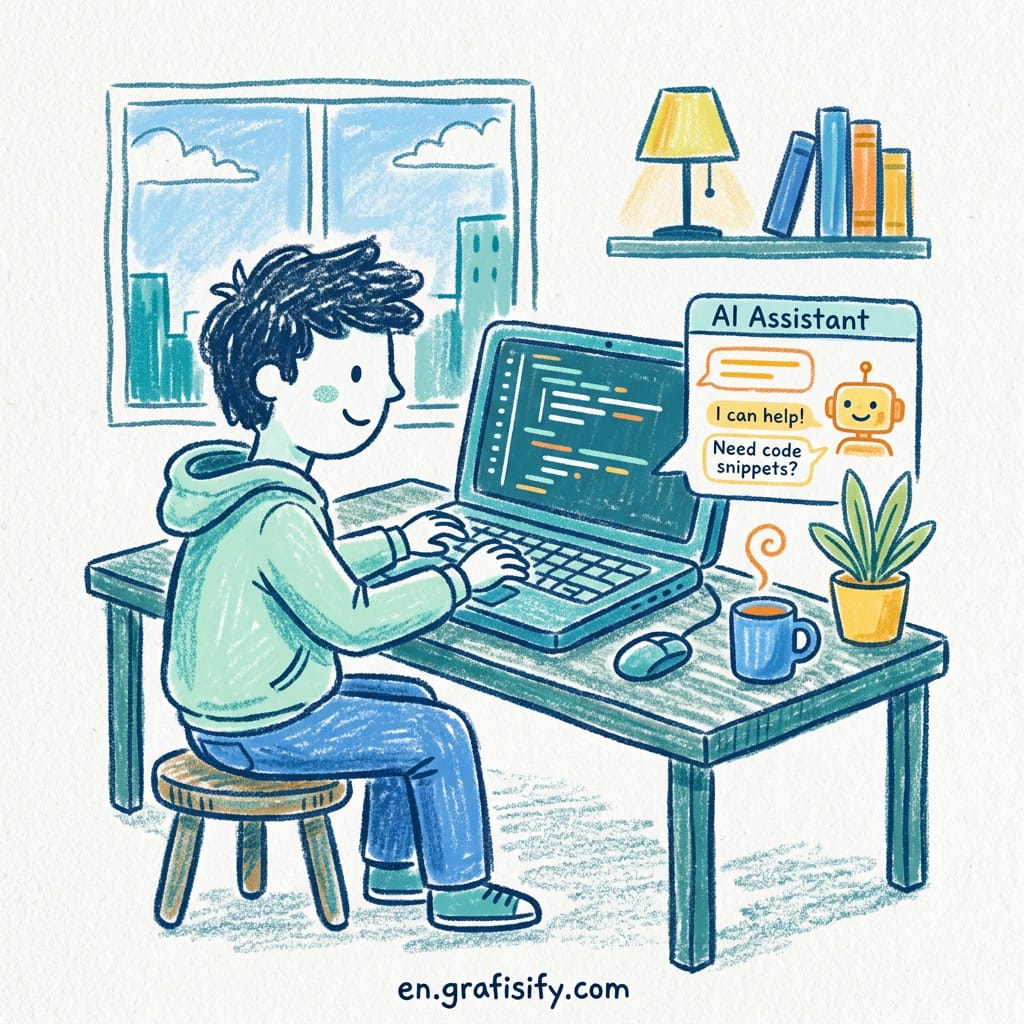
AI coding assistant advanced workflows share one property: they give the assistant context. Not a single prompt, but the whole picture. The file you’re editing, the files it imports, the tests that verify it, the schema it reads from. When the assistant sees all of that, it stops guessing and starts building.
Three areas where context-first workflows make the biggest difference: refactoring, debugging, and testing. Each one requires a different approach to how you communicate with the tool.
AI Coding Assistant Advanced Workflows: Multi-File Refactoring

Refactoring is where AI assistants earn their keep. A single-file change is easy to do by hand. Renaming a class across thirty files, restructuring an API endpoint, or splitting a monolithic utility file into modules is exactly the kind of tedious, error-prone work a machine should handle. What is the best way to tell the assistant what you want? Don’t describe every detail.
The trick is telling the assistant what you want without describing every detail. Start with the end state. Say what the code should look like afterward, not how to get there.

Example prompt structure:
“Extract the payment calculation logic from orders.py into a new file called pricing.py. The calculate_total method in orders.py should delegate to PricingEngine in pricing.py. This affects orders.py, orders_test.py, and the billing service in services/payments.py. All existing tests must pass without changes.”
That prompt works because it specifies the goal, names the files involved, and sets a constraint (tests must pass). Here is what you should include in every refactoring prompt:

- The files the change touches
- What stays the same after the refactor
- What you want to preserve (tests, API contracts, type signatures)
- One concrete example of the expected output format
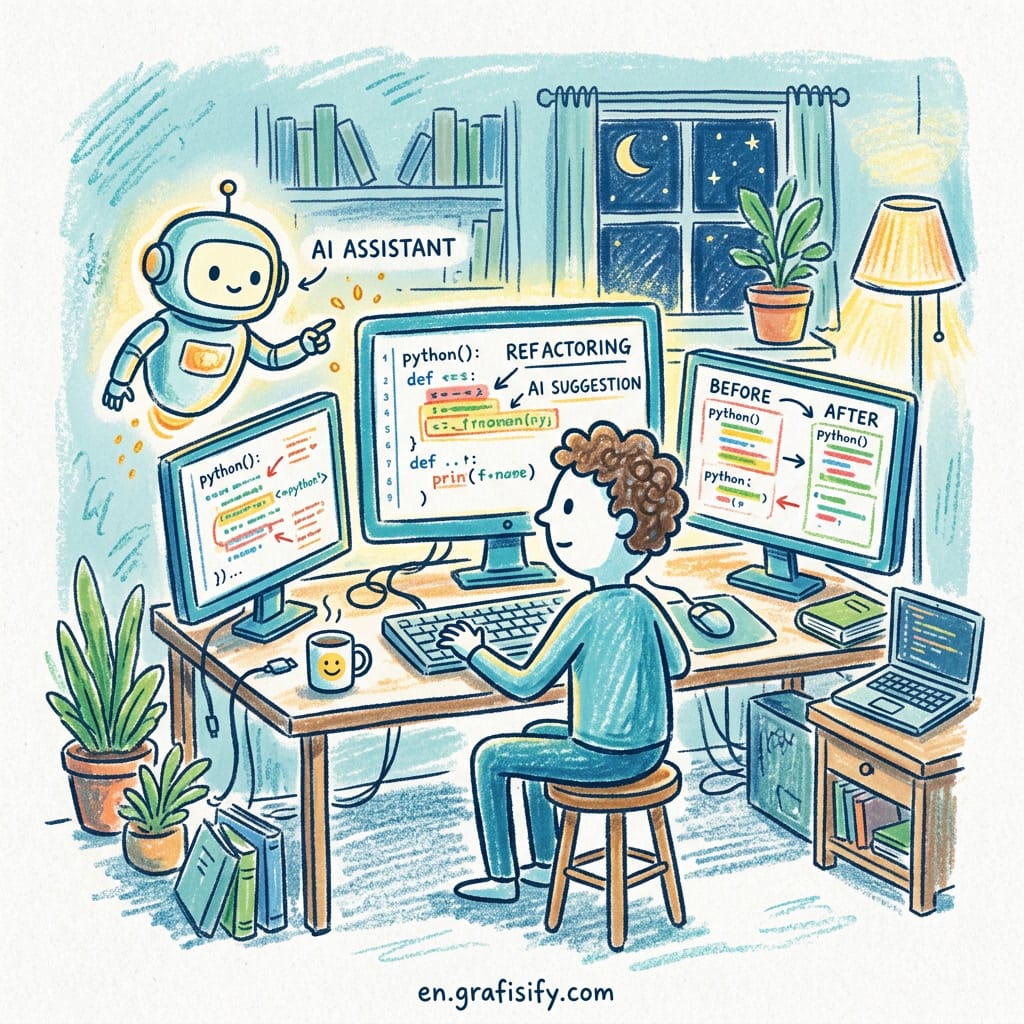
Multi-file refactoring is where the gap between novice and experienced AI users is widest. A developer who pastes a file and says “refactor this” gets generic output. A developer who adds context files, sets constraints, and validates incrementally gets production-ready code in half the time. Mastering AI coding assistant advanced workflows means learning this contextual approach.
AI Coding Assistant Advanced Workflows: Debugging With AI
Debugging with an AI assistant is different from debugging with a search engine. Stack Overflow tells you what other people did. An assistant analyzes your actual code and points to the specific line that’s wrong. But it only works if you give it the full picture.
The most common debugging mistake is pasting an error message and asking “what went wrong.” The assistant doesn’t know your data, your config, or your assumptions. It guesses, and it often guesses wrong. How can you get better results? Include the error, the relevant code block, and the input that triggered it.
Better approach: include the error, the relevant code block, the input that triggered it, and what you expected to happen. The last part matters most. If the assistant knows what correct output looks like, it can work backward to find the fault.
For runtime issues that don’t produce errors, use a different strategy. Describe the behavior you see, the behavior you expect, and the conditions that trigger the difference. An assistant that has access to your test suite can run scenarios in its head and spot the logic gap.
| Debugging Scenario | What to Include | Expected Result |
|---|---|---|
| Failing test | Test code, module under test, error output | Line-level fix suggestion |
| Wrong output | Input, actual output, expected output | Logic gap identified |
| Performance issue | Profile output, relevant function, data shape | Optimization target |
| Null pointer / exception | Stack trace, relevant file, the data path | Root cause + fix |
AI debugging shines brightest on logic errors, not syntax errors. A tool that indexes your whole project can trace a null value from the function that produces it through every transformation until it reaches the code that fails. That trace is something even an experienced developer might miss on the first pass.
AI Coding Assistant Advanced Workflows: Automated Testing
Writing tests is where most solo developers cut corners. You know you should write them, but the feature is more fun, and nobody is reviewing your code anyway. An AI assistant makes test writing fast enough that the excuse stops holding. How do you get the assistant to write good tests? Start with context.
Start with the test file open in the assistant’s context. Ask it to generate tests for a specific function, giving it the function signature, the inputs it handles, and the edge cases you know about. The assistant will produce a draft you can edit down.
Don’t accept the first output as final. AI-generated tests tend to be shallow. They test the happy path and one error case, missing the boundary conditions that actually break software. Review every test for three things:
- Does it test a real scenario, not a tautology?
- Does it cover at least one edge case per input?
- Does it verify the behavior, not just the return type?
Once you have a pattern, ask the assistant to generate tests for similar functions automatically. This works well when your codebase has consistent return types and input shapes. A well-structured project can get 80 percent test coverage from AI-generated tests with human review of the remaining 20 percent. What does this look like in practice? You spot-check the generated assertions and add edge cases the assistant missed.
Pros and Cons of Advanced AI Workflows
Pros:
- Refactoring speed improves 3-5x once you learn context-first prompting
- Debugging sessions shrink from hours to minutes with full-context traces
- Test coverage climbs without consuming your entire weekend
- The assistant catches patterns you would miss on a tired Friday afternoon
Cons:
- Context-heavy prompts take time to write and feel unnatural at first
- AI suggestions need human review; blind trust breaks production
- Cost adds up if you run heavy refactoring tasks daily on paid plans
- The assistant sometimes produces elegant-looking code with subtle design flaws
How to Build Your Next Workflow Upgrade
Start with one area. Pick the workflow that costs you the most time today and focus on optimizing your AI interaction around it.
If debugging eats your mornings, build a reusable debugging prompt template. Include sections for error, code, data, and expectation. Save it as a file you can copy and fill in.
If refactoring is your bottleneck, start a project rules file. Most AI assistants support a configuration file that defines conventions for your project. Claude Code uses CLAUDE.md. Cursor uses .cursorrules. GitHub Copilot has a similar mechanism. Fill it with your project’s patterns, naming conventions, and architecture decisions. The assistant reads this automatically and adapts its output.
I spent an afternoon writing a CLAUDE.md for a side project last month and the output quality doubled. The assistant stopped suggesting flat file structures because it knew the project used feature folders. It stopped generating arrow functions because it knew the codebase used named functions. Small investment, big return.
For a deeper look at how different tools handle real-world coding tasks, check out this comparison of AI agents for solo developers. You can also read this productivity setup guide for additional configuration tips.
These AI coding assistant advanced workflows take about a week to pick up. Start with refactoring if you spend most of your time moving code around. Start with debugging if that’s where your mornings go. Pick one, practice it until it feels natural, then add the next.

Final Thoughts
The difference between a developer who gets 20 percent value from AI and one who gets 80 percent isn’t the tool. It’s the workflow. Context-first prompting, structured debugging, and systematic test generation are skills you can learn.
Start with the workflow that hurts the most. Fix that one first. The rest will follow.
Have you tried any of these advanced workflows? Which one made the biggest difference in your daily coding? Share your experience with the community.


Irfan is a Creative Tech Strategist and the founder of Grafisify. He spends his days testing the latest AI design tools and breaking down complex tech into actionable guides for creators. When he’s not writing, he’s experimenting with generative art or optimizing digital workflows.
You might also like




 Artificial Intelligent
 Design & Creative
 Freelance
 Gadgets & Gear
 Insights
 Laptop
 Reviews
 Smartphone
 Tech Guides
 Vibe Coding