USB-C Cables Explained (Data Transfer Speeds, Power Delivery, Thunderbolt 4 and 5)
USB-C Cables Explained (Data Transfer Speeds, Power Delivery, Thunderbolt 4 and 5)
Your USB-C cable is probably not what you think it is. That free cable in the box charges your phone fine, but try connecting a monitor or an external SSD, and suddenly nothing works. USB-C is a connector shape, not a performance promise, and the gap between what people assume and what their cables actually deliver is huge. This USB-C Cables Explained guide breaks down exactly what the numbers on a USB-C cable mean, how to match a cable to your actual needs, and when it matters to pay more.
Here is the uncomfortable truth about USB-C in 2026: two cables can look identical and perform completely differently. One might charge your laptop at 100W but transfer files at ancient USB 2.0 speeds. Another might handle 4K video, fast storage, and charging all at once, but cost three times as much. The connector is the same oval plug on both. The difference is inside the cable. How do you tell them apart? That is exactly what this guide covers.
I learned this lesson the hard way. A supposedly “high-speed” USB-C cable from a random brand, plugged into a new external NVMe drive, delivered transfer speeds that made the drive look defective. Turns out the cable was USB 2.0 internally. Eight dollars wasted, and an hour of troubleshooting I will never get back. That is the kind of frustration this USB-C Cables Explained guide exists to prevent.
USB-C Cables Explained: What Is USB-C and Why It’s Still Confusing
USB-C is just the physical connector. Think of it like a universal wall outlet – the plug fits, but what flows through it depends entirely on the wiring behind the wall. The USB-C connector was designed to replace a dozen different connectors (USB-A, USB-B, Micro-USB, Mini-USB, Lightning, DisplayPort, HDMI, barrel jacks for charging). It succeeded at the hardware level. Every new phone, laptop, tablet, and accessory uses USB-C now.

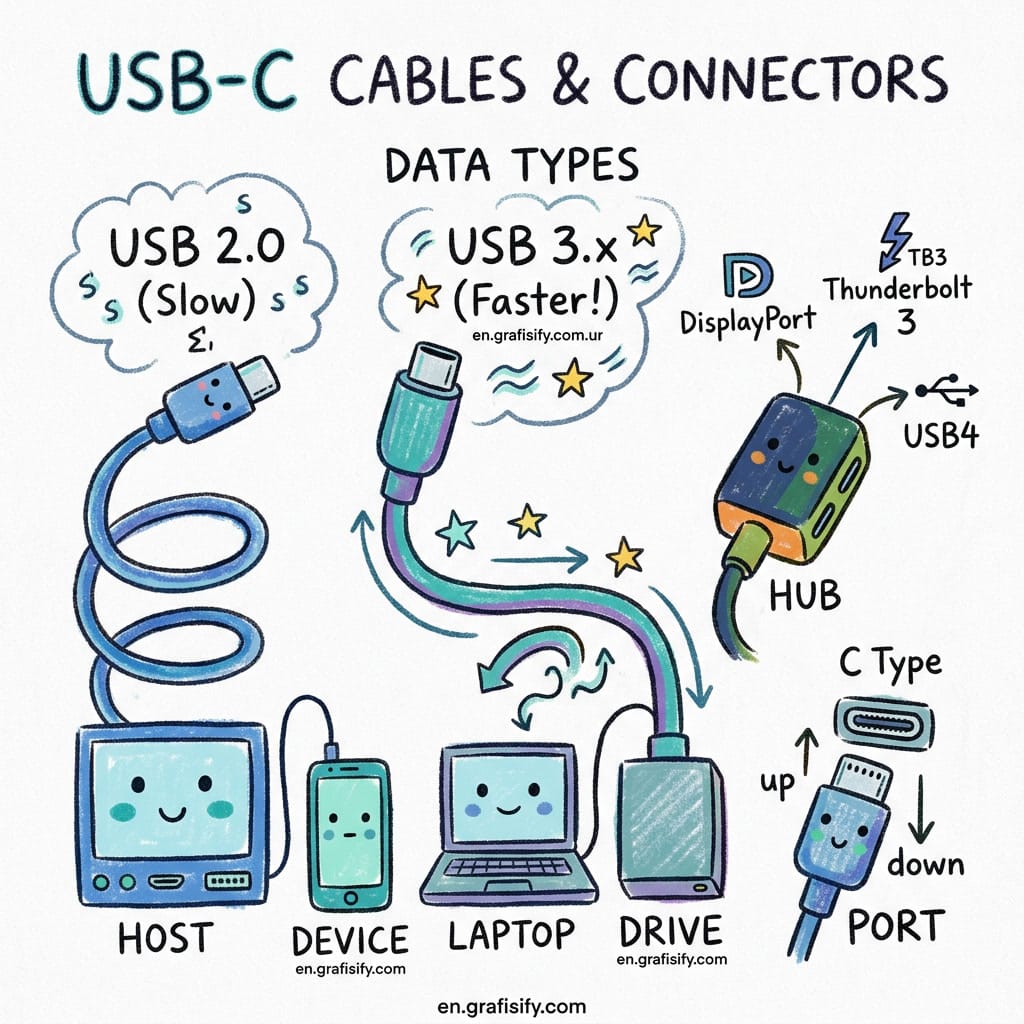
The problem is that what travels through that connector varies wildly. A USB-C cable can carry:
- USB 2.0 data at 480Mbps (the same speed as 2008)
- USB 3.2 data at 5Gbps, 10Gbps, or 20Gbps
- USB4 data at 40Gbps or 80Gbps
- Thunderbolt 4 at 40Gbps with guaranteed features
- Thunderbolt 5 at 80Gbps (up to 120Gbps asymmetric)
- Power from 7.5W all the way up to 240W
- Video via DisplayPort Alt Mode or HDMI Alt Mode
- Just charging with zero data transfer capability
That is a huge range. And most cables carry no clear label telling you which one you are holding. No wonder people get frustrated.
USB-C Cables Explained: Deep Dive into Data Transfer Speeds, Power Delivery, and Thunderbolt
Data Transfer Speeds: The Specs That Matter
The fastest way to cut through the confusion is to ignore version numbers entirely and focus on the speed rating. USB-IF has finally started simplifying its branding, so you will increasingly see cables labeled “USB 5Gbps” or “USB 40Gbps” instead of “USB 3.2 Gen 2×1.” But older naming still dominates product pages. Here is what each speed tier actually means for real-world use. Which one do you actually need? It depends on what you connect.

| Label | USB Standard | Real-World Throughput | Best For |
|---|---|---|---|
| 480Mbps | USB 2.0 | ~35 MB/s | Phone charging, basic peripherals |
| 5Gbps | USB 3.2 Gen 1 | ~450 MB/s | External hard drives, photo transfers |
| 10Gbps | USB 3.2 Gen 2 | ~900 MB/s | Portable SSDs, large video files |
| 20Gbps | USB 3.2 Gen 2×2 | ~1,800 MB/s | High-end NVMe enclosures |
| 40Gbps | USB4 / Thunderbolt 4 | ~3,000 MB/s | Docks, multi-display, fast storage |
| 80Gbps | USB4 V2 / Thunderbolt 5 | ~6,000+ MB/s | Pro video, eGPU, future-proofing |
Here is a rule of thumb from this USB-C Cables Explained guide: if you are buying a cable for an external SSD, look for at least 10Gbps. For a docking station or monitor, 40Gbps is the safe floor. For charging a phone, even a 480Mbps cable is fine – just do not expect to transfer files through it.
Power Delivery: Watts, Volts, and the e-Marker Chip
Charging speed is measured in watts (W), and it is completely independent from data transfer speed. A cable can deliver 240W of power while being stuck at USB 2.0 data speeds. The reverse is also true: a high-speed Thunderbolt cable might only support 60W of charging.
USB Power Delivery (PD) is the standard that handles charging negotiation. The key numbers to know:

- Up to 15W: Standard USB-C without PD. Fine for earbuds, not enough for a phone.
- Up to 60W: Requires an e-marked cable. Covers most ultrabooks and tablets.
- Up to 100W: Standard Power Range (20V/5A). Covers most 13-15 inch laptops.
- Up to 240W: Extended Power Range (EPR, 48V/5A). New standard for gaming laptops and workstations. Both charger and cable must support EPR.
The e-marker chip inside the cable is what makes higher power delivery safe. Without it, the cable cannot negotiate anything above 60W. If you plug a 100W laptop charger into a non-e-marked cable, you will get 60W at most. The laptop charges slower, but nothing breaks. The negotiation is automatic and safe. What happens if you use a cable that is not rated for the job? Nothing dangerous – just slower charging and no video signal.
Thunderbolt 4 vs Thunderbolt 5: What’s the Difference
Thunderbolt is Intel’s standard that uses the USB-C connector but guarantees a minimum feature set – something USB-C alone does not do. This is the main reason to pay extra for Thunderbolt cables: you know exactly what you are getting. For a deeper look at different connectivity standards, check out our tech guide comparison for related performance benchmarks.
| Feature | Thunderbolt 4 | Thunderbolt 5 |
|---|---|---|
| Max Bandwidth | 40Gbps | 80Gbps (120Gbps with Boost) |
| Display Support | Two 4K @ 60Hz (mandatory) | Three 4K @ 144Hz |
| PCIe Tunneling | 32Gbps (mandatory) | 64Gbps (mandatory) |
| Max Power Delivery | Up to 100W | Up to 240W (EPR) |
| Backward Compatible | USB4, TB3, USB 3.x | TB4, TB3, USB4, USB 3.x |
| Best For | Pro docking, eGPU, dual monitors | Multi-display pro workflows, future-proofing |
Both are fully backward compatible. A Thunderbolt 5 cable works perfectly with a Thunderbolt 4 laptop – it just runs at Thunderbolt 4 speeds. This makes Thunderbolt 5 cables a reasonable future-proofing investment if you plan to upgrade your laptop within the next few years. According to detailed testing by WU120 Tech, Thunderbolt 5 passive cables maintain full 80Gbps speeds up to 1 meter, making them ideal for compact desk setups.

USB-C Cables Explained: Pros and Cons of Each Cable Type
| Cable Type | Pros | Cons | Best Use Case |
|---|---|---|---|
| Charging-only (USB 2.0) | Cheap, flexible, good for travel | 480Mbps max, no video output | Phone charging, power banks |
| USB 3.2 (5-10Gbps) | Good balance of speed and price | No guaranteed video or PCIe | External SSDs, photo transfer |
| USB4 (40Gbps) | High speed, optional video tunnel | Features vary by manufacturer | Docks, fast storage |
| Thunderbolt 4 (40Gbps) | Certified guarantees, dual display | More expensive | Professional docking, eGPU |
| Thunderbolt 5 (80-120Gbps) | Highest speed, 240W charging, future-proof | Most expensive | Pro video, multi-monitor, pro workstations |
| Data-blocking | Secure for public charging stations | No data transfer at all | Travel, public USB ports |
USB-C Cables Explained: How to Pick the Right Cable for Your Setup
Stop guessing. Here is a straightforward decision framework based on what you actually do with your devices. The USB-C Cables Explained approach is simple: match the cable to the task. Not sure which scenario fits you? Read through and you will find your match.
Scenario 1: You only charge your phone and earbuds. Any USB-C cable works. A cheap charging-only cable at $3-5 is fine. Do not overpay for Thunderbolt you will never use.
Scenario 2: You transfer photos and files from a phone or camera. Look for at least 5Gbps (USB 3.2 Gen 1). Most phone cables that come in the box are USB 2.0, so upgrading to a 5Gbps or 10Gbps cable cuts transfer time from hours to minutes.
Scenario 3: You use an external SSD for video editing or backups. Get a 10Gbps or 40Gbps cable. A Thunderbolt 4 certified cable is ideal because you get guaranteed performance and video support, which matters if you also connect a monitor through the same setup.
Scenario 4: You run a docking station with monitors, peripherals, and Ethernet. You need at least a 40Gbps cable with DisplayPort Alt Mode support. A Thunderbolt 4 certified cable is the safe choice. Use the cable that came with your dock for best results.
Scenario 5: You have a Thunderbolt 5 laptop and want the full desktop experience. Get a certified Thunderbolt 5 cable. Yes, it costs more – expect $40-60 for a 1-meter cable. But it is the only way to get 80Gbps speeds, high-resolution multi-display output, and 240W charging through a single connection. The performance gap between a cheap USB-IF cable and a certified Thunderbolt 5 cable is documented in detail by Plugable’s cable comparison.
One more thing worth pointing out: cable length matters more than most people realize. Passive USB4 and Thunderbolt cables maintain full speed only up to about 0.8 meters (2.6 feet). Beyond that, signal integrity degrades. Active cables (which contain signal-boosting chips) can maintain full speed at 2 meters or more, but they cost more and are noticeably thicker. If your cable run is short, go passive. If you need to route across a desk or behind furniture, pay for active.
Brand also matters. Stick with reputable manufacturers like Anker, Cable Matters, Plugable, or CalDigit. Counterfeit cables that falsely claim 40Gbps or 80Gbps speeds are common on budget marketplaces, and they will not deliver the performance they advertise. This is where the USB-C Cables Explained principle of “verify before you buy” saves you money and frustration.

USB-C Cables Explained: Final Thoughts
The universal connector that was supposed to simplify everything has simply moved the complexity from the port shape to the internal specs. That is progress, honestly – one connector to rule them all was the right goal. But it means buyers now need to be more informed, not less. Can a single cable really handle power, video, and data at the same time? Yes, if it is Thunderbolt or USB4 certified.
Here is the short version: check your device’s port specs before buying cables. Match the cable’s speed rating to what your device supports. Buy certified cables from known brands. And when you need to connect something important – a dock, a monitor, an external GPU – spend the extra money on Thunderbolt certification. It is the only way to guarantee all the features you paid for actually work.
Your next step: go check the cable drawer. You will probably find at least three USB-C cables that came free with phones over the years. Test them. You will probably discover that most of them are USB 2.0 under the hood. That is fine for charging. Just do not expect them to power your dock.

Irfan is a Creative Tech Strategist and the founder of Grafisify. He spends his days testing the latest AI design tools and breaking down complex tech into actionable guides for creators. When he’s not writing, he’s experimenting with generative art or optimizing digital workflows.
You might also like






 Artificial Intelligent
 Design & Creative
 Freelance
 Gadgets & Gear
 Insights
 Laptop
 Reviews
 Smartphone
 Tech Guides
 Vibe Coding