Computer Backup Strategy, A Practical Guide (3-2-1 Rule, Cloud vs Local Comparison, Best Tools)
Computer Backup Strategy, A Practical Guide (3-2-1 Rule, Cloud vs Local Comparison, Best Tools)
Quick Verdict: If you have one copy of your data, you have zero copies. The 3-2-1 backup rule is the only strategy that actually works for home users and small businesses. A computer backup strategy built on the 3-2-1 rule means you keep three copies of your data on two different storage media with one copy stored offsite. Local backup gives you speed. Cloud backup gives you safety from fire, flood, and ransomware. You need both. This guide walks you through the rule, compares cloud versus local backup with real numbers, recommends specific tools, and shows you exactly how to set everything up in an afternoon.
Data loss happens to everyone. Hard drives fail at roughly 2.5 percent in their first year. Ransomware attacks rose 37 percent year-on-year in 2025. A flood or a fire wipes out everything in one room. And yet most people still keep their only copy of photos, documents, and work files on a single laptop. That is not a backup. That is a wish. A real computer backup strategy is what separates a minor inconvenience from a catastrophic loss.
So what does a real backup look like? It is simpler than you think. You do not need a server rack or a dedicated IT person. You just need a rule that has worked for over fifteen years and a couple of tools that cost less than your monthly coffee budget.
Computer Backup Strategy: What Is the 3-2-1 Rule?
The 3-2-1 backup rule was formalized by photographer Peter Krogh in 2009 and has since become the standard framework recommended by CISA, NIST, and every cyber insurance policy on the market. The numbers break down like this: keep three total copies of your data, store them on two different types of storage media, with one copy kept offsite.
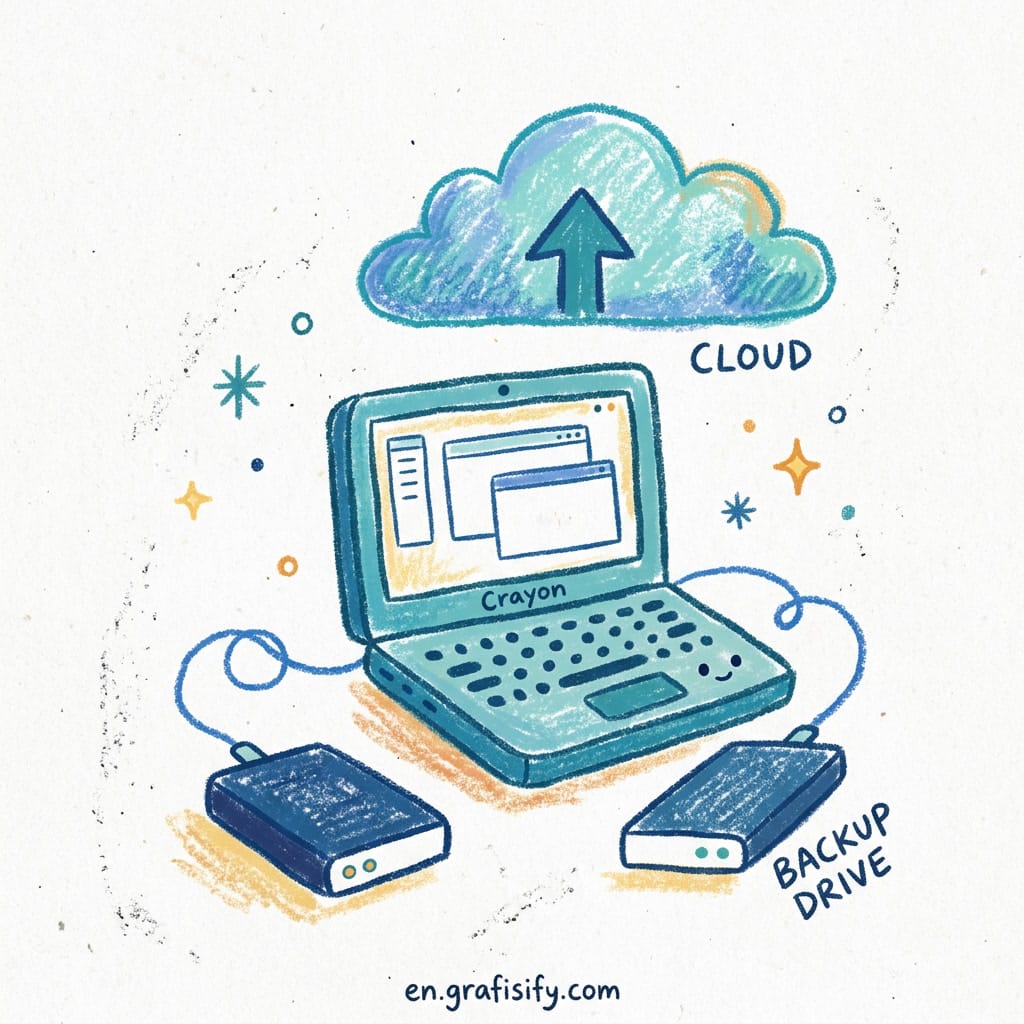
The first copy is your working data. The files on your laptop or desktop. The second copy goes to a local backup device like an external hard drive or a NAS unit. The third copy lives offsite, either in the cloud or on a physical drive stored at a different location. Each number protects against a specific failure mode. Three copies guard against a single hardware failure. Two media types eliminate the risk of a manufacturing defect hitting both drives at once. One offsite copy saves you when the building itself is the problem.
Does that sound like overkill? Consider this: a single external hard drive plugged into your computer is not a backup. It is a secondary copy that lives in the same blast radius. If ransomware encrypts your laptop, it will encrypt that connected drive within minutes. If a fire starts in your office, both copies burn together. The offsite copy is what separates a real backup from a false sense of security.
Computer Backup Strategy: Cloud vs Local Backup Comparison

Local backup and cloud backup serve different purposes. They are not alternatives. Think of them as complementary layers that cover each other’s weak spots. Your computer backup strategy needs both to be complete.
| Factor | Local Backup (External HDD / NAS) | Cloud Backup (Backblaze / IDrive / Acronis) |
|---|---|---|
| Restore speed | Minutes for large volumes (USB 3.2 or gigabit LAN) | Hours to days for large restores. Depends on internet speed |
| Protection from local disaster | No. Fire, flood, or theft destroys both copies | Yes. Data centers are geographically separate |
| Ransomware resilience | Poor if drive stays connected. Good if disconnected after backup | Strong. Versioning and immutable storage prevent encryption of old versions |
| Cost structure | One-time hardware purchase ($60 to $500) | Monthly subscription ($5 to $10/month per computer) |
| Remote access | Only available on your local network | Accessible from any device with internet |
| Maintenance effort | Requires manual checks and occasional drive replacement | Runs automatically in the background |
| Scalability | Requires buying new hardware | Instant. Just upgrade your plan |
Here is the practical takeaway: local backup is for speed. When you accidentally delete a project folder at 3 PM, you want to restore it in two minutes, not two hours. Cloud backup is for safety. When your laptop gets stolen or your office floods, the cloud copy is what saves your business.
The 3-2-1-1-0 extension adds two more requirements that matter in 2026. The extra “1” means one immutable or air-gapped copy. A backup that cannot be encrypted by ransomware even if it infects your main system. The “0” means zero unverified backups. An untested restore is not a backup. You do not know it works until you have actually tried it.
Computer Backup Strategy: Best Tools Compared
You do not need to research fifty products. Here is a short list of tools that actually work, tested and reviewed by PCMag and independent reviewers in 2026.
| Tool | Best For | Price | Key Feature |
|---|---|---|---|
| Backblaze Personal | Single computer, unlimited backup | $99/year | Continuous, set-and-forget. Restores via web or shipped USB drive |
| IDrive | Multiple devices under one account | $79.50 first year (10TB) | Unlimited devices sharing a storage pool. Physical drive restore option |
| Acronis Cyber Protect | Backup plus ransomware protection | $49.99/year | Full disk imaging, antimalware, ransomware shield in one product |
| Carbonite Safe | Non-technical users, set-and-forget | $83.99/year | Automatic file-type detection. Minimal configuration needed |
| CrashPlan | Unlimited version history | $10/month | Keeps every file version forever. HIPAA-compliant |
Backblaze has been my personal backup for three years. It runs silently in the background and I don’t think about it until I need it. When my old laptop died last year, I installed the app on the new machine, logged in, and had all my files back within a day. That is the experience you want. Boring, reliable, invisible.
For local backup hardware, a basic external hard drive starts at around $60 for 2TB. A proper NAS like a Synology DS223j costs roughly $200 plus drives. That is a one-time investment that covers local recovery speed for years.
Computer Backup Strategy: Step-by-Step Implementation
Here is how you set up a proper 3-2-1 backup in one afternoon. No advanced skills required. Follow this process and your computer backup strategy will be complete by dinner time.

Step 1: Inventory your data. List what you cannot afford to lose. Documents, photos, financial records, work projects, email archives. If it would hurt to lose it, it goes in the backup plan. Skip operating system files and program installations. Those can be reinstalled.
Step 2: Set up local backup. Buy an external hard drive or a two-bay NAS. For most home users, a single 2TB portable SSD is enough. Connect it, install backup software, and schedule a daily backup. On Windows, use File History or EaseUS Todo Backup Free. On Mac, Time Machine handles this automatically. Make sure the drive is disconnected or powered off between backup runs. A permanently connected drive is vulnerable to ransomware.
Step 3: Set up cloud backup. Pick one service from the comparison table above. Install the desktop app, point it at your important folders, and let it do the initial upload. The first backup will take a while. Possibly days for large collections of photos or video. Let it run overnight. After that, only changes are uploaded. This takes minutes per day.
Step 4: Test your restore. This is the step everybody skips. Restore a single file from each backup medium and verify it opens correctly. Do it now, not when you actually need it. A backup that has never been tested is not a backup at all. A good computer backup strategy includes regular testing by default.
Here is a simple schedule that works: daily cloud backup for continuous protection, weekly local backup for fast recovery, and a monthly file-restore test to confirm everything actually works. Total time per week after the initial setup is zero minutes.
Computer Backup Strategy: Common Mistakes to Avoid
Mistake one: treating cloud sync as backup. OneDrive, Google Drive, and Dropbox are synchronization services, not backup. If you delete a file, it is deleted everywhere. If ransomware encrypts your files on your laptop, those encrypted files sync to the cloud. We covered this risk in our AI meeting notes automation guide, where cloud dependency is a recurring theme for freelancers. Real backup services like Backblaze and IDrive keep version history so you can roll back to a pre-attack state.
Mistake two: keeping your only backup drive plugged in permanently. Modern ransomware scans for connected drives and encrypts them within minutes. The fix is simple: either use a service with immutable versioning or physically disconnect the backup drive after each job. Cloud backup solves this problem automatically because ransomware on your laptop cannot reach the cloud provider’s servers.

Mistake three: never testing your restores. A 2025 survey by Veeam found that 52 percent of businesses discovered their backups were corrupted only when they tried to restore during an actual incident. Do not be that statistic. A working restore is the only real measure of a backup. Schedule a monthly test. It takes thirty seconds and could save everything you own.
What about the “we” trap? Many articles use corporate “we” when giving advice. Here is the thing: data loss has hit me twice. Once from a failed hard drive, once from accidental deletion. Both times, having a proper backup saved me literally years of work. You do not want to learn this lesson the hard way.
Computer Backup Strategy: Final Thoughts
The 3-2-1 backup rule has been around for over fifteen years because it works. For more practical tech guides covering your daily workflow, check out our meeting notes automation guide for freelancers. It does not depend on any specific vendor, operating system, or budget level. Three copies, two media types, one offsite. That is the whole formula for a solid computer backup strategy.
You do not need to implement everything on day one. Start with one local backup this weekend. Add cloud backup next month. Test your first restore after that. The important thing is to start. The perfect backup plan is useless. The imperfect one you actually set up is priceless.
For further reading, check out CISA’s official 3-2-1 backup guidance and Backblaze’s real-world hard drive failure statistics that show why redundancy matters.

Irfan is a Creative Tech Strategist and the founder of Grafisify. He spends his days testing the latest AI design tools and breaking down complex tech into actionable guides for creators. When he’s not writing, he’s experimenting with generative art or optimizing digital workflows.



 Artificial Intelligent
 Design & Creative
 Freelance
 Gadgets & Gear
 Insights
 Laptop
 Reviews
 Smartphone
 Tech Guides
 Vibe Coding