7 Critical Factors in the Ultimate Cloud Storage Comparison: Google Drive vs iCloud vs OneDrive
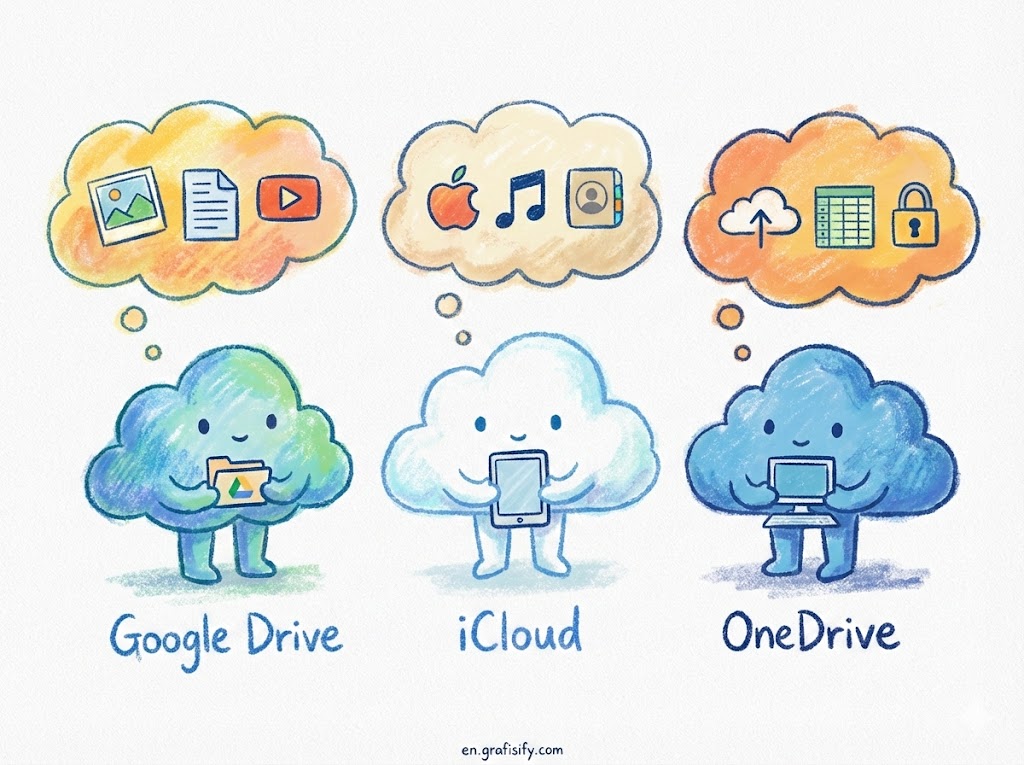
Quick Summary: In this high-stakes cloud storage comparison, Google Drive wins on collaboration and free storage, making it ideal for general users. OneDrive is the undisputed champion for Windows and Office 365 power users, while iCloud remains essential but restrictive, best suited strictly for those deep within the Apple ecosystem.
What is a Cloud Storage Comparison?
A cloud storage comparison is the systematic evaluation of remote file hosting services to determine the best fit for data security, accessibility, and cost-efficiency. It analyzes critical metrics like encryption standards, syncing speeds, and ecosystem integration to help users choose between providers like Google Drive, iCloud, and OneDrive.
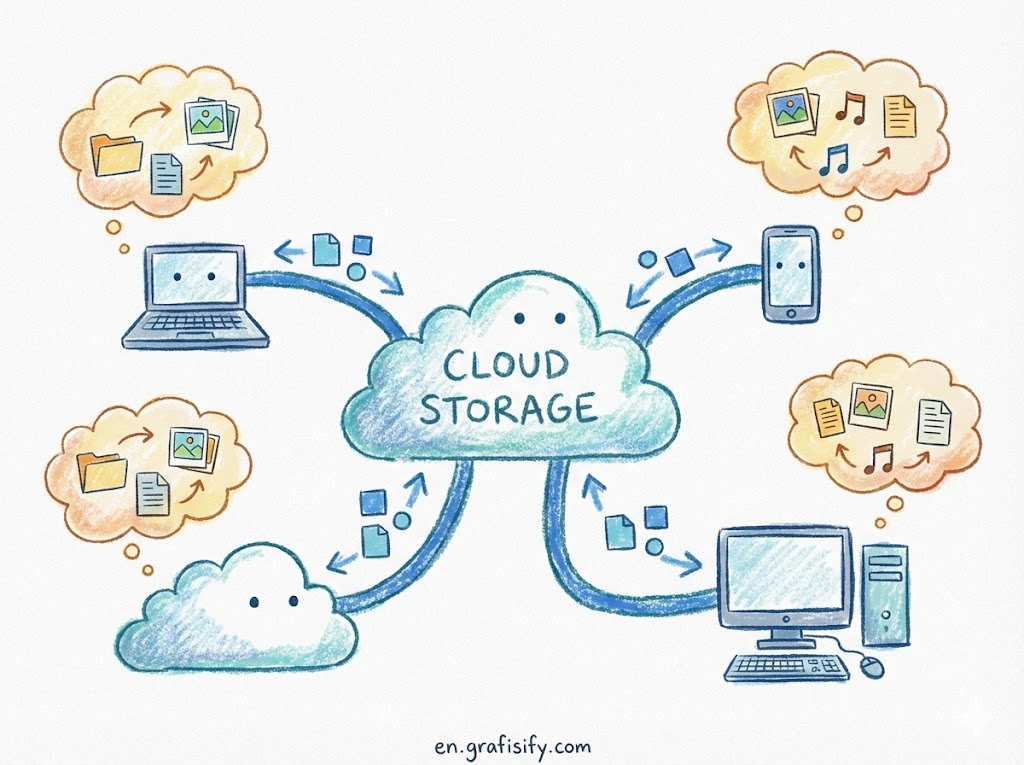
7 Critical Factors Analyzed: The Showdown
Choosing the right digital locker for your life’s work isn’t just about gigabytes; it’s about workflow. In this comprehensive cloud storage comparison, we break down the three titans of the industry to see which service truly deserves your monthly subscription.
1. Pricing and Storage Value
When analyzing the bottom line, Google Drive initially takes the lead with a generous 15GB free tier, compared to the meager 5GB offered by both iCloud and OneDrive. For casual users, Google is the obvious choice simply for the sheer volume of cost-free space provided for photos and emails.
However, as you scale up, Microsoft’s OneDrive offers arguably the best value proposition in the market. The standalone 100GB plans are similar across the board (around $1.99/month), but Microsoft’s 1TB plan often comes bundled with a Personal or Family Microsoft 365 subscription. This means for roughly $6.99/month, you get 1TB of storage plus the premium desktop versions of Word, Excel, and PowerPoint—a value effectively unmatched by Google or Apple.

iCloud’s pricing is competitive but strictly tiered (50GB, 200GB, 2TB). While the Apple One bundle offers value by combining Music, TV+, and storage, purely as a storage locker, it lacks the productivity software incentives found in OneDrive.
2. Ecosystem and Platform Integration
Integration is often the deciding factor in any cloud storage comparison. iCloud is seamless magic for Apple users; it backs up your iPhone, syncs your photos, and updates your Mac desktop without you lifting a finger. However, its utility drops off a cliff if you step outside the Apple walled garden—the Windows app is functional but clunky, and Android support is virtually non-existent.
OneDrive is the native DNA of Windows 10 and 11. It is baked into the operating system, making file management feel like a local folder. Surprisingly, OneDrive also has excellent mobile apps for both iOS and Android, making it a strong cross-platform contender.

Google Drive is the most platform-agnostic. Being web-first, it runs beautifully in any browser, has top-tier Android integration, and solid support on iOS. If you switch between a MacBook, a Windows PC, and an Android phone, Google Drive is the glue that holds your digital life together.
3. Collaboration and Productivity Tools
If your workflow involves teamwork, Google Drive is the industry standard. Its real-time collaboration in Docs, Sheets, and Slides is superior, allowing multiple users to edit simultaneously with zero lag. The sharing permissions are granular and intuitive, making it the default choice for students and creative teams.
OneDrive is catching up fast, fueled by the power of Microsoft 365. Co-authoring in Word and Excel is robust, and for corporate environments, its integration with Microsoft Teams is indispensable. However, the web interface can sometimes feel heavier than Google’s lightweight suite.

iCloud lags significantly here. While you can share folders and collaborate on Pages or Keynote documents, the experience feels like an afterthought. It is designed primarily for personal synchronization rather than active, real-time team collaboration.
4. Security and Privacy Standards
Security is a major pillar of this cloud storage comparison. All three services use strong AES-128 or AES-256 encryption for data in transit and at rest. However, cloud computing security nuances differ. Apple’s “Advanced Data Protection” allows for end-to-end encryption on almost all iCloud data, meaning even Apple cannot access your files—a massive win for privacy advocates.
OneDrive provides a unique “Personal Vault” feature—a protected folder requiring a second layer of identity verification (fingerprint, PIN, or 2FA) to access. This is brilliant for storing sensitive documents like passports or tax returns within your standard cloud drive.

Google Drive is secure and reliable, utilizing Google’s world-class infrastructure. However, Google scans files for malware and arguably for data profiling, which raises privacy concerns for some users. While they have strict enterprise protections, the perception of Google as an ad-company first persists.
5. Sync Speed and Performance
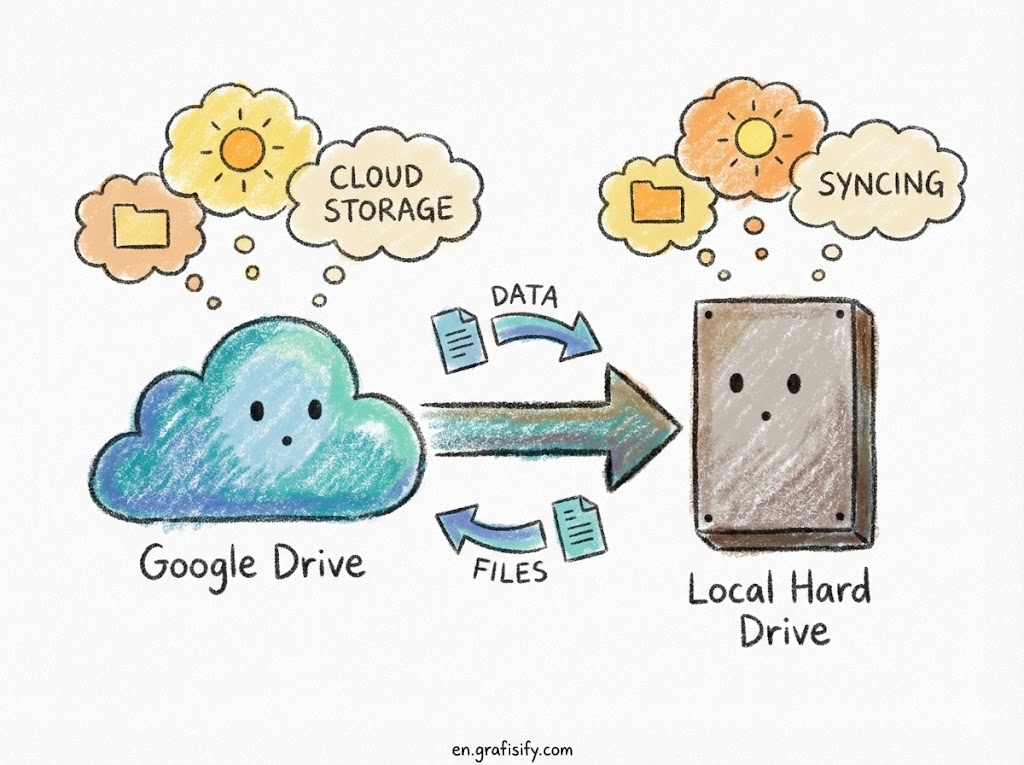
In speed tests, OneDrive often utilizes “block-level copying” for Office files (though this varies for other file types), meaning it only uploads the parts of a file that changed, rather than the whole file. This results in incredibly fast syncs for documents. Its “Files On-Demand” feature is also excellent for saving local hard drive space.
iCloud is optimized for battery life and system stability on Apple devices, sometimes at the cost of raw speed. It works in the background, ensuring your phone doesn’t overheat, but large file uploads can occasionally feel throttled compared to competitors.
Google Drive’s desktop client is reliable but can be resource-heavy. Syncing is generally fast, but users with massive libraries (100,000+ files) often report the Google Drive desktop app becoming sluggish compared to OneDrive’s deeper OS-level integration.
6. User Interface and Ease of Use
Google Drive’s interface is clean, search-centric, and familiar. Using Google’s powerful search algorithms, finding a file from three years ago based on a keyword inside a PDF is unmatched. It prioritizes “Recent” files and AI-suggested documents, which speeds up navigation.
OneDrive mimics the traditional Windows File Explorer structure. For users who prefer a classic folder tree and traditional file management, OneDrive feels the most comfortable. It doesn’t try to reinvent the wheel; it just puts your folders in the cloud.
iCloud Drive is often criticized for its opacity. On an iPhone, it’s just “there.” The “Files” app has improved, giving users more control, but it still lacks the granular visual feedback (like clear sync status icons or detailed version history) that power users crave.
7. File Versioning and Recovery
Disasters happen, and a good cloud service acts as a time machine. OneDrive offers excellent protection against ransomware; if your files get corrupted, you can roll back your entire OneDrive to a previous state from up to 30 days ago. This “Rewind” feature is a lifesaver.
Google Drive tracks version history on individual files (Docs, Sheets, etc.) indefinitely (or until space runs out), and keeps deleted items in the trash for 30 days. It is very easy to right-click a file and “Manage Versions” to see who changed what.
iCloud allows you to restore deleted files for 30 days via the web interface settings, but it is less intuitive. Accessing older versions of a specific non-iWork file can be cumbersome compared to the straightforward right-click history menus found in Drive and OneDrive.
Practical Tips: Building a Hybrid Cloud Workflow
You don’t have to pledge loyalty to just one flag. Many savvy users employ a hybrid strategy to maximize the benefits found in this cloud storage comparison. For instance, use Google Drive for all your active work-in-progress documents and team collaboration to leverage the superior Google Docs suite.
Simultaneously, utilize OneDrive or iCloud for your “cold storage” or device backups. If you are a Windows user, enable OneDrive’s “PC Folder Backup” to automatically secure your Desktop, Documents, and Pictures folders. For crucial security, consider following the 3-2-1 backup rule recommended by cybersecurity experts, ensuring at least one copy of your data is offline or on a completely different service.
Pros & Cons: The Cloud Landscape
✅ The Good
- Google Drive: Unbeatable collaboration tools and the best free storage tier (15GB).
- OneDrive: Superior value with Office 365 bundled and deep Windows integration.
- iCloud: Effortless, “it just works” backups for iPhone and Mac users.
❌ The Bad
- Privacy Concerns: Tech giants like Google scan files, raising privacy questions unlike zero-knowledge providers.
- Ecosystem Lock-in: iCloud makes it difficult to leave the Apple ecosystem once your data is there.
- Upload Speeds: Syncing large media files can be slower on these services compared to specialized tools like Dropbox.
Final Thoughts
In this cloud storage comparison, the “best” service is entirely dependent on your hardware. If you live in a browser and use Android, Google Drive is the winner. If you work in a corporate environment with Windows, OneDrive is unbeatable. If you strictly use Apple devices, iCloud is mandatory for device backups but should be supplemented with Drive or OneDrive for file sharing.
Don’t wait for a hard drive crash to decide. Audit your digital life today, pick the ecosystem that fits your workflow, and secure your files in the cloud.
Read our related guide on setting up 2FA for your cloud accounts.
Tagged with:
cloud securitycloud storagedata backupdigital workflowfile sharingGoogle DriveiCloudOneDriveproductivity toolstech comparison
Irfan is a Creative Tech Strategist and the founder of Grafisify. He spends his days testing the latest AI design tools and breaking down complex tech into actionable guides for creators. When he’s not writing, he’s experimenting with generative art or optimizing digital workflows.




 Artificial Intelligent
 Design & Creative
 Freelance
 Gadgets & Gear
 Insights
 Laptop
 Reviews
 Smartphone
 Tech Guides
 Vibe Coding