7 Essential Home Office Ergonomics Tips to Eliminate Back Pain
Quick Summary: Ignoring your workspace setup is a one-way ticket to chronic back issues. This guide breaks down the essential adjustments—from chair height to monitor placement—that instantly relieve spinal pressure. By implementing these seven changes, you can transform your productivity and physical health overnight.
What is Home Office Ergonomics?
Home office ergonomics is the science of designing your workspace to fit your body’s capabilities and limitations, rather than forcing your body to adapt to the furniture. The goal is to maximize efficiency and productivity while reducing physical discomfort, fatigue, and the risk of musculoskeletal disorders.
7 Proven Steps to a Pain-Free Workspace
We’ve all been there—slouched over a laptop on the dining table, wondering why our lower back feels like it’s aging in dog years. It’s time to fix that. Here are seven actionable steps to perfect your home office ergonomics.
1. Anchor Your Lower Back
The cornerstone of any healthy setup is lumbar support. Your spine has a natural inward curve, and sitting for prolonged periods without support tends to flatten this curve against the seatback, leading to strain. If you don’t have a fancy ergonomic chair, you don’t need to panic; a small pillow or a rolled-up towel placed at the small of your back works wonders.
This simple adjustment maintains the natural alignment of your spine. When your lower back is supported, your upper back naturally straightens, preventing that dreaded “slump” that compresses your discs. Think of your chair as the foundation of your house; if it’s shaky, the roof (your neck and head) is going to suffer.
2. Level Your Eyes with the Top of the Monitor
Your neck shouldn’t be doing gymnastics while you check emails. One of the most common mistakes in home office ergonomics is placing the monitor too low, forcing the head to tilt downward. This “tech neck” posture adds pounds of pressure to the cervical spine. The top third of your monitor screen should be at or slightly below eye level.
If you use a laptop, this is a non-negotiable: get a laptop stand or stack up some old textbooks. For those using external monitors, ensure they are roughly an arm’s length away. This positioning reduces eye strain and prevents you from jutting your chin forward to see small text, saving your neck from unnecessary tension.

3. The 90-Degree Elbow Rule
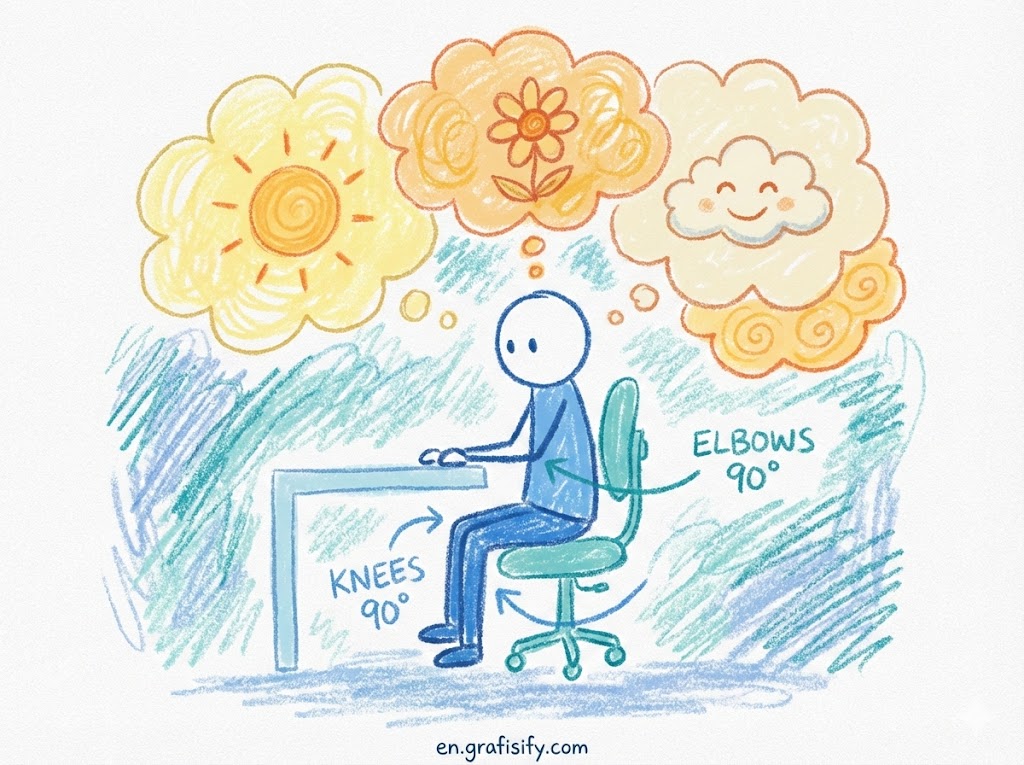
Your keyboard and mouse placement dictates your shoulder health. Ideally, your keyboard should be positioned so that your elbows are bent at a 90-degree angle, with your forearms parallel to the floor. If your desk is too high, you’ll find yourself shrugging your shoulders to reach the keys, which creates tension in the trapezius muscles.
If your desk isn’t adjustable, raise your chair height until your arms are in the correct position and use a footrest to support your legs. This neutral position allows your shoulders to relax and stay down, rather than creeping up toward your ears as the day goes on. For a deep dive into workplace positioning, the OSHA Computer Workstations eTool offers fantastic technical guidance.
4. Keep Your Feet Flat on the Ground
Dangling feet are a silent killer of good posture. When your feet don’t touch the ground firmly, your body naturally shifts forward, pulling your spine out of alignment and cutting off circulation under your thighs. Your feet should be flat on the floor, with your knees bent at a 90-degree angle.

If you raised your chair to satisfy the elbow rule and now your feet are hovering, you need a footrest. It doesn’t have to be an expensive ergonomic device; a sturdy box or a ream of paper can suffice. Stability starts from the ground up, and planting your feet firmly gives your lower back the base it needs to stay upright.
5. Master the Mouse Placement
Reaching too far for your mouse forces your shoulder to rotate outwardly and compromises your posture. This “reaching” motion puts strain on the rotator cuff and can lead to upper back pain on one side. Your mouse should be right next to your keyboard, easy to reach without fully extending your arm.
Consider the size of your mouse as well. It should fit your hand comfortably. If you find your wrist hurting, look into a vertical mouse or a trackball, which can keep your forearm in a more natural “handshake” position. Small micro-movements done incorrectly thousands of times a day are often the culprit behind Repetitive Strain Injury (RSI).

6. The 20-20-20 Rule for Eye Strain
While this article focuses on your back, your eyes play a huge role in your posture. When your eyes get tired, you lean in closer to the screen, breaking your ergonomic stance. Adhere to the 20-20-20 rule: every 20 minutes, look at something 20 feet away for at least 20 seconds. This resets your focal length and gives your ciliary muscles a break.
Good home office ergonomics also involves managing glare. Ensure your monitor isn’t reflecting a window directly behind you. Eye fatigue leads to squinting and leaning, which leads to bad posture. By protecting your vision, you inadvertently protect your spine.
7. Incorporate Movement and Standing
The best posture is your *next* posture. Even the perfect setup becomes harmful if you stay static for 8 hours. Alternating between sitting and standing is crucial. If you don’t have a sit-stand desk, simply setting a timer to stand up and stretch every hour makes a massive difference.
Movement increases blood flow and nutrient delivery to the spinal discs. Simple stretches, like reaching for the sky or doing gentle torso twists, can reset your musculoskeletal system. According to the Mayo Clinic, breaking up sedentary time is vital for long-term health, helping to mitigate the risks associated with “sitting disease.”
Common Mistakes to Avoid
Even with the best intentions, it’s easy to fall into bad habits. One major pitfall is working from the couch. While comfortable for five minutes, the soft cushions offer zero lumbar support, causing your spine to curve into a ‘C’ shape. Avoid the “bed office” at all costs; it dissociates rest from work and wrecks your sleep hygiene.
Another tip is to watch your hydration. It sounds unrelated, but staying hydrated keeps your spinal discs lubricated. Plus, drinking water forces you to get up and walk to the kitchen and bathroom, adding natural movement breaks to your day. Improving your home office ergonomics is a holistic process that involves gear, habit, and health.
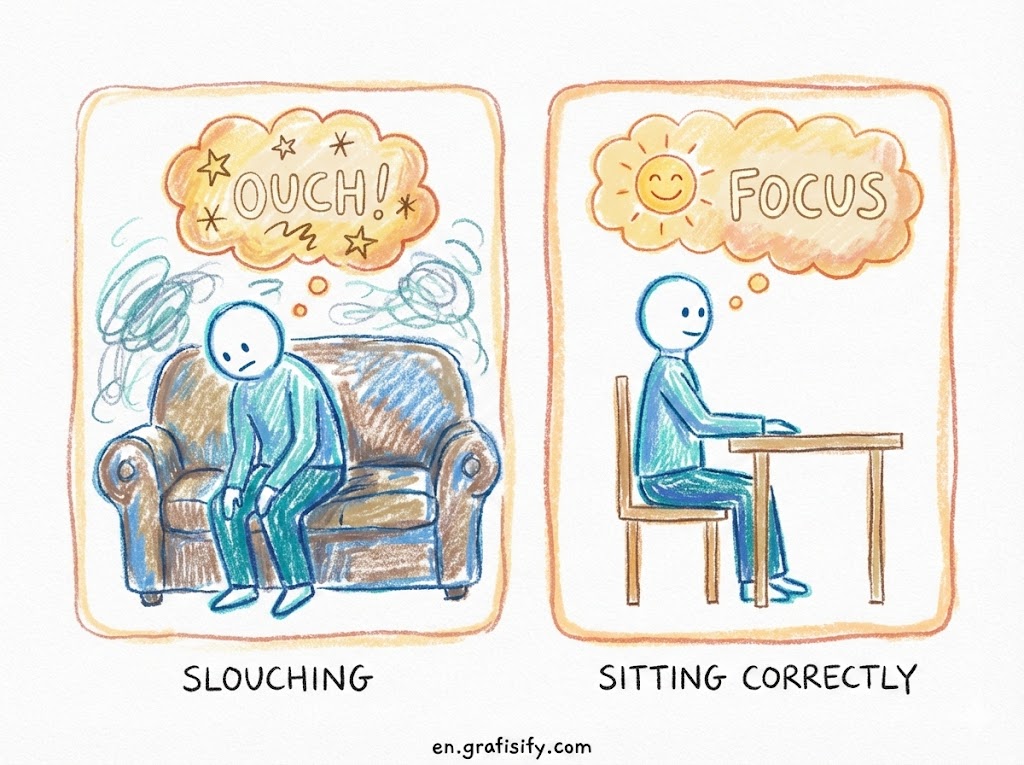
Pros & Cons of a Dedicated Setup
✅ The Good
- Significantly reduces chronic back and neck pain.
- Boosts focus and productivity by reducing physical distractions.
- Prevents long-term health issues like RSI and spinal misalignment.
❌ The Bad
- Quality ergonomic furniture (chairs, standing desks) can be expensive.
- Requires dedicated space, which is difficult in small apartments.
- Takes time and discipline to adjust to new, healthy postures.
Final Thoughts
Transforming your workspace isn’t just about buying a new chair; it’s about respecting your body’s mechanics. By implementing these home office ergonomics strategies, you are investing in your long-term health and career longevity. Don’t wait until the pain becomes chronic—make these adjustments today and feel the difference instantly.
Start with one change, like raising your monitor or fixing your chair height, and build from there. Your back will thank you. Read our related guide on choosing the best budget-friendly office chairs to get started.
Tagged with:
back paindesk tipsergonomicshealthoffice setuppostureProductivityRemote Workwellnesswork from home
Irfan is a Creative Tech Strategist and the founder of Grafisify. He spends his days testing the latest AI design tools and breaking down complex tech into actionable guides for creators. When he’s not writing, he’s experimenting with generative art or optimizing digital workflows.


 Artificial Intelligent
 Design & Creative
 Freelance
 Gadgets & Gear
 Insights
 Laptop
 Reviews
 Smartphone
 Tech Guides
 Vibe Coding